Promotions and promo codes
How to create a promotion with a promo code, set its period and limits, pause it, and what the client sees when entering the code while booking.

A promotion in Appointa is a discount tied to a promo code — for example, the code QUIET20 for 20% off appointments during a quieter week. You share the code yourself, wherever you like; the client enters it in the last step of online booking and the discount is applied automatically. On this page you'll learn how to create a promotion, set its validity period and limits, manage its statuses, and understand how a promotion works together with the loyalty program and gift vouchers.
Before you start
- Premium plan. Promotions are part of the Premium plan. On the Starter and Pro plans, Promotions doesn't appear in the menu; if you open the page anyway, instead of the list you see "Promotions is part of the Premium plan." and an Upgrade to Premium button. For a comparison of the plans, see Starter, Pro and Premium plans.
- Role. Promotions can be viewed and edited by the owner and managers. Staff members don't see this menu item.
- Visible service price. A code can only be applied to a service whose price is shown publicly. For services with a hidden price, the code field doesn't appear when booking — see Price and occupancy display.
How a promotion works
- A promotion doesn't advertise itself. A client who doesn't have the code sees neither the promotion nor the discount. You decide who gets the code and where you share it — a social media post, a flyer, your shop window, a message to your regular clients.
- The code is entered during online booking — on your public booking page and in the Appointa app for clients, in the Have a code? field.
- The discount is calculated from the service price. The client immediately sees a breakdown: price, discount and total. The final price never goes below €0.
- The price is locked on the appointment. The discount and the final price are saved to the appointment at the moment of booking; later changes to the promotion don't affect appointments that are already booked.
- Only an active promotion works. The system doesn't recognise the code of a promotion with the draft or paused status.
Promotions list
In the sidebar, open Promotions. At the top are the filters All, Active, Drafts, Paused and Expired; the number next to each filter shows how many promotions have that status. Below the table is the How promotions work card with a short reminder.
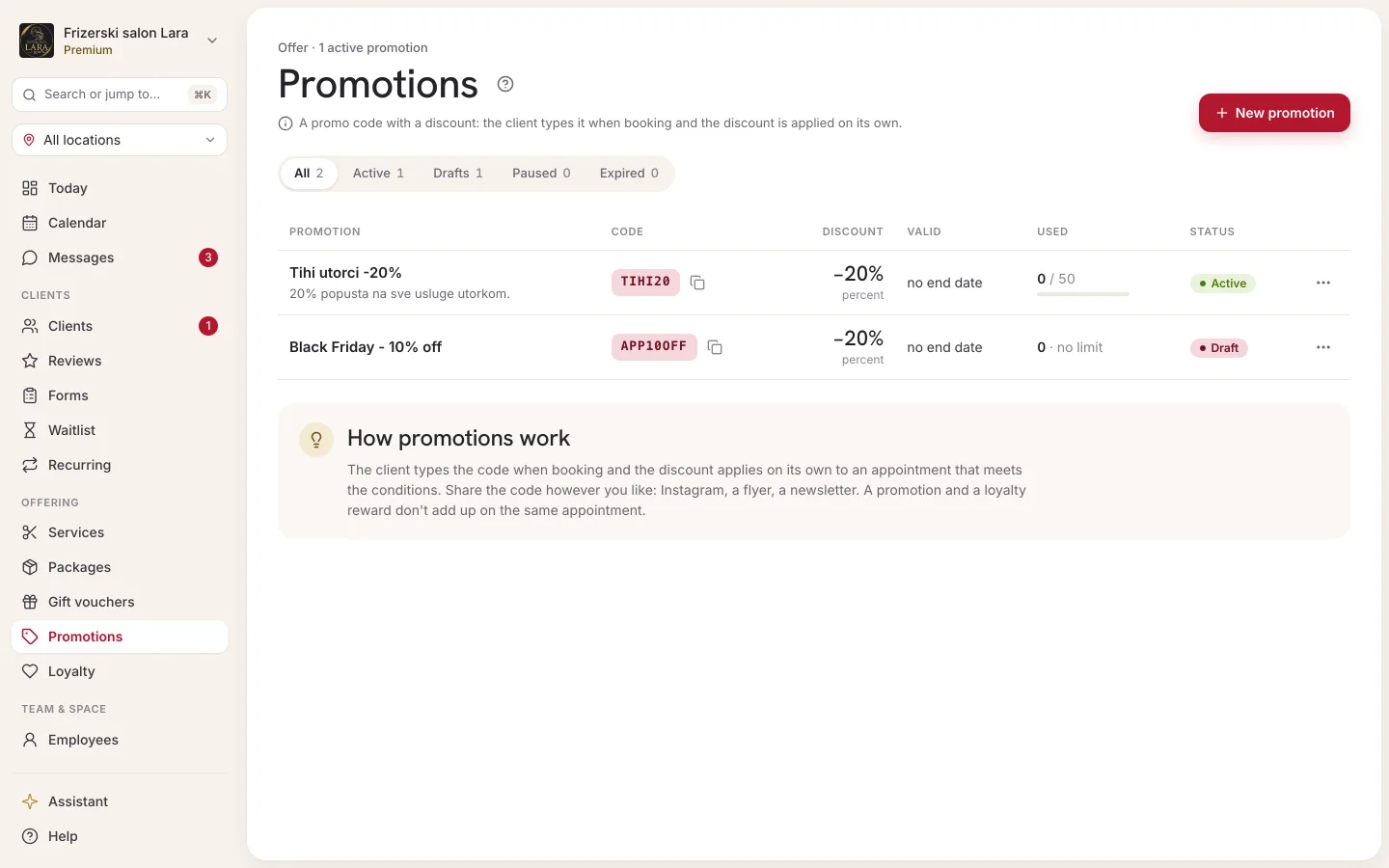
| Column | What it shows |
|---|---|
| Name | The name of the promotion, with the promo code and the first line of the description below it. |
| Discount | The discount amount (e.g. -20% or -€5) and its type: percent or fixed amount. |
| Distribution | How the promotion reaches clients. Promotions you create are labelled code_only — they work only through the code. |
| Valid | The validity period (day and month, from – to), or always if no dates are set. |
| Status | active, draft, paused or expired. |
| Actions | Details (eye icon), Pause / Activate and Delete (bin icon). |
Creating a new promotion
- In the sidebar, open Promotions and click New promotion.
- Enter a Name (internal), e.g. "Quiet Tuesdays -20%".
- Optionally, enter a Description (visible to client) — a short description of the offer.
- In the Discount type field, choose percent or fixed amount.
- Enter the Value (the rules are in the table below).
- Enter a Promo code, e.g.
QUIET20. - Optionally, set Valid from and Valid until.
- Optionally, set Max total uses and Max per client.
- In the Status field, choose active if the code should work right away. If you're only preparing the promotion, leave it as draft.
- Click Create promotion. A "Saved" notification appears and you're taken back to the list.
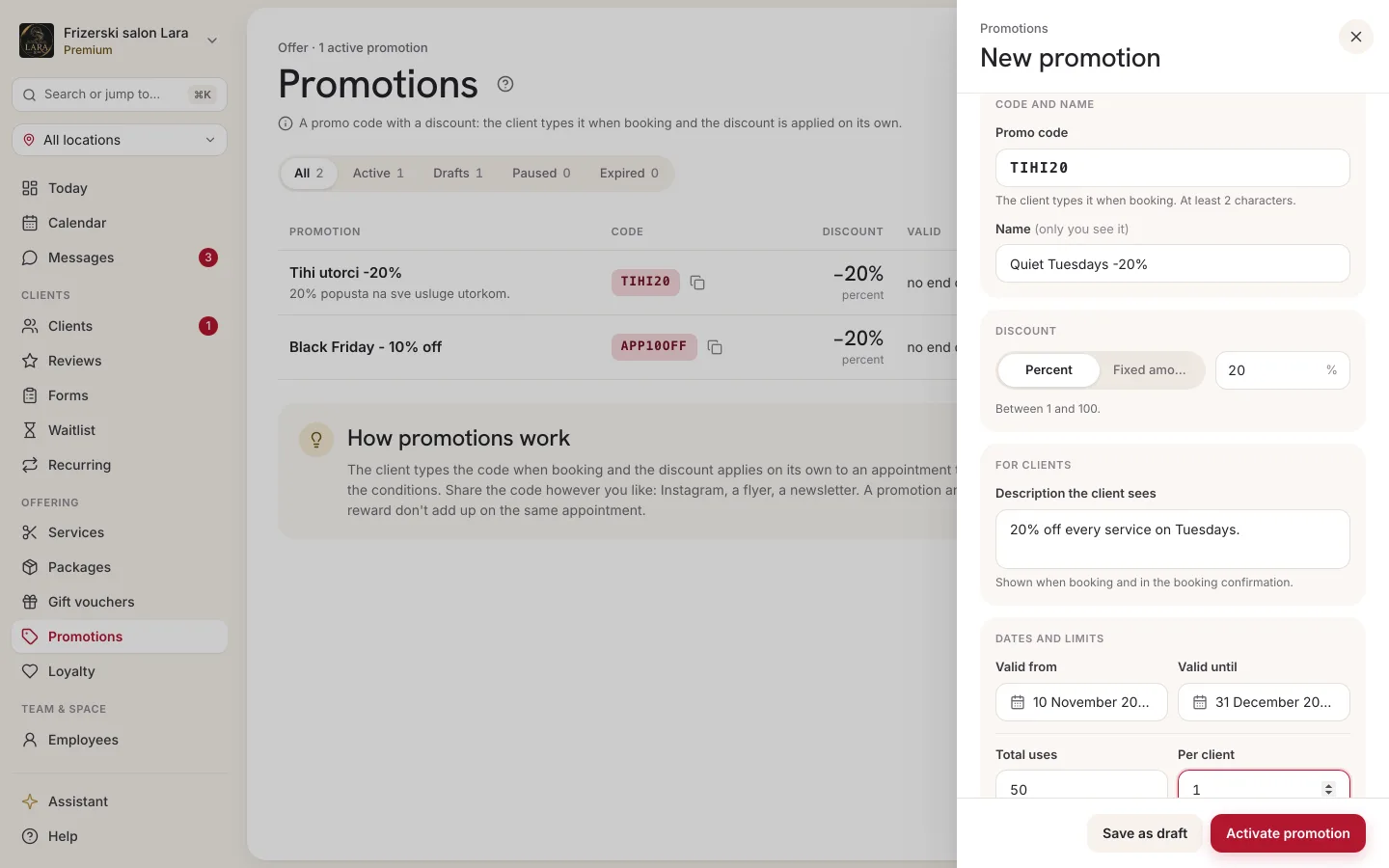
Form fields
| Field | What it means | Notes |
|---|---|---|
| Name (internal) | The promotion's name in your list. | Required, up to 200 characters. |
| Description (visible to client) | A short description of the offer. | Optional. |
| Discount type | percent or fixed amount. | Percent by default. |
| Value | The size of the discount. | For a percentage, a whole number from 1 to 100. For a fixed amount, you enter the amount in cents: 500 = €5. |
| Promo code | The code the client enters. | Required, at least 2 and at most 64 characters. Letters are converted to uppercase automatically. |
| Valid from / Valid until | The validity period. | Optional. Without dates, the promotion is valid always. |
| Max total uses | How many times the code can be used in total, by all clients together. | Leave blank for unlimited. |
| Max per client | How many times the same client may use the code. | 1 by default. |
| Status | draft, active or paused. | A new promotion is a draft by default. |
If something isn't right, the form shows a message and doesn't save the promotion:
| Message | What to do |
|---|---|
| "Value must be greater than 0." | Enter a positive number. |
| "Percent must be between 1 and 100." | Correct the percentage. |
| "A promo code is required for code_only distribution." | Enter a code with at least 2 characters. |
| "That promo code already exists for this business." | Choose a different code (see the rules below). You also see this message when you change an existing promotion's code to one that's taken. |
| "Saving failed. Please try again." | Check that the Valid until date isn't before the Valid from date, then save again. |
Promo code rules
- Unique within your business. The code must not be the same as the code of any other promotion of yours — including deleted ones — or the code of an active gift voucher. Promo codes and voucher codes are entered in the same field, so they have to be different.
- Uppercase. The code is saved in uppercase and the system compares it literally. When you share it, write it in uppercase so the client enters it exactly that way.
- Short and memorable. A code like
AUTUMN15is easier to copy from a flyer thanOFFER-2026-OCTOBER.
Period and limits
Validity period
The Valid from and Valid until dates refer to the appointment date, not the day the client books. If a promotion is valid from 1 to 15 November, a client who books on 10 November for an appointment on 20 November gets the message "This promo code isn't valid for the selected date.", while a client who books in October for an appointment on 5 November gets the discount — as long as the promotion already has the active status at that time.
A promotion whose Valid until date has passed doesn't switch to the expired status on its own — the list still shows active, but the code no longer works for later appointments. When the offer ends, pause or delete the promotion to keep your list tidy.
Usage limits
- Max total uses — once the code has been used the set number of times, nobody can use it any more. With this limit, you know the maximum possible cost of the offer in advance.
- Max per client — a client who has already used the code the permitted number of times can't use it again. This limit is counted per client's Appointa account, so it applies to bookings made by signed-in clients. For bookings made without signing in, only the total limit applies.
- The limits are checked definitively when the booking is confirmed. In the Appointa app, the client gets the message about a used-up code as soon as they apply it. On the website, a used-up code is still accepted when applied, but confirming the booking shows "Booking failed. Please try again." — the client then needs to remove the code and book without it.
- Every use is recorded with the appointment.
- A cancelled appointment doesn't use up a redemption: when an appointment with a promotion is cancelled, the use no longer counts toward the limits, and a targeted client can use the promotion again.
How the client uses the code
- On your public booking page, the client chooses a service, staff member, date and time.
- In the last step, they enter the code in the Have a code? field (the field shows "Promo or gift voucher") and click Apply.
- A green label appears with the promotion name and the discount amount, and below it a breakdown: Price (crossed out), Discount and Total.
- After confirming, the confirmation screen shows "Promo: you save …" next to the price.
The client can remove the code by clicking × next to the green label. In the Appointa app the process is the same — the Have a code? field is in the booking confirmation step.
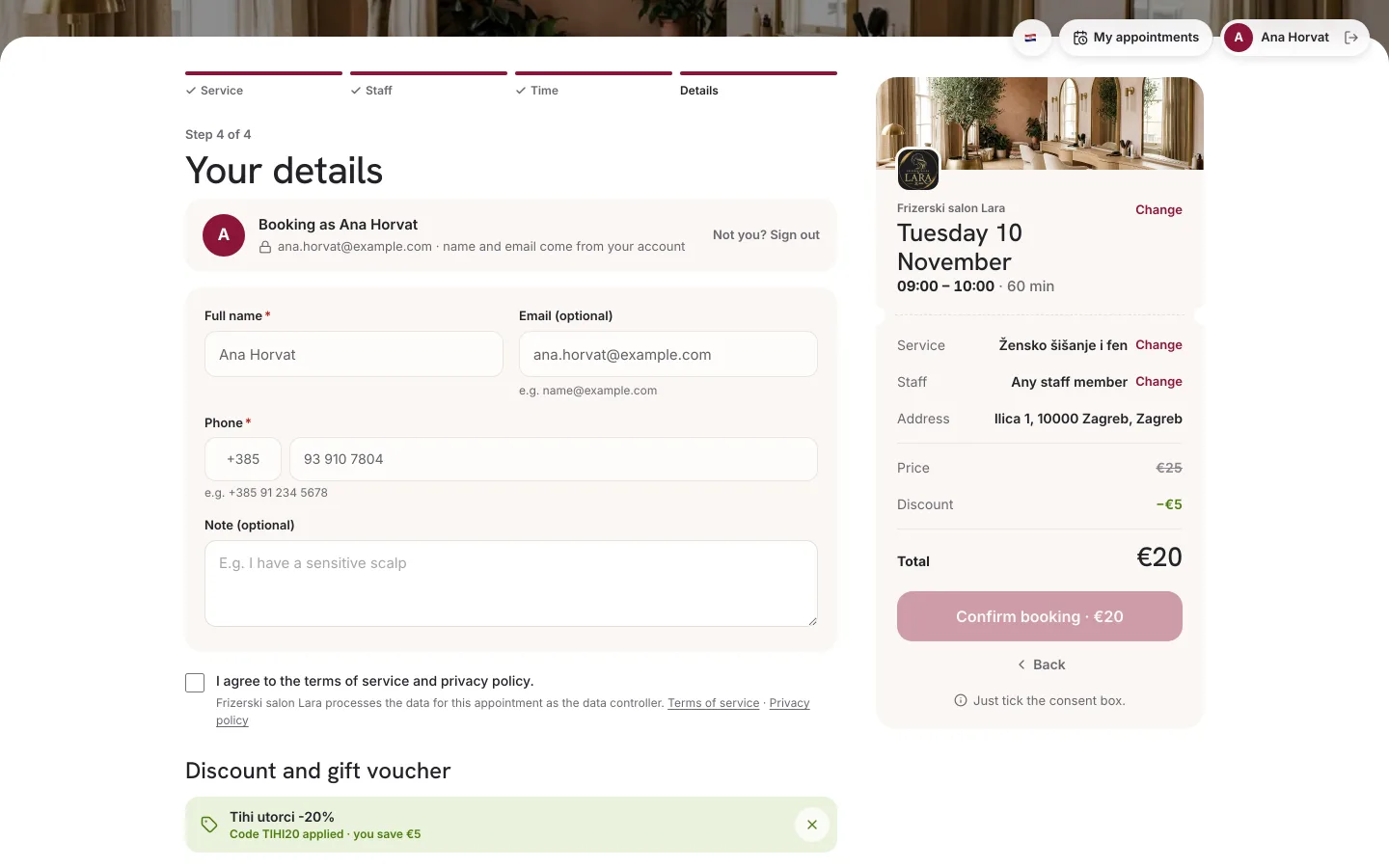
Messages the client may see:
| Message | Reason |
|---|---|
| "Code not found." | The code doesn't exist, was entered differently from how it was saved, or the promotion isn't active (draft, paused, deleted). |
| "This promo code isn't valid for the selected date." | The appointment date is outside the validity period. |
| "This promo code has been fully redeemed." (in the app) | The total usage limit has been reached. |
| "You've already used this promo code." (in the app) | The client has used up their per-client limit. |
Pausing, editing and deleting
| Action | How | What happens |
|---|---|---|
| Pause | The pause icon in the Actions column. | The status changes to paused and the code stops working immediately. Appointments that are already booked keep their discount. |
| Activate | The play icon on a paused promotion. | The status goes back to active and the code works again. |
| Details | The eye icon. | Opens the Edit promotion form. Change what you need and click Save. The changes apply to new bookings. |
| Delete | The bin icon, then Yes, delete in the confirmation. | The promotion switches to the expired status and stays in the list (the Expired filter) so that your history stays accurate. You bring it back in Details: choose active in the Status field and save. |
Before deleting, the app asks you to confirm: "Delete promotion?" — "The promotion moves to Expired and its code can no longer be redeemed. Existing bookings using it are unchanged. You can bring it back in Details by setting its status to active."
Promotions with the expired status have no pause or delete buttons.
Promotions, loyalty and gift vouchers
- Promotion or loyalty, not both. On a single appointment, the client can use either a promo code or a reward from the loyalty program — the discounts don't stack. When the client enters a promo code, the loyalty reward isn't applied to that appointment, and their stamps are kept for next time.
- Promo code or gift voucher. Both kinds of code are entered in the same Have a code? field, and the system recognises which one it is. The client uses one code per booking. Read more about vouchers on the Gift vouchers page.
- Package. When a client in the app pays for an appointment with a visit from a package, a promo code can't be applied to that appointment.
How the final price is worked out from all of this, step by step, is explained on the Price calculation page.
Tracking results
Appointa records every use of a code with the appointment: which promotion was used, how big the discount was and what the final price was. The usage limits are counted from these records.
- You can see the discounted price of an individual appointment on the client's profile, in the Appointment history section.
- Revenue in Analytics is calculated from final prices, i.e. after discounts.
- The promotions list doesn't show how many times each code has been used. That's why the Max total uses limit is the simplest way to set the reach and cost of an offer in advance.
Frequently asked questions
Why isn't the code working for a client?
Check that the promotion has the active status, that the appointment date is within the validity period (and before the Valid until date), that the limits haven't been used up, and that the code was entered exactly, in uppercase. Also check that the service has a publicly displayed price.
Can I limit a promotion to certain services only?
No — a promotion applies to all services with a publicly displayed price. So choose a discount that pays off on every service; if your prices vary a lot, a fixed amount is often a safer choice than a percentage.
I deleted a promotion by mistake. What now?
The promotion hasn't disappeared — it has switched to the expired status and you can find it under the Expired filter. For a new offer, create a new promotion with a different code.
I changed the discount, but older appointments still have the old price. Is that a bug?
No. The price is locked on the appointment at the moment of booking; changes to a promotion apply to new bookings.