Messages
How to follow conversations with clients in Messages, reply, read delivery statuses and mute a conversation, and who can message a client.
 Video guidePoruke s klijentima — svi razgovori na jednom mjestuWatch on YouTube · The video is in Croatian.
Messages keeps all your conversations with clients in one place, one conversation per client with its full history. Here you'll learn how the screen is laid out and how to reply to a client. You'll also find out what the marks next to sent messages mean and why the Send button is sometimes unavailable.
Before you start
- Messages are available on every plan, and every team member sees them: the owner, managers and staff. Everyone sees the same business conversations.
- Clients write to you from the Appointa mobile app. Your reply reaches them as a push notification, so the client must have the app installed and be signed in to it. The details are in How a message reaches the client.
- You can't write to clients who don't have the app in Messages. They get automatic appointment notifications by email or SMS (see Reminders and notifications).
Where to find messages
- In the sidebar, choose Messages. The number next to the item shows how many unread messages you have. Messages from muted conversations aren't included in that number.
- On the dashboard (Dashboard in the menu), the Recent messages card shows the five most recent conversations. Unread ones are marked new. Click a conversation to open it directly; All messages → opens the full list. If you also have an employee profile, you get your personal dashboard, which doesn't have this card, so you open messages from the menu.
- You can also open a conversation with a particular client from the address book: on the client profile, click Send message, or in the client list, click the Message icon in that client's row. If there's no conversation yet, an empty one opens and you can start writing right away.
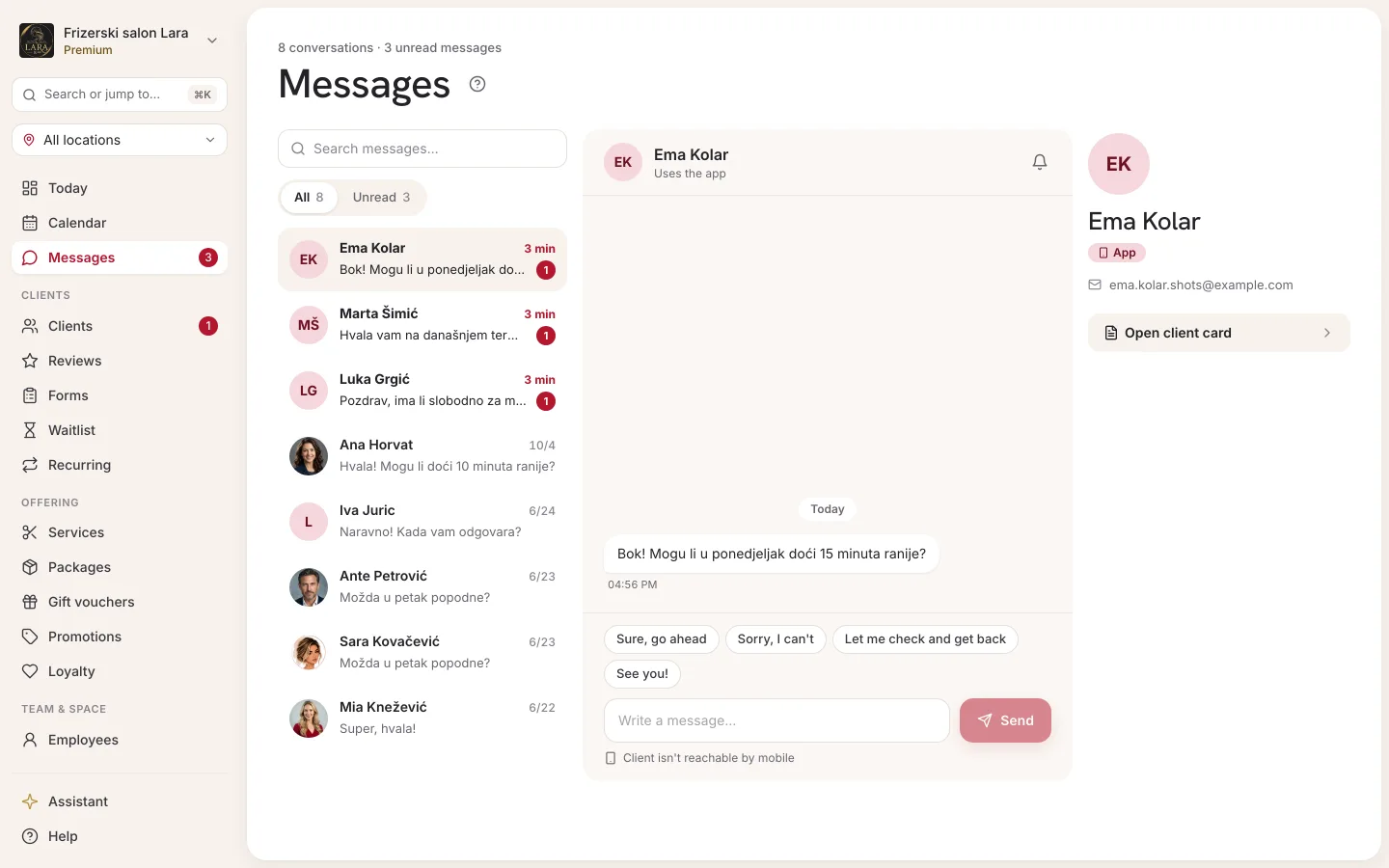
Screen layout
The screen has two parts:
| Part | What it contains |
|---|---|
| Left: list of conversations | The search box, the All and Unread filters and all conversations, newest at the top |
| Right: the open conversation | A header with the client's name, messages grouped by day, quick replies and the message box |
Until you select a conversation, the right side shows Select a conversation and a hint to click a client on the left.
The list of conversations
Above the list are the search box and two filters:
- Search messages...: searches by client name and by the text of the last message in the conversation.
- All · N: all conversations, where N is how many there are.
- Unread · N: only conversations with at least one unread message, where N is the number of such conversations.
Each row in the list shows:
| Element | Meaning |
|---|---|
| Circle with initials | The initials of the name. The same person always has the same colour. |
| Name | The client's name from the address book. If no name has been entered, the email is shown, and if there's no email either, it says Anonymous client. |
| Time | How long ago the last message arrived |
| Preview | The start of the last message, or No messages yet. for a conversation that has only just been opened |
| Number in a circle | The number of unread messages. The name and preview are then shown in bold. |
| Crossed-out speaker icon | The conversation is muted. |
| Anonymous | A conversation that isn't linked to any client in the address book (see Conversations marked Anonymous) |
Opening a conversation
- Click a conversation in the list. The selected row gets a coloured bar on its left.
- The conversation is marked as read and the unread count disappears. This applies only to you: for your colleagues, the same conversation stays unread until they open it themselves. Messages your colleagues sent to the client also count as unread for you.
- The header shows the client's name and the contact type (see the table below).
- The Profile button opens the client profile. It's shown only for clients in the address book. The bell icon next to it is for muting the conversation.
| Label in the header | Meaning |
|---|---|
| App user | The client has an Appointa user account. |
| Web client | A client in your address book who has no Appointa account, e.g. entered by hand or imported. |
| Anonymous | A conversation with no linked client from the address book |
Messages run from oldest to newest, and each day has its own divider. The client's messages are on the left, in white bubbles. On the right, in coloured bubbles, are your messages and your colleagues' messages. The client receives all of them in the name of the business.
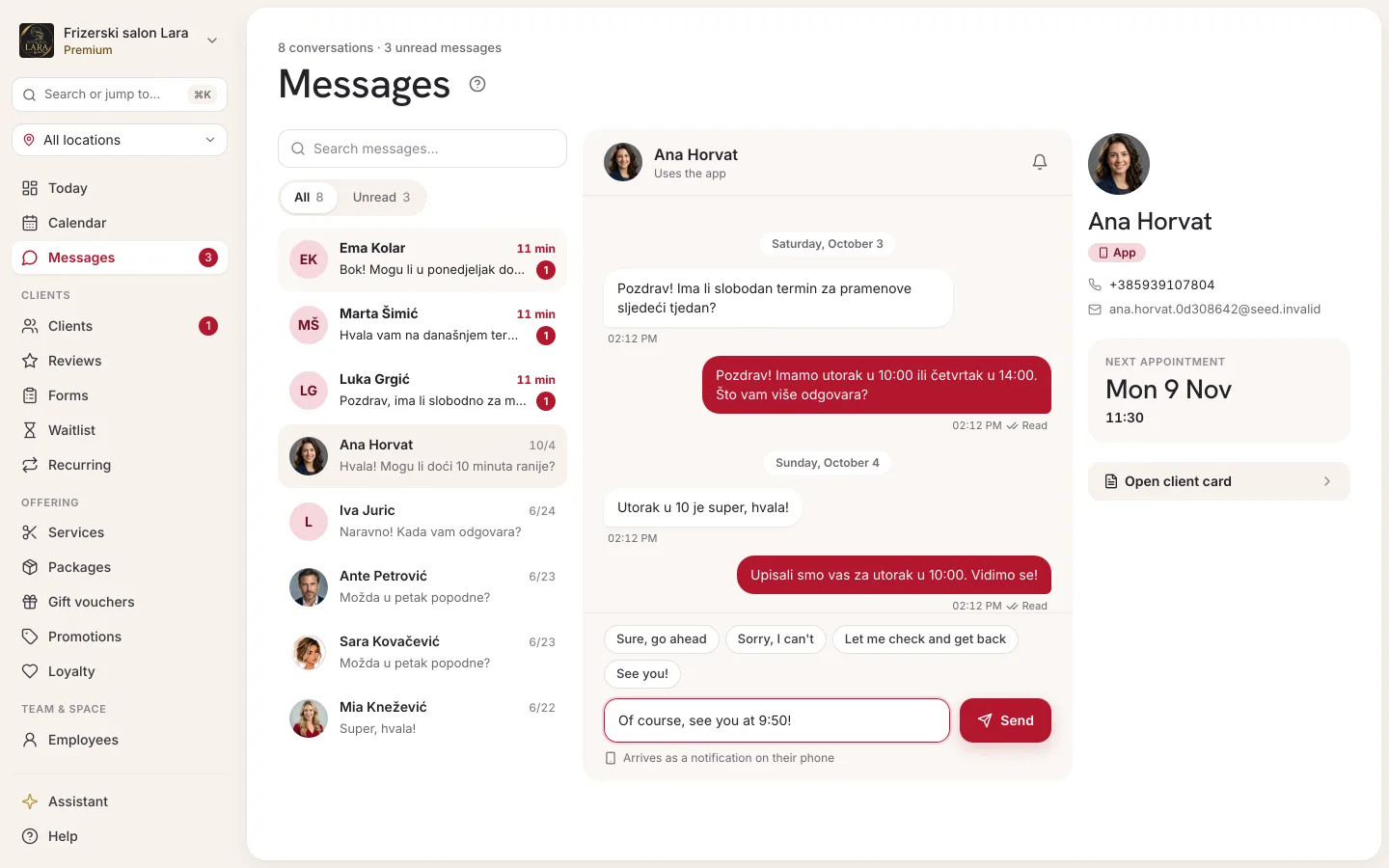
Replying to a client
- Open the conversation.
- Type your text in the Write a message... box, or click one of the quick replies above it. The chosen text is placed in the box, so you can edit it before sending.
- Click Send or press Enter.
The message appears in the conversation straight away, and the conversation moves to the top of the list. A single message can be at most 4,000 characters long. If sending fails, the message disappears from the conversation, the text is put back in the box and a red bar appears below the conversation. In that case, send the message again.
The quick replies on offer:
| Quick reply | When to use it |
|---|---|
| Sure, go ahead 👍 | To agree to the client's suggestion |
| Sorry, I can't | To decline politely |
| Let me check and get back | When you need time to check the calendar |
| See you! 💛 | A short confirmation that you're expecting them |
How a message reaches the client
Your reply reaches the client only as a push notification in the Appointa app. The notification title is your business name, and the text is the start of the message. When the client taps the notification, the conversation opens. If they already have the conversation open, the message appears immediately. Conversation messages are not sent by email or SMS.
To the left of the message box is a phone icon (Mobile), which marks the delivery channel. If the client doesn't have the app signed in on any device:
- the phone icon is greyed out,
- the Send button is disabled, and when you hover over it, it says Client isn't reachable by mobile.
This happens most often with conversations marked Web client or Anonymous. It also happens with an App user who has signed out of the app or only has an account on the web.
Statuses of a sent message
A status mark is shown next to the time of each of your messages. Hover over the mark to see its name.
| Display | Status | Meaning |
|---|---|---|
| Bell and clock | Sent | The message has been saved and is waiting to be delivered. |
| Bell and grey double tick | Delivered | The push reached at least one of the client's devices. |
| Bell and red exclamation mark | Not delivered | The push didn't reach any device, e.g. because the client deleted the app or turned off notifications for Messages in it. |
| Blue double tick | Read | The push was delivered, and the client opened the conversation after that message. |
Statuses update live, without refreshing the page. A message with the Not delivered status also stays in the conversation. The client sees it the next time they open the conversation in the app, but it doesn't get the Read mark.
Muting a conversation
You can mute a conversation that doesn't need your attention:
- Open the conversation.
- In the header, click the bell icon (Mute).
When a conversation is muted:
- it shows a crossed-out speaker icon in the list instead of the unread count,
- it isn't counted as unread, neither in the list nor next to Messages in the menu, nor in the badge on the Appointa Pro app icon,
- you don't get push notifications in the Appointa Pro app for new messages in that conversation,
- new messages still arrive and the conversation moves to the top of the list,
- the history is kept.
To unmute, click the bell again (Unmute). Muting applies only to you and changes nothing for your colleagues.
Live messages
- A new message in the open conversation appears without refreshing the page.
- When a message arrives in another conversation or a client starts a new conversation, the list updates on its own (preview, time and unread count).
- The statuses of your messages, including Read, update live.
- After a short loss of connection, the list and the open conversation load whatever was missed on their own.
Who can start a conversation
- A client in the Appointa app. They can start a conversation with you directly in the app, even before their first booking. If that person isn't in your address book yet, Appointa adds them as a pending client, so you also see them under Client requests in Clients. You reply to them in Messages as usual.
- You. From the address book (Send message on the client profile or the Message icon in the list), you can open a conversation with any client. You can only write to them if they have the app, as described in How a message reaches the client.
A visitor to your public page who has no account can't write to you in Messages. The public page has no enquiry form, so such visitors get in touch by phone or email using the Contact section of the public page.
Conversations marked Anonymous
A conversation marked Anonymous isn't linked to any client in the address book. For such a conversation:
- there's no Profile button in the header,
- you can't reply to it in Messages (Send is disabled),
- the list shows the Anonymous label instead of an unread count.
If the message makes it clear who is writing, contact them by phone or email outside Appointa.
What the conversation looks like to the client
- In the Appointa app, the client has a Messages tab with one conversation for each business. Unread messages are marked with a number.
- They get your reply as a push with the business name in the title. If they've turned off the Messages category in the app (Profile → Notification settings), they don't get the push, but they see the message when they open the conversation. You then see the Not delivered status next to the message.
- “Read” ticks work both ways: the client sees when the business has read their message.
- The client can also mute the conversation with your business.
Read more about the client app on the App for clients page.
Team notifications about new messages
When a client sends a message, every team member who uses the Appointa Pro app gets a push notification. The title is the client's name, and the text is the start of their message. You don't get it for conversations you've muted. When you tap the notification, the conversation opens. Each person can turn these notifications on or off for themselves in Appointa Pro under Profile → Notifications → Client messages.
There are no pop-up or sound notifications on the web. You see new messages in Messages, next to the Messages item in the menu and on the dashboard.
Extras in the Appointa Pro app
In the Appointa Pro app, messages have a few options that the web doesn't:
- the Unanswered filter for conversations in which the client is waiting for a reply,
- Mark done for a conversation where the message doesn't need a reply,
- Hide for a conversation you don't want to see in the list.
A conversation you hide in the app also disappears from your list on the web. It reappears as soon as a new message arrives in it. The details are on the Appointa Pro page.
Frequently asked questions
Why can't I send a message to a client?
The client doesn't have the Appointa app signed in on any device, so the message would have no way of reaching them. The Send button is then disabled, and it says Client isn't reachable by mobile. Contact them by phone or email.
Can I send a client a message by SMS or email from Messages?
No. Conversation messages go only as a push to the Appointa app. SMS and email are used only for automatic appointment notifications.
A colleague has already replied, but the conversation still looks unread to me. Why?
Each team member has their own read status. The conversation becomes read for you only when you open it, and until then your colleague's reply also counts as an unread message for you.
Why doesn't a conversation show an unread count when a new message has arrived?
The conversation is muted (you'll see the crossed-out speaker icon), or you've already opened it.
I'm new to the team. Will I see the whole old history as unread?
No. Only messages that arrived after you were added to the team count as unread. You can still read the older history.
Can I delete a conversation?
Not on the web. In the Appointa Pro app you can hide a conversation, and it comes back to the list when a new message arrives in it.
How do I turn off push notifications about messages?
For one conversation, mute that conversation. For all conversations at once, turn them off in the Appointa Pro app under Profile → Notifications → Client messages.