Importing clients from Excel
Bring your existing client base over from a CSV or Excel (XLSX) file: template, column mapping, GDPR confirmation, report and undo.
 Video guidePrebaci se na Appointu — uvezi klijente iz Excela (s tipkom za natrag)Watch on YouTube · The video is in Croatian.
If you're switching from another app or keep your clients in Excel, you don't have to retype them one by one. An import brings over the whole list at once, in three steps in a side panel: uploading the file, checking the columns and confirming. On this page you'll learn how to prepare the file, how to read the import report and how to undo an import if something goes wrong.
Before you start
- Importing is available on all plans, including Starter.
- It's started by the Owner or a Manager. Staff don't see the Import button.
- You need a .csv or .xlsx (Excel) file. The older .xls format isn't supported, so save such a file as .xlsx in Excel.
- The file can be at most 5 MB and have at most 2000 rows of data.
Preparing the file
The safest way is to start from the template. In the import panel, click Download template (CSV): you'll get the appointa-klijenti-predlozak.csv file with all the supported columns and one example. Then just move your list into it.
File rules:
- The first row holds the column names. Appointa uses them to recognize what's what. The order of the columns doesn't matter.
- Only the first sheet of an Excel file is read.
- Empty rows are skipped. The row numbers in the report still match the rows you see in Excel.
- A CSV file can use a semicolon (
;) or a comma (,) as the separator. Croatian characters work in both UTF-8 and Windows-1250 encoding, which Excel uses on computers set up for Croatian.
Supported columns
| Field in Appointa | Column names Appointa recognizes on its own | Note |
|---|---|---|
| Full name | Ime, Prezime, Klijent, Name, Surname | Required. If you have separate columns for first name and surname, they're joined into one name in the order the columns appear in the file. |
| E-mail, Email, Mail | An invalid email isn't saved (see Report). | |
| Phone | Telefon, Mobitel, Broj telefona, Phone, Mobile | A Croatian number can start with a zero (091…) or with +385. Appointa saves it in international format. |
| Date of birth | Datum rođenja, Rođen, Birth | Format 01.01.1990, 1.1.1990 or 1990-01-01. Excel date cells work too. |
| Notes | Napomena, Bilješke, Notes | Ends up in the Notes field on the client profile. |
| Allergies | Alergije, Allergies | Ends up in the client chart and is shown as a red warning. |
Recognition works on part of the name and ignores upper and lower case, so names like “Broj mobitela” or “E-mail adresa” work too. Columns Appointa doesn't recognize (e.g. “Number of visits”) are skipped by default, and in step 2 you can map them manually to one of the fields.
Step 1: Uploading the file
- In the side menu, choose Clients.
- Click Import. The Import clients panel opens with the message “Import your existing clients from a CSV or Excel file.”
- Click the Choose a file (.csv or .xlsx) box and choose the file on your computer.
- While it says “Analyzing the file...”, Appointa is reading the file. Nothing is saved yet.
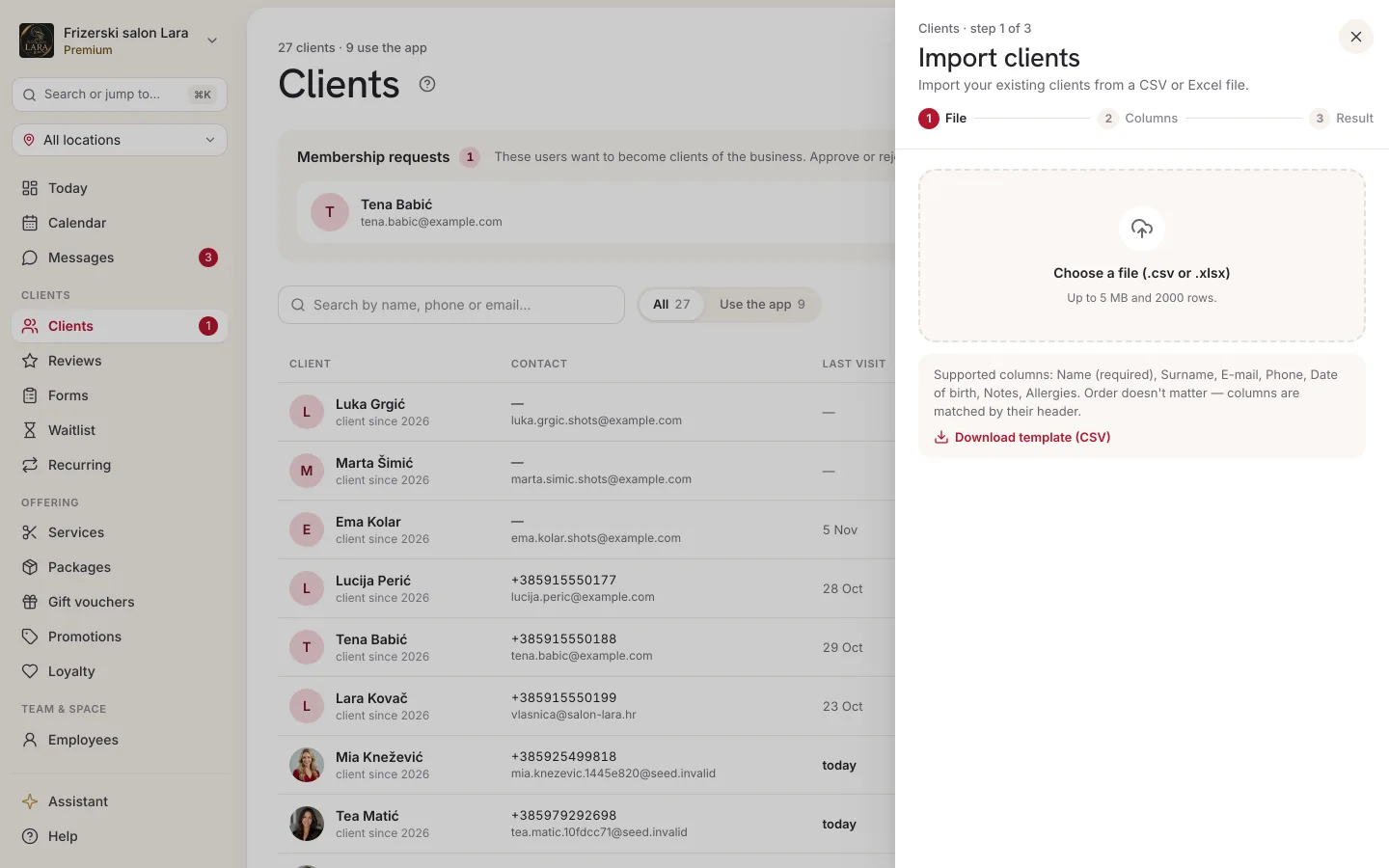
If the file doesn't go through, the message appears in the panel, and the panel stays on the first step so you can choose a different file right away.
Step 2: Mapping the columns
At the top you'll see the file name and the number of rows to import (e.g. “148 rows to import”). If Appointa already sees a problem at this point, a summary appears below, e.g. “2 rows without a name” or “3 duplicate emails”. These duplicates refer to rows within the file itself.
In the Map the columns section (“Check which column goes into which field. Unmapped columns are skipped.”), each column of your file has a drop-down menu next to it:
- Check that each column is mapped to the right field: Full name, Email, Phone, Notes, Date of birth or Allergies.
- For a column you don't want to import, choose — skip this column —.
- At least one column must be mapped to Full name.
Below is the Data preview: the first 20 rows of your file, exactly as Appointa sees them. If you notice here that, for example, the phone number ended up under notes, fix the mapping above.
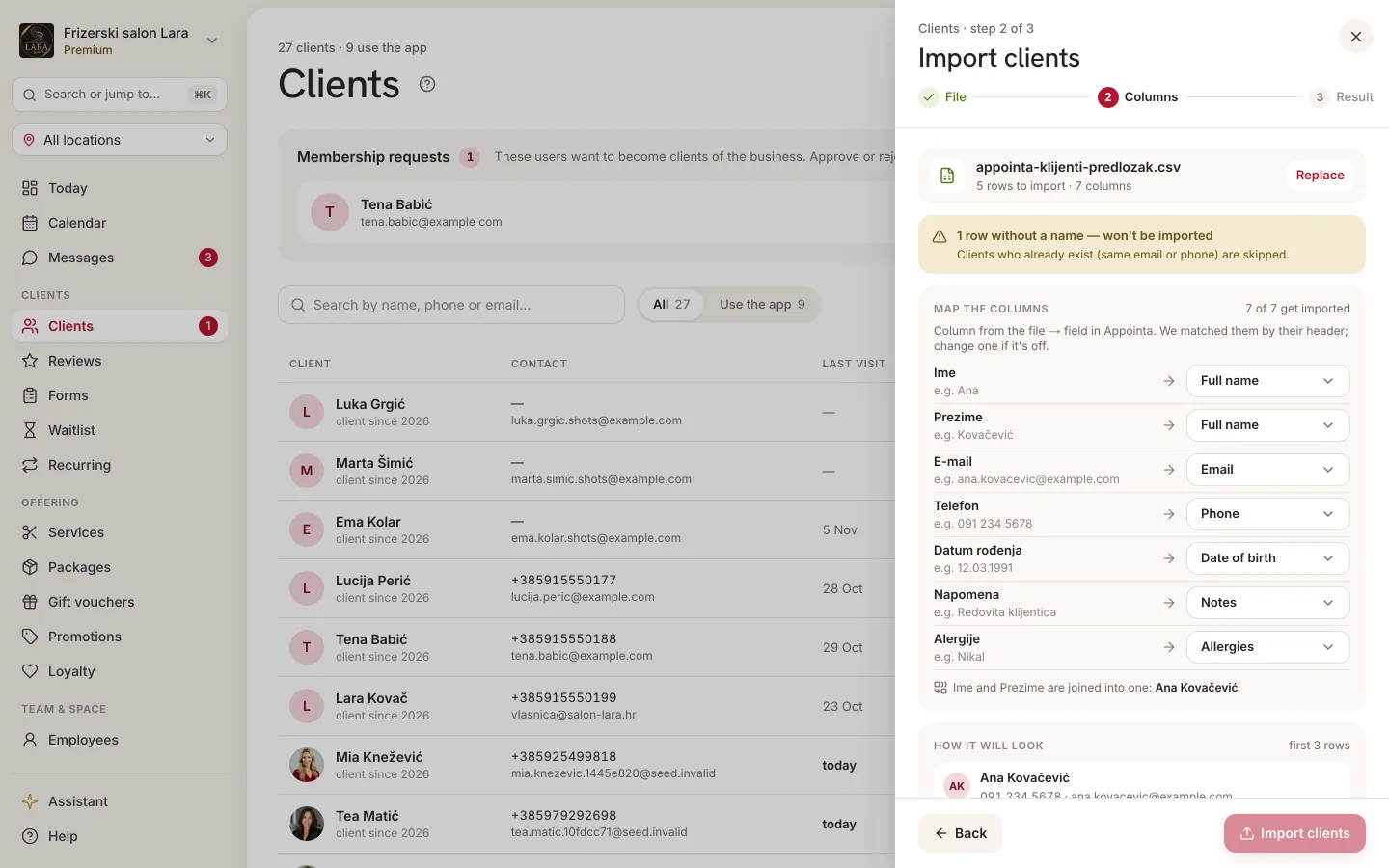
The Back button takes you back to choosing a file. If you close the panel at this step, Appointa asks whether you want to discard the changes (Discard changes) or stay (Stay). Nothing is saved until you click Import clients.
Step 3: GDPR confirmation and import
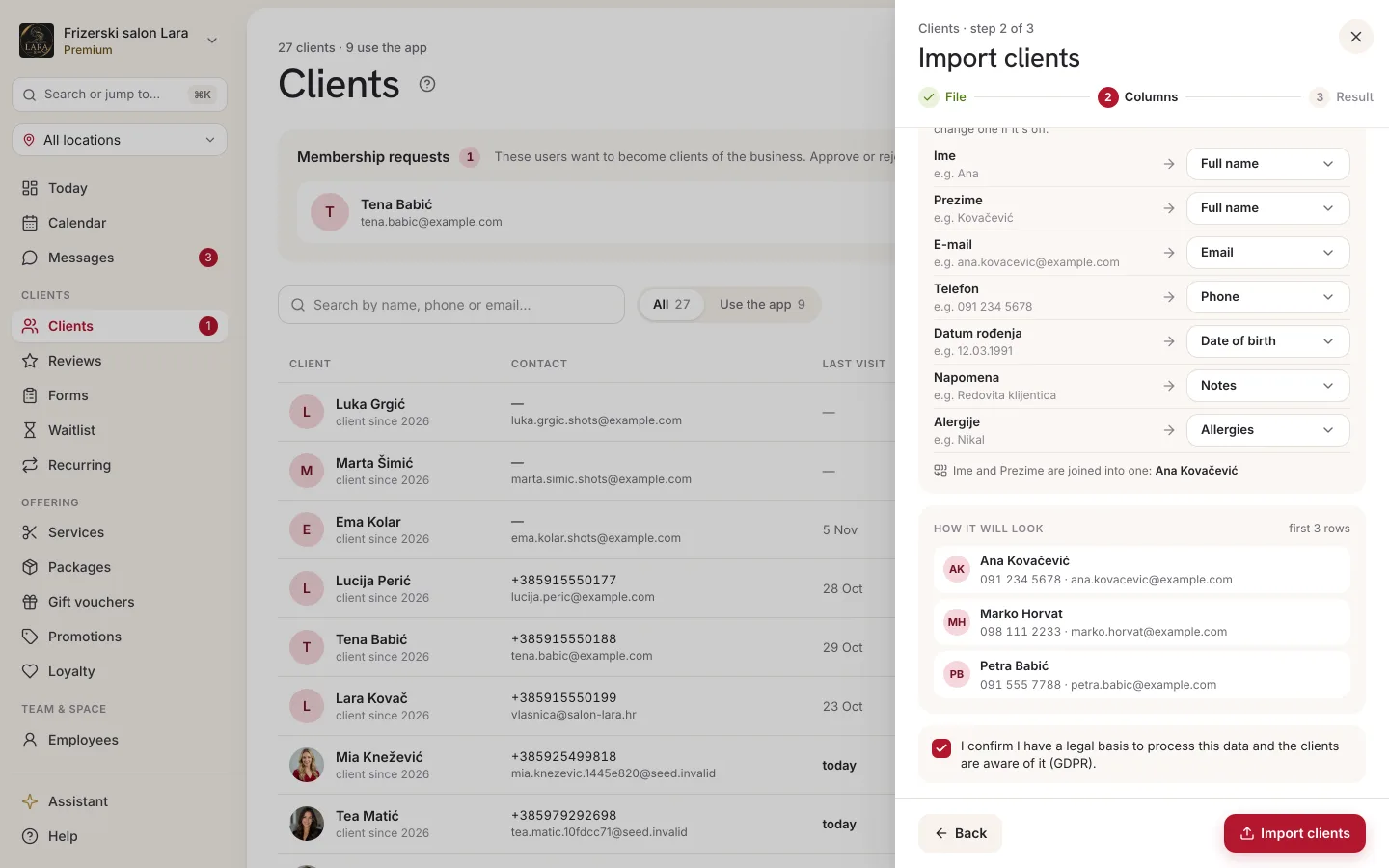
- At the bottom of the panel, tick “I confirm I have a legal basis to process this data and the clients are aware of it (GDPR).” Without it, the import button stays inactive.
- Click Import clients. While the import is running, the button shows “Importing...”.
Import report
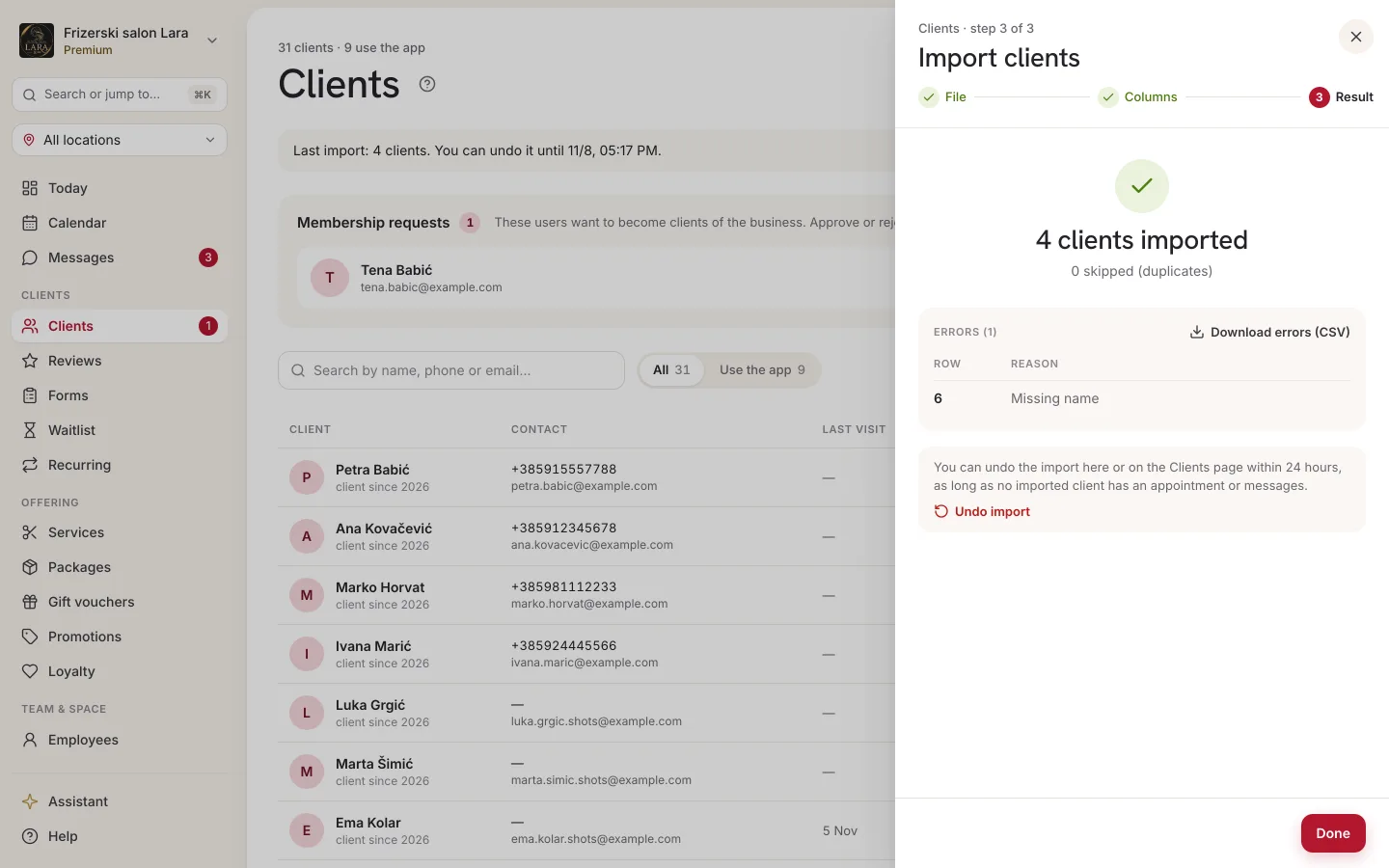
After the import, the panel shows a report:
- “N clients imported” — how many new profiles were created.
- “N skipped (duplicates)” — rows whose email or mobile number already belongs to a client in your client list or to an earlier row in the same file. Existing profiles aren't changed.
- Errors (N) — a table with the Row (the row number in your file) and Reason columns.
| Reason | What it means | Was the row imported? |
|---|---|---|
| Missing name | The columns mapped to the name are empty in that row. | No. |
| Invalid email — the client was imported without it | The email isn't a valid address. | Yes, but without the email. |
| Invalid phone — the client was imported without it | The number can't be recognized (e.g. “123” or “-”). | Yes, but without the phone. |
A date of birth that isn't in a supported format doesn't report an error. The client is imported without a date of birth.
The Download errors (CSV) button saves the list of errors (row number, reason and code) as the import-errors.csv file. Fix the rows without a name in your file, copy them into a new file with the same column names and import just those. For clients imported without an email or phone, enter the missing detail on their profile.
The Done button closes the panel, and the new clients are in your client list straight away.
Undoing an import
If the import didn't turn out as it should (e.g. wrongly mapped columns), undo it and try again:
- In the report, click Undo import. If you've already closed the panel, the same button is at the top of the Clients page, in the “Last import: N clients. You can undo it until …” box.
- In the “Undo the import?” dialog (“All clients from this import will be archived.”), click Undo.
- The message “Import undone — clients archived: N” appears. The panel shows “This import was undone.”, and the box on the Clients page disappears.
Undo works on an all-or-nothing basis: the whole import is removed, not individual clients. The imported clients are archived, so they disappear from the client list and search, and online booking no longer recognizes them (see Archived clients). You can then fix the file and import it again, and the archived clients won't block it as duplicates.
An import can be undone only:
- within 24 hours of the import,
- as long as none of the imported clients has an appointment or a conversation in Messages. As soon as one of them has real history in the system, undoing is no longer possible, so that history isn't lost (“The import can't be undone — some imported clients already have an appointment or messages.”). An empty conversation, the one created when you click the message icon next to a client in the client list or click Send message on the profile, doesn't get in the way: undoing deletes it.
What happens to imported clients
- The import doesn't send clients any message — no email, no SMS, no notification.
- Imported clients have the web status, because they don't have an Appointa account yet.
- In a members-only business, imported clients are already accepted. When they later sign in and ask for access with the same email or mobile number, Appointa links them to the imported profile without waiting for approval (see Duplicates).
- When an imported client books online for the first time with the same mobile number, the appointment is linked to their imported profile.
- Unlike adding a client manually, a name alone is enough for an import. Without an email or phone, such a client won't get reminders, so fill in the missing contact details later.
Error messages
| Message | Solution |
|---|---|
| “Unsupported file type — use .csv or .xlsx.” | Save the file as CSV or XLSX. This also appears for a damaged file. |
| “The file is larger than 5 MB.” | Remove unnecessary columns and sheets, or split the list. |
| “The file has more than 2000 rows — split it into smaller parts.” | Split the list into several files and import them one at a time. |
| “The file is empty.” | Check that the list is on the first sheet and that the first row has column names. |
| “Invalid column mapping — at least one column must map to Name.” | In step 2, map at least one column to Full name. |
| “The 24-hour undo window has expired.” | The import can no longer be undone. Fix any wrong data on the client profiles. |
FAQ
What data can I import?
Full name, email, phone, date of birth, notes and allergies. Appointments, reviews, packages and loyalty stamps aren't imported. Visit history builds up from the first appointment in Appointa.
Some rows have errors. Was anything imported?
Yes. Valid rows are imported, and for invalid ones you get a list with the row number. Rows without a name aren't imported, while rows with an invalid email or phone are imported without that detail.
What if a client already exists in my client list?
A row with an email or mobile number that already belongs to a client is skipped and counted among the duplicates. The existing profile stays untouched.
Can I undo the import tomorrow?
Yes, within 24 hours of the import. At the top of the Clients page, the box with the last import has an Undo import button. The box disappears when the time runs out or when an imported client gets an appointment or a message. After that, fix any wrong data on the client profiles.
Will imported clients get promotions?
Not automatically. Promotions arrive as a push notification only for clients who use the Appointa app. An import doesn't mean a client has agreed to marketing (see Client privacy).