Calendar overview
How to read the calendar: day, week and month views, employee and resource columns, status colors, locations and moving appointments by dragging.

The calendar shows all of your business's appointments in one place: who is working, when they're free and what state each appointment is in. On this page you'll learn how to move between dates, how to read the day, week and month views, what the colors and icons on appointments mean, and how to move an appointment by dragging it with the mouse.
Before you start
- Every role can see the calendar: the owner, managers and employees. Everyone sees the columns of all employees, not just their own.
- Your business needs at least one employee. Until there is one, instead of the schedule you'll see “Add a staff member under Settings → Employees before scheduling appointments.” You add employees in the Employees menu (see Employees).
- For the calendar to grey out the times when an employee isn't working, the employee needs to have working hours set (see Working hours and time off).
Opening the calendar
- In the sidebar, select Calendar.
- Today opens in the day view, with a column for each employee.
- Click an empty slot to add a new appointment, or click an existing appointment to open its details.
The calendar refreshes on its own. When a client books online, or a colleague changes an appointment on another computer or in the Appointa Pro app, the change appears without reloading the page.
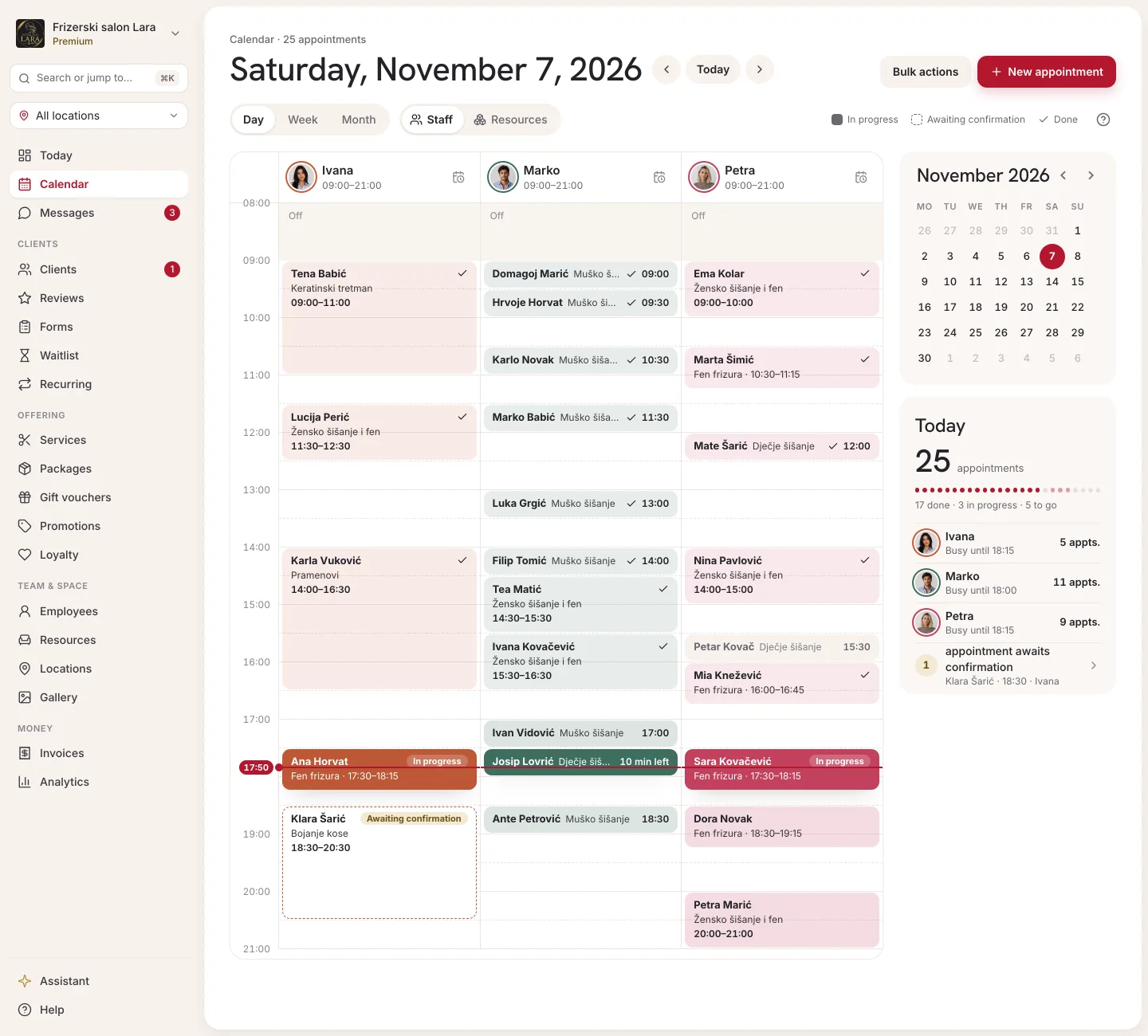
The toolbar
Above the calendar there's a toolbar with the same buttons in every view.
| Element | What it does |
|---|---|
| ‹ and › | Move the view back or forward: by one day in the day view, by a week in the week view and by a month in the month view. |
| Today | Takes you back to today's date. |
| Range label | Shows what you're looking at, e.g. “Wednesday, July 15, 2026” or “Jul 13 – Jul 19, 2026”. |
| Day / Week / Month | Switches the view. |
| Bulk actions | Opens cancelling several appointments at once (see Cancelling a whole day). |
| ? | Opens this manual page in a new browser tab. |
The selected date and view are saved in the page address. If you copy the link and send it to a colleague, or save it as a browser bookmark, the same day opens in the same view.
Day view
The day view is the default view and the only one in which you add and edit appointments. Each employee has their own column, and the time scale is on the left.
Column header
The column header shows the employee's photo (or their initials in their color), their name and their working hours for that day. A split shift is shown as “09:00–13:00, 17:00–21:00”. Instead of the hours, you may see:
| Label | Meaning |
|---|---|
| On leave | The employee has annual leave or another absence entered for that day. |
| Off (special day) | A special “off” shift has been entered for that date. |
| No working hours set | The employee has no shift on that day in their weekly schedule. |
The clock icon on the right of the header (Special shift for this day) lets you change the shift for that date only: you can mark Off this day, add a shift with the Add shift button, or go back to the regular schedule with Reset to routine. Special shifts are saved by the owner and managers. The shift must fall within the location's opening hours for that day of the week; otherwise you'll see “Failed to save.” If the employee already has appointments in the period you're closing, Appointa warns you (“Employee already has appointments”) and asks you to confirm with Save anyway — the appointments are not cancelled automatically.
Time grid
- The grid covers 08:00 to 20:00 and is divided into 30-minute slots. The range is the same for every business and doesn't adjust to your opening hours.
- Times when the employee isn't working (outside their shift, on leave, a special day) are lightly greyed out. Greyed-out slots are still clickable: you can enter an appointment outside the employee's working hours, but online booking doesn't offer that time to clients. The exception is a day of the week on which the employee doesn't work at all according to their weekly schedule — Appointa won't save such an appointment.
- When a day has no appointments, the middle of the grid says “No appointments this day” and “A free day — or a chance to add an appointment manually.”
- Appointments that overlap in time in the same column (e.g. a cancelled appointment and a new one at the same time) are shown side by side, so each one stays visible and clickable.
Appointment block
Each appointment is a block whose height matches its duration. The block shows the start time, the client's name and the service name. If the client has no name on file, their e-mail address shows instead, or their phone number if there's no e-mail. An appointment without a linked client shows the Walk-in label instead of a name (see Walk-ins). Clicking the block opens the appointment details.
Colors and labels
The background color of the block shows the appointment's status, and the colored left edge shows the employee (the color from the Color (optional) field in the employee form, in the Employees menu). That way you can see at a glance both whose appointment it is and what state it's in.
| Status | Block appearance | Meaning |
|---|---|---|
| Pending | Gold background | An online request waiting for your confirmation. |
| Confirmed | Light background in your brand color | The appointment is agreed and in the schedule. |
| Completed | Green background | The service has been provided. |
| Cancelled | Reddish background, struck-through text | The appointment was cancelled and doesn't take up time. |
| No-show | Grey background | The client didn't turn up. |
What each status means and how to change it is described on the Appointment details and statuses page.
Small icons may appear on the right of the block:
| Icon | Meaning |
|---|---|
| Two arrows in a circle | The appointment is part of a recurring series (see Recurring appointments). |
| Gift | The appointment was paid with a gift voucher. |
| Clipboard with a list | An intake form was sent with the appointment and the client hasn't filled it in yet. |
| Clipboard with a check mark | The client has filled in the intake form (see Intake forms and consents). |
Group appointments (services with several seats, e.g. pilates or a workshop) are shown as one block with the service name and the number of seats taken, e.g. “4/12”. Clicking such a block opens the list of people signed up (see Group appointments).
Week view
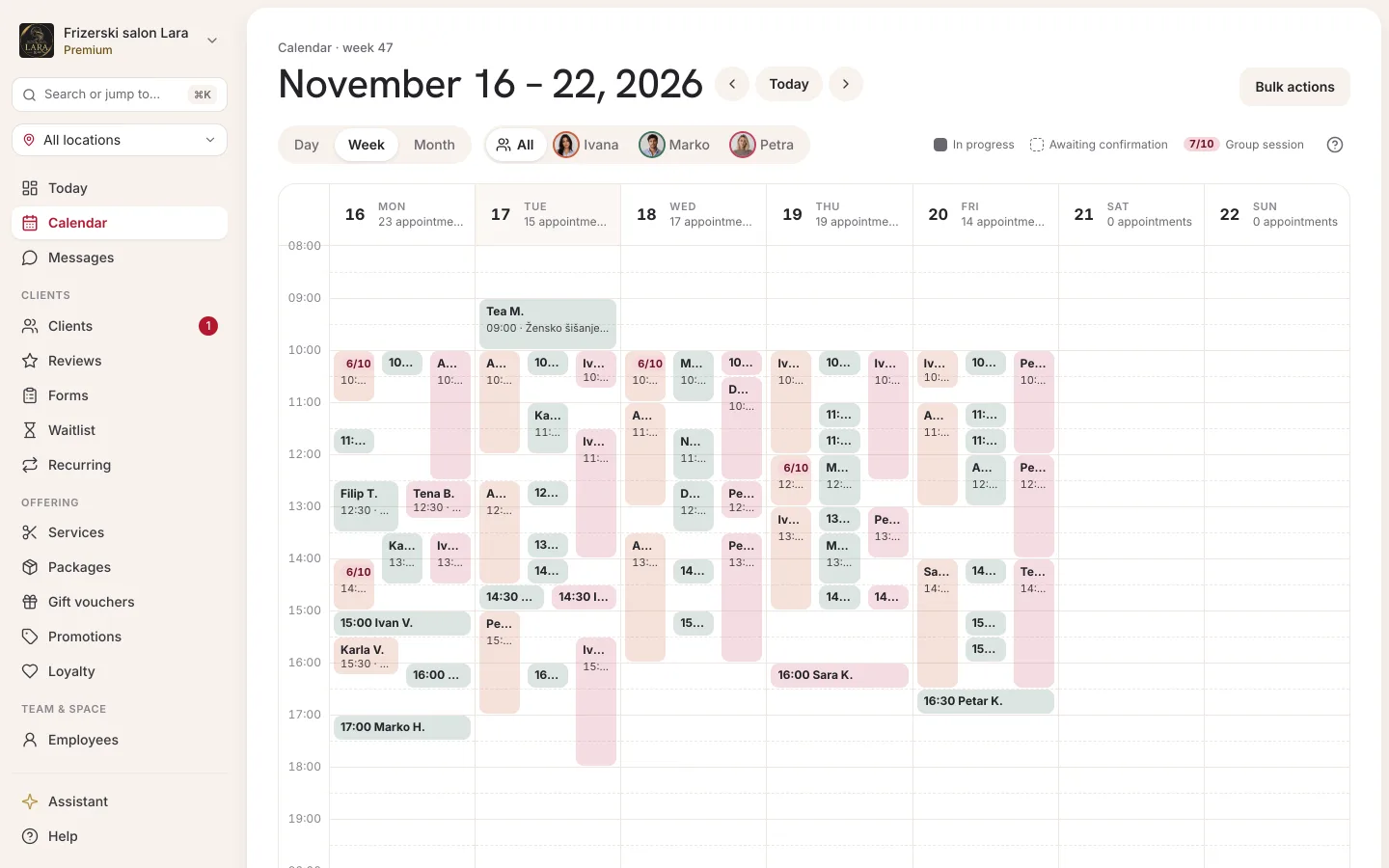
Click Week in the toolbar. The view starts on Monday and has a column for each day of the week, with the same 08:00 to 20:00 time scale.
- All employees' appointments sit in the day's column, tinted lightly with the employee's color, with their thumbnail and the start time. Appointments at the same time are placed side by side; when a card is too narrow, the thumbnail is left out so the start time stays readable.
- A group session is one card here too: the start time, the number of seats taken (e.g. “6/10”) and the service name.
- Cancelled appointments aren't shown in the week view.
- Today is highlighted in color in the header, and the day you started from is additionally shaded.
- The week view is for looking things over. Clicking a day's header or any appointment opens that day in the day view, where you edit the appointment. The note below the grid says the same: “Click a day or appointment for the day view.”
Month view
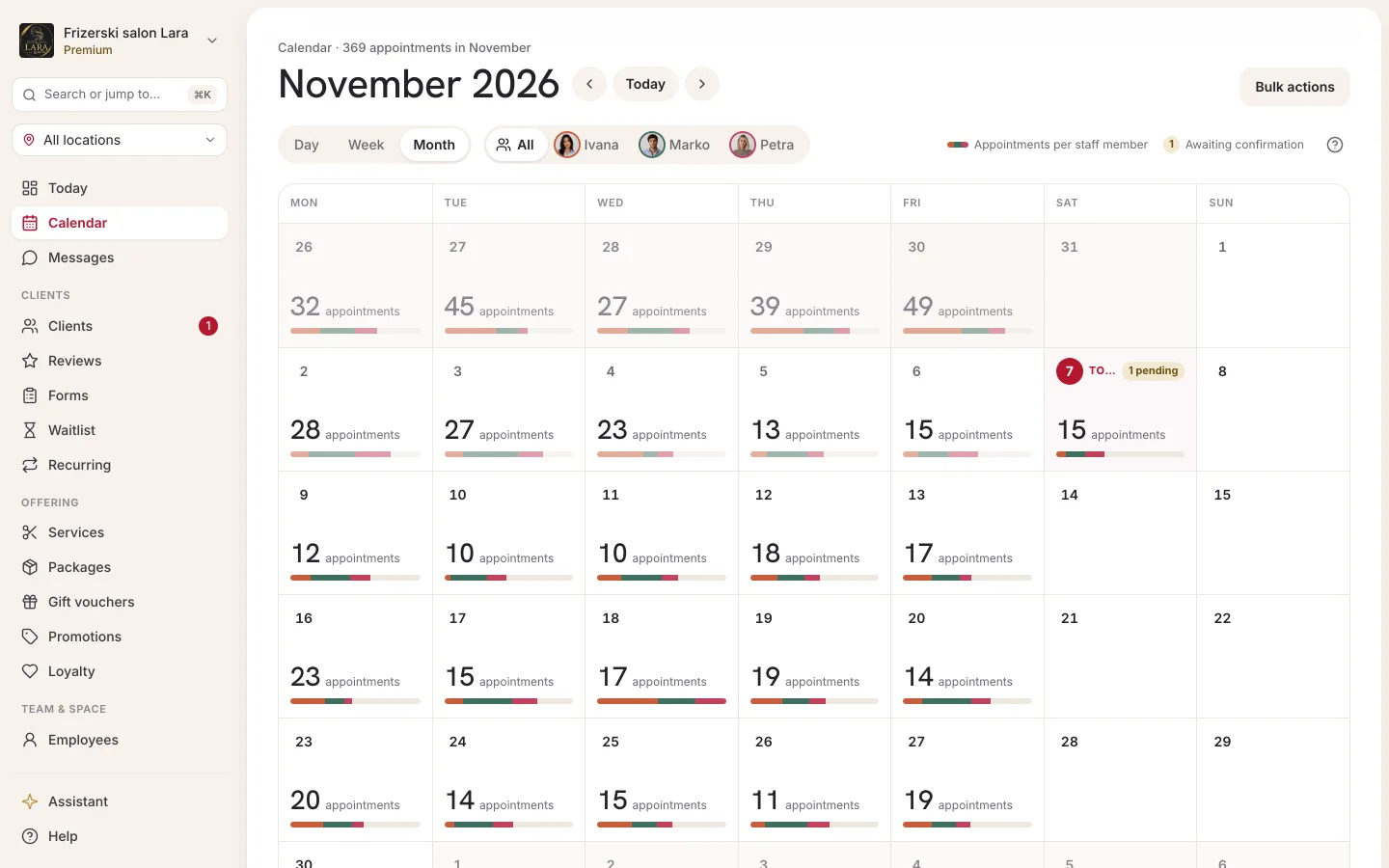
Click Month. The month is shown as a six-week grid (Monday–Sunday), with days from neighboring months dimmed.
- Each day shows the number of appointments, e.g. “5 appointments”. Cancelled appointments aren't counted. On a narrow phone screen, only the number is shown.
- Today's date has a colored circle.
- Clicking a day opens that day in the day view.
Use the month view to quickly gauge how busy you are: which days are packed, and where there's room for a promotion or time off.
Resource view
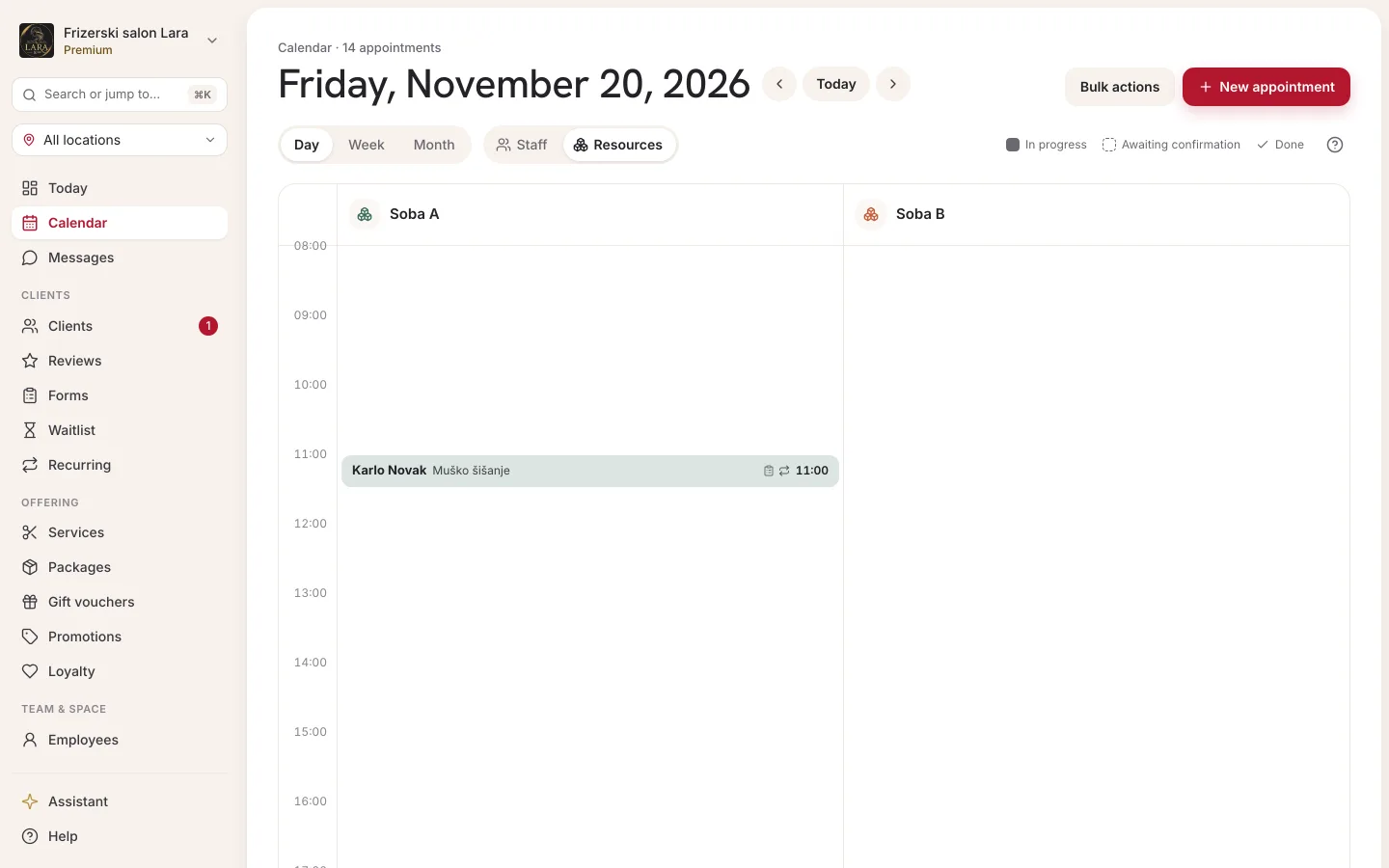
In the day view, above the grid, there's a Staff | Resources switch. The Resources view is useful if your business works with resources (rooms, equipment, vehicles).
- In the Resources view, each resource has its own column in its own color, containing the appointments that use that resource. Appointments without a resource aren't visible in this view.
- Resource blocks (cleaning, maintenance, servicing) are shown as grey bars with the reason entered, or with the Blocked label.
- You can drag an appointment to another resource's column. If that isn't possible, the appointment doesn't move and you'll see “The resource is taken then — not moved.” or “That resource isn't offered for this service — not moved.”
- You add new appointments only in the Staff view. Resource columns have no clickable slots.
- The selected view is saved in the page address and stays after a refresh.
If you have no resources yet, you'll see “No resources yet. Add them under Resources.” Read more about resources on the Resources page.
Multiple locations
If your business has two or more locations, a location menu appears in the sidebar below the business name. Choose a location and the calendar shows only its employees and appointments. Choose All locations to see everything. Your choice is remembered in the browser and also applies to the other admin pages. More on the Locations page.
Moving an appointment by dragging
In the day view, you can grab an appointment with the mouse and drag it:
- up or down — changes the time, in 30-minute steps, within the 08:00 to 20:00 grid
- left or right — moves the appointment to another employee (in the Resources view: to another resource)
How to do it:
- Grab the appointment block and drag it to its new place.
- Release the mouse button. The appointment immediately appears in its new place and the message “Appointment moved.” is shown.
- If you drop it at a time when the employee isn't working, Appointa asks “Employee isn't working then”. Click Move anyway or Cancel.
If the new time overlaps another appointment of that employee, the appointment goes back to its original place with the message “That overlaps another appointment — not moved.” The appointment's duration stays the same.
You can't drag cancelled appointments, appointments marked as no-show, or group appointments. On phones and tablets, dragging is turned off so you don't move an appointment by accident while scrolling — there you move it with the Reschedule button in the appointment details (see Rescheduling an appointment).
What employees and owners can do
| Action | Employee | Manager | Owner |
|---|---|---|---|
| View the calendar and all employees' appointments | Yes | Yes | Yes |
| Add, move, confirm, complete and cancel appointments | Yes | Yes | Yes |
| Special shift for a day (the clock icon in the header) | No | Yes | Yes |
| Cancel several appointments through Bulk actions | No | Yes | Yes |
| The Recurring and Waitlist menu items | No | Yes | Yes |
The calendar on your phone
The web calendar also works in a phone browser: the grid scrolls sideways and you open an appointment by tapping it. For everyday work on your phone, the Appointa Pro app is more practical (see Appointa Pro).
Frequently asked questions
Why can't I see cancelled appointments in the week view?
The week and month views deliberately leave out cancelled appointments so they show how busy you really are. You can see cancelled appointments in the day view, struck through.
Why doesn't online booking offer a time that's empty in the calendar?
Online booking only offers times within the employee's working hours, and it also follows your booking rules (e.g. how far ahead a client can book). Check the employee's working hours, time off and special shifts, your booking rules (see Booking rules), and whether the employee has a private calendar connected that blocks that time (see Calendar sync).
Can I change the range of hours in the grid?
No. The grid always shows 08:00 to 20:00. You can still enter an appointment outside that range: in the New appointment form, the Start field offers any time of day (see New appointment form fields). Such an appointment is saved normally, but the day and week grids don't display it correctly. You can keep track of appointments linked to a client in the Appointments section of the client's profile, and in the month view they're included in the day's appointment count.
Do I need to refresh the page to see new bookings?
No. The calendar refreshes on its own when a new booking arrives or when someone changes an appointment.