Client list
Search and filter your clients, add a new client, approve membership requests and avoid duplicate profiles in your client list.
 Video guideSalon samo za članove — odobravanje novih klijenata + QR prečacWatch on YouTube · The video is in Croatian.
Your client list contains everyone who has booked an appointment with you, whom you've added yourself or imported from Excel. On this page you'll learn how to find your way around the list, how to add a client and which rules Appointa applies to keep duplicate profiles out of your client list. If your business only accepts members, this is also where you approve new requests.
Before you start
- The client list is available on all plans.
- All team members — Owner, Manager and Staff — can see the list and add clients. Anyone on the team can also approve membership requests.
- Only the owner and managers see the Import button. Importing is described on the Importing clients from Excel page.
Client list overview
In the side menu, choose Clients. Below the heading there's a counter in the form “12 total · 5 use the app”, and on the right are the Import and Add client buttons.
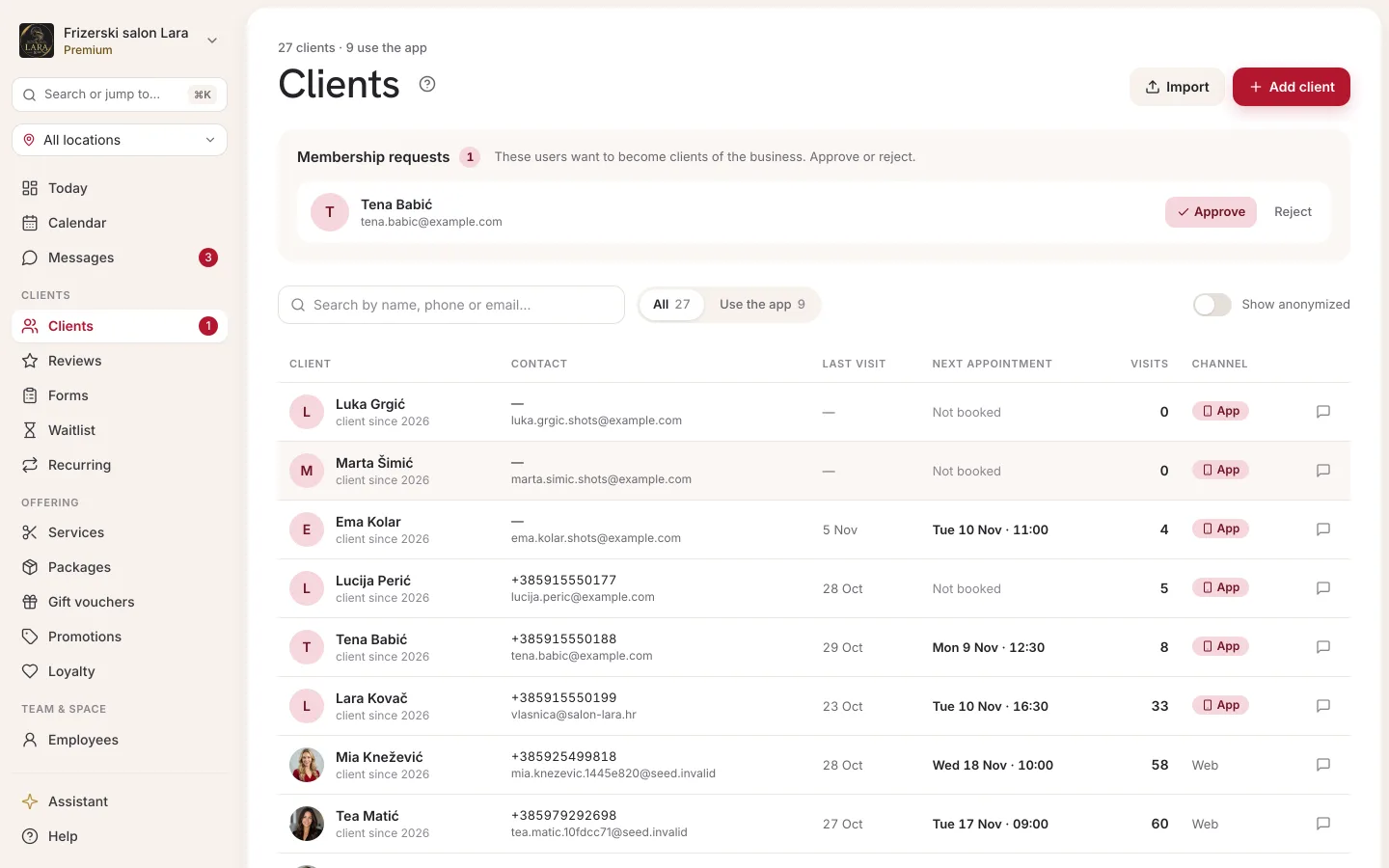
The list is sorted from the newest client to the oldest and shows 25 clients per page. Use the page numbers at the bottom to see the rest. Clicking anywhere on a row opens the client profile.
List columns
| Column | What it shows |
|---|---|
| Client | The profile picture or initial, the name and the year the person was added to your client list (“client since 2025”). If no name has been entered, the email is shown instead. |
| Phone | The phone number (new numbers are in international format, e.g. +385912345678) or “—”. |
| For a client with an Appointa account, that account's email; otherwise the email entered on the profile. “—” if there is none. | |
| Status | app — the client has their own Appointa account linked to your business (the Appointa app or signing in on your public page). web — a profile without an account: added manually, imported, or the client booked without signing in. |
| Actions | The message icon opens a conversation with the client in Messages. If the conversation doesn't exist yet, it's created. |
Search and filters
- Search box (“Search by name, phone or email...”) — type any part of a name, number or email. Upper and lower case don't matter, and the list refreshes on its own as you type.
- All / App users — the second filter shows only clients with an Appointa account. The counter at the top stays the same in both views.
- Show anonymized — the switch on the right brings anonymized records back into the list, marked Anonymized. They're hidden by default. Read more on the Client privacy page.
How clients get into your client list
You don't have to add every client yourself. Profiles are usually created in one of these ways:
| How | What happens |
|---|---|
| Online booking | When someone books on your public page or in the Appointa app, Appointa looks for them in your client list: first by Appointa account, then by mobile number. If it finds them, the appointment is linked to the existing profile and any missing details are filled in on it. If it doesn't, a new profile is created. Archived profiles aren't searched (see Archived clients). |
| Manual entry | The Add client button (see Adding a client). |
| Import | The Import button — a whole list from a CSV or Excel file at once. |
| Membership request | In a members-only business, the person signs in and asks for access. See Client requests. |
| Verification QR code | The client scans the verification QR code at your business. See QR code and auto-approve. |
| Conversation from the app | A person with an Appointa account who opens a conversation with your business in the app before becoming your client gets a profile with a pending request, so they appear in the Client requests box. |
Adding a client
- In the client list, click Add client. The New client (walk-in) panel opens on the right.
- Enter the Full name.
- Enter the Email, the Phone or both. At least one of these two fields is required.
- Optionally, choose a Date of birth (optional) and enter initial Internal notes.
- Click Save. The message “Saved” appears, and the client shows up at the top of the list straight away.
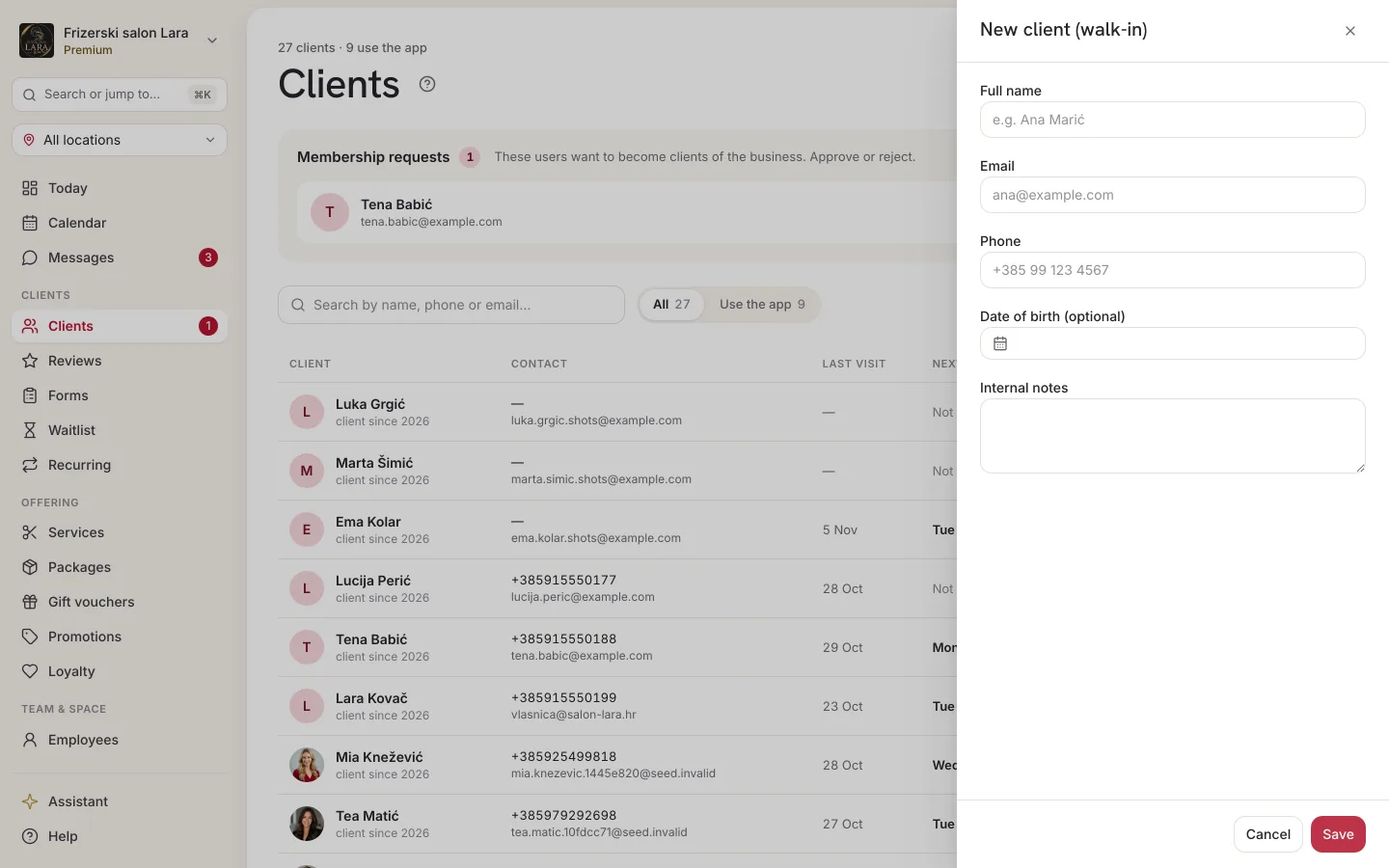
| Field | Required | Note |
|---|---|---|
| Full name | yes | Up to 255 characters. |
| email or phone | Must be a valid address. Two clients in the same business can't have the same email. | |
| Phone | email or phone | You can enter a Croatian number with the leading zero (091 234 5678) or with the country code (+385 91 234 5678). Enter a foreign number with + or 00 and the country code. |
| Date of birth (optional) | no | Chosen from a calendar. |
| Internal notes | no | A note only your team sees. Later you edit it, together with the chart, with Edit client on the client profile. |
If something is wrong, a message appears below the field or at the bottom of the panel:
- “Provide at least an email or a phone.”
- “Enter a valid email address (e.g. [email protected]).”
- “Enter a valid phone number (e.g. +385 91 234 5678).”
- “A client with this email already exists in this business.”
Duplicates and unique email
Appointa takes care in several places that the same person doesn't end up with two profiles:
- Email is unique within the business. Two clients can't have the same email. The check ignores upper and lower case, and anonymized records don't count.
- The mobile number isn't unique. The same number can be on two profiles, e.g. a parent and a child. An online booking with such a number is linked to the profile connected to an Appointa account, or, if there is none, to the oldest one.
- Recognizing known clients. When a client you added manually later registers and asks for access, and their email or mobile number matches a profile without an account, Appointa links them to that profile. No new profile is created and there's no waiting for approval. When the verification QR code is scanned, the match is made by email. Archived profiles are never linked.
- Two profiles can't be merged. So before adding a new client, use the search box to check whether they already exist.
Archived clients
You archive a client in the Appointa Pro app: on the Clients tab, swipe their row left and choose Archive (see Appointa Pro). Clients from an undone import are archived too. An archived client disappears from the client list and search, while their profile and entire history stay.
Online booking doesn't recognize an archived profile, not by Appointa account, mobile number or email. When such a client gets in touch again, Appointa treats them as a new client:
| How you take bookings | What happens |
|---|---|
| Anonymous bookings on | The booking creates a new profile. The archived profile stays untouched and archived. |
| Members only | The client has to ask for access again. The request arrives in the Client requests box as if from a new person, and once approved they book on the new profile. |
The Preferred staff from the archived profile is no longer used in online booking either. A client with an Appointa account still sees their earlier appointments when they sign in.
A registered client's email
For a client with the app status, the email belongs to their Appointa account. When you open Edit client for them, the Email field is locked with the note “Registered client's email — they change it in their own app.” You can still change the name, phone and date of birth. For clients with the web status, all fields can be edited, because your business is the only source of that data.
Client requests
If the Anonymous bookings switch in Settings → Bookings is turned off, only people you've accepted as clients can book online. A new person signs in on your public page or in the Appointa app and asks for access. Their request then arrives at the top of the Clients page, in the Client requests (N) box with the note “These users want to become clients of the business. Approve or reject.”
For every new request, team members get a push notification in the Appointa Pro app. For requests sent through the web or the app, a notification also goes to the business's Contact email, if one is entered in the settings.
The box also shows people who opened a conversation with your business in the Appointa app before they became your clients. No new-request notification is sent for this kind of request.
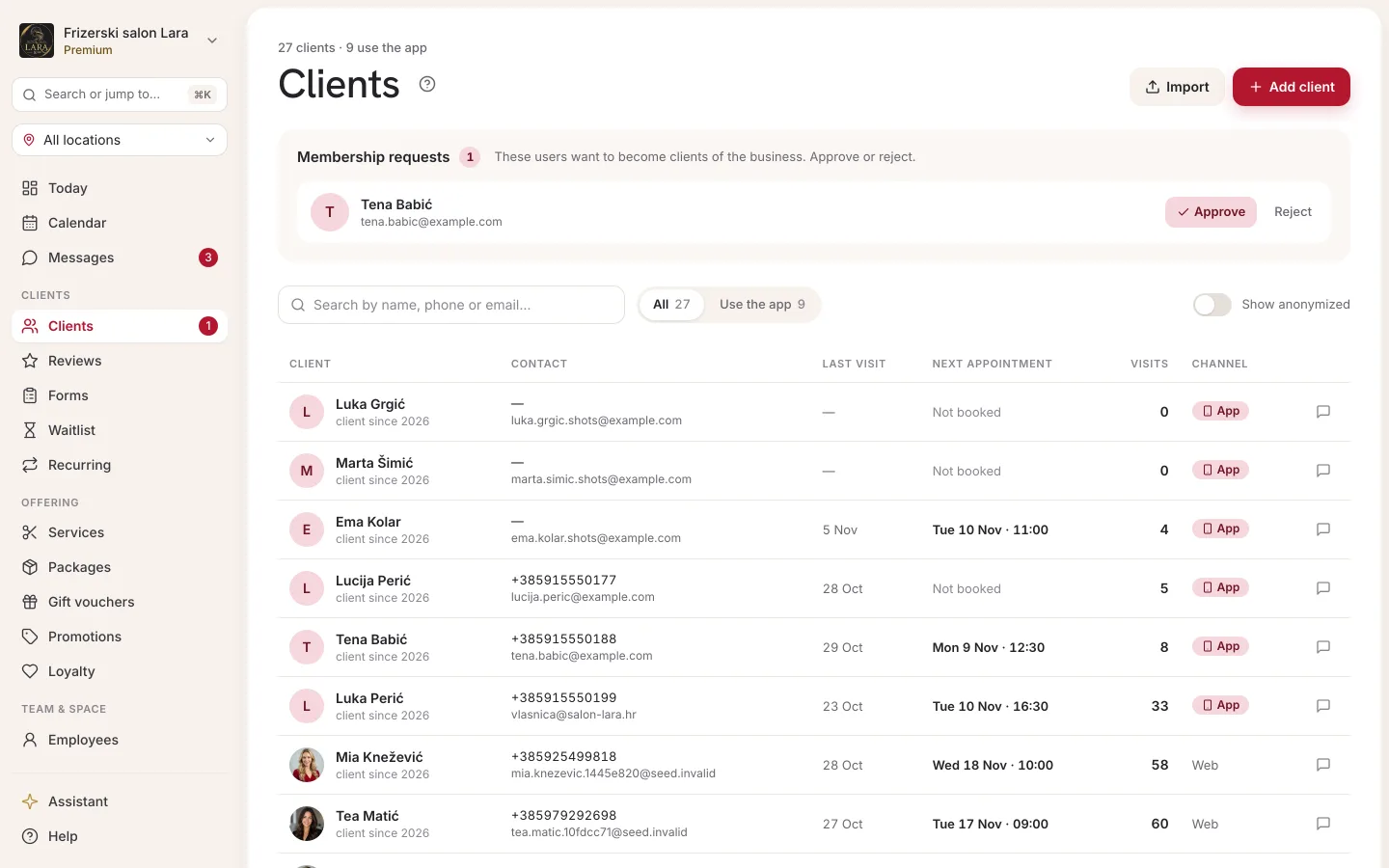
- Open Clients. The requests box is visible only when there's at least one request. You'll also see the same people in the list below, with the app status.
- Next to the person's name, click Approve. The person becomes your client and can book straight away. If they use the Appointa app, they get a notification that they've been accepted.
- Or click Reject. The request is deleted immediately, with no further confirmation. If the person uses the Appointa app, they get a notification. They can ask for access again later.
Verification QR code and auto-approve
A members-only business also has the Client verification QR section in Settings → Sharing & app: “Print it and put it on the counter. A client scans it in the business and becomes a verified client (skips approval).” The Print A5 flyer button prepares a flyer with that code.
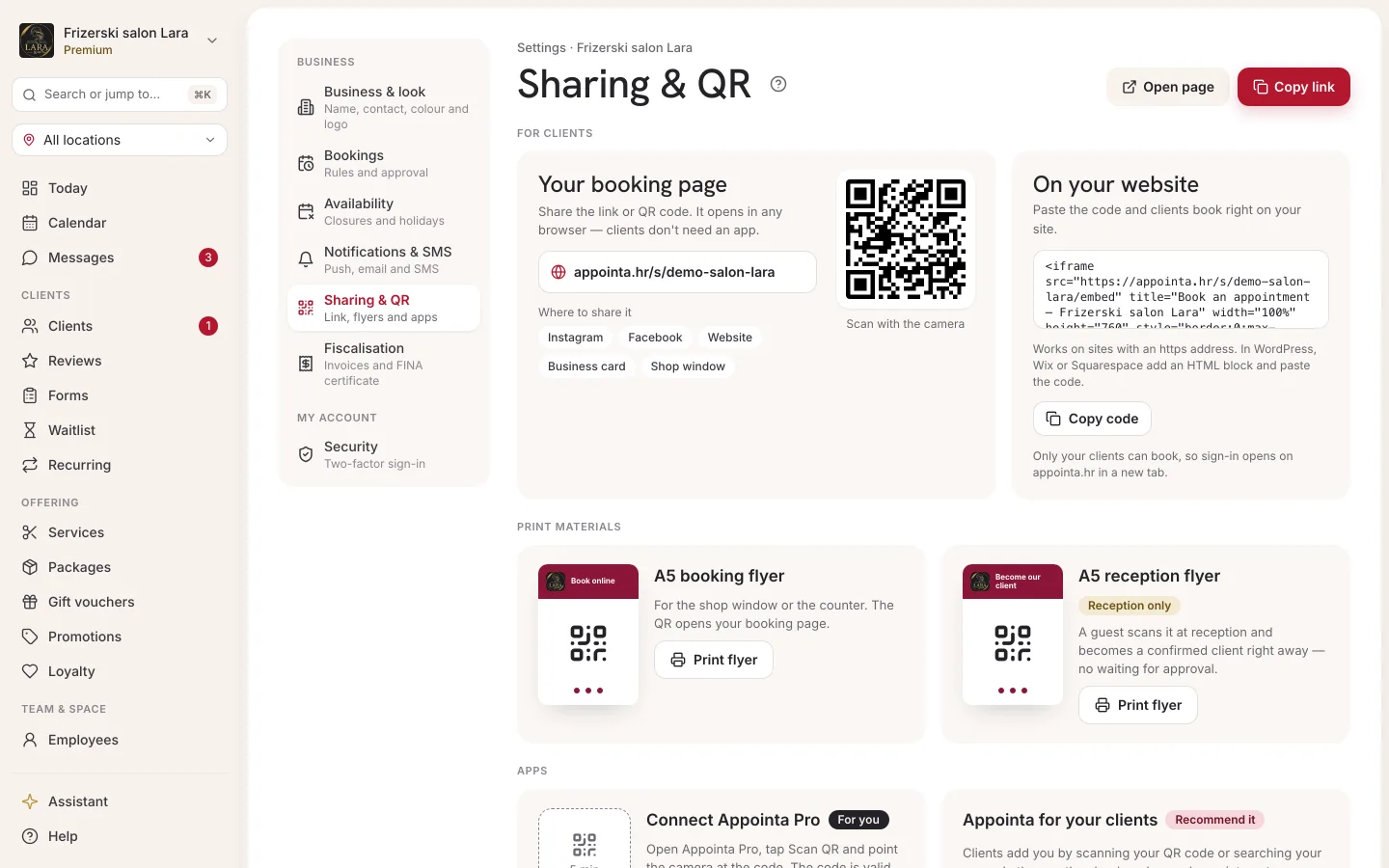
What happens when a new client scans that code depends on the Auto-approve on scan switch in Settings → Bookings:
| Setting | Result of the scan |
|---|---|
| Enabled (default) | The person becomes your client immediately and can book. The team gets a push notification about the new client. |
| Disabled | The scan creates a request in the Client requests box, which you approve like any other. |
Sign-ups through the web or the app without the QR code always wait for your approval, regardless of this setting. Read more about access rules on the Booking rules page.
FAQ
Why can't I see the client I just added?
Check whether there's still text in the search box and whether the App users filter is on. A client you add manually has the web status, so that filter hides them.
Can I delete a client?
Clients aren't deleted from the client list. When a client asks for their data to be deleted, the owner or a manager anonymizes them on their profile. The procedure is described on the Client privacy page.
Why can't I send a message to a client?
Messages from Messages reach the client as a push notification in the Appointa app. For a client who doesn't have the app, the Send button is disabled, and when you hover over it, it says “Client isn't reachable by mobile”. Read more on the Messages page.
When does a profile get the app status?
When the client links their Appointa account to your business: they ask for access, scan the verification QR code, open a conversation with you in the app or book an appointment while signed in. If a profile with the same mobile number that isn't archived already exists when they book, that profile is linked to their account. Otherwise a new profile is created, with the app status from the start.
The counter says 120 clients, but I see fewer in the App users view. Why?
The counter always shows all clients that match your search, along with how many of them use the app. The filter changes only the table below, not the counter.