Cancelling a whole day
How to use Bulk actions to cancel all appointments for a day, a period or one employee at once, with a reason and a notification to clients.

An employee has fallen ill, the power has gone off, or you're closing your business because of something unexpected — that's when you don't want to cancel appointments one by one. Bulk actions cancel all appointments for a day, a period or one employee in a single step and, if you want, notify the clients. On this page you'll learn how to select the appointments, what to enter as the reason, what clients receive and what happens to the cancelled appointments.
Before you start
- Cancelling through Bulk actions can be carried out by the owner and managers. An employee doesn't see the Bulk actions button. If they open the page through a direct link, the cancellation doesn't go through and they see “Bulk cancel failed. Please try again.”
- The feature is available on every plan.
- Cancellation can't be undone. Before you confirm, check the list of appointments carefully.
Opening the page
- In the menu, open Calendar.
- In the toolbar, click Bulk actions.
- The Bulk actions · Cancellation page opens. On the right of the header, it always shows how many appointments will be cancelled, e.g. “6 appointments will be cancelled”. The Calendar link takes you back without any changes.
The page has three steps. The selected appointments and the counter update as soon as you change any choice.
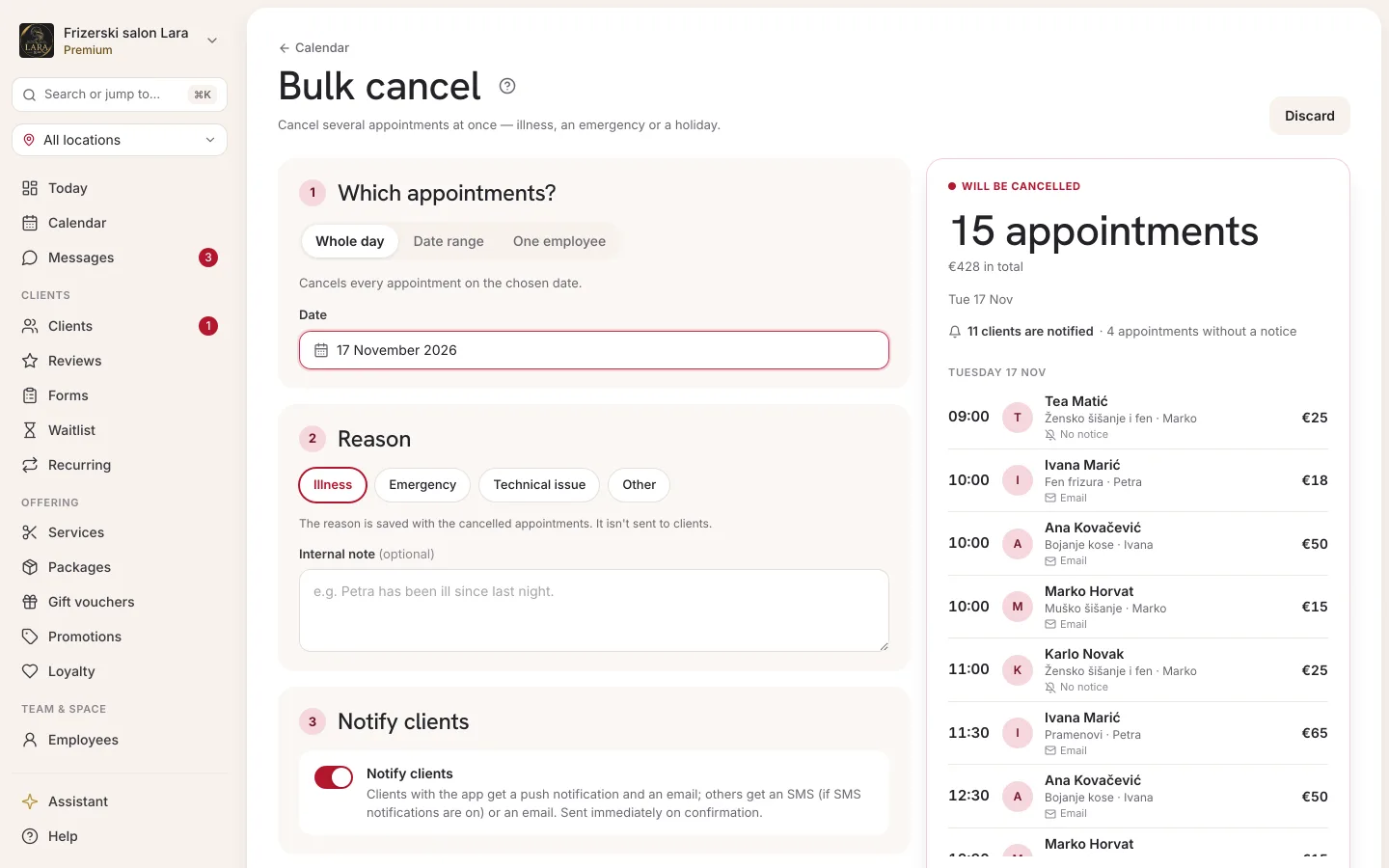
Step 1: Pick appointments
Under Selection method, choose one of three options:
| Method | Fields | What it cancels |
|---|---|---|
| Whole day | Date | All appointments on the selected date. |
| Date range | From, To | All appointments from the first to the last day, both included (e.g. annual leave). |
| Specific staff member | From, To, Staff member | Only the selected employee's appointments in that period. For a single day, enter the same date in From and To. |
Below the fields is the Appointments that will be cancelled list, with the number of appointments and the Total value (the sum of the prices). For each appointment you can see the start time, the client's name (or Walk-in), the service, the employee and the price. The date isn't shown in the list, so for a range of several days you can only tell appointments on different days apart by their order (the list is sorted chronologically). If there's nothing to cancel, you'll see “No appointments match these criteria.”
The list only includes appointments that are waiting for confirmation or confirmed. Appointments with the Completed or No-show status stay as they are and don't appear in the list. Days are counted in your business's time, from midnight to midnight.
If you have several locations and a single location is selected in the location picker at the top of the sidebar, “Only appointments at … are cancelled.” appears above the list and only that location's appointments are cancelled. When All locations is selected, appointments at all locations are cancelled (see Locations).
Step 2: Cancellation reason
| Field | What you enter |
|---|---|
| Reason | Illness, Emergency, Technical issue or Other. The default is Illness. |
| Internal note (optional) | A note for your team, e.g. “Lara has been sick since yesterday.” |
The reason and note are saved with each cancelled appointment. They're not sent to clients: the client gets a general notification that the appointment was cancelled. If you want to explain the reason to a client, cancel the appointment individually and write your message in Cancellation reason (optional) (see Cancelling an appointment) or send them a message (see Messages).
Step 3: Client communication
The Notify clients checkbox is ticked by default. When it's ticked, every client whose appointment is being cancelled is notified as soon as you confirm:
- a client with the Appointa app: a push notification and an email
- a client without the app: an SMS if SMS notifications are turned on, otherwise an email
Walk-in appointments have no client, so no one is notified. If you untick the checkbox, nothing is sent to clients and you need to let them know yourself.
Below the checkbox there's a warning, This action is irreversible: cancelled appointments can't be restored, so you have to re-enter manually every client you want to offer a new appointment to.
Confirming
- Check the list of appointments and the total value.
- Click Cancel 6 appointments (the number matches the list). The button is disabled when the list is empty. The Discard button next to it takes you back to the calendar without any changes.
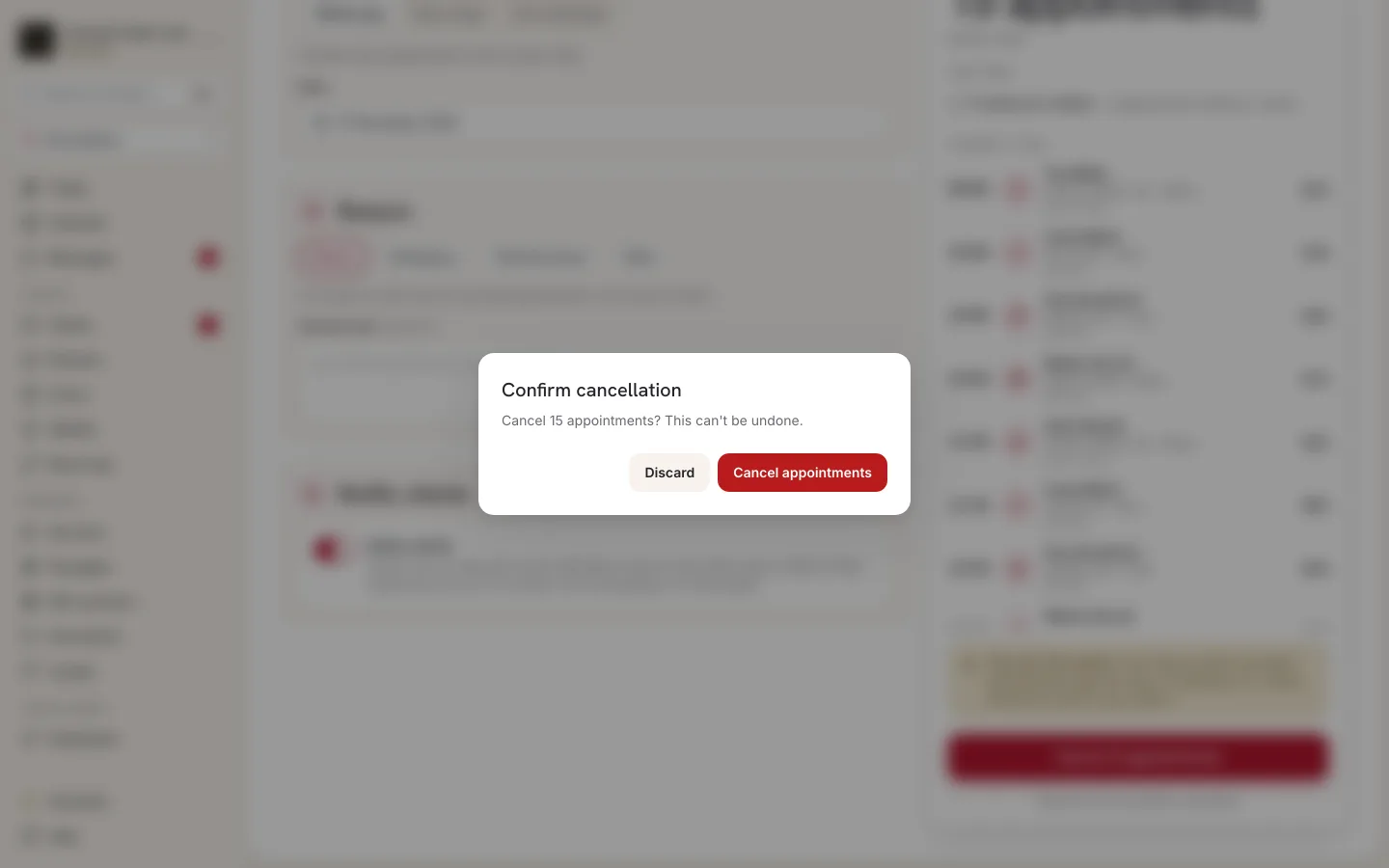
- In the Confirm cancellation dialog (“Cancel 6 appointments? This action is irreversible.”), click Cancel appointments. Discard in the dialog takes you back to the page without any changes.
- After the cancellation, the calendar opens on today. The cancelled appointments are struck through in the day view.
What happens to the cancelled appointments
- All selected appointments get the Cancelled status and free up their time.
- The selected reason and the internal note are saved with each one.
- Appointments paid with a package return the visit to the client's package.
- The freed-up slots are offered to clients on the waitlist, if you use it.
- Recurring series aren't interrupted: only the appointments already entered in the selected period are cancelled, and the series continues after it.
Examples
| Situation | What to choose |
|---|---|
| An employee fell ill this morning | Specific staff member, From and To = today's date, reason Illness. Then enter time off for her for the days of sick leave. |
| A power cut before opening, so your business is closed today | Whole day, today's date, reason Technical issue. Mark any appointments that have already taken place as completed first. |
| An employee is going on annual leave and already has appointments booked | Specific staff member with the leave dates, reason Other. |
| Your business is closing for a week for renovation | Date range for the whole week, reason Other, with the business closure entered. |
Frequently asked questions
Can I restore appointments I cancelled by mistake?
No. A cancelled appointment can't go back to confirmed. Enter a new appointment for the client (see New appointment) and get in touch with them.
Does “Whole day” also cancel appointments at other locations?
Only when All locations is selected in the location picker. When a single location is selected, Bulk actions cancel only its appointments, and “Only appointments at … are cancelled.” appears above the list.
Does the client receive the reason I entered?
No. The reason and the internal note stay in Appointa. The client is notified that the appointment was cancelled.
Why is the cancel button grey?
The list of appointments is empty: for the selected date, period or employee, there are no appointments that are waiting for confirmation or confirmed.