Gift vouchers
How to sell a gift voucher for an amount or a service, deliver the code to the client, redeem it online or at the front desk, and track each voucher.
You sell a gift voucher at your salon — for an amount (e.g. €50) or for a specific service — and the recipient redeems it when booking an appointment. Appointa generates a code for each voucher, delivers it to the client if the voucher is linked to them, and records every redemption, so at any moment you know how much is left on a voucher and on which appointment it was used. On this page you'll learn how to sell a voucher, deliver the code, redeem a voucher online and at the front desk, and track and cancel vouchers.
Before you start
- Premium plan. Gift vouchers are part of the Premium plan. On the Starter and Pro plans, Gifts doesn't appear in the menu; if you open the page anyway, you see "Gift vouchers is part of the Premium plan." and an Upgrade to Premium button. See Starter, Pro and Premium plans.
- Role. Vouchers are sold, sent and cancelled by the owner and managers. Staff members don't see Gifts.
- A voucher is a record, not a payment. Appointa doesn't charge for vouchers or handle the payment — you take the money for a voucher in your business, as usual. More about invoices in the Invoices for vouchers section.
Two voucher types
| Amount | For a service | |
|---|---|---|
| What it holds | An amount in euros, e.g. €50. | One specific service from your price list. |
| How many times | Several times, until the amount is used up. | Once. |
| What it covers | The appointment price, up to the remaining amount. | The full price of that service. |
| When it's redeemed | When the remaining amount drops to €0. | Right after the first use. |
Selling a voucher
- Take payment for the voucher as usual. You issue the invoice on your own register or in Appointa, see Invoices for vouchers.
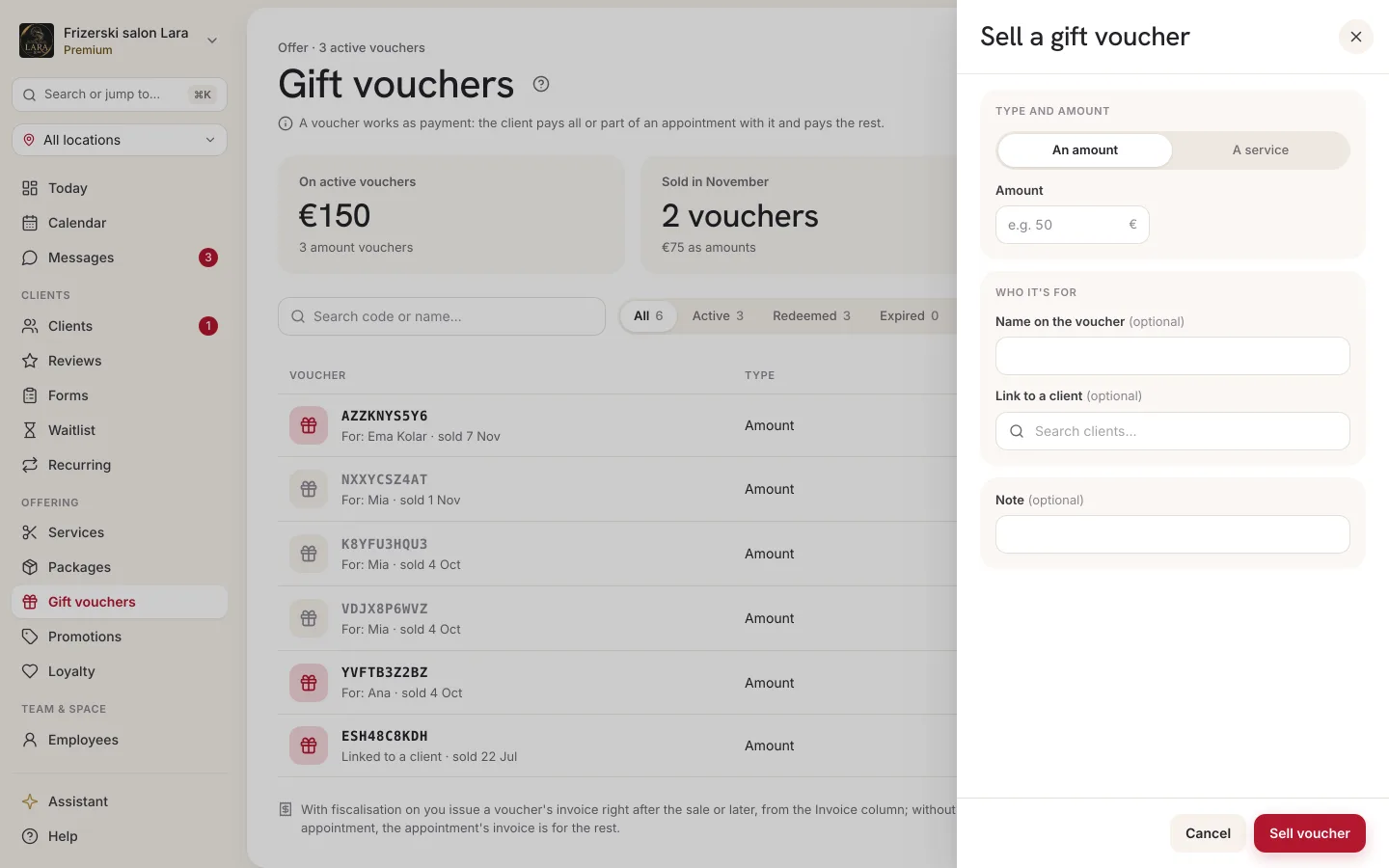
- In the sidebar, open Gifts and click Sell voucher. The Sell a gift voucher panel opens on the right.
- Under Voucher type, choose Amount (e.g. €50) or A specific service.
- For an amount voucher, enter the Amount (€). For a service voucher, choose one of your active services in the Service field.
- Optionally, fill in Recipient (optional) and Note (optional).
- Optionally, link the voucher to a client: in the Link to a client (optional) field, type at least two characters of the client's name, email or phone number and pick the client from the list. Below it, you see "The code will be sent to the client.". To pick someone else, click Change.
- Click Save. A "Voucher created." notification appears and the voucher shows up at the top of the table.
Each voucher gets an automatically generated 10-character code made up of uppercase letters and digits, without characters that are easily confused (0 and O, 1 and I). You can see the code in the Code column of the vouchers table.
Linked or unlinked voucher
| Linked to a client | Unlinked | |
|---|---|---|
| Who can redeem it | Only that client, during online booking, signed in to their Appointa account. | Anyone who knows the code — online or at the front desk. |
| Code delivery | Automatic, by push notification or email. | You hand over the code yourself (e.g. printed on a gift card). |
| Client's voucher list in the app | The voucher is shown. | The voucher isn't shown. |
| Resending the code | Possible. | Not possible — the code is in the table. |
Delivering the code to the client
When you save a voucher linked to a client, the code is sent to them right away:
- Push notification if the client uses the Appointa app — a "Gift voucher" notification with the code. Tapping the notification opens the client's voucher list in the app.
- Email if the client doesn't use the app. The email contains the code and a Book a slot button that opens your booking page. When the recipient reaches the last step of booking, the code is already filled in the Have a code? field — they don't have to retype it. Because the voucher is linked to a client, it's accepted only if the recipient is signed in to their Appointa account that is linked to your business.
The email goes to the address of the client's Appointa account or, if the client has no account, to the email address on their profile in your client list. No SMS is sent for vouchers.
Resending the code
Has the client lost the code? In the voucher's row, click the Resend code icon (paper plane). The code is sent again the same way as the first time, and a "The code was resent to the client." notification appears.
- The icon is available only for active vouchers that are linked to a client.
- You can resend the same voucher at most three times per hour. After that, you see "Too many resends for this voucher. Try again in an hour."
Redeeming a voucher
During online booking
- On your booking page or in the Appointa app, the client chooses a service, staff member, date and time.
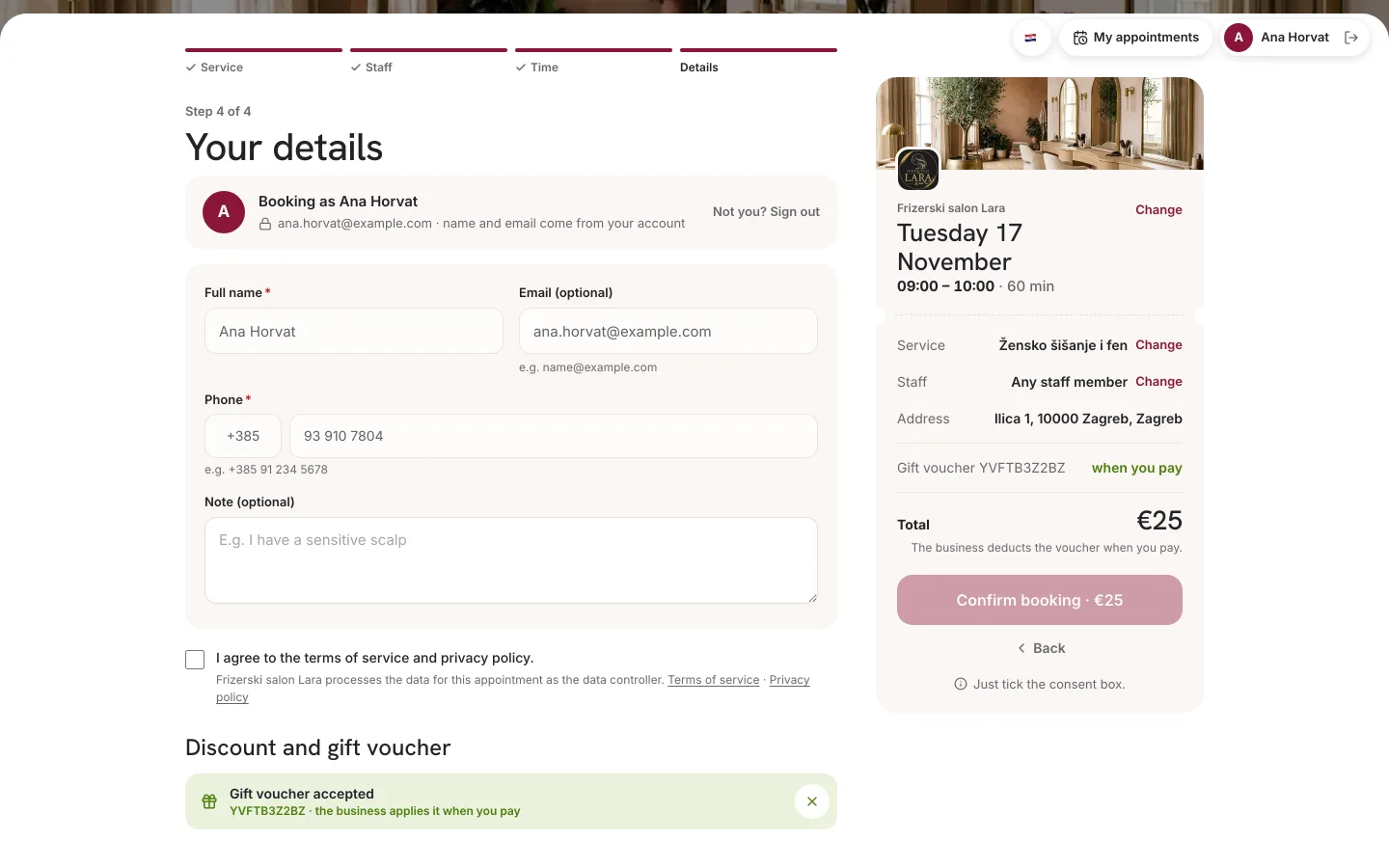
- In the last step, they enter the code in the Have a code? field (the field shows "Promo or gift voucher") and click Apply.
- A green Gift voucher accepted label appears.
- The client confirms the booking.
The same field also accepts promo codes — the system recognises whether it's a voucher or a promotion. A recipient who arrived via the Book a slot button in the email already has the code filled in.
Messages the client may see on the website (the messages in the app are similar):
| Message | Reason |
|---|---|
| "Code not found." | The code doesn't exist or was entered differently — the code must be entered exactly, in uppercase. |
| "This voucher doesn't apply to the selected service." | It's a voucher for a service, and the client chose a different service. |
| "This voucher has no remaining balance." | The amount voucher has been used up. |
| "This voucher can't be used right now." | The voucher has been redeemed or cancelled. |
| "This code can't be applied." | Most often: the voucher is linked to a different client, or the client isn't signed in to their account. In the app, the client sees "This gift voucher isn't yours." in that case. |
The Have a code? field isn't shown for services whose price isn't displayed publicly — a voucher can't be redeemed online for such services.
At the front desk
When you enter an appointment yourself in the calendar, the New appointment form has a Gift voucher code (optional) field.
- Open Calendar and click an empty slot in the schedule — see New appointment.
- Choose the client, service and time, and check the Price (EUR).
- Enter the code in uppercase in the Gift voucher code (optional) field.
- Save the appointment.
The voucher covers the amount entered in Price (EUR), up to the remaining amount on the voucher. If the code isn't valid or doesn't apply to the selected service, the form stays open and shows "The voucher code is invalid or doesn't apply to this service.".
How much a voucher covers
- An amount voucher covers the appointment price up to the remaining amount. If the voucher holds more than the appointment costs, the rest stays for next time; if it holds less, the client pays the difference as usual. The voucher gets the Redeemed status only when its remaining amount drops to €0.
- A service voucher covers the full price of an appointment for that service and is redeemed after that.
- A voucher isn't a discount. The appointment price doesn't change — Appointa records how much of the price was paid with the voucher. If a discount was applied to the appointment (e.g. a loyalty reward), the voucher covers the price after the discount.
- A cancelled appointment returns the amount. When an appointment paid with a voucher is cancelled, the redeemed amount goes back on the voucher, and a redeemed voucher becomes Active again.
- Package. An appointment that the client pays for in the app with a visit from a package can't also be paid with a voucher.
Tracking vouchers
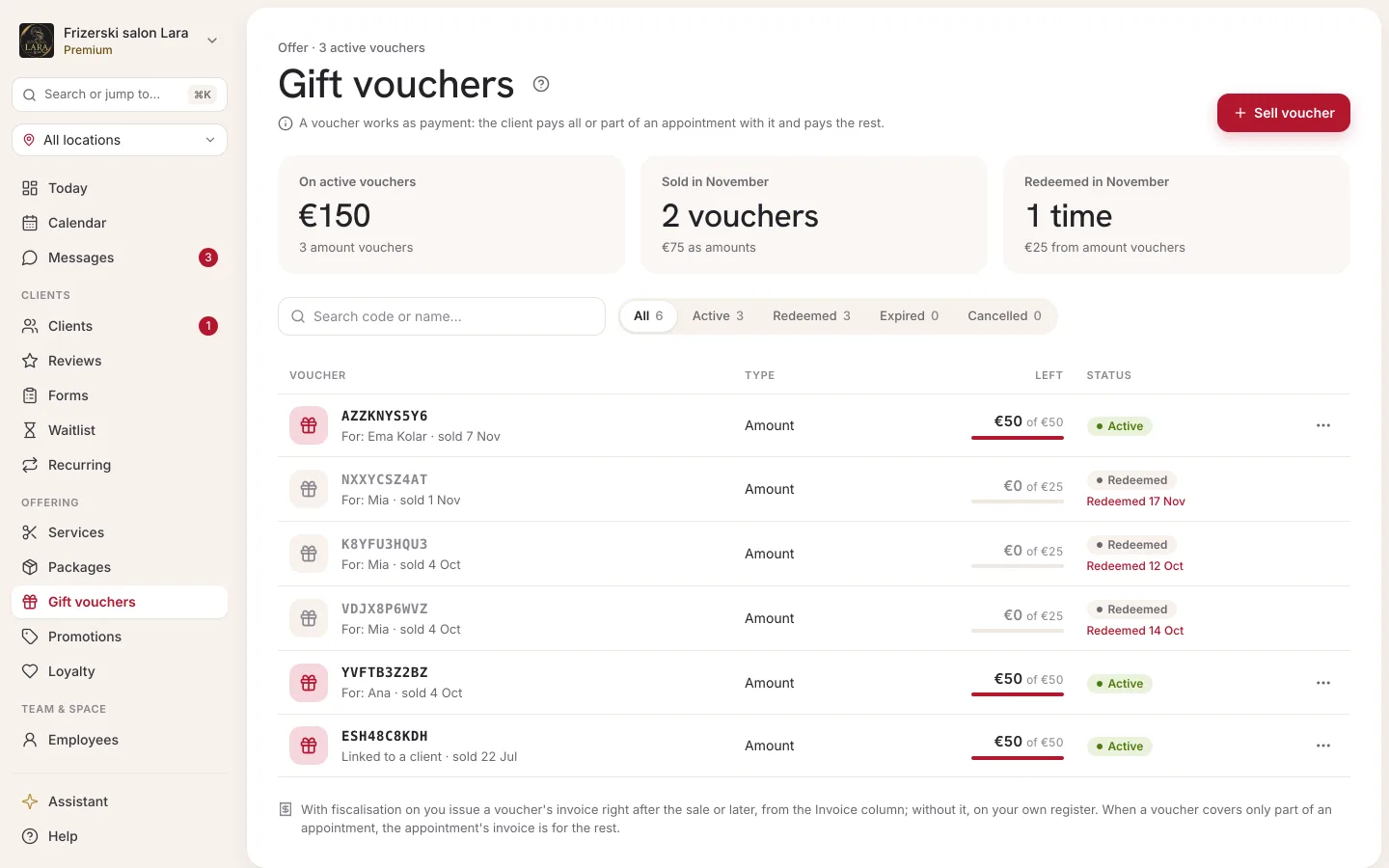
The table on the Gift vouchers screen lists all the vouchers you've sold, newest first.
| Column | What it shows |
|---|---|
| Code | The 10-character voucher code. |
| Type | Amount or For a service. |
| Value | For an amount voucher: remaining / initial (e.g. €20 / €50). For a service voucher: the name of the service. |
| Status | The voucher's status (see the table below). If the voucher has already been used, below the status there's a Redeemed link with the date of the appointment on which it was last used. |
| (actions) | Resend code and Cancel for active vouchers. |
| Status | Meaning |
|---|---|
| Active | The voucher can be redeemed. |
| Redeemed | The service voucher has been used, or the full amount of an amount voucher has been spent. |
| Expired | The voucher's validity period has passed. Vouchers sold through Sell voucher have no validity period. |
| Cancelled | The voucher has been cancelled and can no longer be redeemed. |
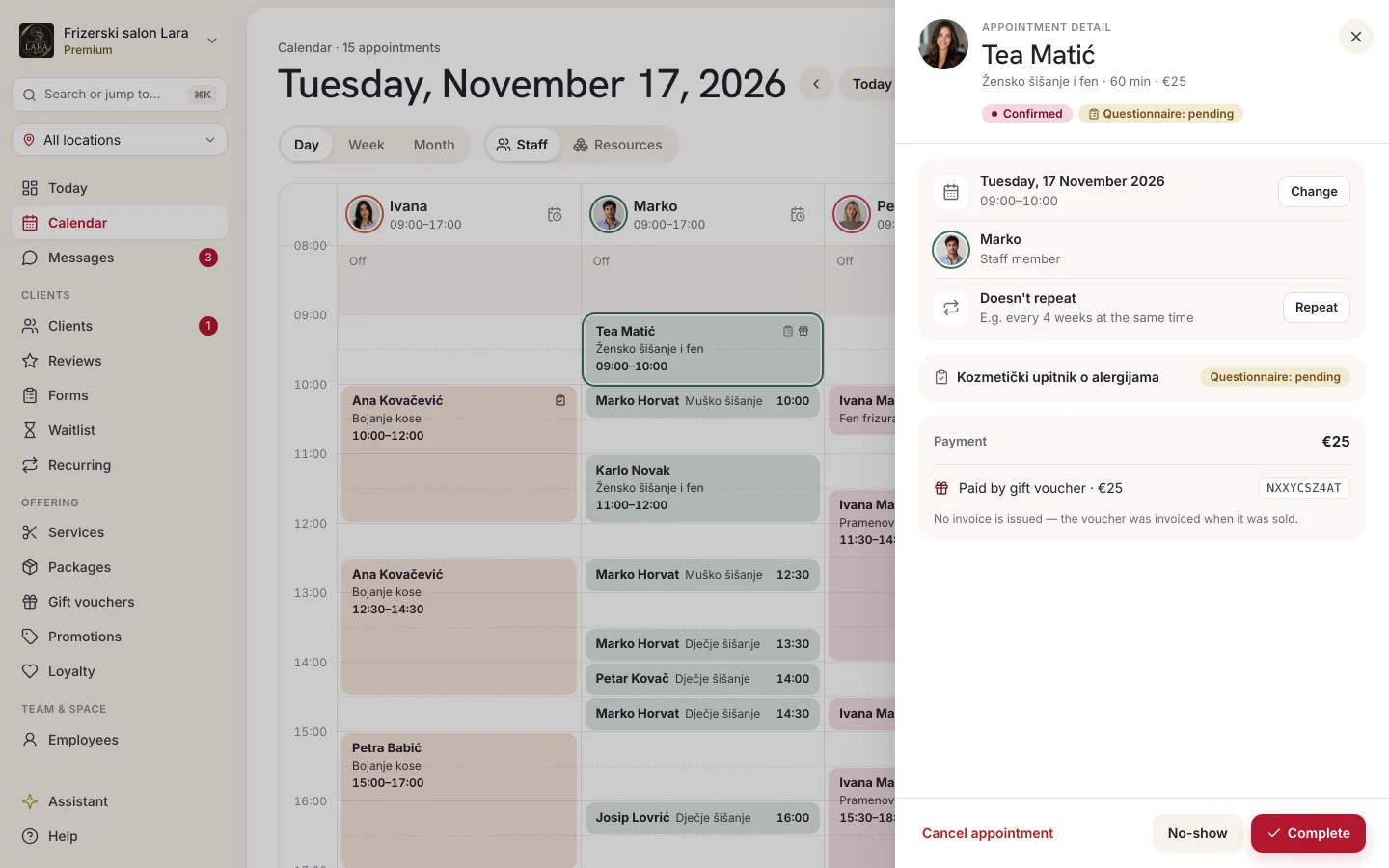
Clicking the Redeemed link opens the calendar's day view on the date of the appointment on which the voucher was used. In the calendar, an appointment paid with a voucher has a small gift icon, and the appointment details show Paid by gift voucher with the amount covered and the voucher code.
Cancelling a voucher
- In the row of an active voucher, click Cancel.
- In the "Cancel this voucher?" confirmation, click Cancel voucher.
A cancelled voucher can no longer be redeemed, and amounts that were already redeemed stay recorded. Cancel a voucher, for example, when you refund the buyer or when a voucher was sold by mistake. Cancelling can't be undone — if you need the voucher again, sell a new one.
The client's voucher list in the app
A client who uses the Appointa app has their vouchers on the My gift vouchers screen. They get there from the home screen, via the Gift vouchers section, or by tapping a voucher notification.
- Each voucher shows the business, the code (tap to copy it), the remaining amount ("Remaining: …") or the service ("Covers: …"), and the validity ("No expiry").
- An active voucher has a Book → button that leads straight to booking with your business.
- Redeemed and expired vouchers stay visible as history; cancelled ones aren't shown.
- The list shows only vouchers linked to the client. Vouchers you've already issued stay on the client's list even if you change your plan later.
Read more about the client app on the App for clients page.
Invoices for vouchers
At the top of the Gift vouchers screen there's a note: "A voucher is a record of the sale. With fiscalisation turned on you can issue its invoice after the sale, and the Invoice column shows which vouchers have one; without it you issue the invoice on your own register. When a voucher covers only part of an appointment, the appointment's invoice is for the rest."
- A sold voucher. If you use fiscalisation in Appointa, after the sale Appointa asks The voucher is sold. Issue an invoice? — Issue invoice opens issuing, and Not now leaves it for later. The Invoice column in the voucher list shows the invoice, and a voucher without one has an Issue invoice button there. A value voucher is invoiced at its value, a service voucher at that service's price. Without fiscalisation in Appointa you issue the invoice on your own register.
- An appointment paid with a voucher. The part the voucher paid was invoiced when the voucher was sold, so the appointment's invoice is only for the rest the client paid. An appointment the voucher paid in full has no invoice, and its details show no Issue invoice button.
Frequently asked questions
Do vouchers have a validity period?
Vouchers sold through Sell voucher have no validity period — in the app, the client sees "No expiry".
Can someone else use the voucher?
Not if it's linked to a client — it's accepted only when that client books, signed in to their account. An unlinked voucher can be used by anyone who knows the code.
The appointment costs more than what's left on the voucher. What then?
The voucher covers what's left on it, and the client pays the difference at your salon as usual. The voucher then switches to the Redeemed status.
A client cancelled an appointment paid with a voucher. Is the amount returned to the voucher?
Yes, automatically. The redeemed amount goes back on the voucher, and a voucher that this had used up becomes Active again. The cancelled appointment is no longer marked as paid with the voucher. If the voucher has expired or been cancelled in the meantime, the amount is returned but its status stays the same.