Calendar sync
How to subscribe to an employee's appointments in Google, Apple or Outlook Calendar, and how an employee's private calendar blocks online bookings in Appointa.

Appointa connects to the calendar an employee already uses on their phone or computer, in both directions. Appointments from Appointa can appear in their Google, Apple or Outlook calendar, and commitments from their private calendar can close off times for online booking — a dentist's appointment at 10 o'clock means clients can't book then. On this page you'll learn how to set up both directions, what exactly is transferred and how quickly.
Before you start
- Calendar sync is available on the Pro and Premium plans. On the Starter plan, the section shows an invitation to upgrade.
- It's set up per employee: each employee has their own link and their own external calendar.
- It's set up by the owner and managers, in the Employees menu.
- The connection works through standard ICS calendar addresses — there's no need to sign in to a Google or Microsoft account.
Where to set it up
- In the sidebar, open Employees.
- Next to the employee, click Edit. The Edit staff member form opens on the right.
- Scroll to the bottom, to the Calendar section.
The section only exists when you edit an existing employee. For a new employee, save them first and then open them again.
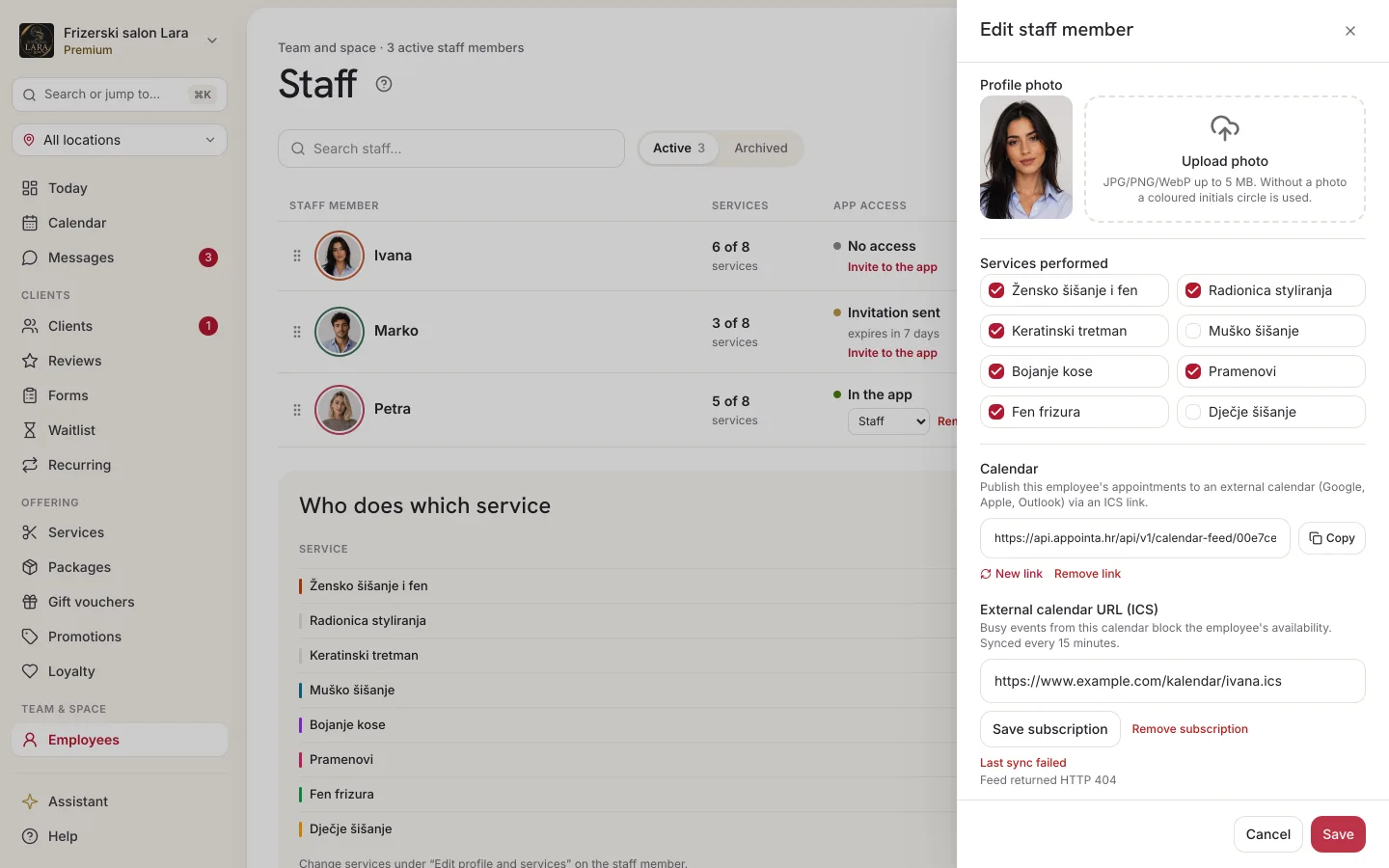
Appointa appointments in your calendar
Creating the link
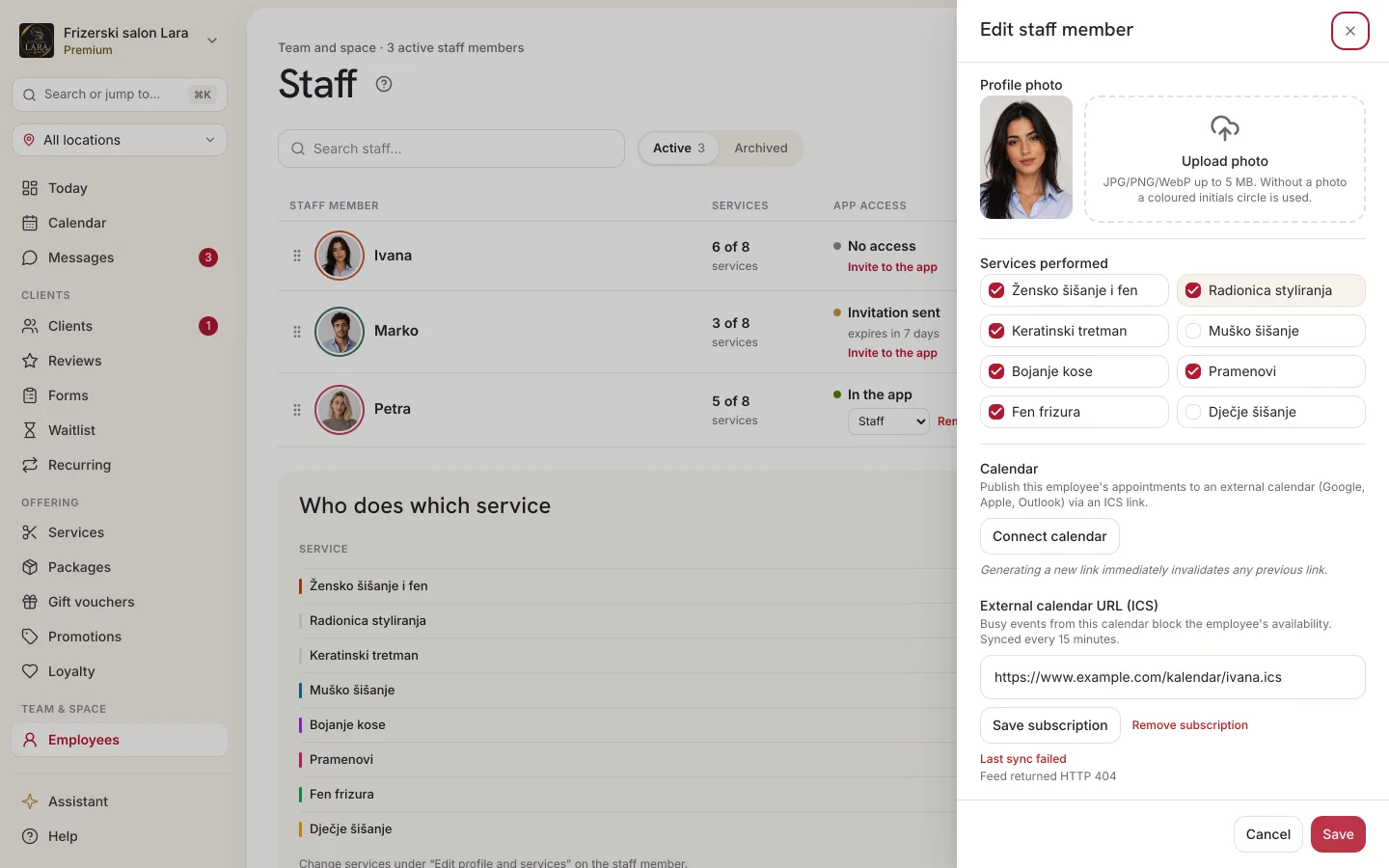
- In the Calendar section, click Connect calendar.
- The Calendar ICS link field appears, with the secret address of that employee's calendar.
- Click Copy (the button briefly shows Copied) and paste the link into your calendar straight away (see Subscribing in your calendar) or keep it somewhere safe.
New link and removing the link
- New link — after you confirm (“Generate a new link?”, the Generate button), the old link stops working and you get a new one. Use it if the link has reached someone who shouldn't have it.
- Remove link — after you confirm (“Remove the ICS link?”, the Remove button), the link stops working and the appointments disappear from the connected calendars.
What the link contains
| Item | What it contains |
|---|---|
| Period | Appointments from 7 days back to 60 days ahead |
| Statuses | Pending, Confirmed and Completed. Cancelled appointments and no-shows aren't in the calendar. |
| Event title | “[Appointa] Client name · Service” (for an appointment without a client, it says “Klijent”, Croatian for “client”) |
| Time | The appointment's start and end |
| What isn't included | The client's phone number and email, notes, price |
The link only carries appointments outward from Appointa: changes made in Google or Apple Calendar don't come back into Appointa. You still edit appointments in Appointa.
Subscribing in your calendar
The exact menu names depend on the version of the app, but the procedure is the same everywhere: you add a calendar “from URL” or as a “calendar subscription”.
| Calendar | Procedure |
|---|---|
| Google Calendar (web) | Next to “Other calendars”, click “+” and choose adding a calendar from a URL, paste the link and confirm. The calendar then also appears in Google Calendar on your phone. |
| Apple (iPhone, iPad) | Settings → Calendar → Accounts → Add Account → Other → “Add Subscribed Calendar”, paste the link. |
| Outlook | “Add calendar” → “Subscribe from web”, paste the link. |
How quickly a new or changed booking shows up in the external calendar depends on how often that app refreshes subscribed calendars. Some only do it every few hours. Appointa can't influence this, so for the most up-to-date picture, always check the calendar in Appointa or in the Appointa Pro app.
A private calendar blocks online bookings
The other direction: commitments in the employee's private calendar close off time in online booking.
- In your calendar, find the calendar's ICS address. In Google Calendar, it's in the calendar's settings (the secret address in iCal format, ending in
.ics). Apple and Outlook can also publish or share a calendar as an ICS address. - In the Calendar section, paste the address into the External calendar URL (ICS) field.
- Click Save subscription. The message “Subscription saved” appears.
- Below the field it says “Not synced yet — the first sync starts within 15 minutes.”, and after the first sync, “Synced … ago”.
An employee can have one external calendar. If you save a different address, it replaces the previous one.
If the address isn't valid, you'll see “Invalid calendar URL. Make sure the link starts with http(s) and is publicly reachable.”
What gets blocked
- Every event in the external calendar, from yesterday to 8 weeks ahead, is treated as busy time. Recurring events (e.g. every Tuesday) are taken into account, and an all-day event blocks the whole day.
- At those times, online booking doesn't offer that employee. Clients don't see any of the event's content — only that the time isn't free.
- The blocks are not shown in the calendar in Appointa and don't prevent you from manually entering an appointment for that employee. So before entering an appointment manually, check the employee's private calendar as well.
Refreshing and errors
Appointa reads the external calendar about every 15 minutes. So a commitment entered in the private calendar a couple of minutes ago may not block online bookings yet — that's the usual rhythm of ICS calendars, not a fault.
If the external calendar can't be read (e.g. the link no longer works or the calendar is too large), Last sync failed appears below the field with a description of the error. In that case:
- the blocks from the last successful sync stay in effect
- new commitments from the private calendar don't come through until the error is fixed
- online bookings and everything else in Appointa work normally
You remove the subscription with the Remove subscription link. After you confirm (“Remove the subscription?”), all blocks from that calendar are released immediately.
Frequently asked questions
Do clients see my private commitments?
No. Events from the private calendar only close off time in online booking. Nobody in Appointa sees the event's title, location or description.
I've lost the calendar link. How do I get it again?
An existing link can't be shown again. Click Connect calendar to get a new one, and in your calendar replace the old subscription with the new one.
I changed an appointment in Appointa, but Google Calendar still shows the old time. Why?
Google and other apps refresh subscribed calendars on their own, sometimes only after several hours. Wait, or refresh the subscription manually in your calendar app, if it supports that.
Can an employee connect several private calendars?
No. One external calendar is saved per employee. If they have several, they should keep their commitments in a single calendar in their calendar app and connect that calendar's address.
What happens if I switch to the Starter plan?
Blocks from external calendars stop affecting online bookings, and the Calendar section shows an invitation to upgrade instead of the settings. A link that has already been created keeps working, and after the plan change you can't turn it off from that section. If you don't want it any more, click Remove link before switching to Starter — the button is only visible while the link is displayed, so if needed, create it first with the Connect calendar button (which also makes the old link stop working).