Dashboard
What the Dashboard shows: today's and this week's appointments, revenue, upcoming appointments, recent messages, First steps and the staff view.
The dashboard (Dashboard in the menu) is the first page you see after signing in. At a glance it shows how many appointments you have today and this week, how much you've earned, who's coming next and who has written to you. Owners and managers see an overview of the whole business, and staff see their own personal view. This page explains what each number counts and where clicking it takes you.
Which view you see
| Who you are | What you see |
|---|---|
| Owner or manager | An overview of the whole business (subtitle Overview of your business.): appointments, revenue and messages. |
| A team member whose account is linked to a staff profile (for example a staff member who accepted an invitation) | My dashboard: only their own appointments, revenue, ratings and clients. |
| A staff member whose account isn't linked to a profile yet | The message Account linked, profile not yet. |
In the last case, ask the owner or manager to invite you from your staff card in Employees. After that you'll see your personal view here. More in Invitations and roles.
Business overview
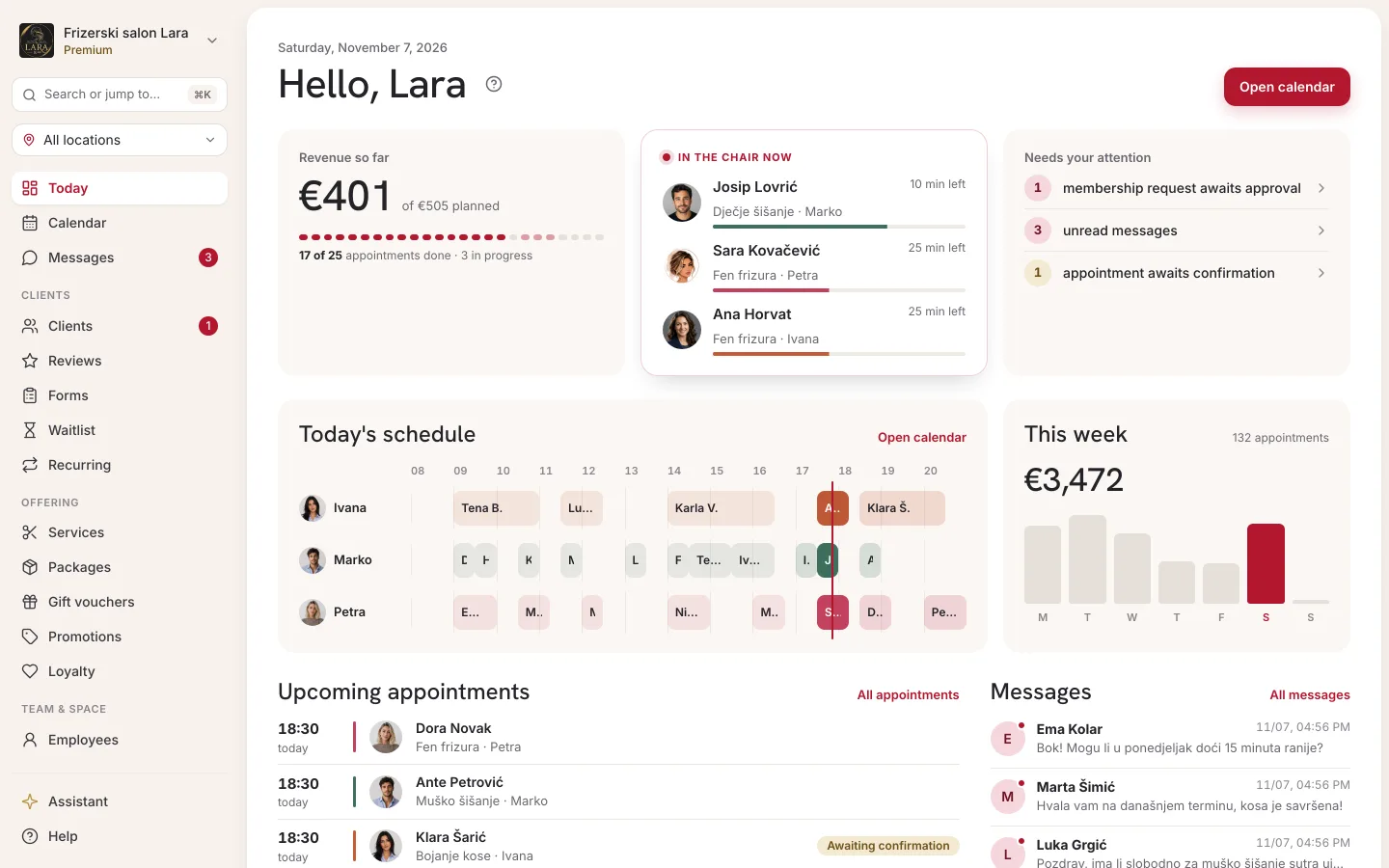
At the top it says Welcome, … with the business name, and on the right there's an Open calendar button.
Numbers at the top
Three cards with numbers. Clicking a card opens a page with the details.
| Card | What it counts | Clicking it takes you to |
|---|---|---|
| Today's appointments | Today's appointments in every status except Cancelled, so including pending, completed and no-show appointments. | Calendar |
| Appointments this week | All appointments scheduled from Monday to Sunday this week, in any status. The bars below the number show the number of appointments per day. | Analytics |
| Revenue this week | The same figure as Revenue in Analytics for the current week: confirmed and completed appointments plus packages and gift vouchers sold this week, rounded to whole euros. The bars show revenue per day. | Analytics |
The bars run from Monday to Sunday: the day of the week is written below each one, and the number (or amount) is written inside the bar when it isn't zero for that day.
The final price is the price after any discount from a promotion or loyalty program, see How prices are calculated. More detailed figures and comparisons by period are in Analytics.
Upcoming appointments
A list of up to six of the nearest upcoming appointments, earliest first. Pending and confirmed appointments are shown; cancelled, completed and no-show appointments don't appear here.
Each row shows:
- the time and date,
- the staff member's avatar in their color,
- the client's name, or Walk-in for a walk-in,
- the service, the staff member and the length in minutes.
A group session (a service with several seats) takes up just one row: instead of a client's name it shows the service name with the number of seats taken, e.g. 7/10 seats, and below it the staff member and the length.
An appointment still waiting for your confirmation has a gold stripe on the left and the unconfirmed label. Clicking a row opens the Calendar in day view on that appointment's day. When there are no upcoming appointments, it says No upcoming appointments.
Recent messages
The five conversations with the newest messages: the client's name, the time of the last message and its opening words. A conversation with unread messages has the new label. Clicking a row opens that conversation in Messages, and All messages → below the list opens the full list. When there are no messages yet, it says No recent messages. How to reply is described in Messages.
First steps
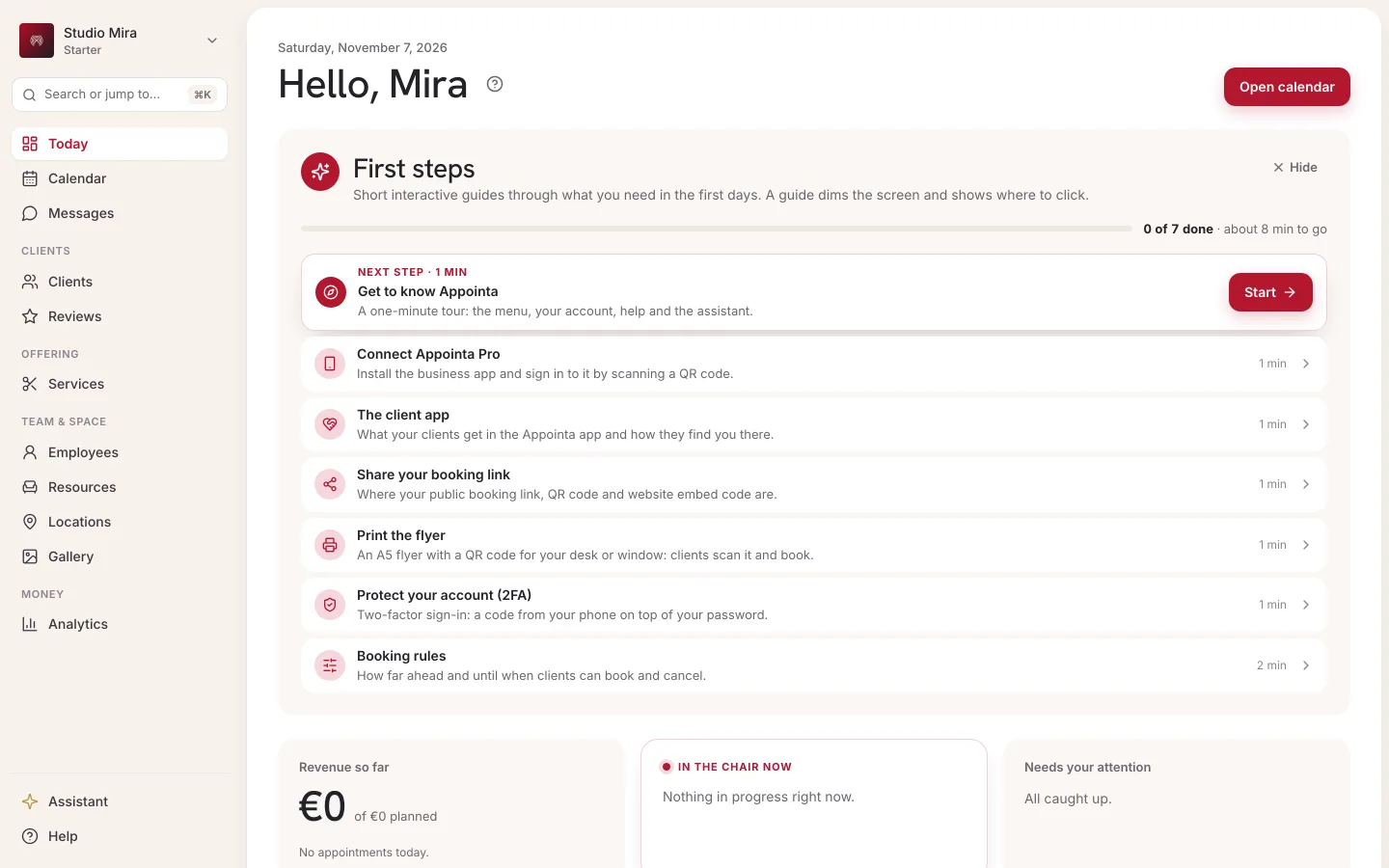
After you set up your business, the dashboard shows a First steps card with recommended interactive guides for your first tasks in the app. Clicking a guide starts it straight away: the screen dims and the guide shows you where to click, step by step. When you no longer need the card, you can hide it; this only applies to your account. You can always find the same guides under Guides in the menu too, see Interactive guides.
What needs your attention
Together, the dashboard and the menu show what's waiting for you:
| Label | Where | What to do |
|---|---|---|
| unconfirmed | A row in Upcoming appointments | Open the appointment in the calendar and confirm or cancel it. This usually happens when Direct booking is turned off in the booking rules. |
| new | A row in Recent messages | Open the conversation and reply. |
| Number on the Messages item | Sidebar | The total number of unread messages. |
| Number on the Clients item | Sidebar | Clients waiting for your approval, see Client list. |
My dashboard (staff)
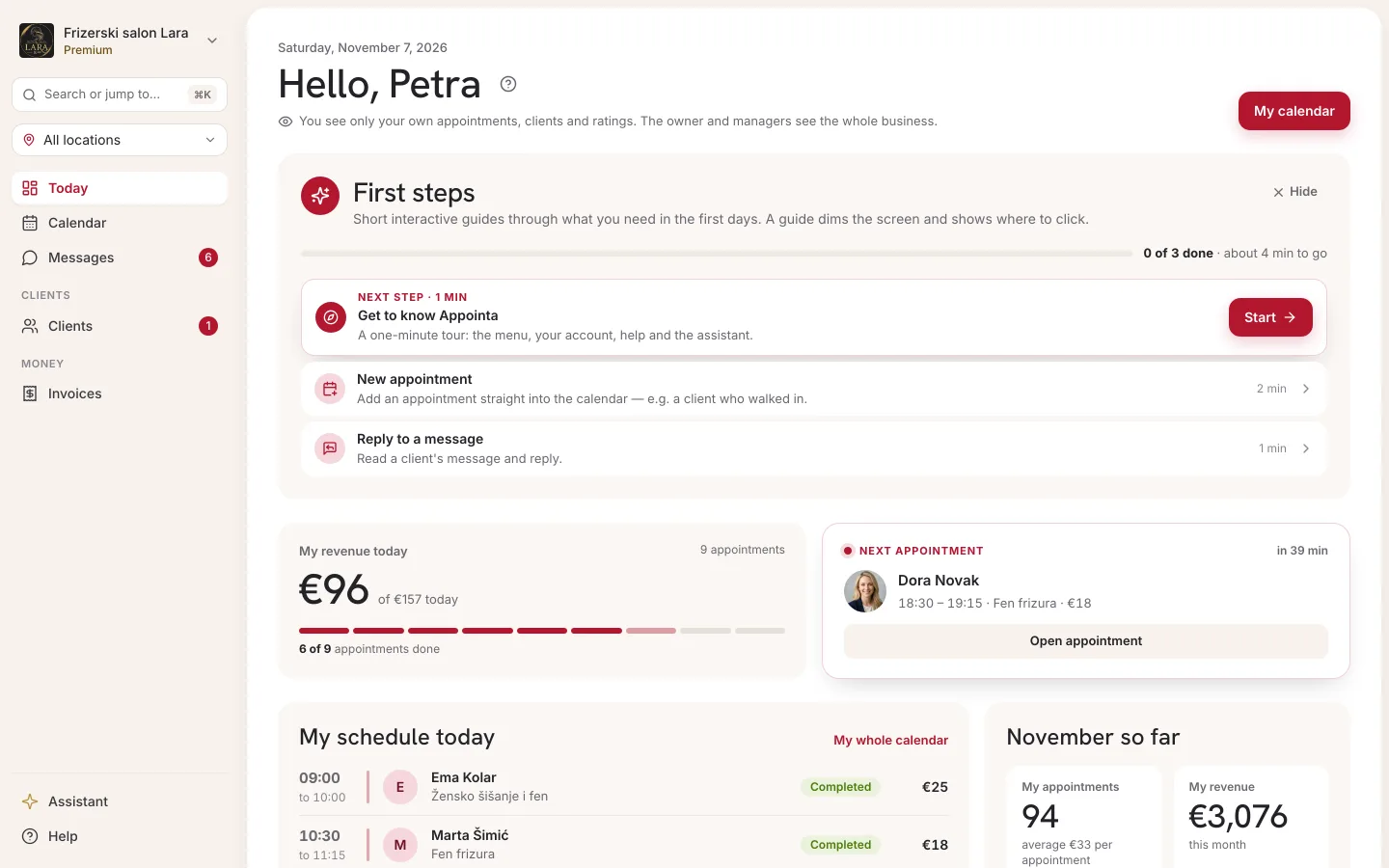
A staff member linked to a profile sees Hi, … with their name, and a note that they only see their own numbers and clients, while the owner has access to everything.
| Card | What it shows |
|---|---|
| My appointments this month | Your confirmed and completed appointments in this calendar month. Below it is the average price per appointment. |
| My revenue | The sum of the final prices of those appointments, rounded to whole euros. |
| Avg rating | The average of all client ratings for your appointments, with the number of ratings (or No ratings yet). |
| No-show rate | The percentage of no-shows this month, with the count “… of … appointments”. Up to 5% the number is green; above that it's red. |
Below the cards:
- Today's schedule: your appointments today, with the time, client and service. Details and Show my full calendar → open the Calendar.
- My top clients: the five clients with the most appointments with you, with the date of their last visit.
- Recent reviews: the five newest ratings for your appointments, with stars and a comment.
- Mobile app activation (Staff role only): the QR code that connects Appointa Pro on your phone to your own account (see Activating with a QR code).
Frequently asked questions
Why is this week's revenue €0 when I've had appointments?
Confirmed and completed appointments count towards revenue. Pending appointments don't count until you confirm them, and appointments taken from a package have a price of €0 (the package counts on the day it's sold).
The numbers don't change while I'm looking at the page.
The dashboard calculates its numbers when you open it. For the latest figures, reload the page or click Dashboard again. The calendar, unlike the dashboard, refreshes on its own.
I have several locations. What does the dashboard show?
The business overview adds up the appointments, revenue and messages of all locations, regardless of the location selected in the sidebar.
I'm the owner, but I also take appointments. Do I see my personal view?
The view depends on whether your account is linked to a staff profile. If it is, the dashboard shows My dashboard with your appointments; you then view the figures for the whole business in Analytics.
A staff member sees the message “Account linked, profile not yet”.
Their account is in the team but isn't connected to a staff profile. In Employees, open that staff member's card and send them an invitation from it.