Waitlist
How clients join the waitlist, who gets notified and how when a slot frees up, and how to add, notify and close entries on the Waitlist page.

When the time a client wants is taken, they don't have to give up: they join the waitlist, and when someone cancels, Appointa lets them know on its own that a slot has opened up. That way a cancelled appointment becomes a new appointment instead of a gap in the schedule. On this page you'll learn how clients sign up, how Appointa decides whom to notify, and how you manage the list on the Waitlist page.
Before you start
- The waitlist is available on the Premium plan. On lower plans, the menu item isn't shown and clients don't see the option to join.
- The Waitlist menu item is visible to the owner and managers. They add clients manually, send notifications, and convert and remove entries.
- To receive a notification, clients need to have the Appointa app, an email address or — with SMS notifications turned on — a mobile number.
- If the business is members-only, only approved clients can add themselves to the waitlist — the same as booking. A new client first sends a request for access.
How the waitlist works
- The client (or you on their behalf) enters what they're waiting for: a service, an employee or “any”, a date range and a time range.
- When an appointment slot frees up, Appointa looks for entries that match it. A slot frees up when the client or your business cancels an appointment (including through Bulk actions), when your business moves an appointment to another time or another employee, when a future appointment is marked as a no-show, and when a pending request expires automatically.
- Of all matching entries, only the oldest one gets a notification — whoever joined first gets the first chance.
- The entry changes to the Notified status. If nobody closes it within 15 minutes, it goes back to Waiting. If the time was freed up by a cancellation or a no-show and nobody has booked it in the meantime, the notification for the same time then goes to the next entry in line. For time freed up by moving an appointment, the next entry doesn't get a notification.
A freed-up slot matches an entry if:
| Condition | Rule |
|---|---|
| Service | The same service, or the entry says Any |
| Employee | The same employee, or the entry says Any |
| Date | Within the Date from – Date to range |
| Time | The start of the freed-up slot (in the salon's time zone) is within the Time from – Time to range |
| Resource | For services with a resource: a suitable resource is also free at that time |
How a client joins
Clients join the waitlist themselves, through online booking or in the Appointa app. They need to be signed in to do this; a visitor who isn't signed in sees the message “You need to be signed in to join the waitlist.” and a Sign in button.
In online booking, there are two ways in:
- A taken slot. The client clicks a time that's taken. A “This slot is taken” window opens, where under Flexibility they choose This exact slot, ± 30 min around this time or Any time that day.
- No available times. When nothing is free on the selected day, the client clicks Join the waitlist and enters a date range and a time range themselves.
The client is told: “When a slot opens in your range we'll push-notify you. You'll have 15 minutes to book.” If they're already on the list for the same slot, they see “You're already on the waitlist for this slot.”
Clients can see their entries in the app and cancel them themselves. Online booking is described in Public business page.
The notification to the client
When a matching entry is found, the client gets a notification with the business name, the date and time of the freed-up slot, and a link to book:
- a push notification in the Appointa app, if they use it
- otherwise an SMS, if SMS notifications are turned on (see SMS notifications)
- otherwise an email
The Waitlist page
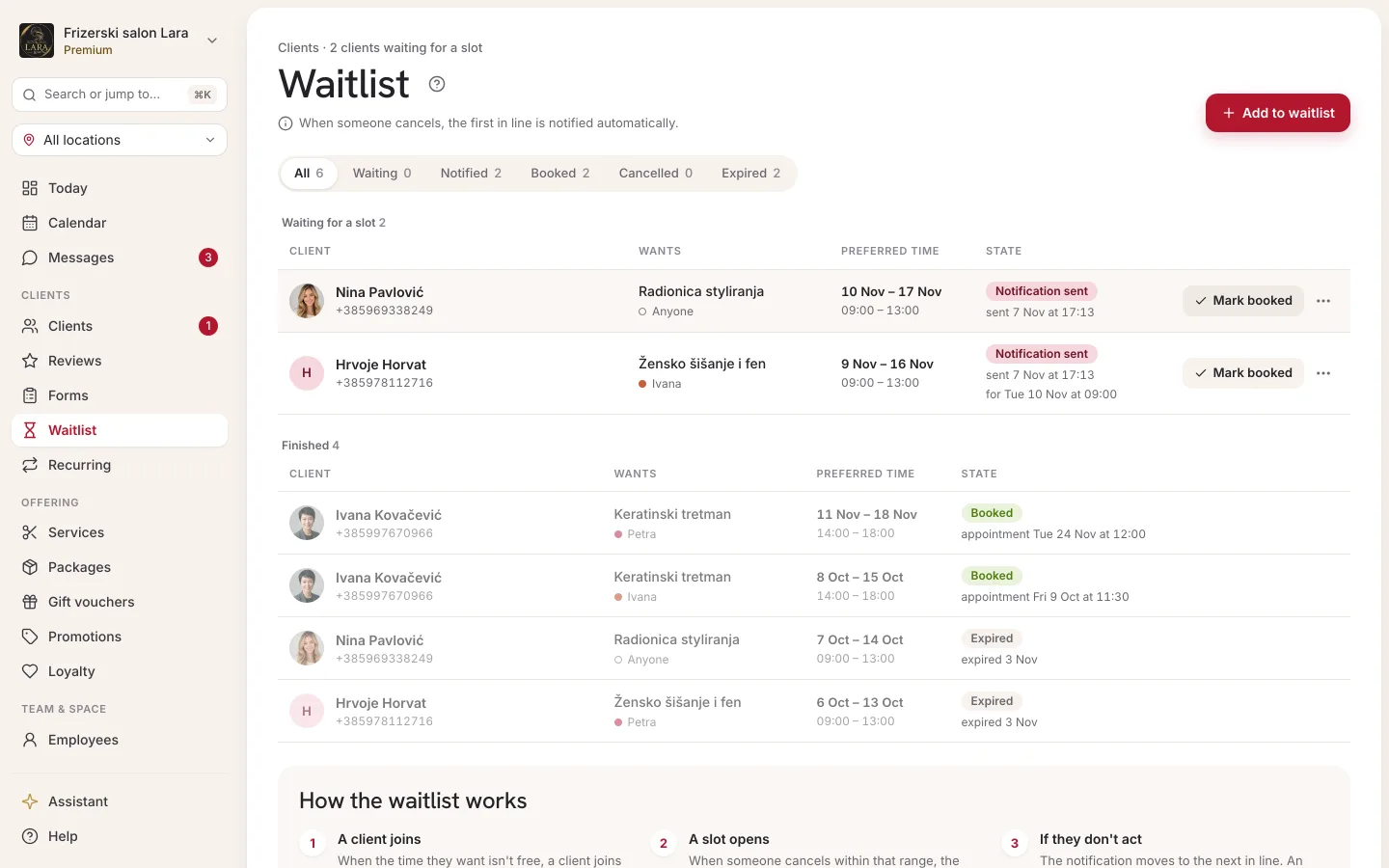
In the sidebar, select Waitlist. Above the table there are filter buttons showing the number of entries: All, Waiting, Notified, Converted, Cancelled and Expired.
| Column | What it shows |
|---|---|
| Client | The name, phone number or email, and the app label if the client has a user account in Appointa (they sign in to the app or on the web). |
| Service | The requested service, or Any. |
| Employee | The requested employee, or Any. |
| Date range | From which date to which date suits the client. |
| Time | The time range, e.g. “14:00 – 18:00”. |
| Status | The state of the entry (see the table below). |
| Actions | Notify, Convert and Remove, depending on the status. |
| Status | Meaning |
|---|---|
| Waiting | The entry is active and waiting for a slot to free up. |
| Notified | The client has just been notified. After 15 minutes, the entry goes back to Waiting. |
| Converted | The client got an appointment and the entry is closed. |
| Cancelled | The entry was removed by your business or the client. |
| Expired | 30 days have passed since the entry was made. |
Adding a client manually
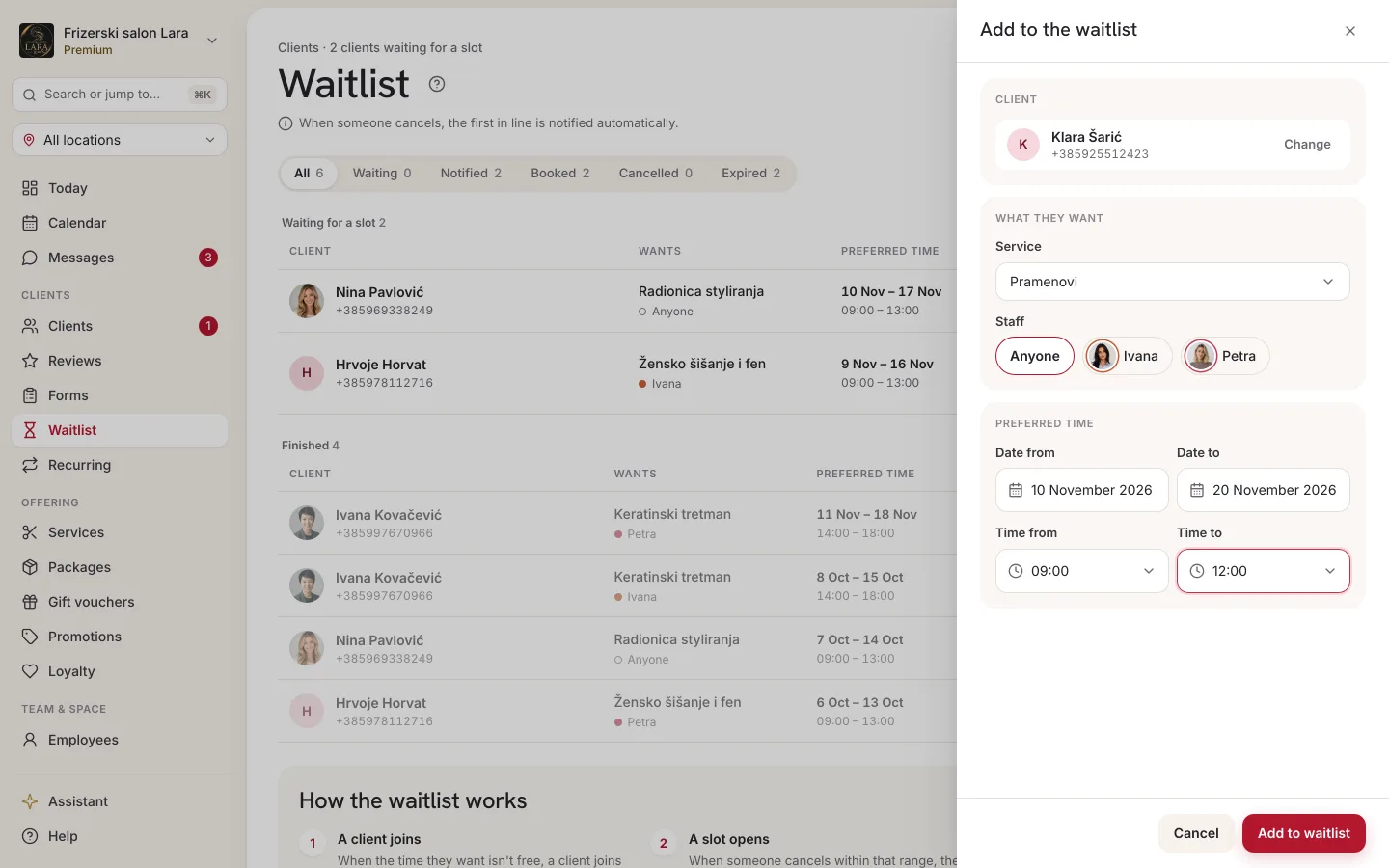
When a client calls or is at your business and wants you to let them know if something frees up:
- On the Waitlist page, click Add client manually. The button is shown if your business has at least one service.
- In the Client field, type at least two letters of a name, phone number or email and choose the client. The client must already be in your client list (see Client list).
- Choose the Service and, optionally, the Staff member. The default is Any; the list only contains employees who perform the selected service.
- Choose Date from and Date to. The suggested period is from today to seven days ahead.
- Choose Time from and Time to (in 30-minute steps, 09:00–18:00 suggested). The start must be before the end.
- Click Add to waitlist at the bottom of the panel. The button only becomes active once a client is selected, Date from isn't after Date to, and Time from is before Time to. The message “Saved” appears, and the entry is at the top of the list with the Waiting status.
Actions on an entry
Notify (only for the Waiting status) — immediately sends the client a notification that your business has free slots, with a link to book. This notification doesn't mention a specific time, so use it when you've opened up time in the calendar yourself (e.g. added a shift). The entry changes to Notified and goes back to Waiting after 15 minutes.
Convert (for Waiting and Notified) — closes the entry as successful. Click it when the client gets an appointment, whether they booked it themselves or you entered it.
Remove (the bin icon) — after you confirm “Remove from waitlist?”, the entry changes to Cancelled and the client no longer receives notifications. If they change their mind, they have to join again.
How long an entry lasts
Each entry is valid for 30 days from when it was made. After that, it automatically changes to Expired and no longer takes part in matching. If the client is still waiting, add them again or ask them to join again.
Frequently asked questions
Do several clients get notified at once?
No. For one freed-up slot, only the oldest matching entry gets a notification. The next one in line only gets it when the first entry goes back to Waiting after 15 minutes, and only if the time was freed up by a cancellation or a no-show and is still free.
Can a client have several entries?
Yes. Each entry is separate, e.g. one for this week and one for next week. A client can't make the same entry (same service, employee, dates and times) twice.
A client wasn't notified even though an appointment was cancelled. Why?
Check whether the freed-up slot matches the entry (service, employee, date, time), whether the entry has the Waiting status, whether someone older in line was notified before them and whether the client has the app, an email address or a mobile number.
What if I cancel an appointment in the past?
Entries wait for future slots, so a past appointment generally won't match any entry.