Signing up and signing in
How to open an Appointa account with email, Google or Apple, confirm your address, sign in, set a new password and complete two-factor verification.
To work in Appointa you need a user account. On this page you'll learn how to open one, how to confirm your email address, how to sign in (including when two-factor sign-in is turned on), what to do if you forget your password and what to expect after you sign in for the first time.
Before you start
- An email address you actually read. That's where the sign-up confirmation and the new password link arrive, and later also notifications about your business. Instead of an email and password, you can use a Google or Apple account.
- A browser on a computer, tablet or phone. The admin area runs in the browser, so there's nothing to install.
- This page is for owners, managers and staff. Clients sign in on the business's public page or in the Appointa app, see App for clients.
Ways to sign up
You start signing up on appointa.hr with the Start free button, or with the Sign up link on the Log in page.
| Method | Button | What you need | Note |
|---|---|---|---|
| Email and password | Sign up | Your full name, email and a password of at least 8 characters | You confirm your address with a link from an email. |
| Apple | Continue with Apple | An Apple ID | No form: Apple confirms your identity. |
| Continue with Google | A Google account | No form: Google confirms your identity. |
The Continue with Apple and Continue with Google buttons are the same on the sign-up page and the log-in page: the first click opens an account, and every click after that signs you in.
Signing up with email and password
- On appointa.hr, click Start free. The Sign up page opens.
- Enter your Full name (for example Ana Marić), Email and Password. The password must be at least 8 characters long.
- Click Sign up.
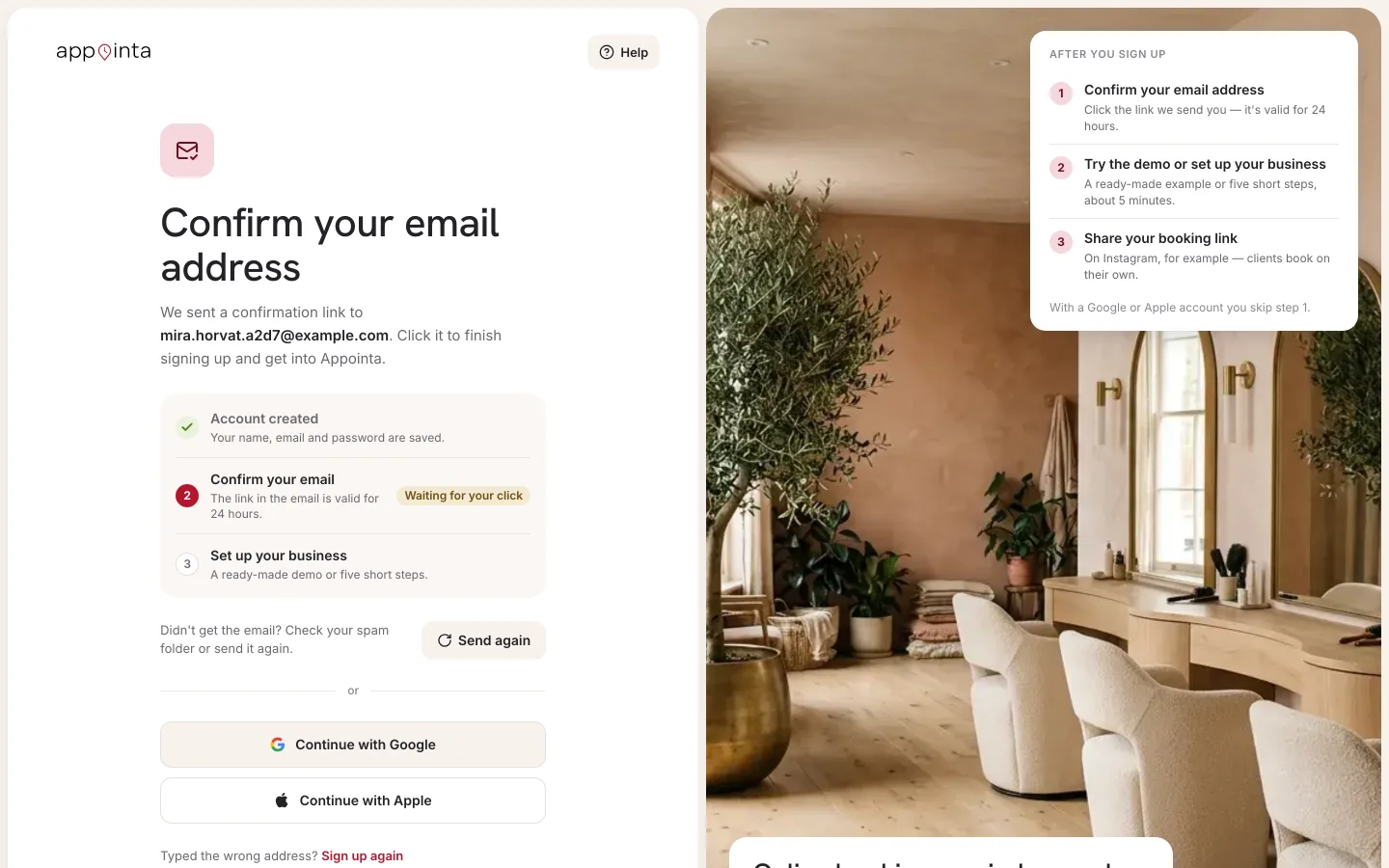
- The form is replaced by the message Confirm your email address, showing the address the link was sent to.
- Open the email “Confirm your Appointa email address” and click Confirm email.
Below the Sign up button there's a note that you accept the Terms of Service and the Data Processing Agreement when you set up your business. You do that with a checkbox on the last step of business setup, not when you sign up.
| Message | What it means and what to do |
|---|---|
| Enter a valid email address (e.g. [email protected]). | The address isn't in a valid format. Check for typos, spaces and the @ sign. |
| Password must be at least 8 characters. | Enter a longer password. |
| Sign-up failed. Please try again. | The request didn't go through. Wait a moment and try again. |
Confirming your email address
Until you confirm your address, signing in with email and password won't work.
- In the email, click Confirm email. Appointa opens with the message Confirming....
- When Email confirmed appears, you're already signed in. After a moment Appointa redirects you onwards on its own.
- The first time, you land on the Welcome to Appointa screen (see After you sign in for the first time).
The confirmation link is valid for 24 hours. You ask for a new link with the Send again button, which is in three places:
- in the Confirm your email address box right after signing up,
- on the Log in page, when signing in says “Your email address isn't confirmed yet…”,
- on the Confirmation failed page, which opens when the link has expired or is invalid — enter your email address there first.
You'll see “If the address is waiting for confirmation, we've sent a new link. It's valid for 24 hours.” The link in the newest email is the one that works. If you click the button several times in a row, it says “We've just sent a link. Wait a minute and try again.”
Google or Apple
- On the Sign up or Log in page, click Continue with Apple or Continue with Google.
- Your browser takes you to Apple's or Google's page. Choose your account and confirm.
- You come back to Appointa signed in. Until your business is set up, you land on the Welcome to Appointa screen; after that, you go straight to the Dashboard.
If something goes wrong, Sign-in failed. Please try again. appears below the buttons.
Signing in
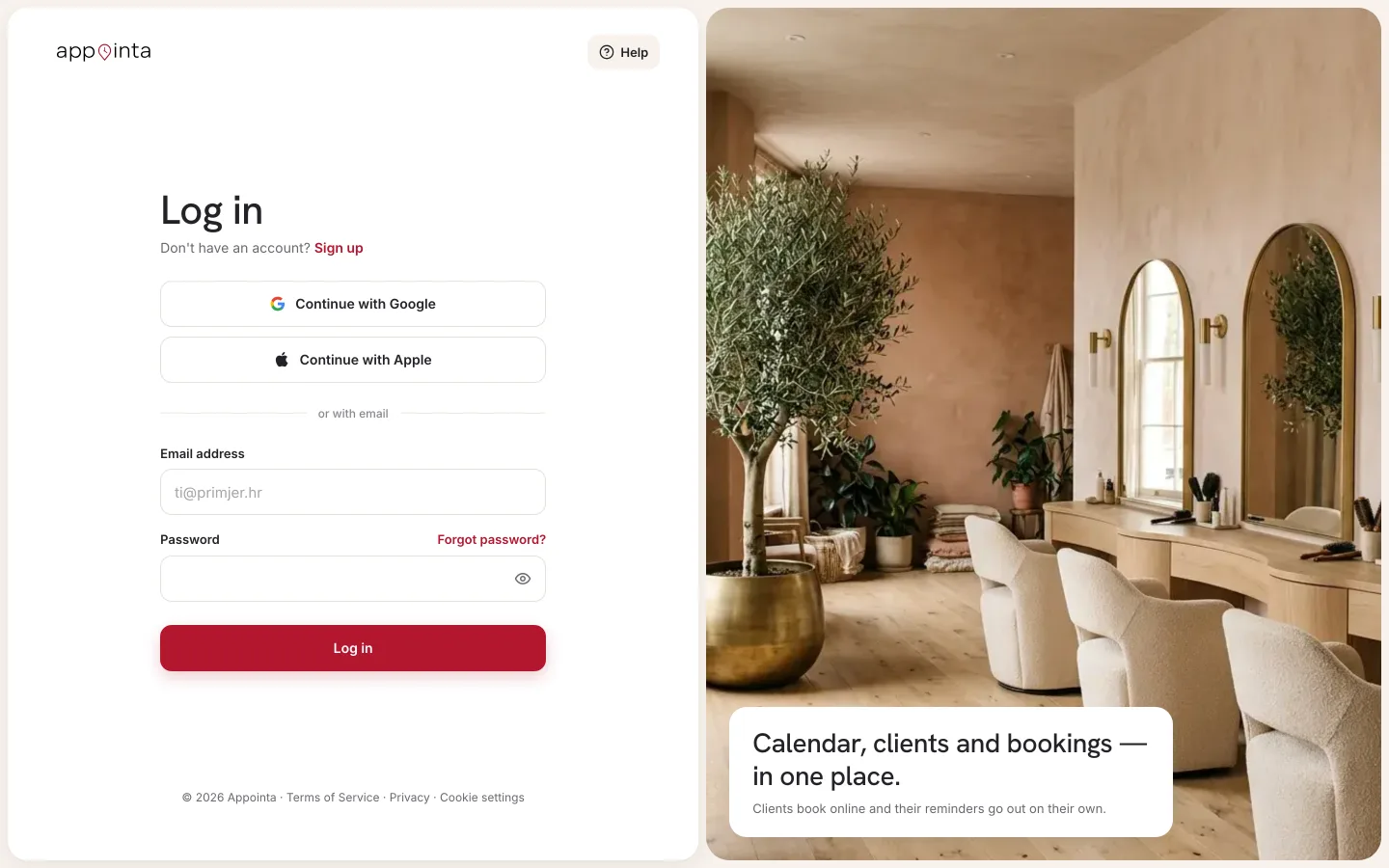
- On appointa.hr, click Log in.
- Enter your Email and Password and click Log in, or click Continue with Apple / Continue with Google.
- If you have two-factor sign-in turned on, one more screen follows (see below).
- Your business's Dashboard opens. If your business isn't set up yet, the Welcome to Appointa screen opens instead (see After you sign in for the first time).
If you reached the log-in page through a link, for example from a team invitation, and you sign in with email and password, you're taken back to that page afterwards. Signing in with Continue with Apple or Continue with Google always takes you to the Dashboard. In that case, open the link again.
Two-factor verification
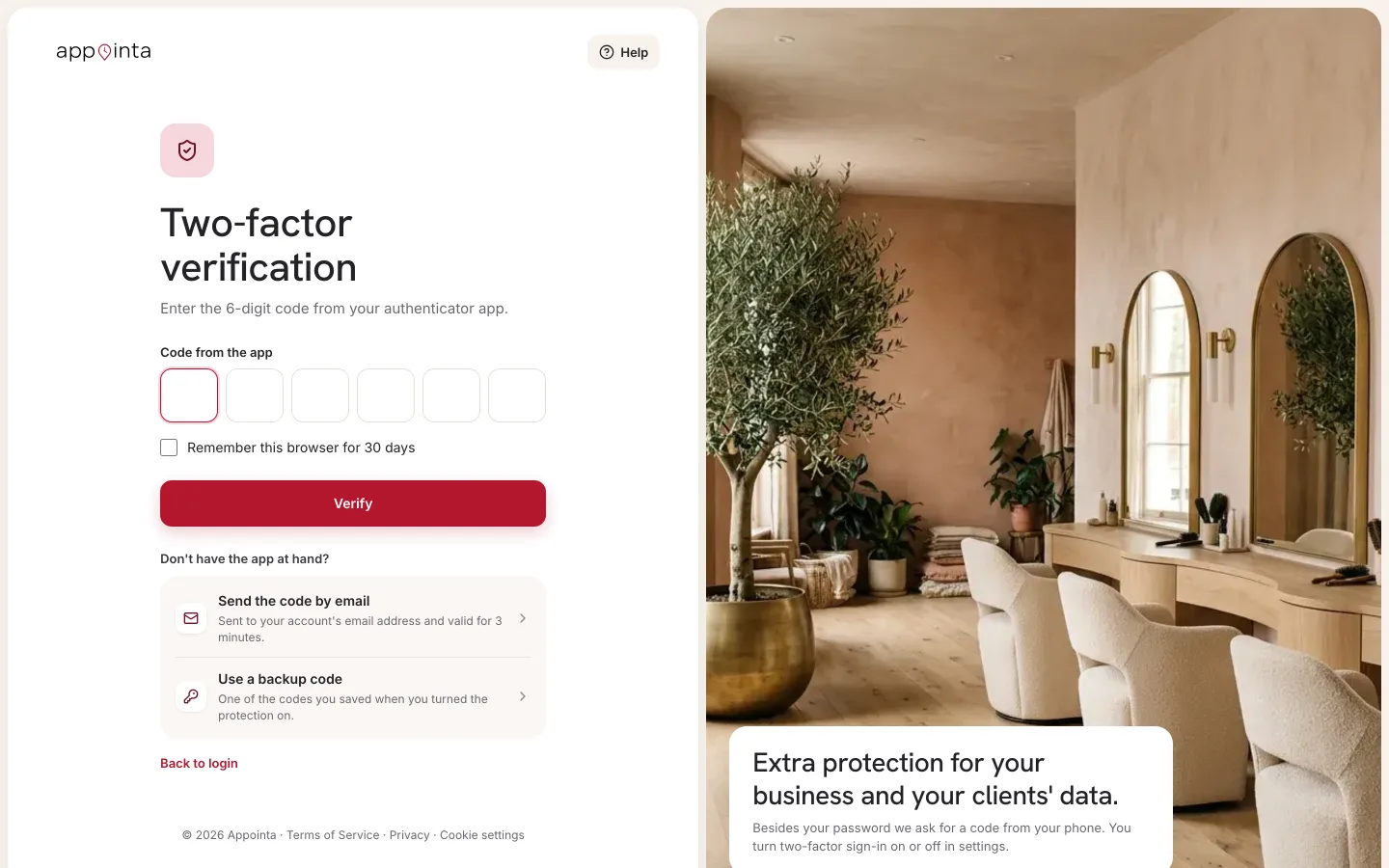
If you've turned on two-factor sign-in (2FA) for your account, the Two-factor verification page opens after you enter the correct password. In the Code field, enter the 6-digit code from your authenticator app and click Verify.
| Option on the screen | When to use it |
|---|---|
| Code from the authenticator app | The default: a code from Google Authenticator, 1Password or a similar app. |
| Send the code by email | Your phone isn't to hand. The code arrives in your email and is valid for 3 minutes. |
| Use a backup code | You've lost access to your authenticator. Enter one of the backup codes you saved when you turned on 2FA. Each one works only once. |
| Use the authenticator app | Go back to the code from the app after choosing another method. |
| Remember this browser for 30 days | On your own computer: that browser won't ask for a code for the next 30 days. Don't turn this on on someone else's or a shared computer. |
A wrong code shows That code isn't valid. Try again. Two-factor verification applies only to signing in with email and password, and signing in with only a code or link from an email isn't possible while 2FA is on. How to turn it on and off is described in Security and two-factor sign-in.
Forgotten password
- On the Log in page, click Forgot password?
- Enter your Email and click Send reset link.
- A message appears: “If an account exists for that address, we've sent a link to set a new password.” The same message appears when no account exists for the address, so nobody can use this page to check who has an Appointa account.
- Open the email “Reset your Appointa password” and click Set a new password. The link is valid for 24 hours.
- On the Set a new password page, enter a New password (at least 8 characters) and click Save password.
- When “Your password has been changed.” appears, click Go to login and sign in with your new password.
If the link has expired or has already been used, the page tells you the link isn't valid and offers Request a new link.
Staying signed in and signing out
- After you sign in, you stay signed in on that browser and don't have to sign in every time you open Appointa. Every day you use Appointa, your sign-in is extended; if you don't open it for more than a week, you'll be asked to sign in again.
- To sign out, click the business card at the top of the sidebar and choose Sign out. This signs you out only on that browser. On other devices and in the Appointa Pro app you stay signed in.
Language
Appointa works in Croatian and English. The log-in page appears in the language of its address: appointa.hr/login is in Croatian, appointa.hr/en/login is in English. There's no language switch on the log-in page itself. Choose the language on the home page, with the switch in the top menu, and only then click Log in.
- Emails for confirming your address and setting a new password arrive in the language of the page you requested them from.
- In the admin area you change the language in the account menu, in the Language row (HR / EN), see Finding your way around the app.
After you sign in for the first time
When you sign in for the first time and don't have a business yet, the Welcome to Appointa screen opens with two paths:
| Card | Button | What happens |
|---|---|---|
| Explore the demo | Open demo business | You choose an industry and get a fully populated trial business. See Demo business. |
| Set up your business | Set up your business | The wizard for your real business starts. See Business setup. |
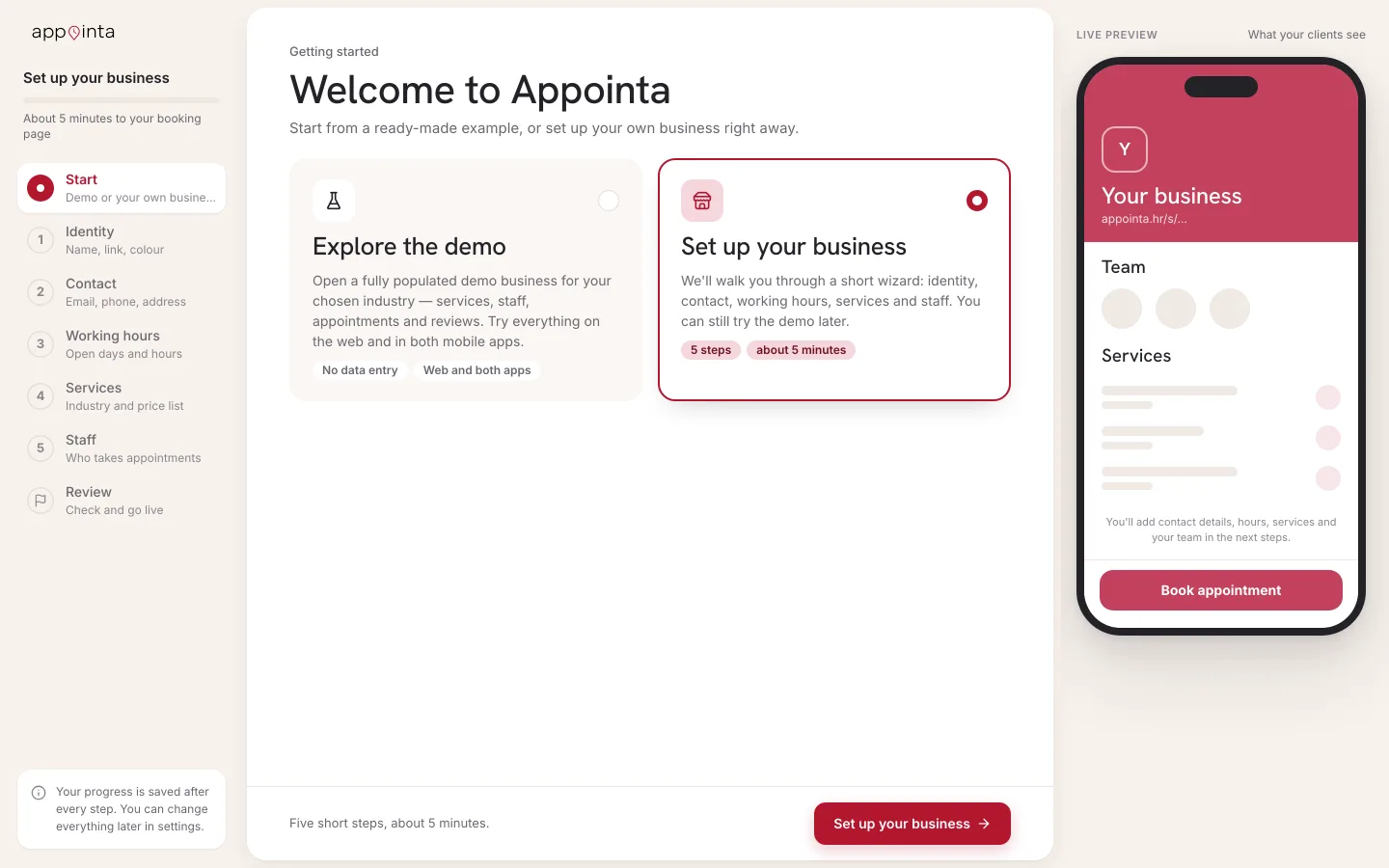
- If you came to sign up from the page for your industry on appointa.hr (the Who it's for section), the demo for that industry is created automatically as soon as you sign in for the first time. You don't have to choose it again.
- If you stop setting up halfway through, you'll see this screen again the next time you sign in. Click Set up your business and the wizard opens on the first unfinished step. The steps you saved with Next stay filled in.
You've been invited to a team
If an owner or manager has sent you an invitation, you don't set up a business. Open the link from the invitation and sign in (or sign up) with the same email address the invitation was sent to. When you see Welcome to the team!, click Go to dashboard.
| Message | What to do |
|---|---|
| This invitation is for a different email | Sign out and sign in with the address the invitation was sent to. |
| The invitation has expired | Ask the owner or manager to send a new one. |
| The invitation is no longer valid | The invitation was revoked. Ask for a new one. |
| Invitation not found | Check the link from the email or ask for a new invitation. |
Frequently asked questions
I didn't get the confirmation email. What now?
Wait a minute or two and check your spam folder. Also check that you typed the address without mistakes. If you sign up again with the same address and an account for it already exists, the confirmation message appears, but no new email arrives. If you've already confirmed the address, sign in or request a new password. If you never completed the confirmation, ask for a new link with the Send again button (see the next question).
The confirmation link has expired. Can I get a new one?
Yes. On the Confirmation failed page, enter your email address and click Send again. You can also do it on the Log in page: enter your email and password, and when “Your email address isn't confirmed yet…” appears, click Send again. The new link is valid for 24 hours.
Can I sign in on the web without a password, with a link sent to my email?
No. You sign in to the web admin area with your email and password, with Apple or with Google. Signing in with a one-time email link is available in the Appointa app for clients.
I sign in with Google. Do I need two-factor sign-in?
No. Accounts that sign in only with Google or Apple have no Appointa password, so they don't need 2FA. You'll see a note about this in Settings → Security.
What's the “Cookies” bar at the bottom of the screen?
It asks for your consent to marketing cookies. The essential cookies needed for signing in always work, so signing in works even if you click Decline.