Reminders and notifications
Which notifications Appointa sends to clients and your team on its own (confirmations, day-before reminders, cancellations, reschedules, waitlist) and how.

Appointa keeps clients informed about their appointments, and keeps you informed about new bookings and cancellations, all on its own. You don't have to send anything by hand. This page describes every automatic notification: when it's sent, to whom and through which channel (push, email or SMS). You'll also find out what a client can turn off.
Before you start
- Notifications work on their own on every plan, and there's nothing to turn on. There's no switch to turn reminders off and no setting for how many hours before the appointment they're sent.
- For clients without the app, you choose the channel: email (free) or SMS (prepaid credits). See SMS notifications. Beyond that, you can turn off SMS for an individual client, and when you cancel several appointments at once, you choose whether the clients get a notification.
- For a notification to have somewhere to go, the client must have the Appointa app, an email address or, if you use SMS, a mobile number. You enter contact details on the client profile.
How Appointa chooses the channel
For each client, Appointa checks the channels in order and sends the notification through the first one that's available:
| Order | Channel | Who gets it | Cost |
|---|---|---|---|
| 1. | Push | A client who has the Appointa app signed in on their phone | Free |
| 2. | SMS | A client without the app, if SMS notifications are on, there are credits and the client has a valid mobile number | Prepaid credits |
| 3. | A client without the app when SMS isn't possible (it's turned off, there are no credits or there's no mobile number) | Free |
SMS is used for only five notifications: the reminder, appointment cancellation, appointment reschedule and two waitlist notifications. All other notifications reach a client without the app by email only.
As a rule, each notification goes through one channel. The exceptions are a cancellation by the business, when a client with the app gets both a push and an email, and intake forms, which always go by email.
You choose whether clients without the app get SMS or email with the Send SMS notifications switch in Settings → Bookings.
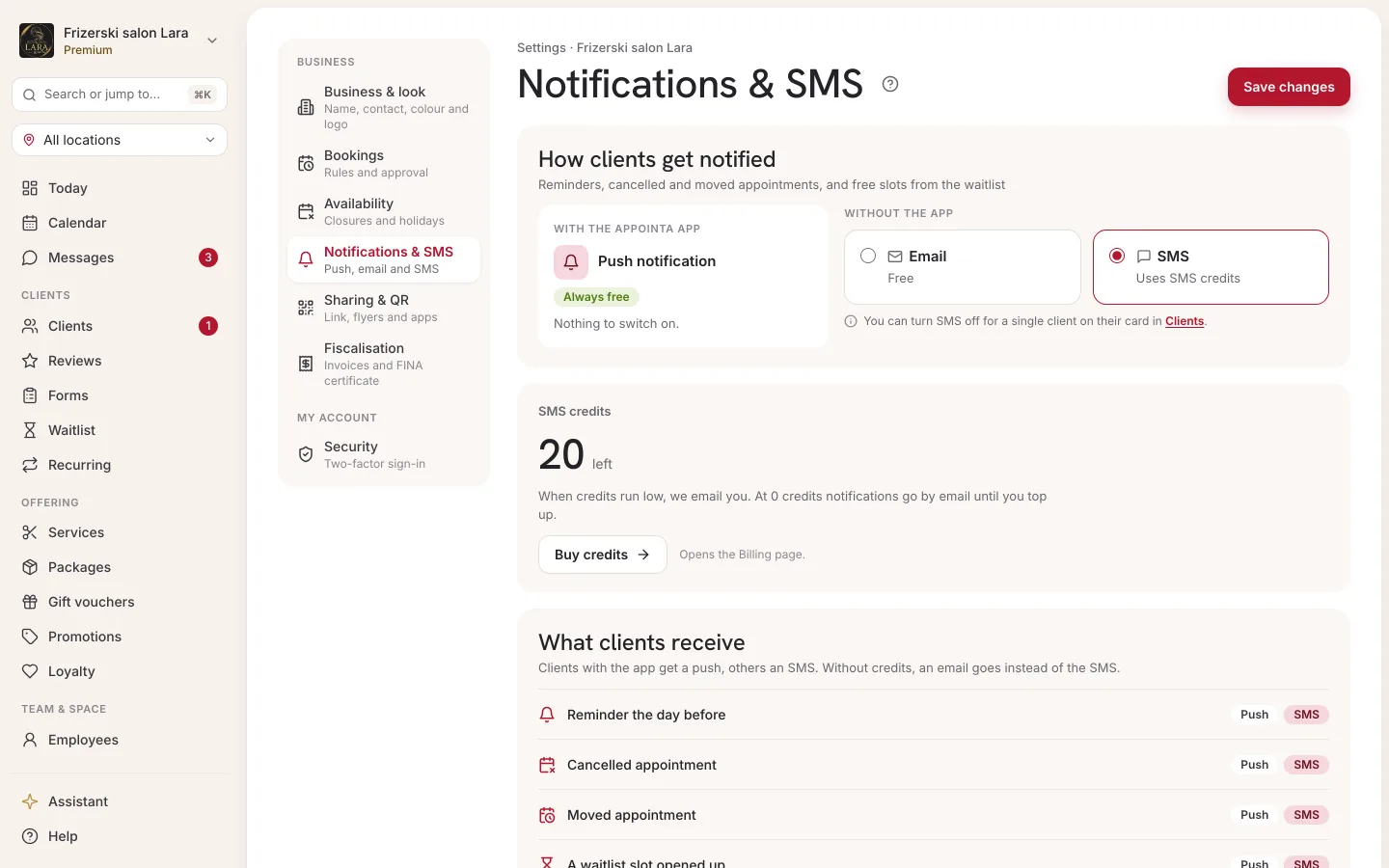
Client notifications by event
| Event | When | Client with the app | Client without the app |
|---|---|---|---|
| Online booking at a business with instant confirmation | Immediately | Booking confirmed push | Nothing. They see the confirmation on screen after booking. |
| Online appointment request (when you confirm appointments manually) | Immediately | Request sent push | Nothing |
| You confirm the request with the Confirm button | Immediately | Booking confirmed push | Appointment confirmed at … email with the service, employee, date, price and a cancellation link |
| The request expires because it wasn't confirmed | 24 hours after it was sent or at the appointment time, whichever comes first | Request expired push | Email with a Book a new appointment button |
| An appointment you enter in the calendar | No notification | Nothing (they'll get a reminder) | Nothing (they'll get a reminder) |
| Reminder | About 24 hours before the appointment | Appointment tomorrow at … push | SMS or email |
| You move the appointment to a different time | Immediately | Appointment rescheduled push | SMS or email |
| You cancel the appointment | Immediately | Appointment cancelled push and an email | SMS or email |
| The client cancels the appointment themselves in the app | Immediately | Appointment cancelled push | Nothing |
| You mark the appointment as a no-show | Immediately | Missed appointment push | Nothing |
| Waitlist: a slot has opened | Immediately | A slot you wanted just opened push | SMS or email |
| Waitlist: you invite the client with the Notify button | Immediately | Slots are available push | SMS or email |
| Booking a service with an intake form | Immediately after booking | Email with links to fill in the form. The push confirmation mentions the form. | Email with links to fill in the form |
“SMS or email” means the following: SMS goes out if SMS notifications are on, there are credits, and the client has a mobile number and hasn't had SMS turned off. In every other case, an email goes out. A client with no app, no email and no SMS doesn't get the notification.
The waitlist and intake forms are described on the Waitlist and Intake forms and consents pages. Gift vouchers, the loyalty program, promotions and fiscalised invoices have their own notifications, described alongside those features.
Appointment reminder
- Every hour, on the hour, Appointa looks for appointments that start in 23 to 25 hours and sends them a reminder. That's why the client gets it roughly a day before, at about the same time of day as the appointment.
- A reminder is sent only once per appointment, and only for appointments with the Pending or Confirmed status.
- An appointment booked less than about 23 hours before it starts doesn't get a reminder.
- For a booking for several people (e.g. a mother and child), one reminder goes to the person who made the booking, with the names of everyone included.
- The time in the reminder is always in the business's time zone, wherever the client happens to be.
What the reminder says:
| Channel | Content |
|---|---|
| Push | “Appointment tomorrow at 14:30”, “See you at [business name]!” |
| Subject “Reminder: appointment at [business name] tomorrow at 14:30”. The text includes the service, the employee, the room or equipment (if the appointment is tied to a resource) and a cancellation link. | |
| SMS | “Appointa: appointment at [business name] tomorrow at 14:30. Cancel: [link]” |
Cancelling and rescheduling appointments
- A single appointment: when you cancel an appointment in the calendar, Appointa always sends the client a notification, provided they have the app or contact details. In the Cancellation reason (optional) field, you can write a message to the client. The client sees it next to the cancelled appointment in the Appointa app. This message isn't included in the cancellation email or SMS.
- Several appointments at once: in Calendar → Bulk actions, in the Client communication step, there's a Notify clients checkbox. It's ticked by default. If you untick it, clients don't get a notification about these cancellations. More on the Cancel a day page.
- Rescheduling: the client gets a notification when you change the appointment's start time, either by dragging it in the calendar or by editing the appointment. If you only change the employee, no notification is sent. None is sent for appointments that are cancelled, completed or marked as a no-show either.
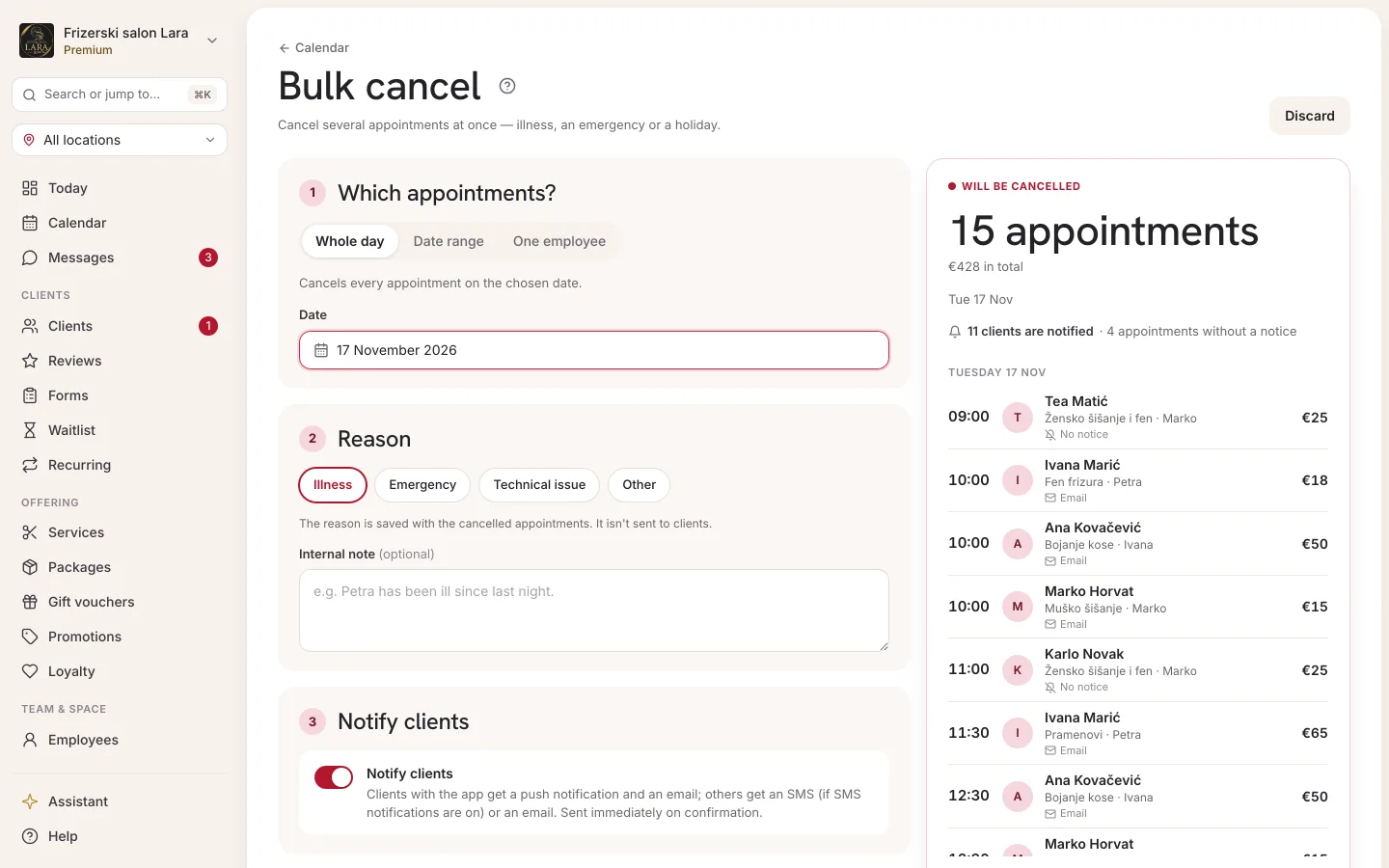
Cancellation link
The appointment confirmation email, the reminder email and the reminder SMS contain a link the client can use to cancel the appointment themselves. The link works until the cancellation deadline in your booking rules. If the deadline is 2 hours and the appointment is at 14:00, the link stops working at 12:00. After that, the client has to contact you.
When a client cancels an appointment through the link or in the app, the team gets a Client cancelled an appointment push, and the freed slot is offered to clients on the waitlist.
Notifications to your team
Your team gets push notifications in the Appointa Pro app. All team members get them (the owner, managers and staff), regardless of whose appointment it is.
| Notification | When it arrives | Switch in Appointa Pro |
|---|---|---|
| New booking | A client books online. If they added a note, the start of it is in the notification. | Bookings and clients |
| Client cancelled an appointment | A client cancels in the app or through the link | Bookings and clients |
| A message with the client's name in the title | A client sends a message | Client messages |
| New client request | A client asks to become a client of the business | Bookings and clients |
| New client | A client connects with the business by scanning the QR code | Bookings and clients |
| Recurring appointment not booked | A recurring appointment can't be booked because the slot is taken | Bookings and clients |
Each team member sets these switches for themselves in Appointa Pro, under Profile → Notifications.
The team doesn't get emails about new bookings and cancellations. Of the notifications described on this page, only these arrive by email:
- a client's request to join, sent to the address in the Contact email field in your business settings,
- a warning that SMS credits are running low, sent to the owner's email (see SMS notifications).
What the client can turn off
A client with the Appointa app manages their own notifications under Profile → Notification settings. There they have two switches, both on by default:
| Switch | What it covers |
|---|---|
| Reminders | The reminder before the appointment and notifications about confirmation, cancellation, reschedule, request expiry and no-shows |
| Messages | New messages from the business |
When a client turns off Reminders:
- the reminder doesn't reach them through any channel (no push, no SMS, no email), so no SMS credits are spent on it either,
- they don't get the request-expiry notification,
- push notifications about confirmation, cancellation, reschedule and no-shows don't reach them,
- a cancellation you make still reaches them by email, and if they don't have the app on their phone, by SMS or email,
- a reschedule still reaches a client without the app on their phone by SMS or email,
- they get the request confirmation by email instead of as a push.
The emails in this list arrive only if the client has an email address.
When a client turns off Messages, they don't get a push for your replies, but they see them when they open the app.
The client can't turn off waitlist notifications in the app.
You can't change a client's settings. For a client who doesn't want SMS, you can turn it off on the client profile. See Turning off SMS for an individual client.
Language and time in notifications
- A client with an account gets notifications in the language they chose in their account (Croatian or English). A client without an account gets them in the business's language.
- Dates and times are always in the business's time zone.
- Notification texts are the same for every business and can't be edited.
Demo business
In a demo business, notifications work differently:
- emails are sent only to your address, and the fictional demo clients don't get them,
- SMS is never sent,
- push notifications work, so you can try them out in the Appointa Pro and Appointa apps.
Frequently asked questions
Can I change when the reminder is sent?
No. The reminder arrives about 24 hours before the appointment, and that can't be adjusted.
Why didn't the client get a reminder?
The most common reasons are:
- the appointment was booked less than about 23 hours before it starts,
- the client doesn't have the app, has no email entered, and SMS doesn't go to them,
- the client turned off the Reminders switch in the app,
- the appointment was cancelled before the reminder was sent,
- the appointment was entered without a client (a Walk-in).
Does the client get a confirmation when I enter an appointment?
No. An appointment you enter in the calendar doesn't send a confirmation. The client only gets the reminder about 24 hours before the appointment, plus an email with the intake form if the service has one.
Does the client get an email confirmation after booking online?
Not with instant confirmation. They see the confirmation on screen, and if they have the app, they also get a push. An email confirmation with the details goes to a client without the app when you confirm their pending request.
Do I get an email when someone books an appointment?
No. New bookings and cancellations arrive as a push in the Appointa Pro app, and on the web you see them in the calendar.