Packages and memberships
How to define a visit package or membership, sell it to a client, track used visits, and what happens when a package expires or runs out.

Packages and memberships let you sell a client several visits up front (e.g. “10 massages”) or an unlimited membership for a set period (e.g. “Monthly yoga”). Appointa keeps the record: which client has which package, how many visits have been used and until when the package is valid. You still take the money in your business, as before. On this page you'll learn how to define a package, sell it to a client, how the client uses it when booking and how you track its balance.
Before you start
- Packages and memberships are part of the Premium subscription plan. On lower plans, the Packages item doesn't appear in the menu, and the page offers an upgrade instead of the list (see Starter, Pro and Premium plans).
- Packages are defined, sold and voided by the owner and managers. An employee sees a package's balance on the client profile, but without the sell and void buttons.
- The services a package covers must exist in the price list (see Services and price list).
How packages work
- You define a package in the Packages menu — the number of visits or unlimited, the validity period, the price and the services.
- You sell it to a client on their profile and take payment as usual.
- The package covers the appointment on its own — when the client books a service their package covers, or when you enter the appointment for them. The appointment has a price of €0, and one visit is deducted from the package.
- Appointa counts visits and tracks the validity period; once the visits are used up or the period expires, the package can no longer be used.
The package list
In the menu, select Packages. You see all defined packages, including archived ones.
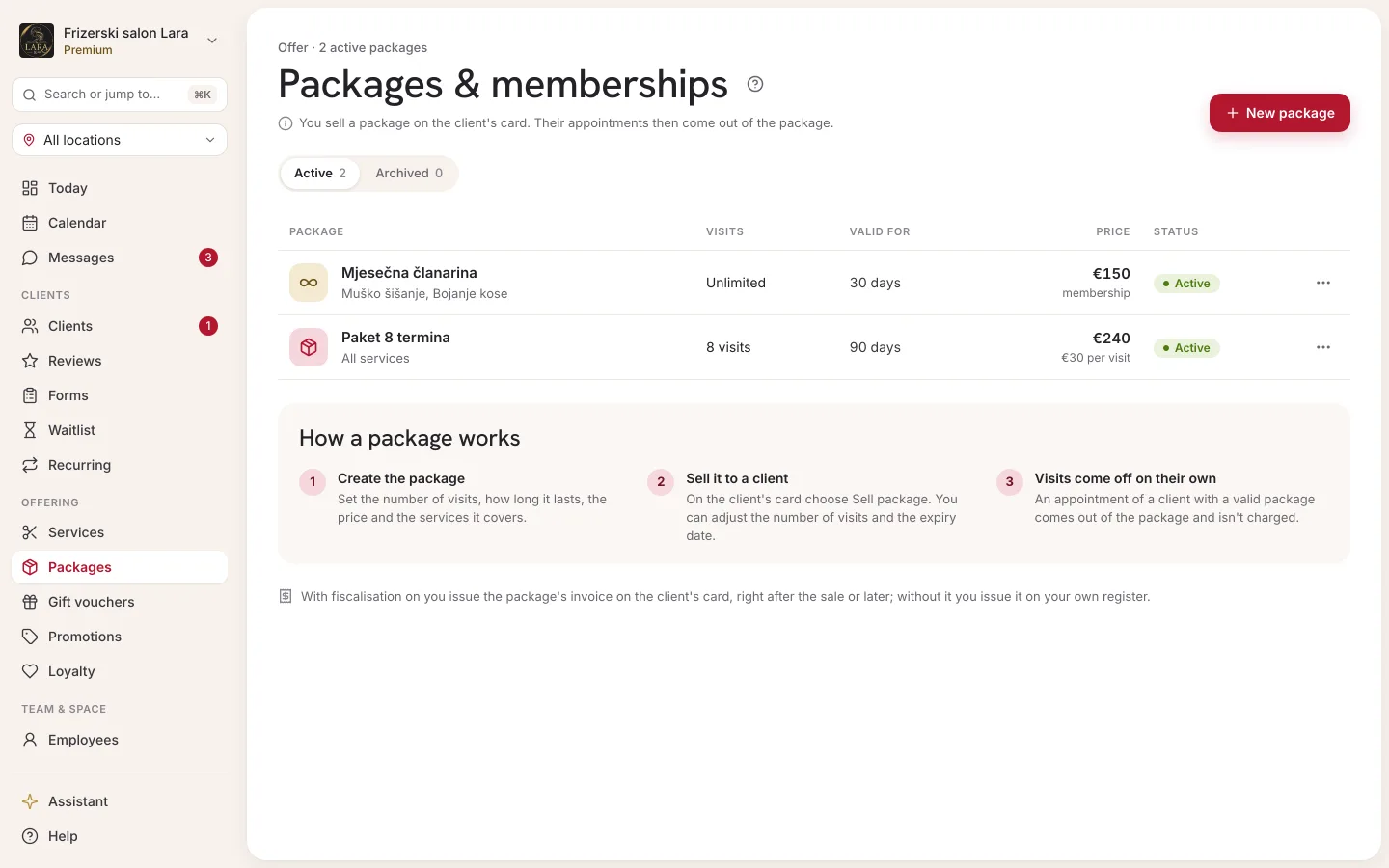
| Column | What it shows |
|---|---|
| Name | The package name, e.g. “10 massages”. |
| Visits | The number of visits (e.g. “8 visits”) or Unlimited for a membership. |
| Valid for | The validity period from the day of sale, e.g. “30 days”. |
| Price | The package price. |
| Status | Active or Archived. |
An active package has Edit and Archive buttons, and an archived one has Restore.
New package
- In the Packages menu, click New package.
- Fill in the fields from the table below.
- Click Save. The message Package saved. appears.
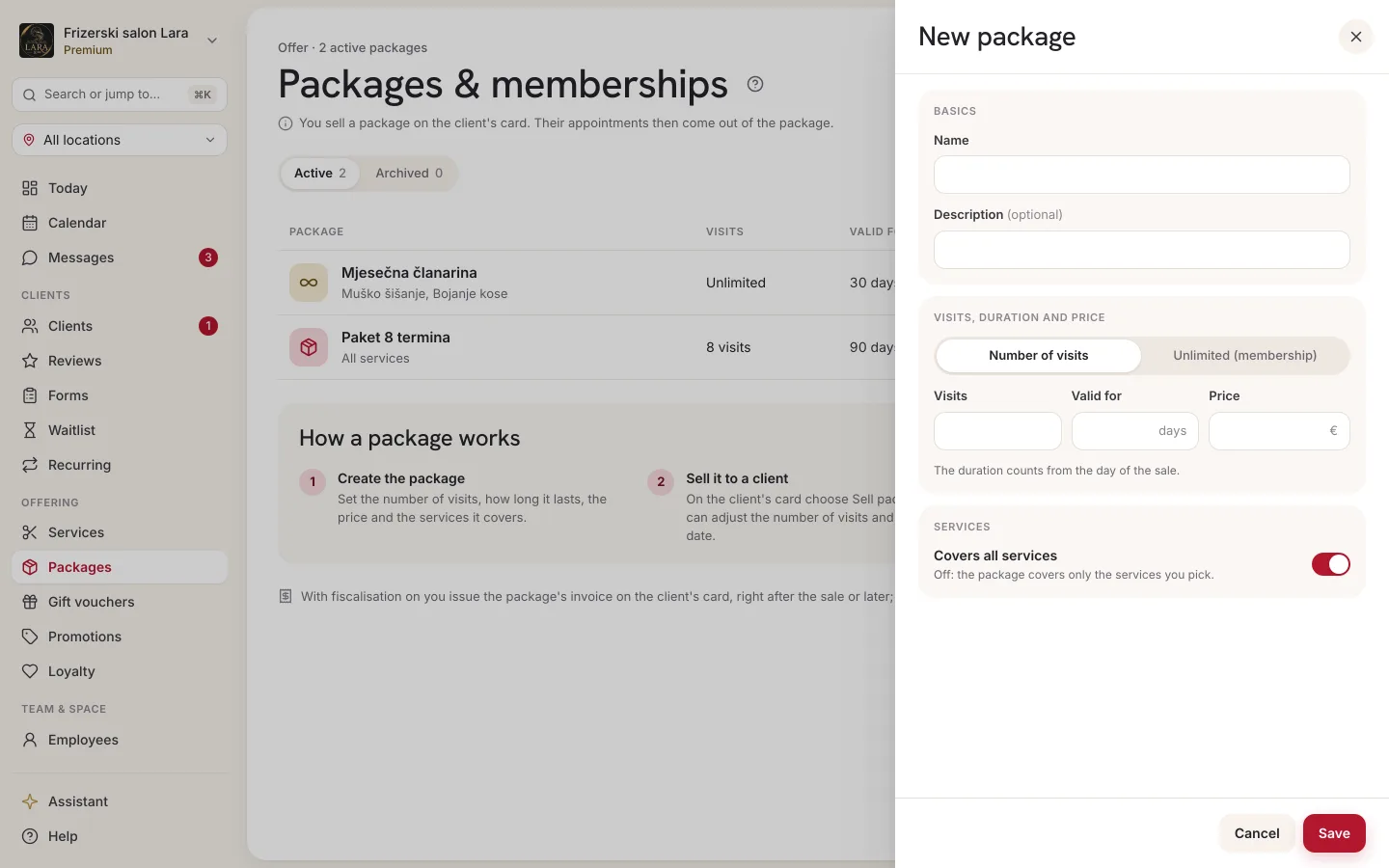
| Field | What it means | Note |
|---|---|---|
| Name | The package name that the client and staff see. | Required. |
| Description (optional) | A short description, e.g. “Valid for classic and sports massage”. | Shown on the public page below the package name. |
| Unlimited (membership) | When ticked, visits aren't counted — only the validity period matters. | The Number of visits field then disappears. |
| Number of visits | How many visits the package contains. | A whole number greater than 0. |
| Valid for (days) | How many days the package is valid from the day of sale. | A whole number greater than 0. |
| Price (€) | The price at which you sell the package. | 0 or more. |
| Covers all services | The package can be used for any service. | Ticked for a new package. |
| Services | When you untick Covers all services, tick the services the package applies to. | At least one service. |
Editing and archiving
Click Edit next to a package, change the fields and save. Changes apply only to future sales: a package the client has already bought keeps the name, price, number of visits, validity period and services from the moment of sale.
Archive a package you no longer sell:
- Click Archive next to the package.
- In the Archive this package? dialog, confirm with Archive package.
An archived package can no longer be sold and isn't shown on the public page. Packages clients have already bought remain valid. You put a package back on sale with the Restore button.
Selling a package to a client
A package is sold in person, at the front desk:
- Open Clients and open the client's profile.
- On the Packages card, click Sell package. The Sell package panel opens.
- Under Package, choose a package. Each one shows its number of visits (or Unlimited), how many days it's valid and its price.
- Check the number in Number of visits. It's prefilled from the package; change it if you're selling a different number of visits (e.g. 10 instead of 8). A membership has no such field.
- Check the expiry date in Valid until. It's preset to today + the package's validity period; change it in the calendar or with End of this month or End of next month.
- Check the Summary (visits, expiry date and price) and click Sell package.
- The panel says Package sold, and the package is shown on the client profile right away.
- Take payment for the package and issue an invoice. If fiscalisation is turned on, the panel asks right away The package is sold. Issue an invoice? — Issue invoice opens issuing, and Not now leaves an Issue invoice button on the package for later. Without fiscalisation you issue it on your own register.
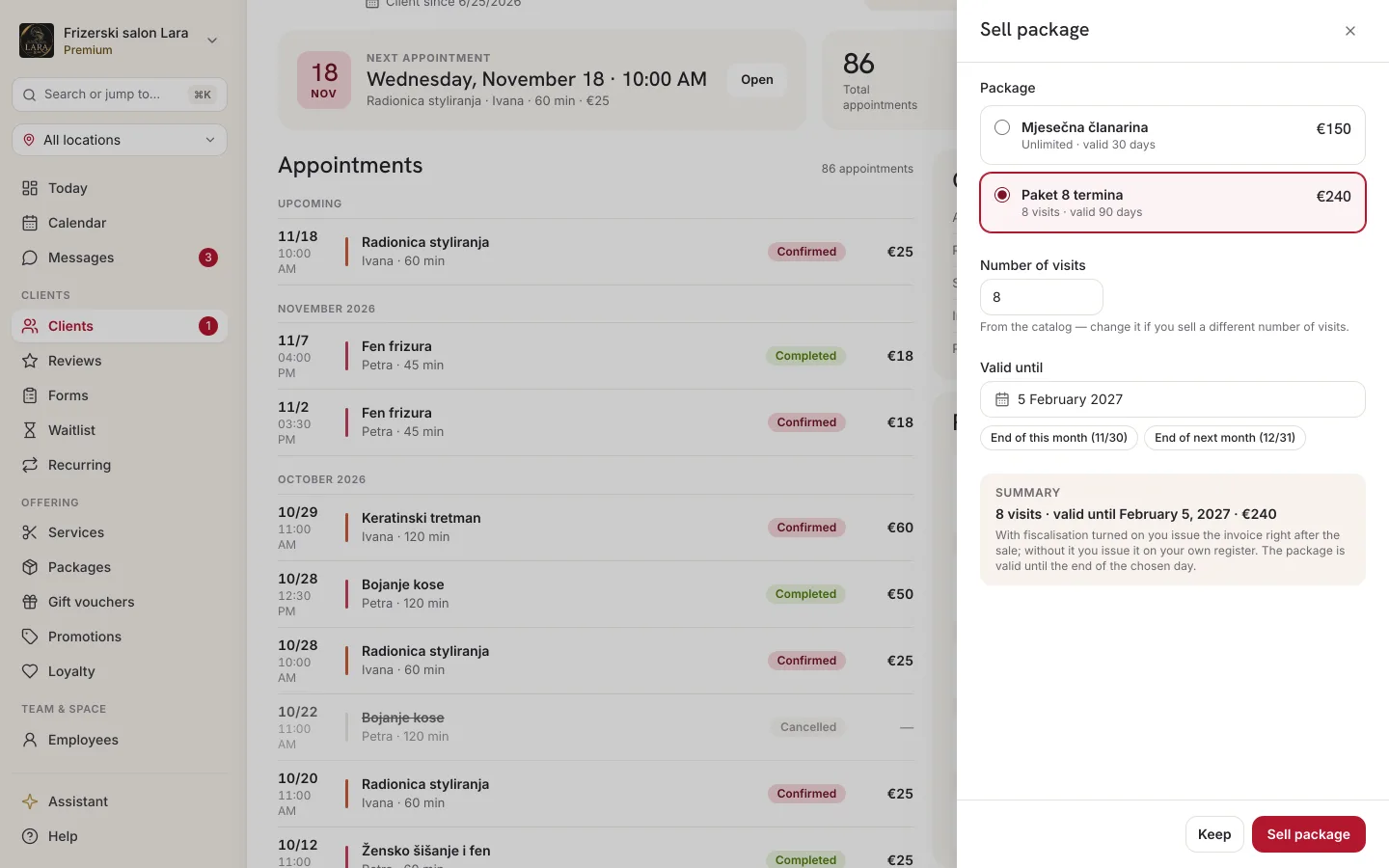
A package is valid until the end of the day chosen in Valid until. If you leave the date as it is, that's the validity period counted from the day of sale: a 30-day package sold on 1 March is valid until the end of 31 March. End of this month and End of next month set the last day of the current or the next month (the date is shown on the button), handy for monthly memberships. The date can't be in the past. A changed number of visits applies to that sale only; the price stays the package's price. The profile shows “Used 0 of 10” and “valid until” with the date. You can do the same, with the number of visits and the date, in the Appointa Pro app (from version 1.3.0).
Booking with a package
A package isn't chosen — Appointa uses it on its own. When a client books a service their package covers, in the client app or on the website, the appointment is covered by the package. In the confirmation step the client sees the package name and the number of visits left, and the code field and price rows aren't shown. After booking, they see how many visits they have left.
A package covers the appointment when all of the following are true:
- the client is signed in with an account linked to their profile in your client list (on the website they sign in at the confirmation step);
- the package is Active, valid on the day of the appointment and has visits left (a membership only has to be valid on that day);
- the selected service is covered by the package.
Validity is judged on the day of the appointment, not the day of booking: a package that expires next week doesn't cover an appointment a month from now, so the client pays the regular price for that one.
If the client has several suitable packages, the one that expires soonest is used.
Appointments you enter
When you enter an appointment in the calendar for a client who has a valid package for that service, the New appointment form shows a line such as “From package Pilates 10 · visits left: 7. Not charged.” The appointment is saved with a final price of €0, and one visit is deducted from the package. The Gift voucher code (optional) field isn't shown then. The same applies when you enter the appointment in the Appointa Pro app.
Recurring appointments
Each appointment of a recurring series uses one visit, in the order Appointa adds the appointments to the calendar. Once the package runs out of visits or expires, the next appointments in the series are at the regular price — except for a package-only service.
What else applies to an appointment booked with a package:
- the final price of the appointment is €0, while the base price of the service stays recorded (see How prices are calculated);
- the package takes precedence: when a package covers the appointment, promo codes, loyalty points and gift vouchers don't apply;
- a package also works for services with a hidden price;
- one booking uses one visit, and a booking of several services one visit per service, if one package covers them all;
- you can't move an appointment taken from a package to a day after the package expires — move it within the validity period or cancel it (the visit is returned);
- a companion in a group booking never uses a package, because someone else adds them.
Package-only services
Mark services you sell only through packages — e.g. group pilates — with the Package only switch in the service form (see Service fields). The switch is shown on the Premium subscription plan.
- On the public page and in the app, the service is labelled Package only.
- A client without a package valid on the day of the appointment — they have none, it's used up, or it expires before the appointment — can't book the service themselves. They see a message asking them to contact the business about a package.
- On the website, the client has to sign in for such a service. If the booking form is embedded on your website, they continue on the full booking page.
- You can still enter it for a client without a package, e.g. for a trial class or when you sell them a package on the spot. The form then warns “The client has no valid package for this service — the visit will be at full price.”
- A recurring series for such a service pauses at the first appointment no package covers. When you sell the client a new package, the series continues from that appointment, if it's still free and hasn't passed.
- A companion can't be added to such a service in a group booking.
Without the Premium subscription plan, the label isn't shown and the service is booked normally.
How visits are used
| Event | What happens to the visit |
|---|---|
| The appointment is booked from a package | The visit is deducted immediately, at the moment of booking. |
| The appointment is cancelled (by the client or the business, by cancelling a day, or because an unconfirmed request expired) | The visit is returned to the package. |
| The appointment is completed | The visit stays used. |
| The appointment is marked as a no-show | The visit stays used. |
When the last visit is used, the package gets the status Used up. If an appointment paid with that package is cancelled after that, the visit is returned and the package becomes Active again. With a membership (Unlimited), visits aren't limited — all that matters is that it's within its validity period.
Package statuses
| Status | Meaning |
|---|---|
| Active | The package can be used when booking. |
| Used up | All visits have been used. |
| Expired | The validity period has passed. The package can no longer be used, even if there are unused visits left. |
| Voided | The sale has been voided. The package can't be used. |
Voiding a package
If a package was sold by mistake or the client returns it:
- On the client profile, in the Packages section, click ⋯ next to the active package and choose Void.
- In the Void this package? dialog, enter the Void reason — it's required.
- Click Void package.
The sale record stays on the profile with the status Voided, and the reason is kept with the package.
Appointments already booked with that package stay in the calendar.
Tracking packages
On the client profile, in the Packages section, you see each package's name, visit balance (e.g. “3/8”, or Unlimited), the date until which it's valid and its status. When a package is nearly used up, it's a good moment to offer the client the next one (see client profile).
The client in the app sees their packages on the home screen in the Packages & memberships section (up to three active packages) and in the My packages list, with the visit balance, validity (“Valid until …”) and status (see App for clients).
Packages on the public page
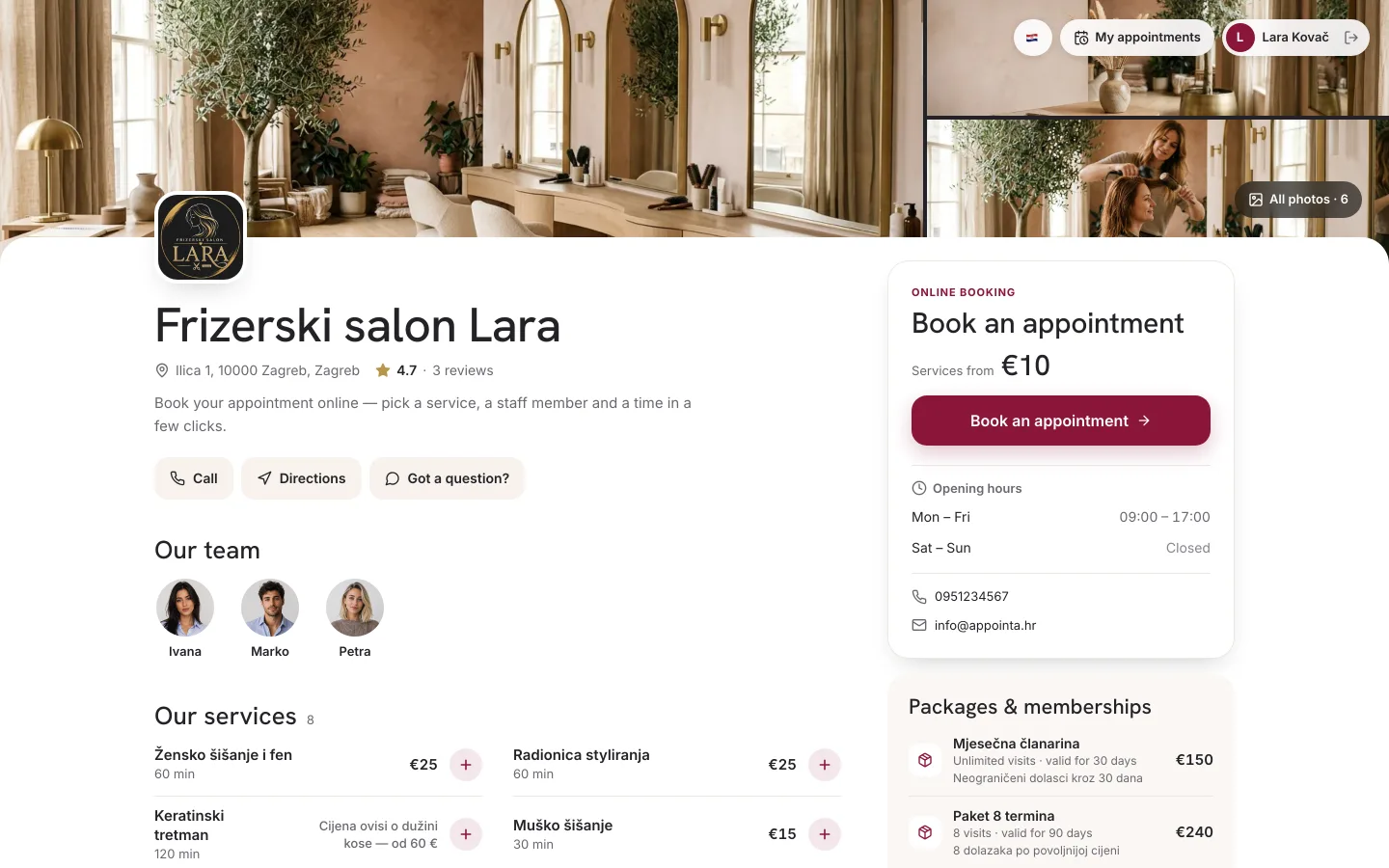
On your business's public page, active packages are shown in the Packages & memberships section: the name, the number of visits or “Unlimited visits”, the validity (“valid for 30 days”), the description and the price. Below the list it says “Packages are purchased at the business — ask the staff.” Packages can't be bought online; the section serves as a price list.
FAQ
Can a client buy a package online?
No. You sell the package and take payment at your business, and Appointa keeps the record.
A client cancelled an appointment paid with a package. What happens to the visit?
The visit is returned to the package.
A client didn't show up. Do they lose the visit?
Yes. An appointment marked as a no-show uses a visit.
A client's appointment isn't covered by their package. Why?
Check: whether the client booked signed in, with the account linked to their profile; whether the package is Active and valid on the day of the appointment; whether it has visits left and covers the selected service. A guest who books without signing in never uses a package.
Can a client choose not to use their package this time?
No. When a package covers the appointment, Appointa always uses it. If the client wants to pay separately, enter the appointment for them and cancel the one taken from the package — the visit is returned.
I changed a package's price. Does the package the client already bought change?
No. A sold package keeps the terms from the moment of sale; the new price applies to new sales.
How does a package show up in reports?
A sold package counts towards Revenue on the day it's sold, and appointments taken from a package have a final price of €0, so nothing is counted twice (see Analytics). No invoice is issued for an appointment taken from a package; you issue the invoice for the package you sold.