SMS notifications
How to turn on SMS notifications for clients without the app, buy prepaid credits, track usage and turn off SMS for an individual client.

SMS notifications are an add-on that lets clients without the Appointa app get reminders and important appointment notifications on their phone instead of by email. You don't pay for them through your subscription but with prepaid credits you buy in advance. On this page you'll find out how to turn SMS on, how many credits one message uses, how to buy credits and what happens when you run out.
Before you start
- SMS notifications are available on every plan and don't depend on your subscription. They're off by default.
- The owner and managers can change the SMS switch. Only the owner can buy credits.
- To buy credits, your Billing details on the Billing page must be filled in.
- Clients need a mobile number entered on the client profile.
- In a demo business, SMS is never sent and credits can't be bought, so you can only try SMS out in a real business.
How SMS notifications work
For each notification, Appointa chooses the channel in this order:
- Push (free): a client with the Appointa app gets a push, and no credits are spent on it. Only if the push doesn't reach any of their devices (e.g. they deleted the app without signing out) do the reminder and waitlist notifications move on to SMS or email.
- SMS (uses credits): a client without the app gets an SMS if all of the following apply:
- SMS notifications are on,
- you have enough credits,
- the client has a valid mobile number: a Croatian mobile number (091, 092, 095, 097, 098 or 099) or a foreign number in international format (+… or 00…),
- Don't send SMS to this client isn't turned on for the client on their profile.
- Email (free): if SMS can't go out, the notification goes by email.
Croatian landline numbers are skipped at no cost, and the notification then goes by email. To foreign numbers, the SMS is sent and uses credits, whether the number is a mobile or a landline.
Which notifications go by SMS
Exactly five types of notification are sent by SMS:
| Notification | When | Message text |
|---|---|---|
| Appointment reminder | About 24 hours before the appointment | Appointa: appointment at [business] tomorrow at 14:30. Cancel: [link] |
| Appointment cancellation | When you cancel an appointment | Appointa: [business] - your appointment 12.10. 14:30 was cancelled. Rebook: [link] |
| Appointment reschedule | When you change the appointment time | Appointa: your appointment at [business] moved to 12.10. 14:30. |
| Waitlist: a slot has opened | When a slot the client is waiting for opens up | Appointa: a slot opened at [business] 12.10. 14:30. Book fast: [link] |
| Waitlist: manual invitation | When you click Notify on the waitlist | Appointa: [business] has openings. Book: [link] |
The following are not sent by SMS: booking confirmations, conversation messages, loyalty and gift voucher notifications, and promotional messages. When each notification is sent is described on the Reminders and notifications page.
Turning on SMS notifications
- In the sidebar, click the business card at the top (logo, name and plan) and choose Settings.
- Choose the Bookings tab.
- In the SMS notifications section, turn on Send SMS notifications.
- Click Save changes.
When you turn on SMS notifications for the first time, you get 20 free credits to try them out. Trial credits are given only once and are used before purchased ones.
Below the switch, the owner sees the balance: Remaining: N SMS credits. If SMS is on but there are no credits, a red note appears instead: No SMS credits — notifications go by e-mail until you buy credits on the Billing page.
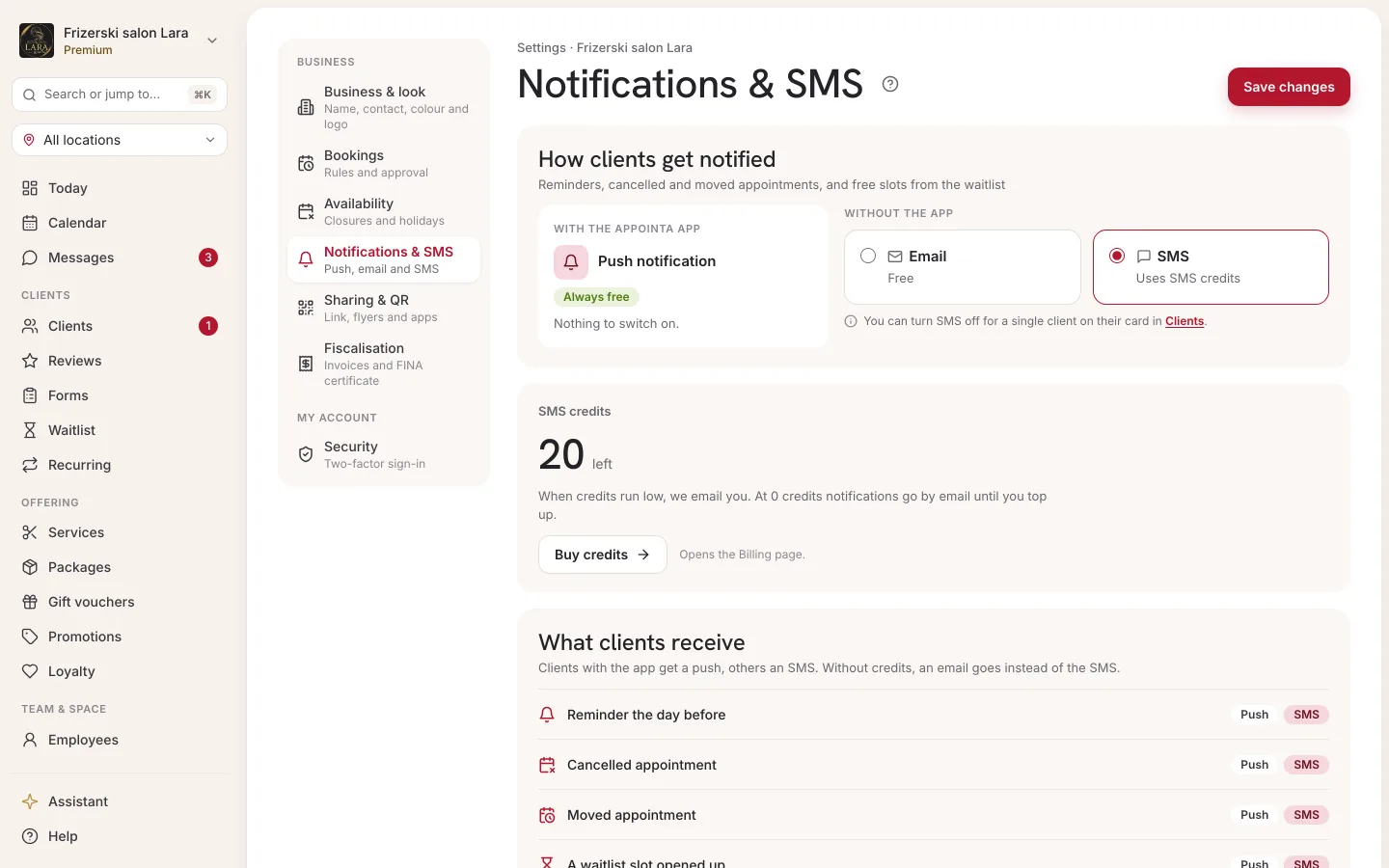
The owner and managers have the same switch in the Appointa Pro app, under Profile → SMS notifications. Credits can only be bought on the web.
Buying SMS credits
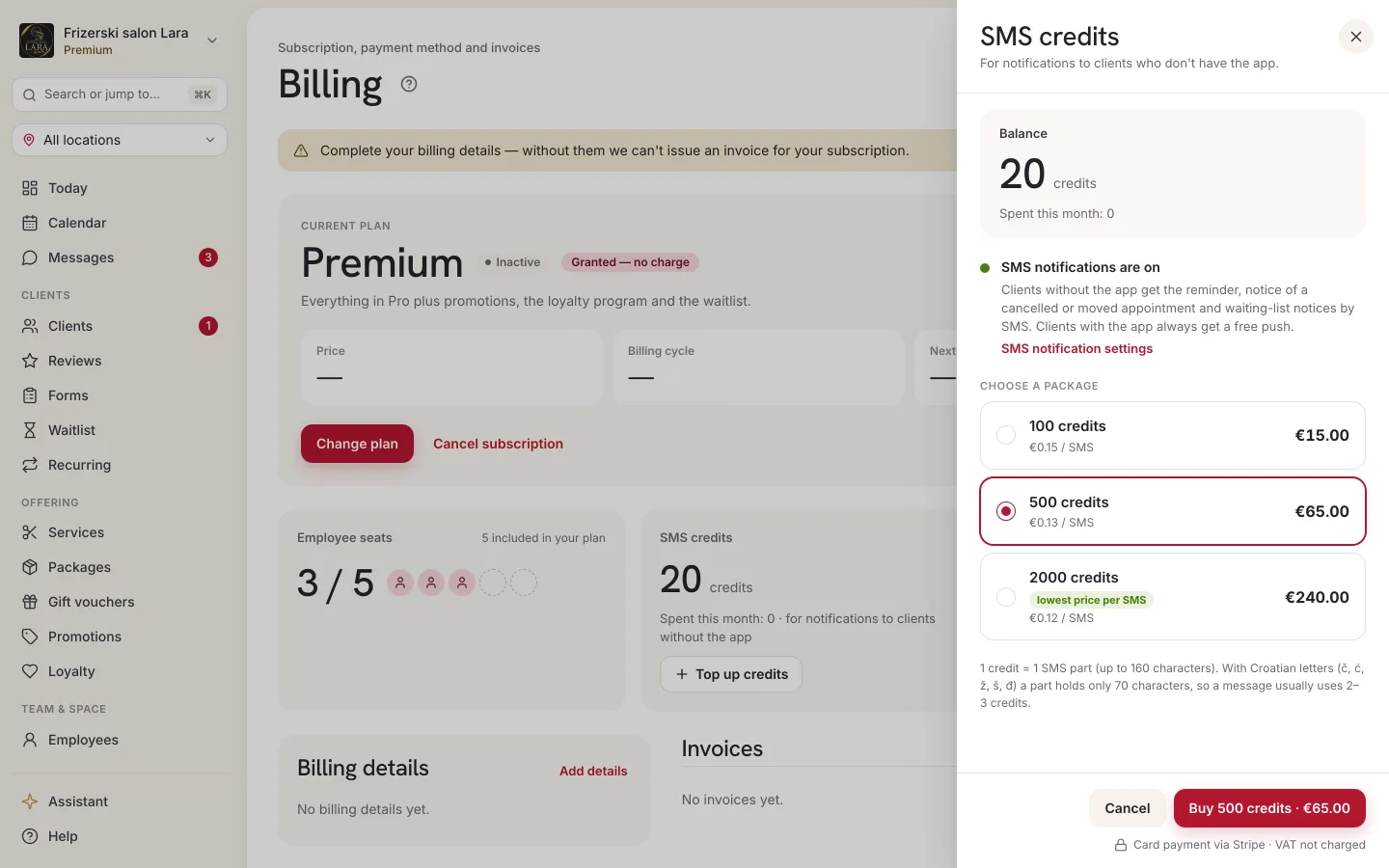
- In the sidebar, click the business card at the top and choose Billing. Only the owner sees this item.
- Find the Prepaid SMS card.
- Next to the package you want, click Buy.
- A card payment page opens. Pay for the package.
- After paying, you return to Appointa. While the payment is being processed, it says Processing your SMS credit purchase..., followed by SMS credits added 🎉 with your new balance.
Credit packages:
| Package | Price | Price per message |
|---|---|---|
| 100 credits | €15.00 | €0.15 |
| 500 credits | €65.00 | €0.13 |
| 2000 credits | €240.00 | €0.12 |
Current prices are always shown in the Prepaid SMS card.
- The payment is one-off, not a subscription.
- If you cancel on the payment page, you return to Billing with the message Purchase canceled — nothing was charged.
- If your Billing details aren't complete, clicking Buy opens the billing details form. Fill it in, save it and click Buy again.
- If you are buying as a private person, tick “I request that the SMS package is delivered immediately. I know I may withdraw from the contract within 14 days, and if I do so, I pay for the credits used.” before buying. You may withdraw from the purchase within 14 days.
- A payment confirmation or invoice for the package arrives by email. The invoice is also shown in the Invoices card on the Billing page, described as SMS package. See Subscription and payment.
- If the credits don't show up right after paying, Credits are on their way appears. The payment has been received, so check the balance in Billing in a minute or two.
How many credits one message uses
One credit is one SMS part (segment):
- A message without Croatian letters uses 1 credit for up to 160 characters. A longer message is split into parts of 153 characters, and each part uses 1 credit.
- If the message contains č, ć, ž, š, đ or an emoji, one part holds only 70 characters, or 67 for longer messages. Such a message therefore usually uses 2 or 3 credits.
The built-in texts are written without Croatian letters. Your business name and a link are still inserted into the message, and they determine how long the message will be:
| Example reminder | Length | Credits |
|---|---|---|
| A short name without Croatian letters (e.g. “Salon Lara”) | about 140 characters | 1 |
| The same reminder for a name with the letter Š (e.g. “Salon Šarm”) | about 140 characters, with a Croatian letter | 3 |
| A long name (e.g. “Frizerski studio Ljepotica”) | about 170 characters | 2 |
The reminder uses the most because it contains the cancellation link. The reschedule message is short and almost always uses 1 credit.
Credit balance and warnings
At the top of the Prepaid SMS card it says Balance: N credits · Spent this month: N. When the balance drops, a warning bar appears below it:
| Level | When | Message in the card |
|---|---|---|
| Low | The balance has dropped to your usage over the last 7 days, to 20% of the last package you bought or to 25 credits, whichever is highest | SMS credits are running low — top up so notifications keep going by SMS. |
| Critical | The balance has dropped to your usage over the last 3 days, to 5% of the last package or to 10 credits, whichever is highest | SMS credits are critically low — notifications will soon fall back to email. |
| Used up | The balance is 0 | No SMS credits — notifications to clients without the app currently go by email. Top up credits. |
When the balance reaches one of these levels, the owner gets an SMS credits running low email with a top-up link. For the same level, the email arrives at most once a day. If the balance drops to a lower level, a new email is sent.
When you run out of credits:
- notifications to clients without the app automatically go by email,
- as soon as you buy credits, SMS resumes on its own and there's nothing to turn back on.
Turning off SMS for an individual client
If a client doesn't want to receive SMS, turn it off just for them:
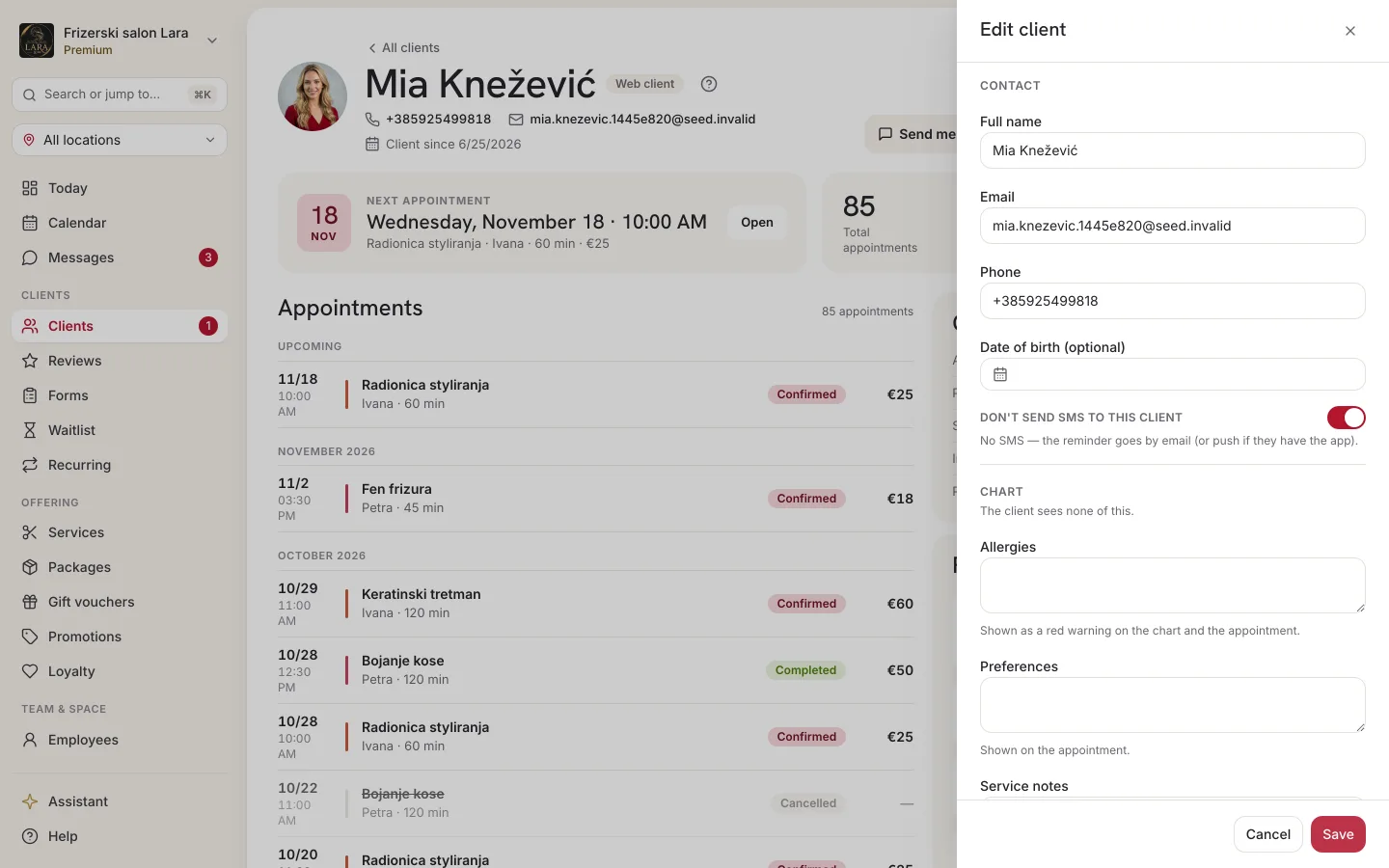
- Open Clients and click the client.
- On the client profile, click Edit client.
- Turn on Don't send SMS to this client.
- Click Save.
The text below the switch explains what happens. While the switch is off, it says Follows the salon setting — gets SMS if the salon has it on. When you turn it on, it says No SMS — the reminder goes by email (or push if they have the app). The setting applies only to that client and takes precedence over the business setting. The switch is shown only when you edit an existing client; it isn't on the new client form.
When SMS isn't sent
| Situation | What the client gets |
|---|---|
| The client has the Appointa app | A free push |
| SMS notifications are turned off in settings | |
| There aren't enough credits | |
| Don't send SMS to this client is turned on for the client | Email, or a push if they have the app |
| No number, an invalid number or a Croatian landline number | |
| The client has an unfilled intake form with required fields | The reminder goes by email, with links to the form |
| The client turned off Reminders in the app | The reminder isn't sent through any channel, so no credit is used. Cancellations and reschedules can still go by SMS to a client who doesn't have the app on their phone. |
| Demo business | SMS is never sent |
Turning off SMS notifications
Turn off Send SMS notifications in Settings → Bookings and click Save changes. From that moment, clients without the app get notifications by email. Credits you've bought stay in your balance and are used again when you turn SMS back on. Trial credits aren't given again.
While SMS is off, the Prepaid SMS card in Billing shows SMS notifications are turned off. and a Turn on in Settings → link.
Frequently asked questions
Do I pay for SMS for clients who have the app?
No. A client with the Appointa app gets a free push. SMS goes to clients without the app, and to a client with the app only as an exception: when the push doesn't reach any of their devices, the reminder and waitlist notifications move on to SMS or email.
Why did one reminder use more credits?
The message is longer than one part or contains a Croatian letter, most often in the business name. See How many credits one message uses.
What if I run out of credits in the middle of the day?
Notifications to clients without the app immediately go by email. As soon as you buy credits, SMS resumes on its own.
Can I send a promotional message or a reply to a client by SMS?
No. SMS is used only for the five appointment and waitlist notifications. You reply to clients who have the app in Messages.
Can a manager buy credits?
No. Only the owner buys credits, on the Billing page. A manager can turn SMS notifications on or off in settings.
What does it cost in practice?
It depends on how many of your clients don't have the app. The more of them use the app, the fewer credits you spend. For a sample monthly calculation, read the article SMS reminders without a subscription.