Services and price list
How to add, edit and archive a service, what each field in the service form means, and how to link a service to employees and resources.
 Video guideUsluge: cijene, boje i arhiviranje bez straha (Appointa admin)Watch on YouTube · The video is in Croatian.
Services are what your clients book: a haircut, a massage, a check-up, a training session or a rental. Every service has a name, a duration and a price, and from your list of services Appointa builds your public price list, offers free time slots and calculates the price of each appointment. On this page you'll learn how to add and edit a service, what each field in the form means, how to assign a service to employees and why a service is archived rather than deleted.
Before you start
- Services are edited by the owner and managers. Employees don't see the Services menu item.
- If you went through the business setup wizard, you already have your first services — you can fine-tune them here.
- Services are available on every subscription plan (Starter, Pro and Premium), and there is no limit on the number of services.
The service list
In the sidebar, select Services. A list of all active services opens.
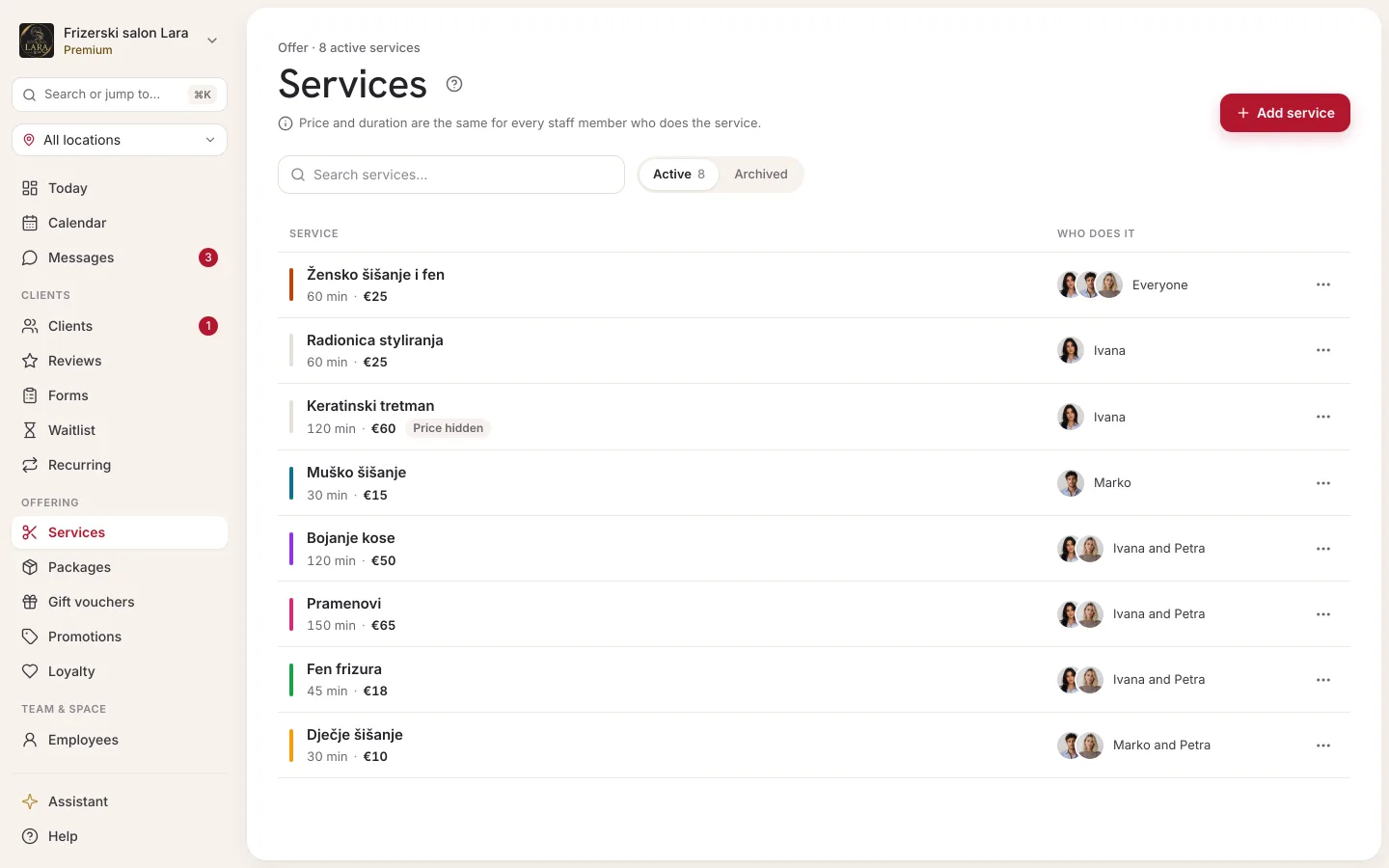
| Element | What it does |
|---|---|
| Add service | Opens the New service form on the right side of the screen. |
| Show archived | A switch that also adds archived services to the list, so you can restore them. |
| Search services... | Filters the list by service name. |
| Counter below the title | Shows how many services are active and how many are archived. The archived count is only accurate once you turn on Show archived. |
| Service column | The service name with a dot in the service's color. If the service has a schedule, the name is followed by a badge with the days (e.g. “Mon · Wed · Fri”) and the number of upcoming specific dates. |
| Price column | The price from the price list. The Hidden badge means clients don't see the price (see Price and occupancy display). |
| Status column | Active or Archived. |
| Actions column | The Archive icon for an active service, or Restore for an archived one. |
Clicking the row of an active service opens the Edit service form. Archived services can't be edited — restore them first.
Above the table there's a note: The price and duration apply to every employee who performs this service. Appointa has no separate price or duration per employee. If the price depends on who does the work (e.g. “Haircut — senior stylist”), create two services.
Services from the wizard and industry suggestions
When you set up your business, the Services step of the wizard suggests services for the industry you chose — with a name, duration and an approximate price. You tick the ones you offer and adjust the price and duration right away. Each row also has a Seats column; for group classes (e.g. yoga and pilates) the suggestions already have 20 seats filled in. If there are no suggestions for your industry, you'll see the message “No suggested services — add your own below.” and you enter your services yourself with the + Add service button.
After the wizard, these services are no different from the ones you add later: you edit and archive them here. Read more about the wizard in the Business setup chapter.
Adding a service
- In the menu, open Services.
- Click Add service. The New service form opens on the right.
- Enter a Name (e.g. “Women's haircut”).
- In the Duration field, enter the duration in minutes. A new form suggests 30.
- In the Price (EUR) field, enter the price (a new form shows
0.00), e.g.25or25.50. - If needed, adjust the price display, Seats, Schedule (optional), Color (optional) and Requires a resource — each field is described in the table below.
- Click Save. The message Saved appears, and the service immediately shows up in the list and on your public page.
- Open Employees and assign the service to the employees who perform it (see Who performs a service). Without this, clients can't book it.
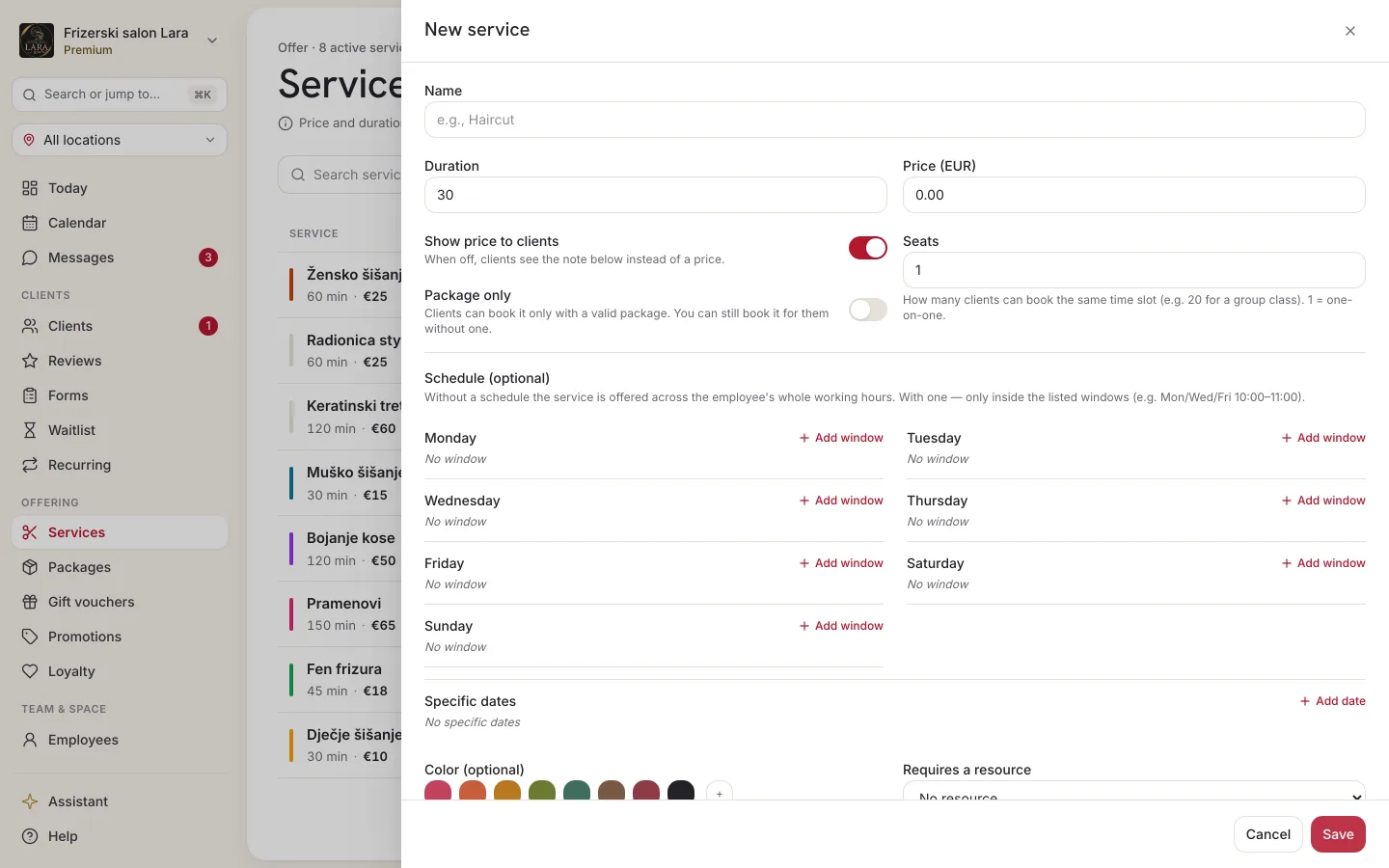
Service fields
| Field | What it means | Note |
|---|---|---|
| Name | The name of the service that clients and staff see. | Required, up to 255 characters. |
| Duration | How many minutes the appointment takes up in the calendar. Free time slots are offered based on the duration. | From 1 to 1440 minutes (24 hours). |
| Price (EUR) | The price from the price list — the basis for calculating the appointment price. | Can't be negative; can be 0 (e.g. a free consultation). Use a comma or a dot for decimals, with at most two decimal places. |
| Show price to clients | When off, clients see a note instead of the price. | On for every new service. |
| Price note | Free text that clients see instead of an amount (e.g. “Monthly: 8 visits €50”). | Appears only once you turn off the price display. Up to 500 characters. |
| Package only | Clients can book the service only with a valid package; you can still enter it without one. | Premium subscription plan only. See Package-only services. |
| Seats | How many clients can book the same appointment. 1 = a one-on-one appointment. | From 1 to 500. More than 1 turns the service into a group service (see Group classes and schedules). |
| Show slot occupancy | Shows clients a badge such as “3/10” next to the appointment time. | Visible only when Seats is greater than 1. |
| Schedule (optional) | The windows in which the service can be booked (e.g. Mon/Wed/Fri 10:00–11:00) and specific dates. | Without a schedule, the service is offered throughout the employee's working hours. |
| Color (optional) | The service color — one of eight preset colors, a custom one (the + button) or a hex code you type in (e.g. #C2410C). |
Shown as a dot in the service list and as a thin stripe next to the service on the public page. The calendar colors appointments by employee, not by service. |
| Requires a resource | The kind of resource that every appointment for this service takes up: No resource, Room / space, Equipment, Vehicle or Other. | See A service that requires a resource. |
Editing a service
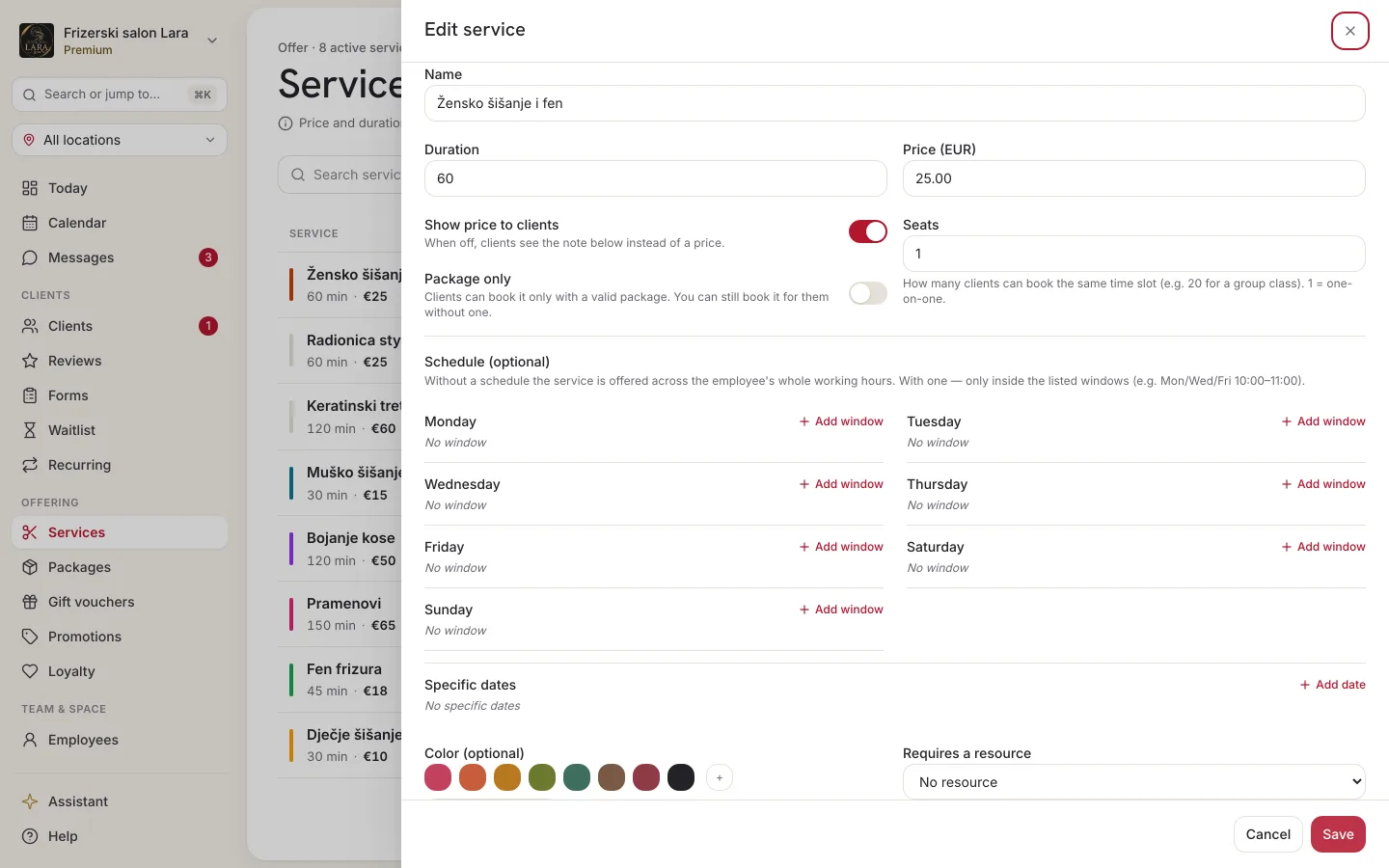
- In the service list, click the service's row. The Edit service form opens.
- Change what you need.
- Click Save.
If you close the form with unsaved changes, Appointa asks Unsaved changes — choose Discard changes or Stay.
A price change applies only to new bookings. Appointments that are already booked keep the price from the moment of booking — read more on the How prices are calculated page.
Who performs a service
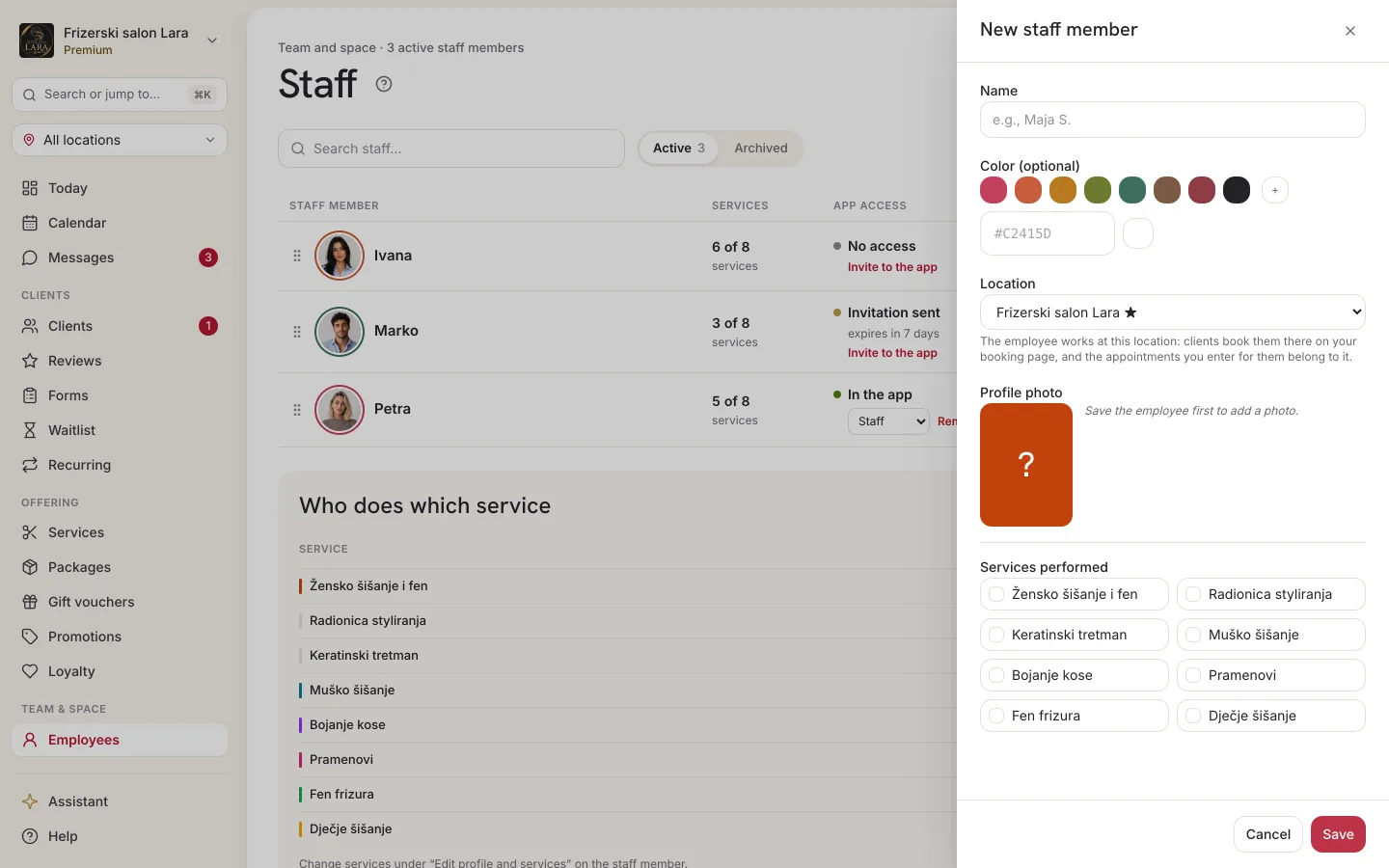
You don't decide which employee performs which service in Services, but in the employee's settings:
- Open Employees and click Edit next to the employee.
- In the Services performed field, tick their services.
- Click Save.
The employee list shows a summary, e.g. “Performs 4 of 6 services”. In online booking on the web, at the Choose a staff member step, employees who don't perform the selected service remain visible but can't be selected, and they're marked “Doesn't offer this service”. The client app shows only the employees who perform the service. Read the details on the Employees page.
A service that requires a resource
If a service can't be done without a particular room, device or vehicle, choose the kind of resource in the Requires a resource field. Then:
- every appointment for the service automatically takes up, in addition to the employee, one free resource of that kind — the client doesn't choose which one;
- if no resource of that kind is free at the requested time, clients can't book that time;
- a group service takes up one resource per session, and everyone booked shares it;
- when you enter an appointment in the calendar yourself, a Resource field appears in the New appointment form: leave it at Any available or pick a specific resource.
You edit the resources themselves (names, photos, blocks) in the Resources menu — see Resources.
Order of services
Services appear in the same order in the list, on the public page and in the booking steps. Services from the wizard keep the order they had in the wizard; a service you add later doesn't necessarily end up at the bottom of the list. Reordering services manually in the web admin isn't available yet.
Archiving instead of deleting
Archive a service you no longer offer. Archiving is the only way to remove a service from your offer — a service can't be deleted, so old appointments stay intact.
- In the service list, click the Archive icon in the Actions column.
- In the Archive service? dialog, confirm with Archive.
- The message Service archived appears with an Undo button — if you made a mistake, click it and the service is restored immediately.
What happens to an archived service:
- it doesn't appear on the public page or in online booking;
- it isn't offered in the New appointment form in the calendar;
- existing appointments stay in the calendar and in client history, with the price from the moment of booking;
- old appointments still count in the reports.
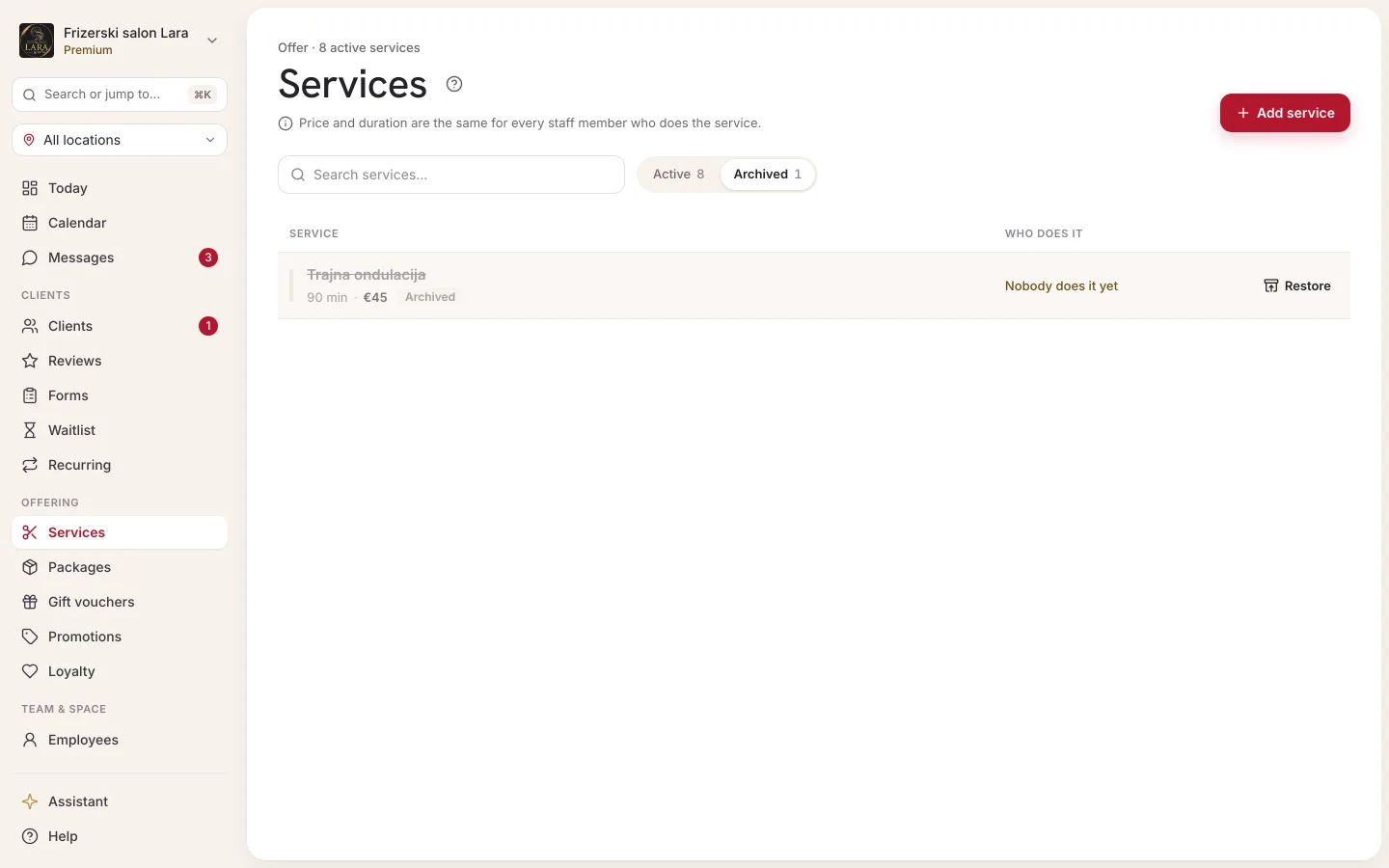
Restoring from the archive: turn on Show archived, find the service (struck-through name, status Archived) and click the Restore icon. The service is active again immediately.
FAQ
Why can't a client book a new service?
A new service shows up on the public page right away, but there won't be any time slots if no employee performs it — on the web, every employee is then marked “Doesn't offer this service”. Open Employees and tick the service in the Services performed field. If the service has a schedule, check that the schedule windows overlap with the employee's working hours, and if it requires a resource, check that you have at least one resource of that kind.
Can I have a free service?
Yes. Enter a price of 0.
Can I set different prices for different employees?
Not within one service — the price and duration apply to all employees. Create a separate service for each price level and assign it to the right employees.
Does a service have a category or a description?
No. For now a service has a name, a duration, a price and the display settings described above. If you want to give clients a short piece of information instead of the price, use Price note.
I changed a price. Will appointments that are already booked change too?
No. Booked appointments keep the price from the moment of booking, and the new price applies to new bookings.
Can I delete a service?
No. You can only archive a service; an archived service disappears from your offer, and you can restore it from the archive at any time.