Booking rules
How far ahead and how late clients can book, how late they can cancel, whether your confirmation is needed and who is allowed to book online at all.
 Video guide5 odluka o rezervacijama koje donosiš svjesno (Appointa korak 6)Watch on YouTube · The video is in Croatian.
Booking rules determine how clients book online: how far ahead, how close to the appointment at the latest, how many appointments one client can hold, how late they can cancel themselves, whether your confirmation is needed and whether anyone can book or only your clients. This page describes every setting on the Bookings tab, its default value and exactly what it changes for the client.
Before you start
- The rules can be changed by users with the Owner and Manager roles. Staff don't see settings. More about roles in Invitations and roles.
- You already make most of these decisions (how far ahead, direct booking, anonymous bookings, auto-approve, earliest booking and max active bookings) in the business setup wizard. Here you change them, and the cancellation and blocking rules can only be set here.
- The rules apply to bookings clients make themselves, on the public page and in the Appointa app. When you or your team add an appointment to the calendar, the booking period, earliest booking, max active bookings and the no-show block don't apply.
Where to find the rules
- In the sidebar, click the business card at the top and choose Settings.
- Open the Bookings tab.
- Change what you need and click Save changes at the bottom of the page.
Each setting is a separate card with a short explanation and a graphic that updates as you type. For example, next to the earliest booking it immediately says “A client must book at least 1 h before the appointment.”. The same tab also has the SMS notifications section, described in SMS notifications.
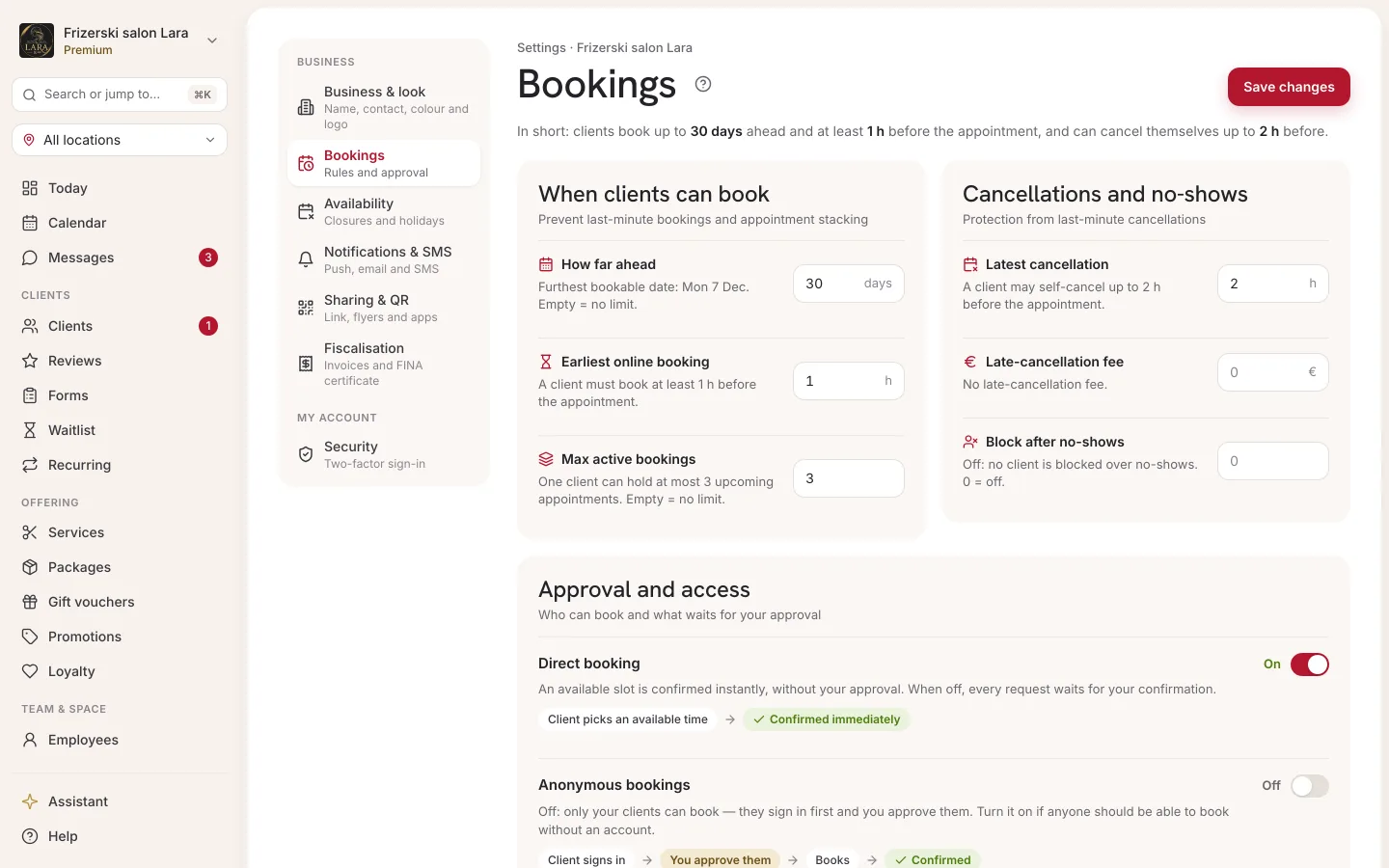
Overview of all rules
| Setting | Default | Allowed values | An empty field means |
|---|---|---|---|
| How far ahead clients can book | 30 days | 1–730 days | no limit |
| Earliest online booking | 1 h | 0–336 h | 0, booking up to the very start |
| Max active bookings | 3 | 1–100 | no limit |
| Latest cancellation | 2 h | 0–336 h | 0, cancellation up to the very start |
| Late-cancellation fee | no fee | amount in euros | no fee |
| Block after no-shows | 0 (off) | 0–100 | 0, off |
| Direct booking | on | on / off | — |
| Anonymous bookings | off | on / off | — |
| Auto-approve on scan | on | on / off | — |
How far ahead clients can book
The furthest day a client can choose, counting from today. With 30 days, a client can book today for a date up to 30 days from now at the latest. Later days in the booking calendar aren't available, and the next-month arrow stops at the month in which the period ends.
If you leave the field empty, it shows ∞ and the graphic shows No limit: clients can then book as far ahead as they like.
Calendar protection
The Calendar protection card has two fields that prevent last-minute bookings and appointment stacking.
Earliest online booking
How many hours before an appointment starts a client can still book it online, at the latest. With 1 h, an appointment at 14:00 can be booked online until 13:00. Times inside this window are shown struck through in booking, as if they were taken. If you enter 0, clients can book right up to the start of the appointment. Past times are never offered.
Max active bookings
How many upcoming appointments one client can hold at your business at the same time. Future appointments with the status Pending or Confirmed are counted. When a client reaches the limit, they see a message that they've reached the maximum number of active bookings and should cancel an existing appointment or try again later. Once an appointment is over or they cancel it, they can book again. An empty field means no limit.
A signed-in client is counted by their account, and a client who books without signing in by their phone number.
Appointment cancellation
The Appointment cancellation card determines how late a client can cancel themselves and protects you from clients who don't show up.
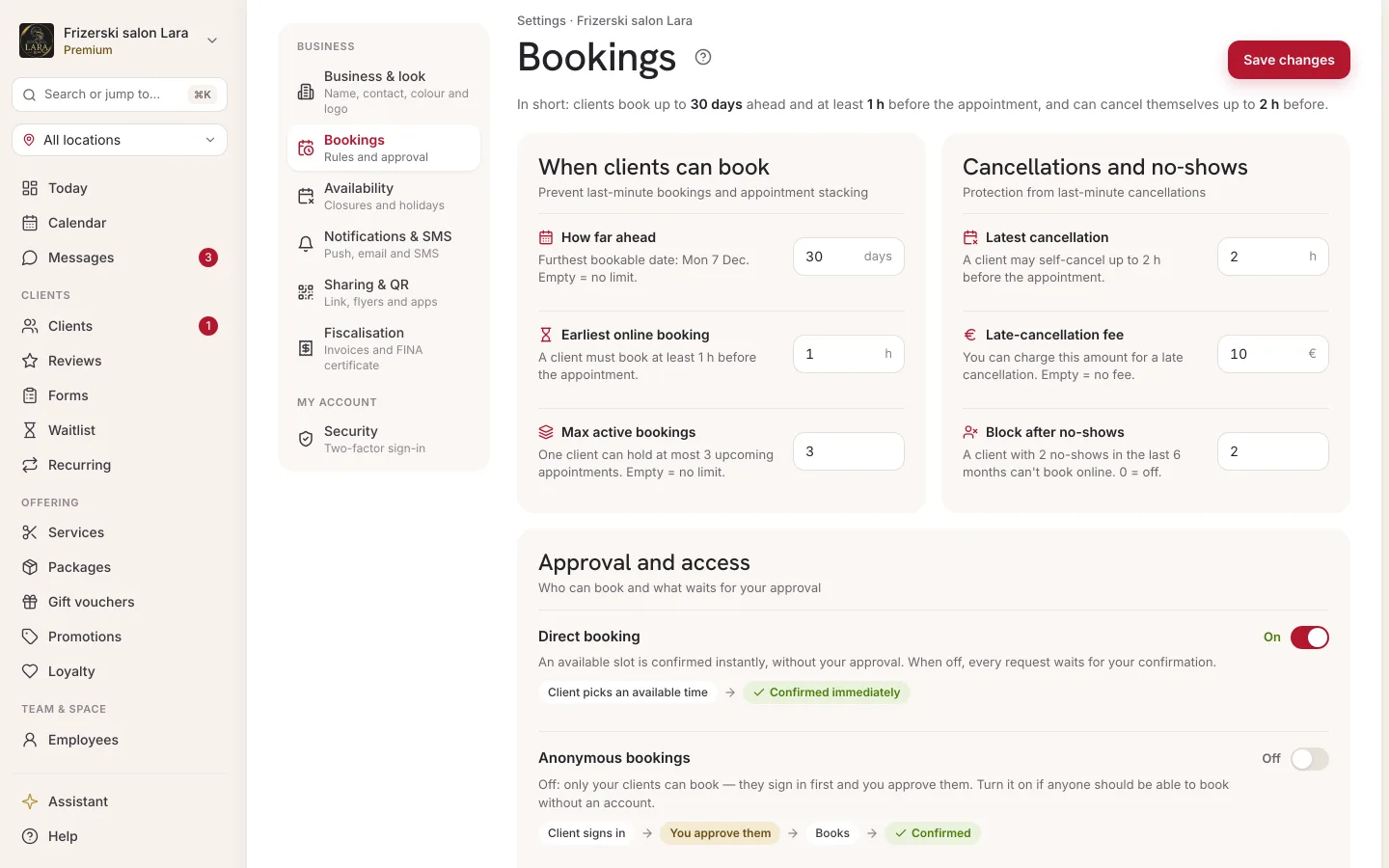
Latest cancellation
How many hours before the start a client can still cancel the appointment themselves, on the public page, with a link from an email or SMS, and in the Appointa app. With the default 2 hours, a client can cancel an appointment at 14:00 until 12:00. After that, they get a message that the appointment can no longer be cancelled and, on the My appointments page, also a prompt to call the business. If you enter 0, the client can cancel right up to the start. You and your team can always cancel an appointment in the calendar.
Late-cancellation fee
An amount in euros you can charge for a cancellation after the deadline. Appointa does not charge this amount itself and doesn't show it to the client when they book. When you cancel an appointment in the Appointa Pro app, the cancellation window offers a Charge cancellation fee checkbox with that amount. The web calendar doesn't have this checkbox. If you cancel less than the set number of hours before the start (the deadline from Latest cancellation), the checkbox is ticked in advance. A ticked fee is recorded with the appointment. Let clients know about the fee yourself, for example in your terms of business or in a message.
Block after no-shows
The number of no-shows (status No-show) in the last 6 months after which a client can no longer book online. With a value of 2, a client with two no-shows at your business sees the message Online booking isn't available right now. Please call the salon. when booking. You can still add an appointment for them in the calendar. Once older no-shows fall outside the 6-month period, the block lifts by itself. A value of 0 means the block is off.
Direct booking
Determines whether an online booking needs your confirmation.
| On (default) | Off | |
|---|---|---|
| Status of a new booking | Confirmed | Pending |
| Screen the client sees | Appointment booked! | Request sent! |
| What you need to do | Nothing | Confirm or cancel the request |
You confirm a pending request in the calendar: open the appointment with the Pending status and click Confirm (see Appointment details). You get a notification about every new booking in the Appointa Pro app, where you can also confirm it.
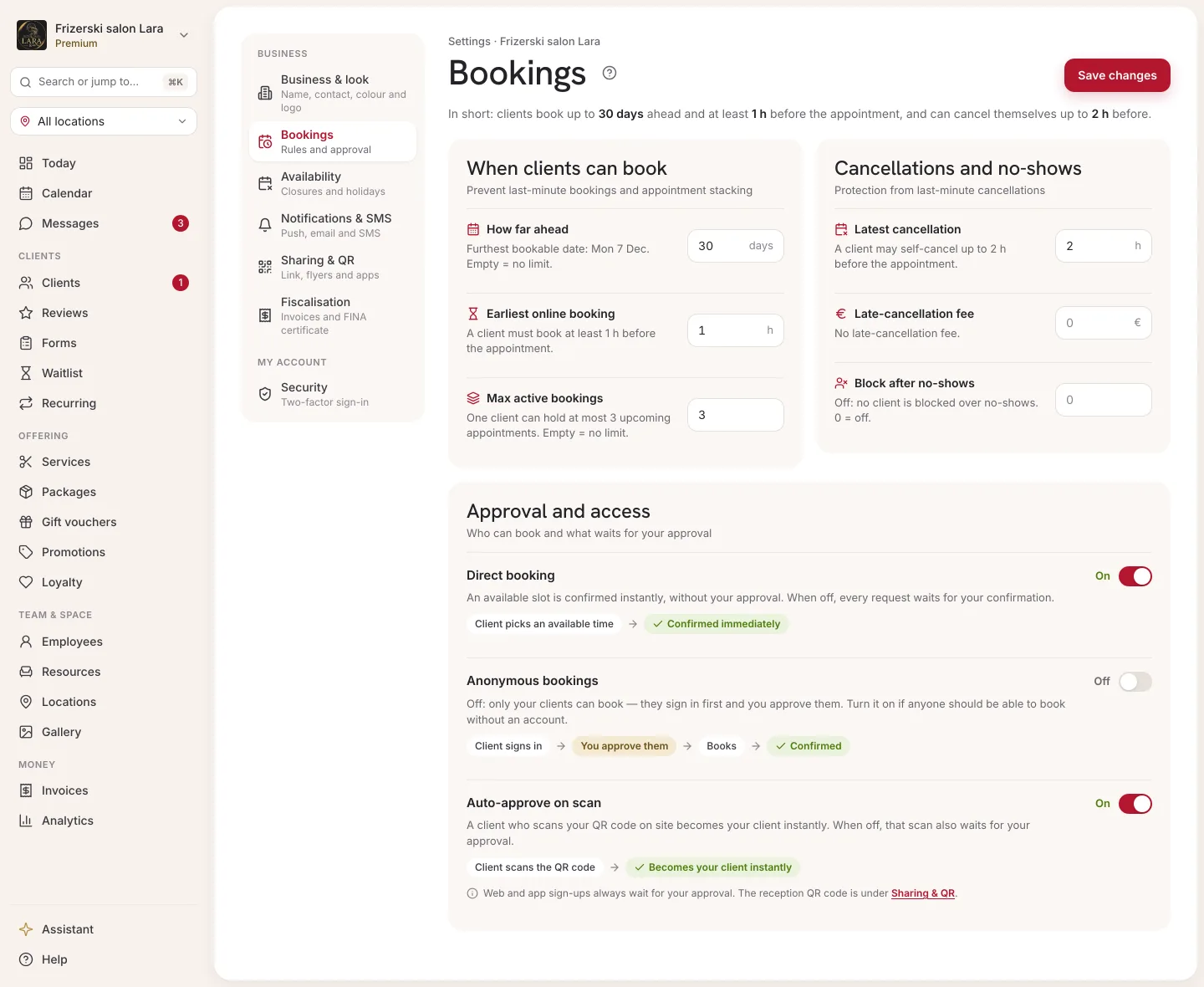
When a request expires
A request waiting for your confirmation keeps that time taken, so nobody else can book it. If you neither confirm nor cancel it, it expires by itself 24 hours after it was sent or when the appointment starts, whichever comes first. When it expires:
- the appointment in the calendar becomes cancelled with the reason “Expired automatically — the request wasn't confirmed in time”,
- the time is freed up and, if you have a waitlist, offered to clients who are waiting,
- the client gets an app notification or an email inviting them to choose another time.
The 24-hour deadline is the same for all businesses and can't be changed.
Anonymous bookings
Determines who can book online. It's independent of direct booking, which determines whether the appointment is confirmed straight away.
- On: anyone can book without an account, by entering their name and phone number.
- Off (default): only your clients can book. A new client signs in and sends you a request, and you approve it in Clients. The whole flow from the client's point of view is described in Members-only booking.
While anonymous bookings are turned off, the Client verification QR is available on the Sharing & app tab.
Auto-approve on scan
Applies only to clients who scan your Client verification QR.
- On (default): a client who scans the QR immediately becomes your verified client and can book.
- Off: even after scanning, they wait for your approval.
How offered times are generated
The rhythm of the offered times isn't a separate setting. It's calculated like this:
- Times start at the beginning of the location's working hours and follow one another in steps equal to the service duration. Example: you open at 9:00 and the service takes 45 minutes, so 9:00, 9:45, 10:30, 11:15 and so on until closing are offered.
- If a staff member's shift starts outside that sequence, e.g. at 9:15, that time is offered too.
- A time is available if the selected staff member, or with Any staff member at least one staff member who does the service, has a shift, isn't on time off and has no other appointment during the whole duration of the service. Pending requests also take up time.
- A service that requires a resource is only offered when a suitable resource is free too.
- A service with a schedule only offers the times from that schedule.
A day has no available times at all if the location is closed that day, if it's entered under Business closures or is a public holiday you don't work on (the Availability tab, see Business settings), or if it's outside the How far ahead clients can book period.
Example setups
| Situation | Suggestion |
|---|---|
| A new business that wants as many online bookings as possible | Anonymous bookings on, direct booking on, earliest booking 1–2 h |
| Familiar, regular clients | Anonymous bookings off, Client verification QR at the front desk, auto-approve on |
| Long or expensive services | Direct booking off, or latest cancellation 24 h, with a block after 2 no-shows |
| Frequent no-shows | Max active bookings 1–2, latest cancellation 24 h, block after 2–3 no-shows |
Frequently asked questions
I changed a rule, but clients still see the old one. Why?
Check that you clicked Save changes. Saved rules apply immediately to every new booking. A client who opened the page before the change just needs to reload it.
Do new rules also apply to appointments that are already booked?
The rules are checked at the moment of booking and cancelling. Existing appointments stay, but a new cancellation deadline applies to them too, because it's checked when the client tries to cancel.
What's the difference between direct booking and anonymous bookings?
Anonymous bookings determine who can book, and direct booking determines whether the appointment is confirmed straight away. For example, you can take bookings only from your own clients and still confirm each one manually.
Can I allow a client an appointment outside the rules?
Yes. Add the appointment for them yourself in the calendar. The rules on this tab don't apply to appointments your team adds.
What if I'm on the Starter plan?
The rules are the same on all plans. The Starter plan also has a monthly limit of 30 appointments: once it's used up, online booking reports that the business has reached its monthly quota.