Working hours and time off
Location hours, employee shifts (split and every-other-week), time off, special days, closures and public holidays, and how they affect booking.
 Video guideSmjene bez glavobolje — podijeljene smjene i subota svaki drugi tjedan (Appointa)Watch on YouTube · The video is in Croatian.
The free time slots a client sees in online booking aren't entered by hand. Appointa calculates them from the location's working hours, the employees' shifts, their absences and the days your business is closed. On this page you'll learn how to set up each of these layers: location working hours, weekly shifts (including split shifts and every-other-week shifts), a special shift for a single day, holidays and sick leave, and business closures and public holidays.
Before you start
- All the settings on this page are changed by the owner and managers.
- Your employees must already exist (see Employees).
- You already entered the working hours of your primary location in the business setup wizard. Here you change and add to them.
How working hours fit together
When a client picks a date, Appointa checks the following for each employee, in order:
- Is the business closed that day? A closure, or a public holiday you don't work, switches off the whole day for everyone.
- Is the location open that day, and at what times? The location's working hours are the upper limit, and nobody works outside them.
- Is the employee on holiday or absent? If so, there are no time slots that day.
- Does the employee have a special shift for that date? If so, it replaces their weekly schedule.
- What are their weekly shifts? If an employee has no shifts entered at all, they work the location's full working hours.
Appointments that are already booked are subtracted from the remaining time. If an external calendar is connected, busy events from it are subtracted too. The offer is narrowed further by settings outside this chapter: a service that requires a resource is only offered when a resource is free as well (Resources), a service with a fixed schedule only in its scheduled times (Group classes and schedules), and rules such as the minimum booking notice and how far ahead clients can book are described on the Booking rules page.
| Setting | Where you edit it | Applies to |
|---|---|---|
| Location working hours | Locations → Working hours | one location |
| Weekly shifts | Employees → Working hours | one employee |
| Special shift for one day | Calendar (Day view) → icon in the column header | one employee, one date |
| Holidays and absences | Employees → Time off | one employee, a date range |
| Business closures | Settings → Availability | the whole business |
| Public holidays | Settings → Availability | the whole business |
Location working hours
Working hours are set separately for each location, per day of the week.
- In the menu, open Locations.
- On the location card, click Working hours. The location's page opens with the Working Hours card.
- Use the switch next to a day to turn it on (working day) or off (closed). When you turn on a day that has no times entered yet, 09:00–18:00 is suggested.
- Choose the opening and closing times. Times are chosen in 15-minute steps.
- Click Save hours. The message Working hours saved! appears.
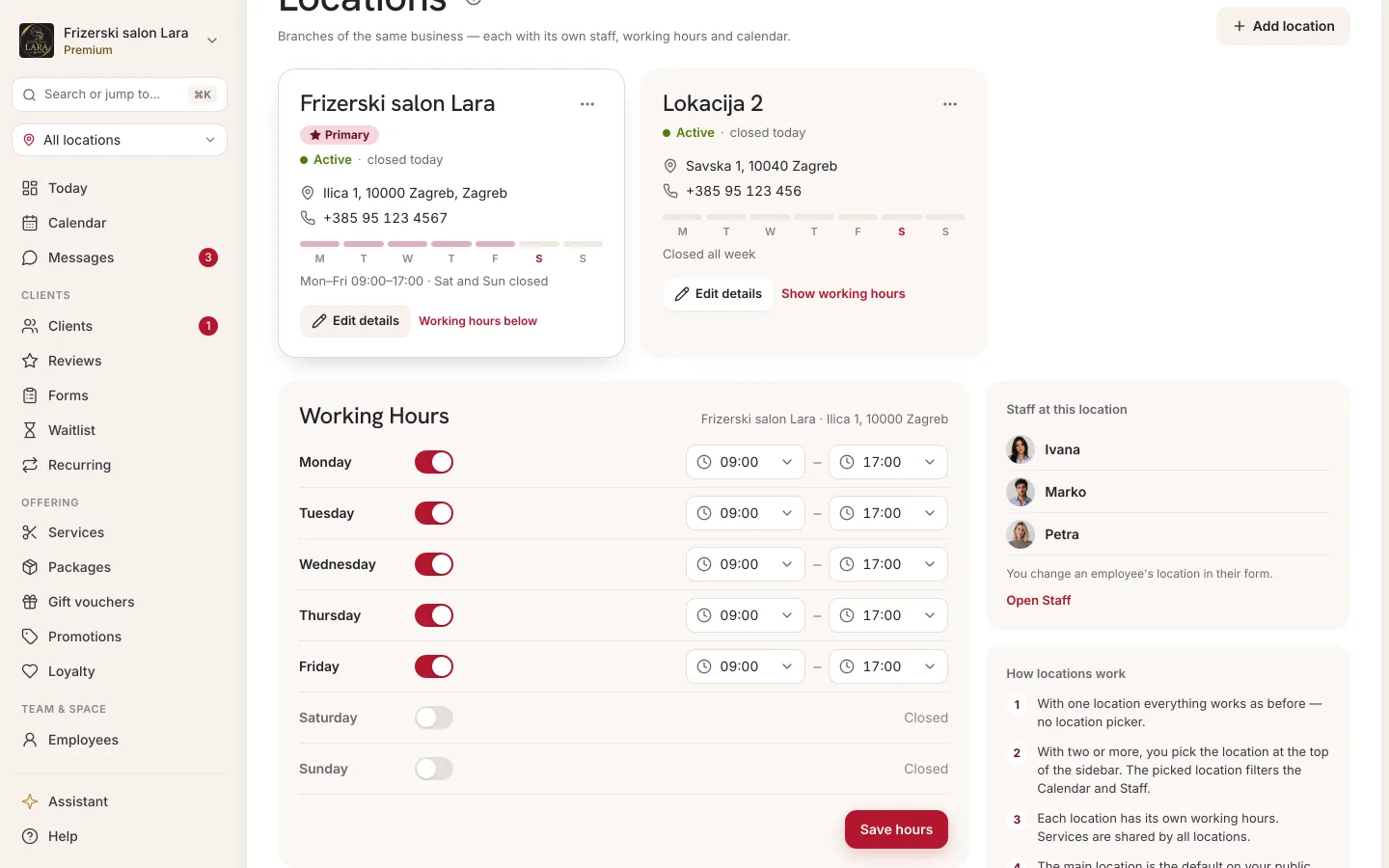
If you have only one location, these are the working hours of your whole business. They're also shown on your public page.
Employee shifts
Until you enter at least one shift for an employee, they're treated as working the location's full working hours. As soon as you enter a shift for any day, their own schedule applies: a day without a shift is a day off.
Setting shifts
- In the menu, open Employees.
- On the employee's card, click Working hours. The Working hours panel opens, with the employee's name in the title.
- Next to a day, click Add shift. The first shift of the day is suggested as 09:00–17:00.
- Adjust the start and end of the shift.
- In the drop-down next to the shift, leave Every week or choose a rotation (see below).
- Remove a shift by clicking ×. A day without any shifts shows Not working.
- Repeat for the other days and click Save hours.
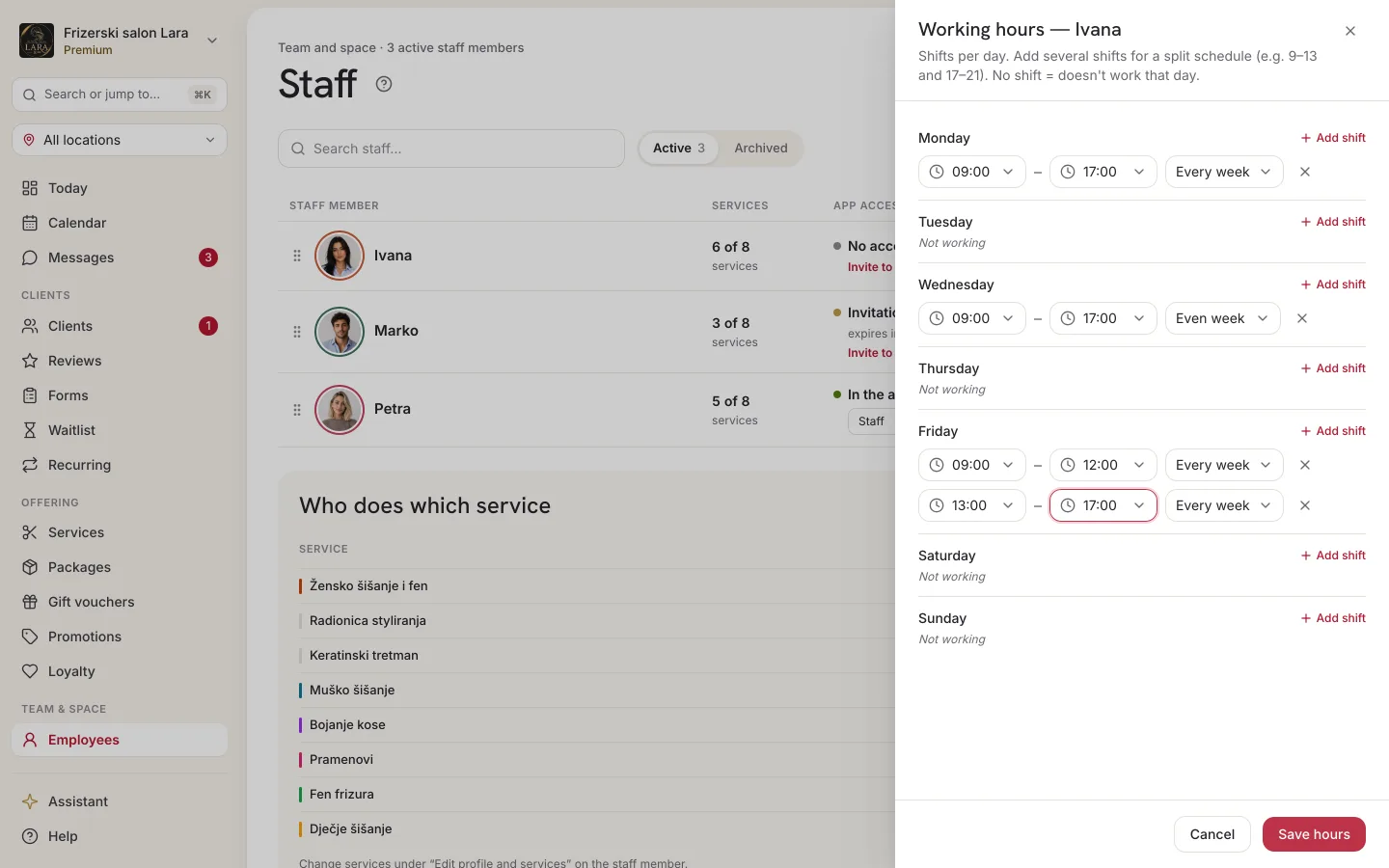
Split shift
If an employee works with a break, e.g. 09:00–13:00 and 17:00–21:00, click Add shift twice on the same day. The second shift is suggested as 17:00–21:00. One day can have up to six shifts, and clients only get time slots within them.
Rotation: even and odd weeks
Each shift can apply Every week, only in the Even week or only in the Odd week. Whether a week is even or odd is based on its number in the year (the ISO week, as shown in most calendars); for example, week 42 is even.
Examples:
- Saturdays every other week: a Saturday shift marked Even week.
- Two employees alternate mornings and afternoons: one has the morning shift in the Even week and the afternoon shift in the Odd week, the other the other way round.
In a week where none of that day's shifts apply, the employee doesn't work that day.
Checks when saving
| Message | What it means |
|---|---|
| Shift end must be after the start. | A shift ends before it starts, or in the same minute. |
| Shift starts before the business opens. | The shift falls outside the location's working hours. Move the start or extend the location's working hours. |
| Shift ends after the business closes. | The same, for the end of the shift. |
| The business is closed that day. | You entered a shift on a day when the location is closed. |
If the new schedule would leave an already booked appointment outside working hours, the Employee already has appointments window opens. It lists those appointments (date, time, client and service). Click Save anyway if that's what you want, or Cancel. The appointments aren't cancelled automatically, so move or cancel them after saving.
Special shift for one day
When an employee works differently on just one day (a doctor's appointment in the morning, staying longer on Friday), don't change their weekly schedule. Enter a special shift for that date instead.
- Open Calendar and switch to the Day view.
- Go to the date you're changing.
- In the employee's column header (their working hours for that day are shown under their name), click the calendar-with-clock icon — Special shift for this day.
- The Special shift panel opens, with the employee's name and a note that it applies to that date only.
- Turn on Off this day if the employee doesn't work that day. Or use Add shift to enter different hours (you can have several shifts in a day here too).
- Click Save.
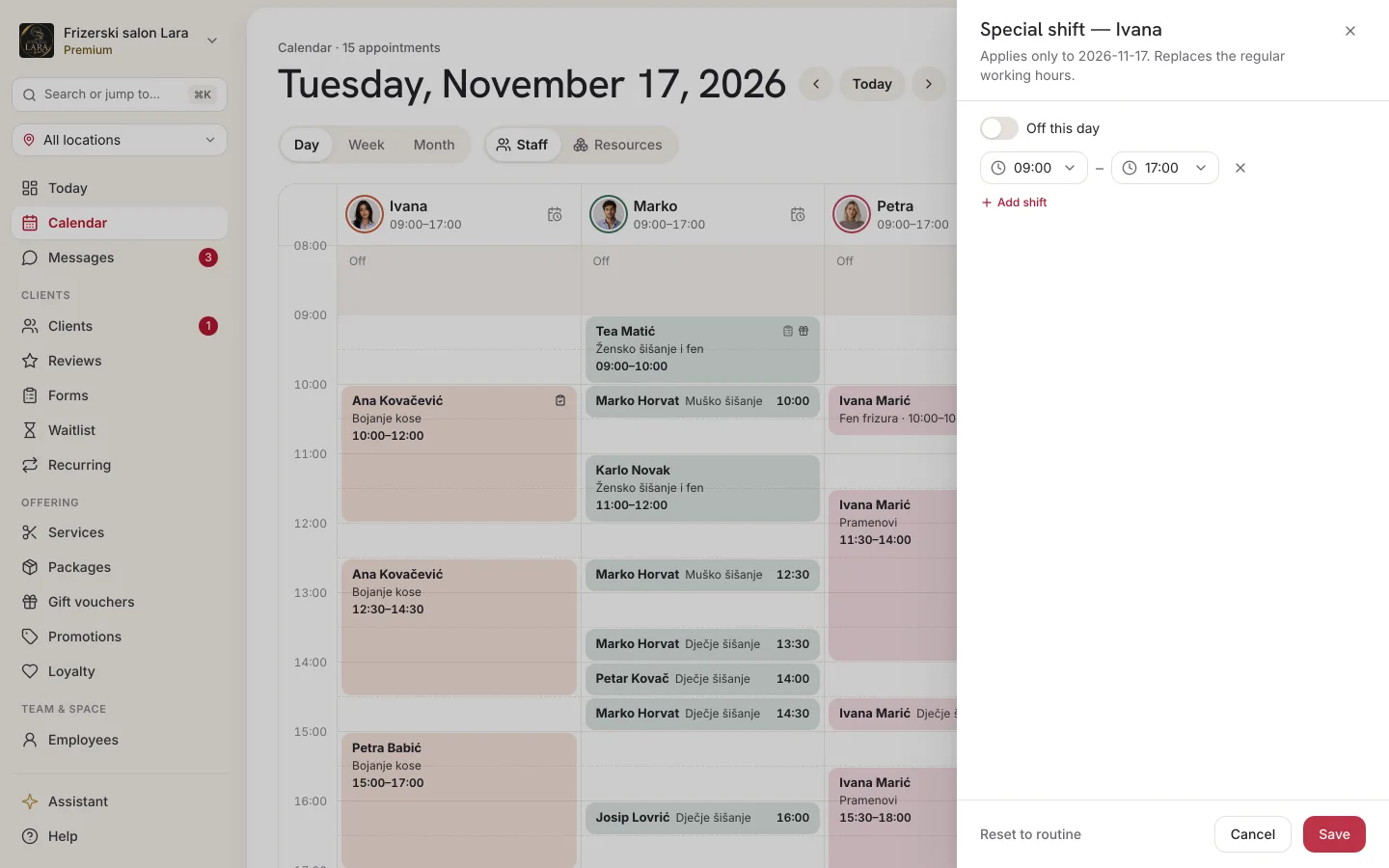
A special shift completely replaces the weekly schedule for that date, and the even/odd rotation doesn't apply here. To go back to the usual schedule, open the same panel and click Reset to routine. The same happens if you save the panel without any shifts and with Off this day turned off.
Here too, the shift must be within the location's working hours. If it isn't, saving fails and the panel shows “Failed to save.”, so check the times. If the special shift would leave a booked appointment outside working hours, the Employee already has appointments window opens, just as with weekly shifts.
After saving, the column header shows Off (special day) or the special working hours. The employee's non-working time is greyed out in the daily calendar. On a day when an employee doesn't work according to their schedule, the header shows No working hours set and the whole column is greyed out.
Holidays, sick leave and other absences
For periods of one or more whole days (annual leave, sick leave, training), use time off.
- In the menu, open Employees.
- On the employee's card, click Time off. The Time off panel opens, with the employee's name in the title and a list of the periods entered.
- Under Add period, choose the From and To dates. For a single day, choose the same date in both fields.
- If you like, enter a reason (e.g. “holiday”, “sick leave”). The reason is only visible in this panel. Clients don't see it, and the calendar only shows On leave.
- Click Add, and when you're finished, Done.
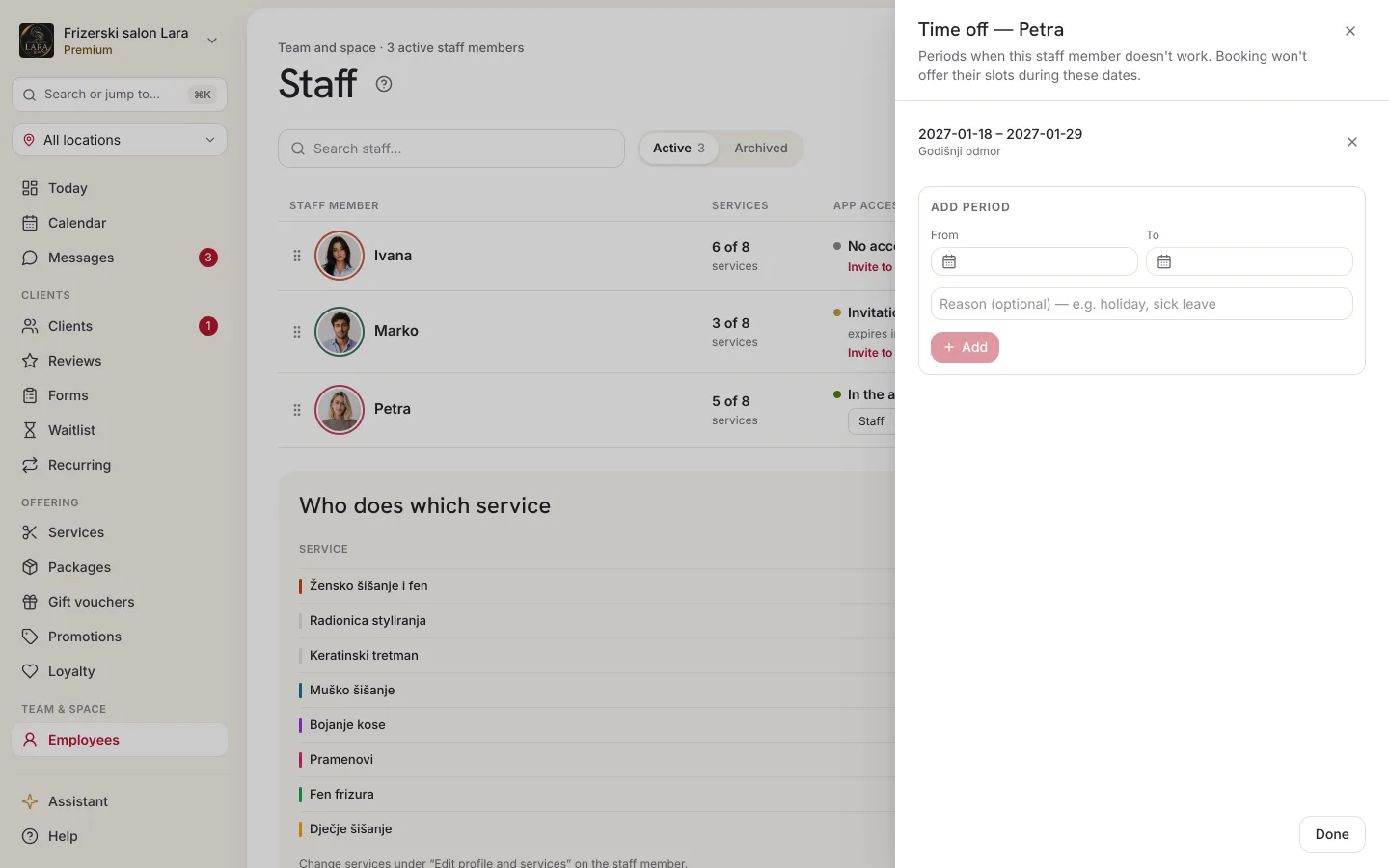
Both dates are included: a period from 3 to 14 August means the employee doesn't work on the 3rd or on the 14th. During that period, online booking doesn't offer their time slots. In the daily calendar, their column header shows On leave.
If the period already contains booked appointments, Appointa opens the Employee already has appointments window with a list. Save anyway saves the absence, but the appointments remain. Move them to another employee or cancel them.
Delete a period by clicking the × next to it. The employee then immediately goes back to their usual shifts.
Closures and holidays
When the whole business is closed, don't change every employee's shifts. Enter the closure once.
- Click the business card at the top of the sidebar and choose Settings.
- Open the Availability tab.
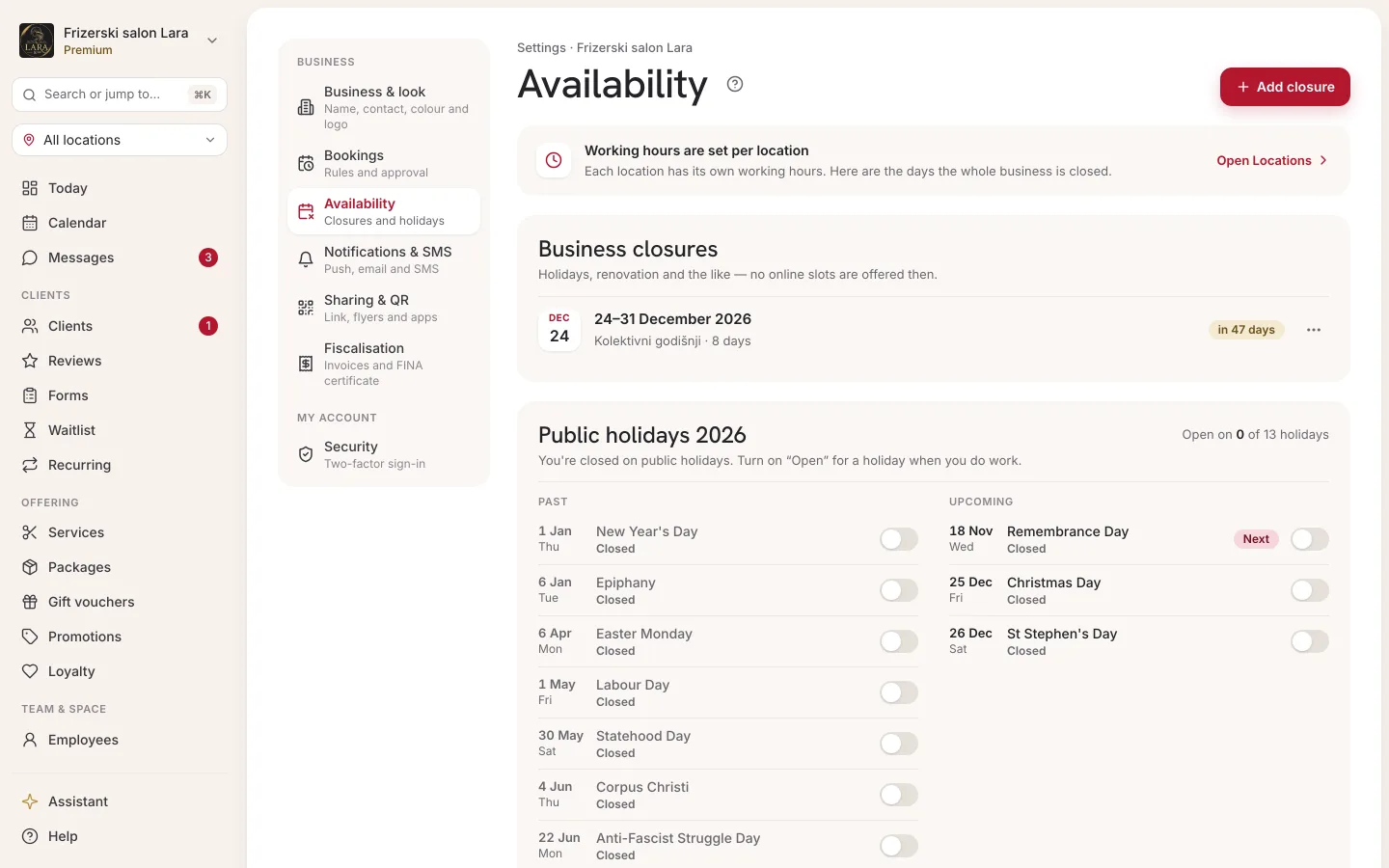
Business closure
In the Business closures section, you enter periods when the business is completely closed: a company-wide holiday, a renovation, a move.
- Under Add closure, choose the From and To dates. Both dates are included.
- If you like, enter a reason (e.g. “renovation”).
- Click Add.
During a closure, online booking doesn't offer a single time slot, at any location or with any employee. Delete a closure by clicking the × next to it.
Public holidays
The Public holidays section shows Croatian public holidays for the current year. Your business is closed on public holidays by default: booking doesn't offer time slots on those days even though you haven't entered them anywhere.
If you work on a holiday, turn on the switch next to it. A switch that's on means you're open; off means you're closed. The change is saved immediately.
What the client sees
- When booking, the client only sees the times that passed all the checks from the start of this page. They don't see days off, closures and absences as a reason; they simply don't get time slots.
- When a client chooses Any staff member, they're offered the time slots of all employees who perform the selected service and are working that day.
- Your public page shows the working hours of your primary location.
- Changes apply immediately: as soon as you save a shift or an absence, booking offers the new time slots.
Frequently asked questions
An employee has no shifts entered, yet clients can book them all day. Is that a bug?
No. An employee without any shifts works the location's full working hours. Their column header in the daily calendar then shows No working hours set, and the column is greyed out even though clients can book them. Enter shifts for them, and the calendar and booking will show the same thing.
I only entered shifts for Monday, and now the employee has no time slots on the other days. Why?
As soon as an employee has at least one shift, days without a shift are days off. Add shifts for all the days they work.
How do I set up working every other Saturday?
Enter a Saturday shift and, in the drop-down next to it, choose Even week or Odd week. See Rotation.
We're working on a public holiday next year. How do I mark that?
The list shows the current year's holidays, so you get the switch for next year's holidays once that year begins. Until then, those days are closed for online booking. For days that aren't public holidays but when you're closed, enter a business closure.
Can I enter an appointment in the calendar when the employee isn't working?
Yes. These settings restrict online booking, while in the calendar you choose the appointment time yourself. If you drag an existing appointment to a time when the employee isn't working, Appointa first asks Employee isn't working then and asks you to confirm. More in Calendar overview.