Invitations and roles
How to invite an employee to sign in on the web and in Appointa Pro, what the invitation statuses mean, and what owners, managers and staff can do.
 Video guideDjelatnici: tko što radi + pozivnica u Appointa ProWatch on YouTube · The video is in Croatian.
An employee can exist in Appointa without ever signing in: you have their profile, and you enter their appointments yourself. When you want them to see their own schedule, reply to clients or enter appointments, send them an invitation. By accepting it, they get their own account linked to your business and a role that determines what they're allowed to do. On this page you'll learn how to send and track invitations, which roles exist and what each one sees.
Before you start
- Invitations are sent by the owner and managers.
- The employee must have a profile on the Employees page (see Employees). The invitation is sent from their card and, once accepted, is linked to that profile.
- You need the email address the employee will sign in with. It must not already be a member of your business.
Profile and account
In Appointa, these are two different things:
| Employee profile | Sign-in account | |
|---|---|---|
| What it is | Name, color, photo and services — in other words, a column in the calendar | The person's email and sign-in method |
| Who creates it | The owner or a manager, on the Employees page | The person themselves, when they accept an invitation or sign up |
| Needed for appointments | Yes | No |
When the employee accepts the invitation, the profile and the account are linked, and the Linked badge appears on the employee's card. From then on, they sign in on the web. They activate the Appointa Pro mobile app themselves: they generate a QR code on their own dashboard and scan it with their phone (see Activating with a QR code). Their dashboard is My dashboard: their own appointments, revenue, ratings and top clients.
Sending an invitation
- In the menu, open Employees.
- On the employee's card, click Invite to app. The link is only shown for active employees who aren't linked yet.
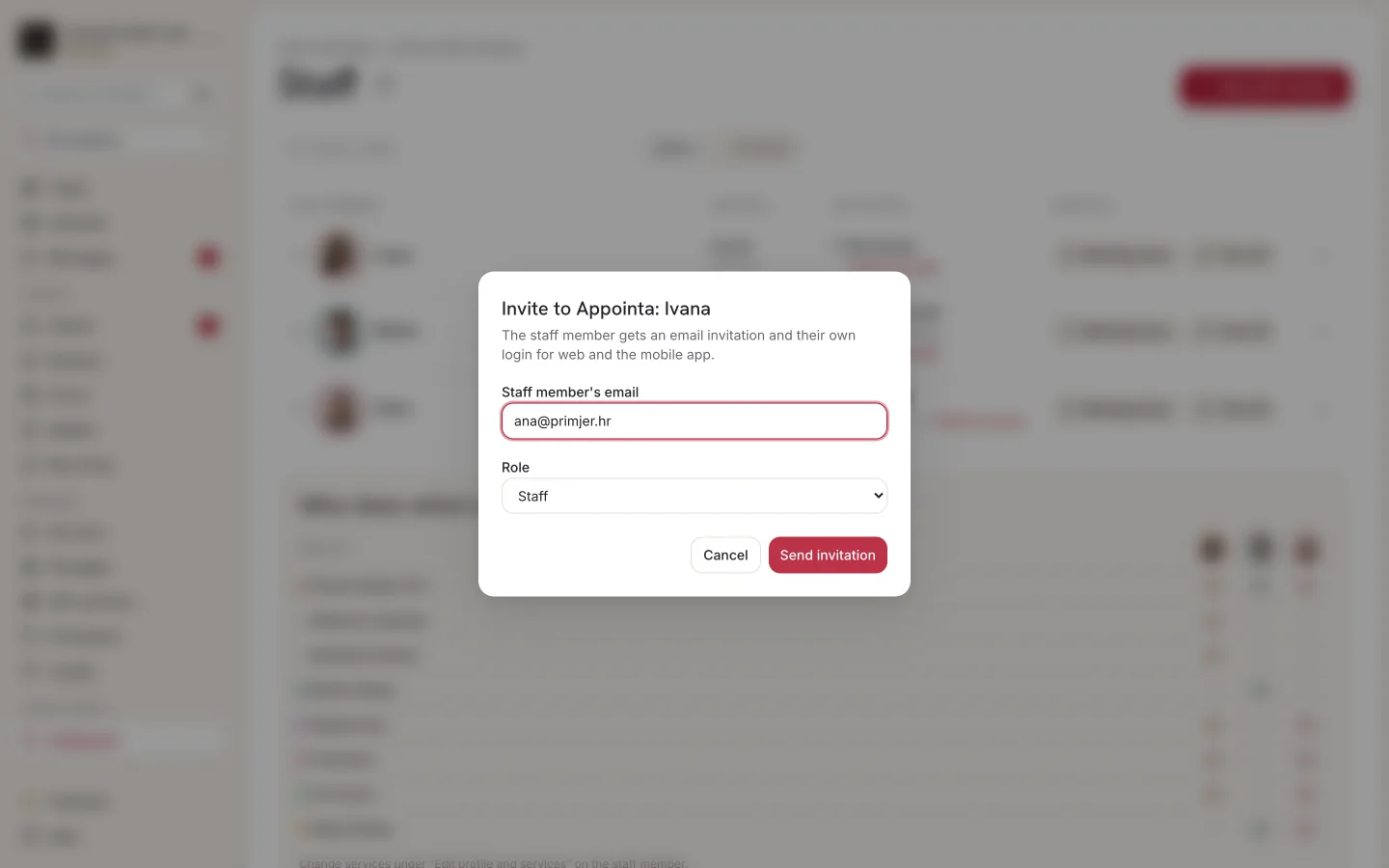
- A window titled “Invite to Appointa: [name]” opens. Enter their address in the Staff member's email field.
- If you're the owner, choose Staff or Manager under Role. Managers don't see this field and always invite with the Staff role.
- Click Send invitation. The message “Invitation sent to …” appears.
| Message | What it means |
|---|---|
| Enter a valid email address. | The address isn't entered correctly. |
| This email is already a member or the profile is already linked. | The person with that address already has access to your business, or the profile has been linked to someone else in the meantime. |
| Sending the invitation failed. Try again. | A temporary error. |
How the employee accepts the invitation
The employee receives an email with the subject “Invitation to join …” and an Accept invitation button. The email is in your business's language.
- The employee clicks Accept invitation.
- If they're not signed in, they see Log in to accept. They sign in with the address the invitation was sent to, and if they don't have an account yet, they click Sign up.
- After signing in, they see Welcome to the team! and the Go to dashboard button.
What the employee may see instead of the confirmation:
| Screen | Cause | Solution |
|---|---|---|
| This invitation is for a different email | They're signed in with a different address. | Sign out and sign in with the address from the invitation. |
| The invitation has expired | More than 7 days have passed. | The owner or a manager clicks Resend (see below). |
| The invitation is no longer valid | The invitation was revoked. | The owner or a manager sends a new invitation. |
| Invitation not found | The link is wrong or was copied incompletely. | Open the link directly from the email. |
Pending invitations
Below the employee cards is the Invitations section, listing invitations that haven't been accepted yet. The section isn't shown when there are none. Each one shows the email, the role and how much longer it's valid (e.g. “expires in 5 days”).
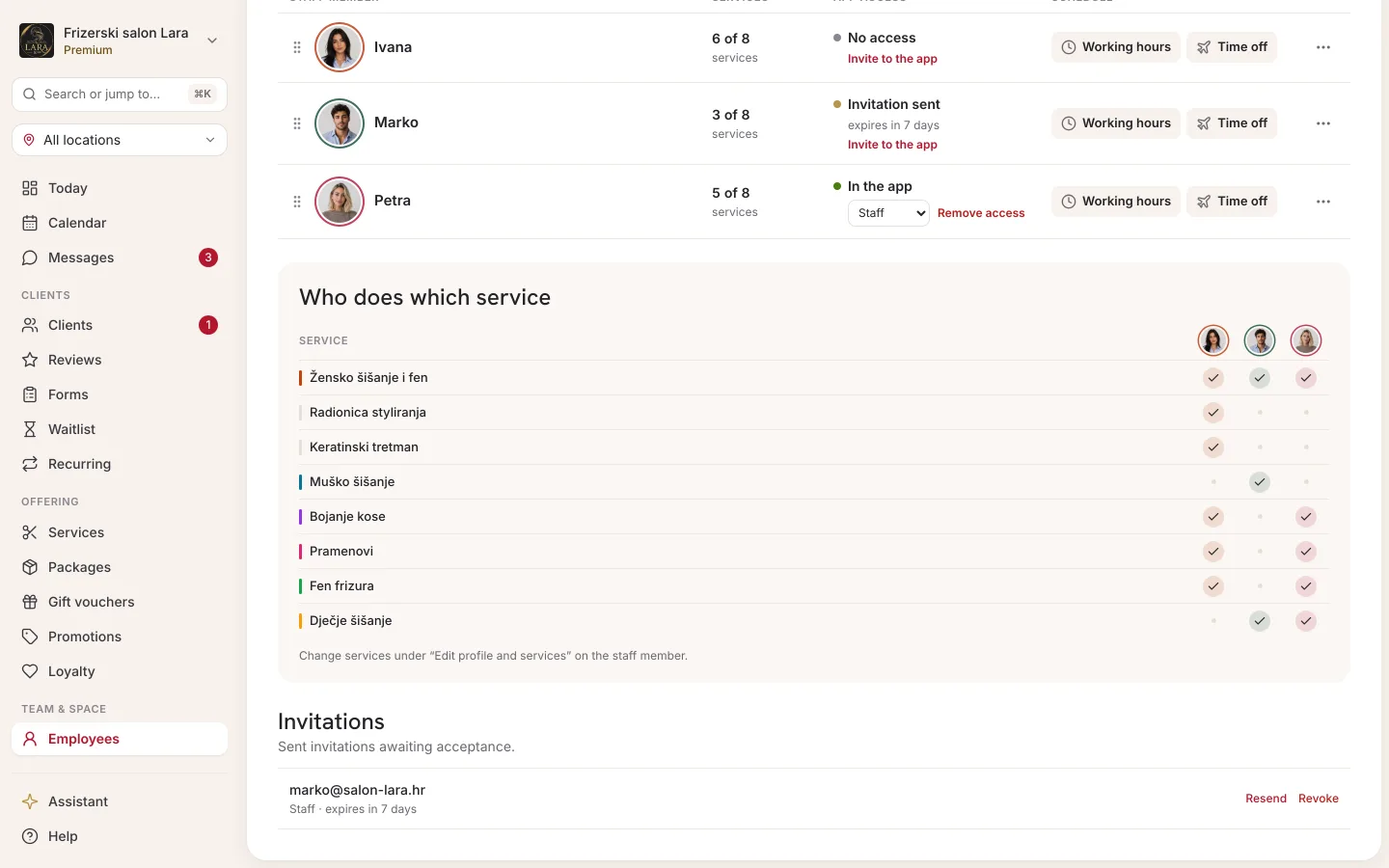
- Resend sends the same email again and extends its validity by a new 7 days. The same invitation can be resent at most once a minute. If you click too soon, you'll see “Resend failed. Wait a minute and try again.”
- Revoke cancels the invitation. Confirm in the Revoke invitation? window with the Revoke button. The link in the email stops working immediately, and you can send a new invitation whenever you like.
Invitation statuses
| Status | When | What you see |
|---|---|---|
| Pending | The invitation has been sent, but the employee hasn't accepted it yet. | The invitation is in the Invitations section, with the number of days until it expires. |
| Accepted | The employee has accepted the invitation. | The invitation disappears from the list, and the employee's card gets the Linked badge. |
| Revoked | You clicked Revoke. | The invitation disappears from the list, and the link reports “The invitation is no longer valid”. |
| Expired | 7 days have passed without it being accepted. | The invitation stays on the list, labelled “expires in 0 days”. Resend renews it. |
Roles
Every team member has one of three roles:
| Role | For whom | In short |
|---|---|---|
| Owner | The person who opened the business | Everything, including the plan, payment, fiscalisation settings and inviting managers |
| Manager | The business manager, a right hand | Everything except Billing and the fiscalisation settings. Invites staff only. |
| Staff | Hairdresser, therapist, trainer… | Day-to-day work: calendar, clients, messages |
What each role sees and does
| Area | Owner | Manager | Staff |
|---|---|---|---|
| Calendar: viewing, new appointment, moving, statuses | ✓ | ✓ | ✓ |
| Bulk actions: cancelling several appointments at once | ✓ | ✓ | — |
| Clients: viewing, adding, editing, approving new ones | ✓ | ✓ | ✓ |
| Clients: importing from Excel, anonymization | ✓ | ✓ | — |
| Messages with clients | ✓ | ✓ | ✓ |
| Invoices (Pro and Premium plans) | all | all | only their own and those for their appointments |
| Services, Employees, Resources, Locations | ✓ | ✓ | — |
| Working hours, shifts, time off, closures | ✓ | ✓ | — |
| Analytics, Reviews, Gallery | ✓ | ✓ | — |
| Promotions, Loyalty, Gifts, Packages, Forms, Waitlist, Recurring (depending on the plan) | ✓ | ✓ | — |
| Settings (except the Fiscalisation tab) and Support | ✓ | ✓ | — |
| Settings → Fiscalisation | ✓ | — | — |
| Billing: plan, card, seats, SMS credits | ✓ | — | — |
| Invitations | any role offered | Staff only | — |
| Changing a team member's role and removing their access | ✓ | — | — |
Items a role isn't allowed to use don't appear in its menu. A staff member doesn't see the buttons for such actions within a screen either, such as Bulk actions and the special shift in the calendar, or Anonymize client, Sell package and Void on a client's card. On the dashboard, a staff member sees My dashboard with their own figures, not the figures for the whole business. They see the whole calendar, with all employees.
If a person with the Staff role has accepted an invitation but their profile has since been archived, they see the message “Account linked, profile not yet” on the dashboard.
Changing a role and removing access
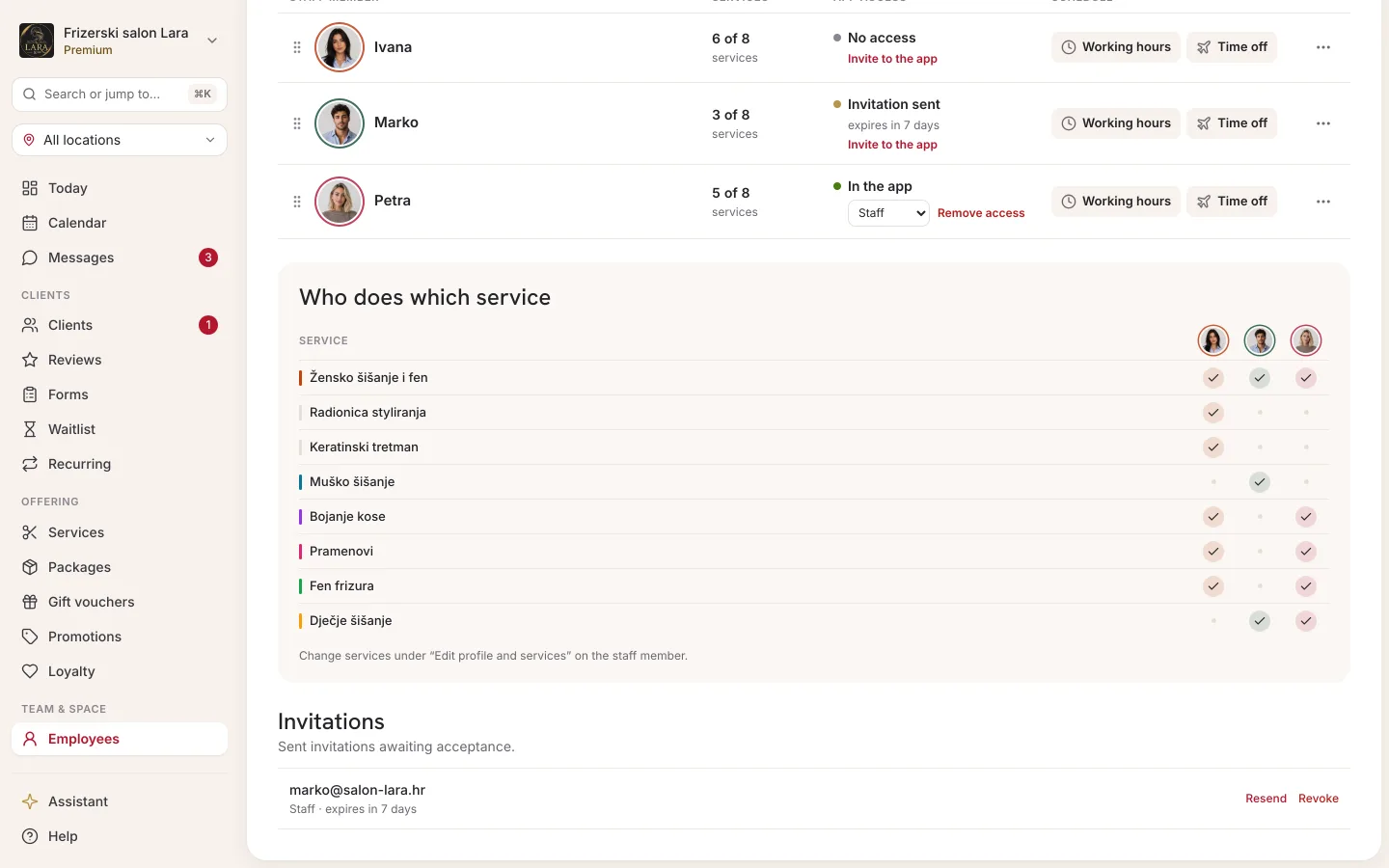
The role is chosen when you send the invitation. Once the invitation has been accepted, the owner changes the role and access on the employee's card in Employees. For the owner, a linked employee's card (with the Linked badge) shows a Role row with a dropdown and a Remove access button. Managers and staff don't see this row.
- Changing the role: choose Staff or Manager in the Role dropdown. The change is saved right away and applies from that person's next step in the app. The message “…'s role has been changed.” appears.
- Removing access: click Remove access and confirm in the Remove access? window with Remove access. The person is signed out of your business right away, on the web and in Appointa Pro, and can no longer sign in to it. The employee profile and its appointments stay, the Linked badge disappears and Invite to app shows on the card again. Their account and memberships in other businesses stay.
- The invitation hasn't been accepted yet: click Revoke in the Invitations section and, if needed, send a new one with a different role.
You can't change an owner's role or remove an owner's access, including your own: if your account is linked to an employee profile, your card doesn't show this row.
Frequently asked questions
Can I invite another owner?
Not from the interface. In the invitation window, the owner chooses between the Staff and Manager roles.
Can I give access back after removing it?
Yes. On the employee's card, click Invite to app and send a new invitation. Once they accept it, the profile is linked to their account again.
The employee didn't get the email. What should I do?
Ask them to check their spam folder. Then check the address in the Invitations section. If it's correct, click Resend. If it isn't, revoke the invitation and send a new one.
Does an employee need an account to have appointments?
No. Appointments are entered on the employee's profile even without them signing in. An invitation is only needed if they want to work in the app themselves.
How long is an invitation valid?
Seven days from when it's sent. Resend extends it by another seven days.
Does an invitation take up a seat on my plan?
No. The seat is taken by the employee profile, whether or not it's linked to an account (see Employee seats).