Security and two-factor sign-in
Turn on two-factor sign-in (2FA), save your backup codes, sign in with a code from an app or email, and change your password.
 Video guideZaštiti svoj račun — dvofaktorska prijava u 2 minute (Appointa)Watch on YouTube · The video is in Croatian.
Your Appointa account gives access to your calendar and to your clients' contact details and notes, so it's worth protecting it further. Two-factor sign-in (2FA) asks you to enter a short code from your phone in addition to your password. Anyone who finds out your password can't get in without that code. On this page you'll learn how to turn on 2FA, sign in with it, cope if you lose your phone and change your password.
Before you start
- 2FA protects signing in with email and password. If you only sign in with a Google or Apple account, see Signing in with Google or Apple.
- You need an authenticator app on your phone, for example Google Authenticator or 1Password.
- The Security tab is in Settings, which appears in the menu for the owner and managers. Users with the Staff role don't have Settings in their menu, so for now they have no way to reach this tab.
- 2FA applies to your user account, not to the whole business. If you turn it on, the other members of your team don't need to change anything.
How two-factor sign-in works
When 2FA is turned on, signing in takes two steps. First you enter your email and password as usual. Then the Two-factor verification screen opens, where you confirm that it really is you. You can do this in three ways:
| Method | Where the code comes from | How long it's valid |
|---|---|---|
| Authenticator app (default) | A 6-digit code in the app on your phone | Changes every 30 seconds |
| Code by email | A 6-digit code we send to your account email | 3 minutes |
| Backup code | One of the ten spare codes you save when you turn on 2FA | Each one works only once |
Signing in with Google or Apple doesn't ask for this extra code. Signing in with only a code or link from an email is not possible while 2FA is on, because it would skip the second step. Examples are the code sign-in on a public booking page and the link sign-in in the Appointa client app. On the web you then see “Your account has two-step verification turned on, so you can't sign in with an e-mail code.” with a Sign in with password link. In the Appointa app, sign in with Google or Apple. Appointa Pro connects with a QR code or an activation code, so turning on 2FA doesn't affect it.
Turning on 2FA
- Open the account menu (click the card at the top of the sidebar) and choose Settings.
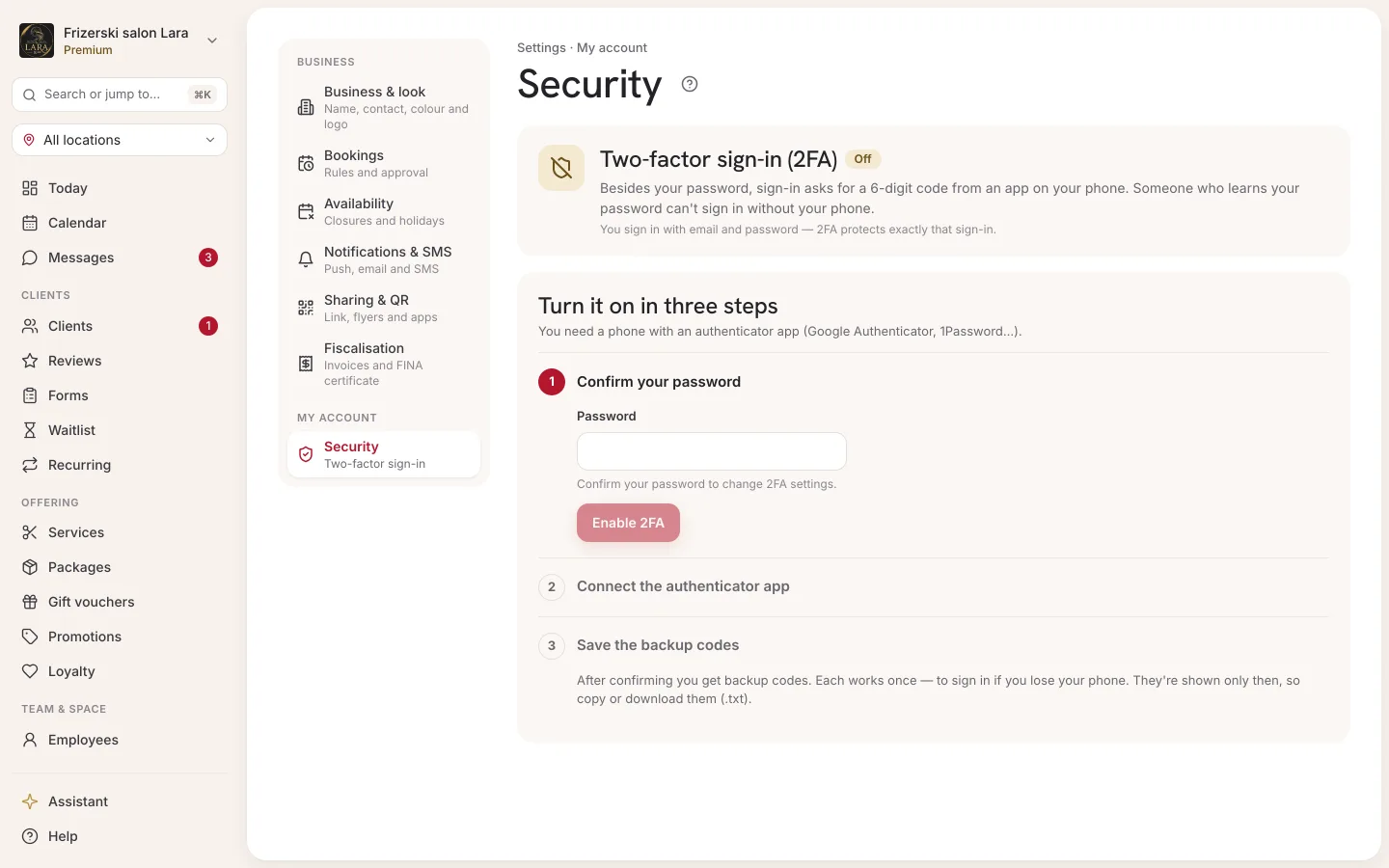
- Open the Security tab. Under the heading Two-factor sign-in (2FA) it says 2FA is disabled.
- Enter your current password in the Password field. The button becomes active only once the field is filled in.
- Click Enable 2FA.
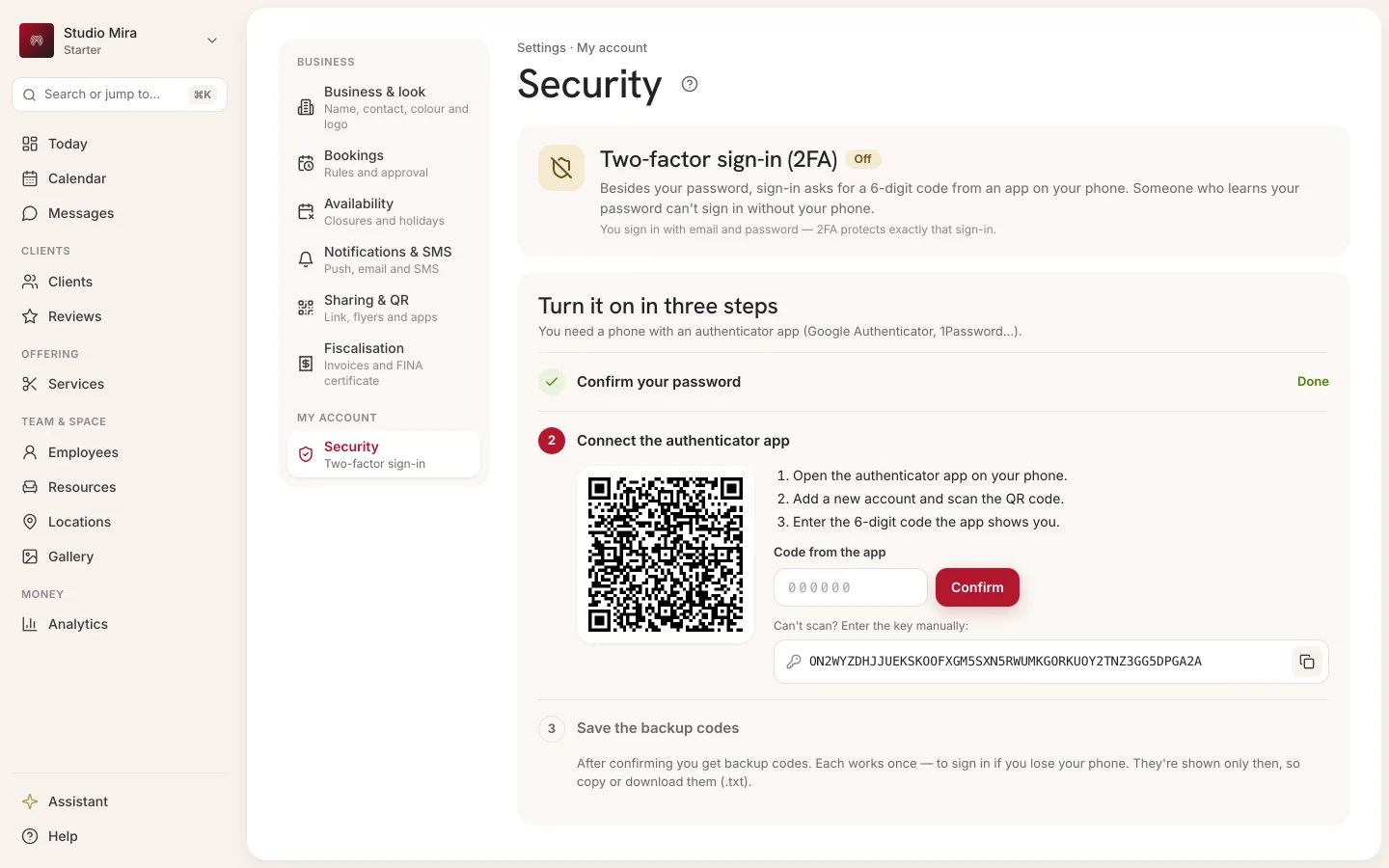
- Scan the QR code appears. On your phone, open your authenticator app, add a new account and scan the QR code on the screen. In the app, the account is shown under the name Appointa together with your email.
- Can't scan it? Below the code it says “Can't scan? Enter the secret key manually:” followed by a key that you type into the app.
- Enter the 6-digit code shown in the app in the Code from the app field and click Confirm.
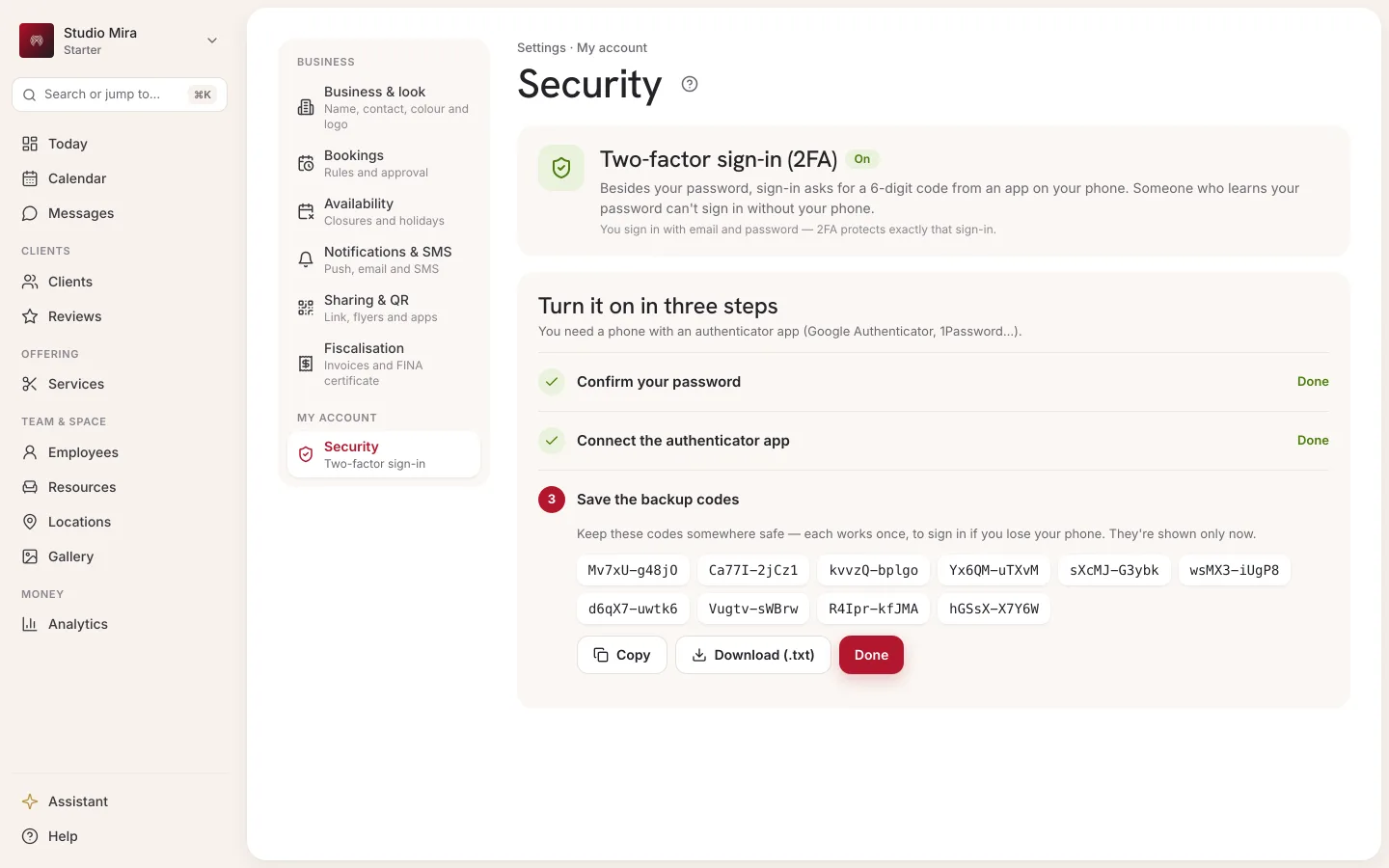
- Backup codes appear. Save them (see Backup codes) and click Done. The status now reads 2FA is enabled.
If the code isn't accepted, you'll see “That code isn't valid. Try again.” Wait for the app to show a new code and enter it.
Backup codes
Backup codes are your spare way in if you're left without your phone. After turning on 2FA you get ten of them, each made up of two groups of five characters.
- Each code works once. A used code no longer works.
- The codes are shown only at that moment. You can't view them again later.
- Copy puts all the codes on your clipboard, and Download (.txt) downloads them as the file
appointa-backup-codes.txt.
New backup codes
If you've used most of your codes or think someone has seen them, create new ones:
- On the Security tab, enter your password in the Password field.
- Click New backup codes.
- Save the new list and click Done. The old codes stop working.
Signing in with 2FA turned on
- On the Log in screen, enter your email and password and click Log in.
- Two-factor verification opens: “Enter the code from your authenticator app.”
- Enter the code from the app in the Code field.
- If you like, tick Remember this browser for 30 days. That browser won't ask for a code for the next 30 days.
- Click Verify and you're in the admin area.
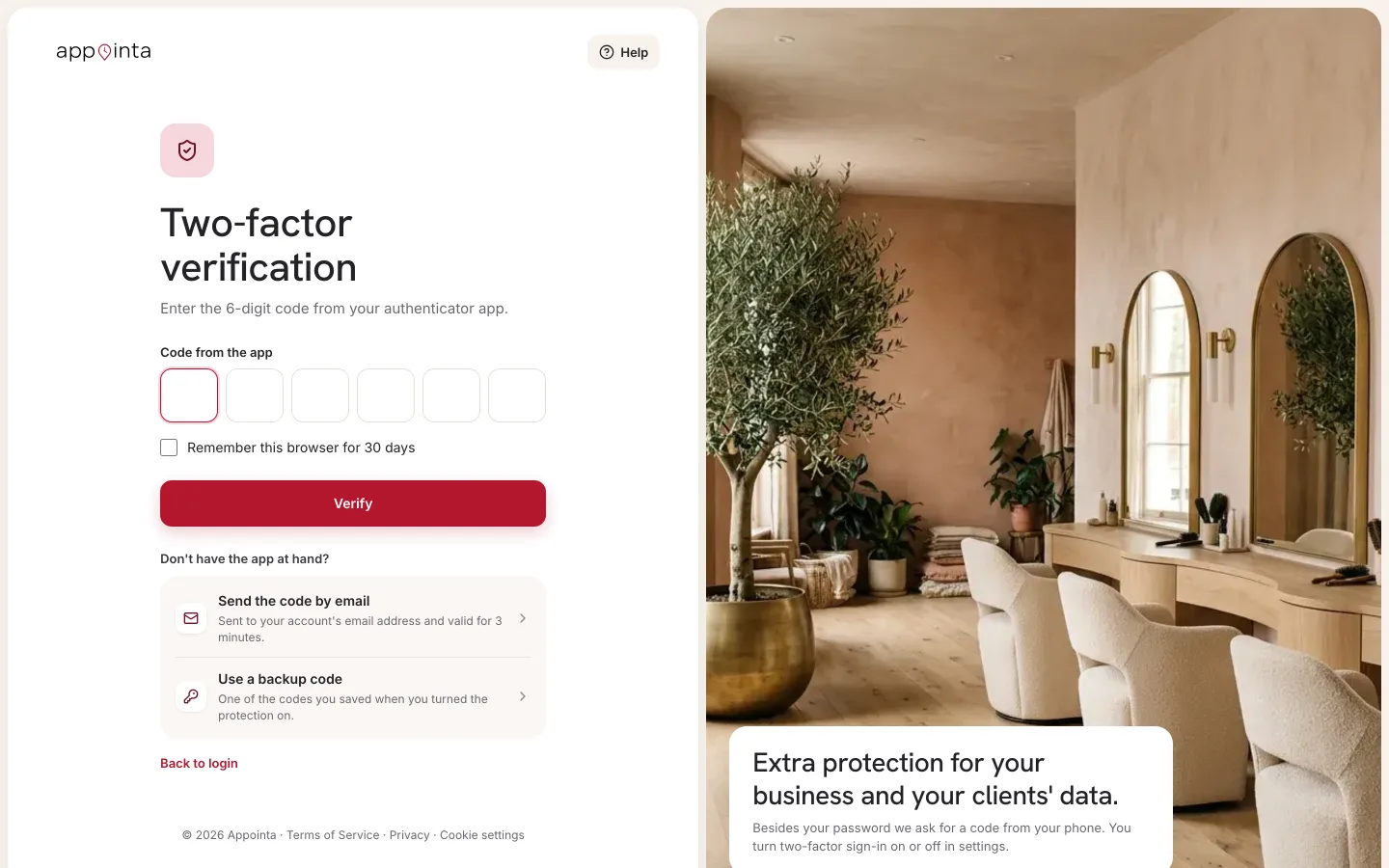
Below the Verify button there are other ways to confirm:
| Link | What it does |
|---|---|
| Send the code by email | Sends a code to your account email. You'll see “We sent a code to your email. It's valid for 3 minutes.” and you enter the code in the same field. The email arrives with the subject “Your Appointa security code”. |
| Use a backup code | The field changes to Backup code. Enter one of the codes you saved. |
| Use the authenticator app | Takes you back to the code from the app. It's shown when you are using one of the other two methods. |
If you lose your phone or authenticator
- On the Two-factor verification screen, click Send the code by email or Use a backup code and sign in.
- Open Settings → Security, enter your password and click Disable 2FA, then confirm.
- On your new phone, go through Turning on 2FA again. You'll get a new QR code and new backup codes.
If you have neither access to your email nor your backup codes, you can't sign in, so you can't open Support in the app either. Write to [email protected] from the address the account was opened with. Read more on the Support page.
Turning off 2FA
- On the Security tab, enter your password in the Password field.
- Click Disable 2FA.
- The Disable two-factor sign-in? dialog says: “Sign-in will require only the password again. Backup codes stop working.” Click Disable, or Cancel if you change your mind.
- The notification “2FA is disabled.” appears.
Signing in with Google or Apple
If you only sign in with the Continue with Google or Continue with Apple button, the Security tab shows this instead of the button: “You sign in with a Google or Apple account, so 2FA isn't needed here — that provider's own verification protects your account.” We recommend turning on two-factor protection in your Google or Apple account itself; it then also protects your way into Appointa.
If you also have a password, you can turn on 2FA. The code will be requested only when you sign in with your password, and signing in with Google or Apple stays as it was.
Changing your password
There is no field for changing your password in Settings. You change it through the Forgot password? link on the sign-in screen. The same procedure works whether you know your password or have forgotten it (see also Forgotten password).
- Sign out: in the account menu, click Sign out.
- On the Log in screen, click Forgot password?.
- Enter your account email and click Send reset link.
- Open the email “Reset your Appointa password” and click Set a new password. The link is valid for 24 hours.
- On the Set a new password screen, enter a New password (at least 8 characters) and click Save password.
- When “Your password has been changed.” appears, click Go to login and sign in with your new password.
If the email doesn't arrive, check your spam folder too. If the link has expired, the screen offers Request a new link.
Signing out
- Sign out is at the bottom of the account menu. It signs you out only in the browser where you click it. You stay signed in on your other devices and in the Appointa Pro app.
- Signing in in a browser doesn't last forever. When it expires (about a week after you signed in), Appointa takes you back to the Log in screen.
- In the Appointa Pro app, signing out means you need a new QR code to reconnect. See Appointa Pro.
- For now there is no list of the devices you're signed in on and no button to sign out of all devices at once.
FAQ
Do I have to turn on 2FA?
No, 2FA is optional, but we recommend it for anyone who signs in with a password. That's why the Protect your account (2FA) guide is in the First steps card on the dashboard, right after business setup.
Does 2FA apply to the whole team?
No. 2FA is turned on for each user account separately and protects only the sign-in of the person who turned it on.
The app gives me a code, but Appointa says it isn't valid. What should I do?
The code changes every 30 seconds, so enter the one currently on the screen. Also check that your phone sets its time automatically, because the codes depend on the exact time. If that doesn't help, sign in with a code by email.
The email code didn't arrive.
Check your spam folder. The code is valid for 3 minutes. To get a new code, click Use the authenticator app and then Send the code by email again. Enter the code from the most recent email.
Will 2FA lock me out of the Appointa Pro app?
No. Appointa Pro doesn't sign in with a password; it connects with a QR code or an activation code, so 2FA doesn't affect it.