Price and occupancy display
How to hide a service's price from clients, show a note instead of the amount, and turn the occupancy badge for group sessions on or off.

Every service has two display settings that control what clients see on your public page and during booking: whether they can see the price and whether they can see how many seats in a group session are already taken. Both settings change only what the client sees — you and your staff always see the real price and the actual occupancy. On this page you'll find out where the settings are, exactly what changes on the public page and how to set up a service with a price “on request”.
Before you start
- The display settings are changed by the owner and managers in the service form.
- The settings are available on every subscription plan.
- They're set separately for each service: you can hide the price of one service and leave it visible for the others.
Where the settings are
- In the menu, open Services.
- Click a service (or Add service for a new one).
- In the form, find the Show price to clients switch and, for group services, the Show slot occupancy switch.
- Click Save.
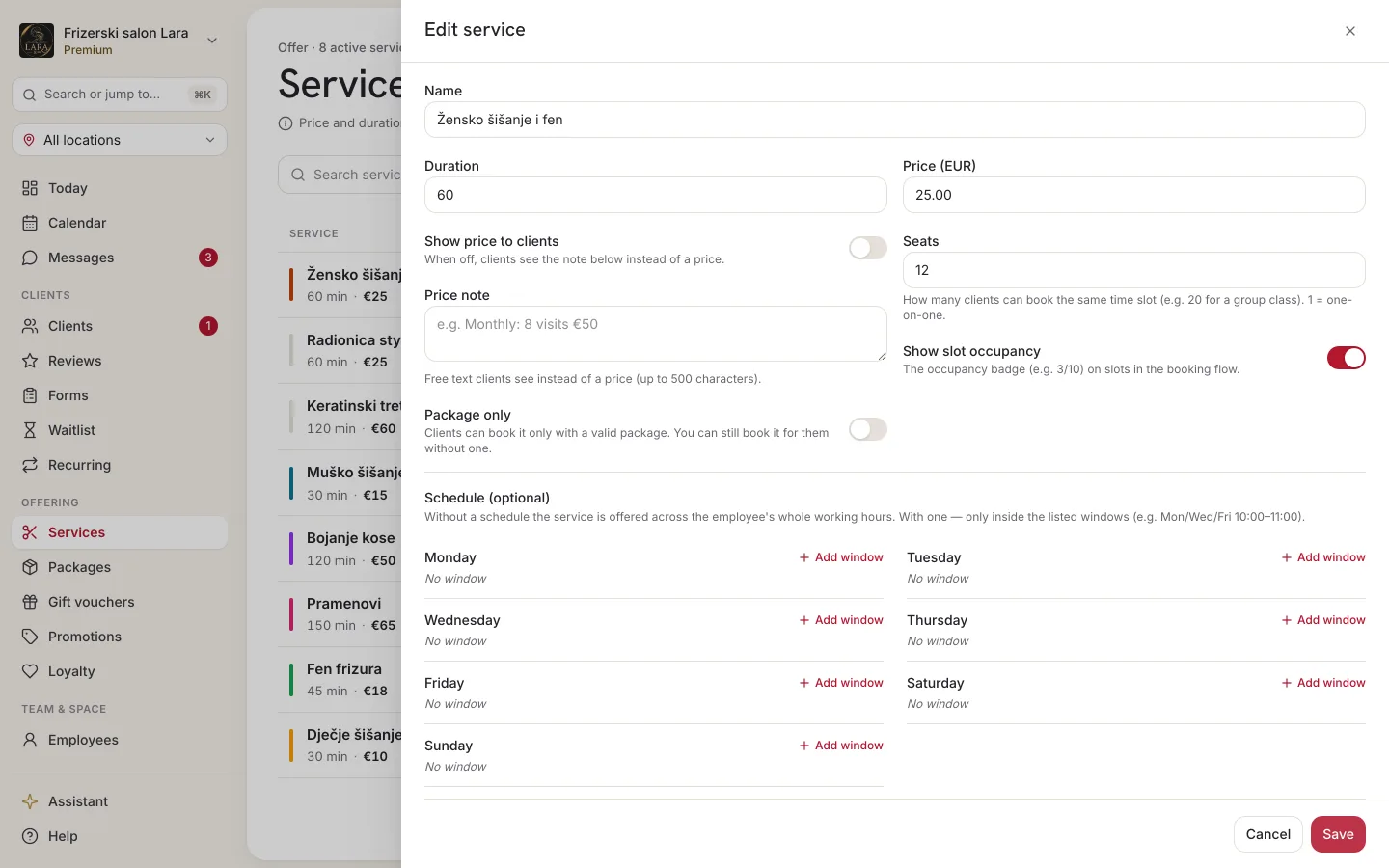
| Setting | Default | When it appears in the form |
|---|---|---|
| Show price to clients | On | Always. |
| Price note | Empty | When you turn off Show price to clients. |
| Show slot occupancy | On | When Seats is greater than 1. |
Hiding the price
When you turn off Show price to clients, clients no longer see the service's amount. A Price note field appears below the switch — free text of up to 500 characters that clients see in place of the price, e.g. “Monthly: 8 visits €50”, “Included in membership” or “Price by arrangement”. The note is optional; if you leave it empty, nothing is shown in place of the price.
- Open the service.
- Turn off Show price to clients.
- In the Price note field, enter the text clients should see.
- Click Save.
In the service list you still see the price of such a service, with the Hidden badge next to it. When you hover over the badge, you see the note you entered.
What the client sees
| Place | Price shown | Price hidden |
|---|---|---|
| Public page, Our services list | Amount | Price note |
| Booking, What service are you looking for? step | Amount | Price note |
| Booking, Your details step | The Have a code? field for a promo code or gift voucher | The field isn't shown |
| Booking confirmation screen | The Price row with the final amount | The row isn't shown |
| Appointment confirmation email | Final amount | Price note (or a dash if there is none) |
| Client app | Amount | Price note |
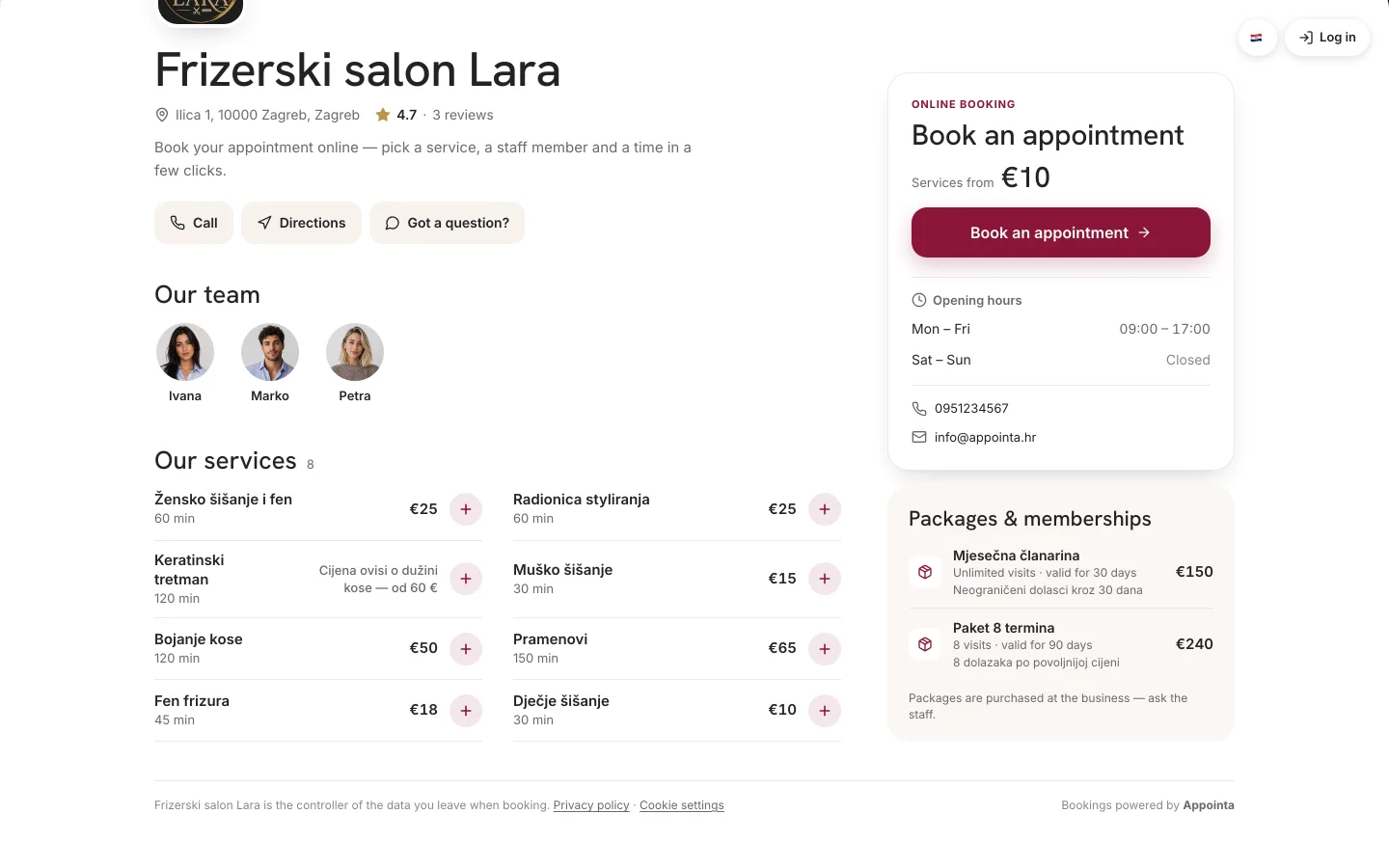
What doesn't change
Hiding the price affects display only:
- The price from the price list is still recorded on every appointment and counts towards reports and revenue.
- In the new appointment form in the calendar, the Price (EUR) field is filled in with the service's real price.
- The invoice for the appointment is issued for the actual amount (see Issuing invoices).
Hidden price and discounts
A discount on a price the client can't see would be confusing, so for services with a hidden price:
- the client can't enter a promo code or a gift voucher code (the Have a code? field isn't shown);
- automatic promotions and automatic loyalty reward redemption don't apply;
- visit packages work normally — a package also covers an appointment for a service with a hidden price, because a package isn't a discount but a prepaid visit (see Packages and memberships).
Price “on request”
Appointa has no special “price on request” mode — you get the same effect with a hidden price and a note:
- In the service, turn off Show price to clients.
- In Price note, enter e.g. “Price by arrangement” or “From €40, depending on hair length”.
- In Price (EUR), enter the amount you charge most often.
Why the third step matters: when a client books online, the price from the price list is saved on the appointment. If you enter 0, reports will show €0 for those appointments. When you enter an appointment in the calendar yourself, you can adjust the amount in the Price (EUR) field before saving.
Group session occupancy display
For group services (Seats greater than 1), Appointa shows clients how many seats are taken next to each time, e.g. “4/20”. The badge appears at the Choose date and time step on the web and in the client app.
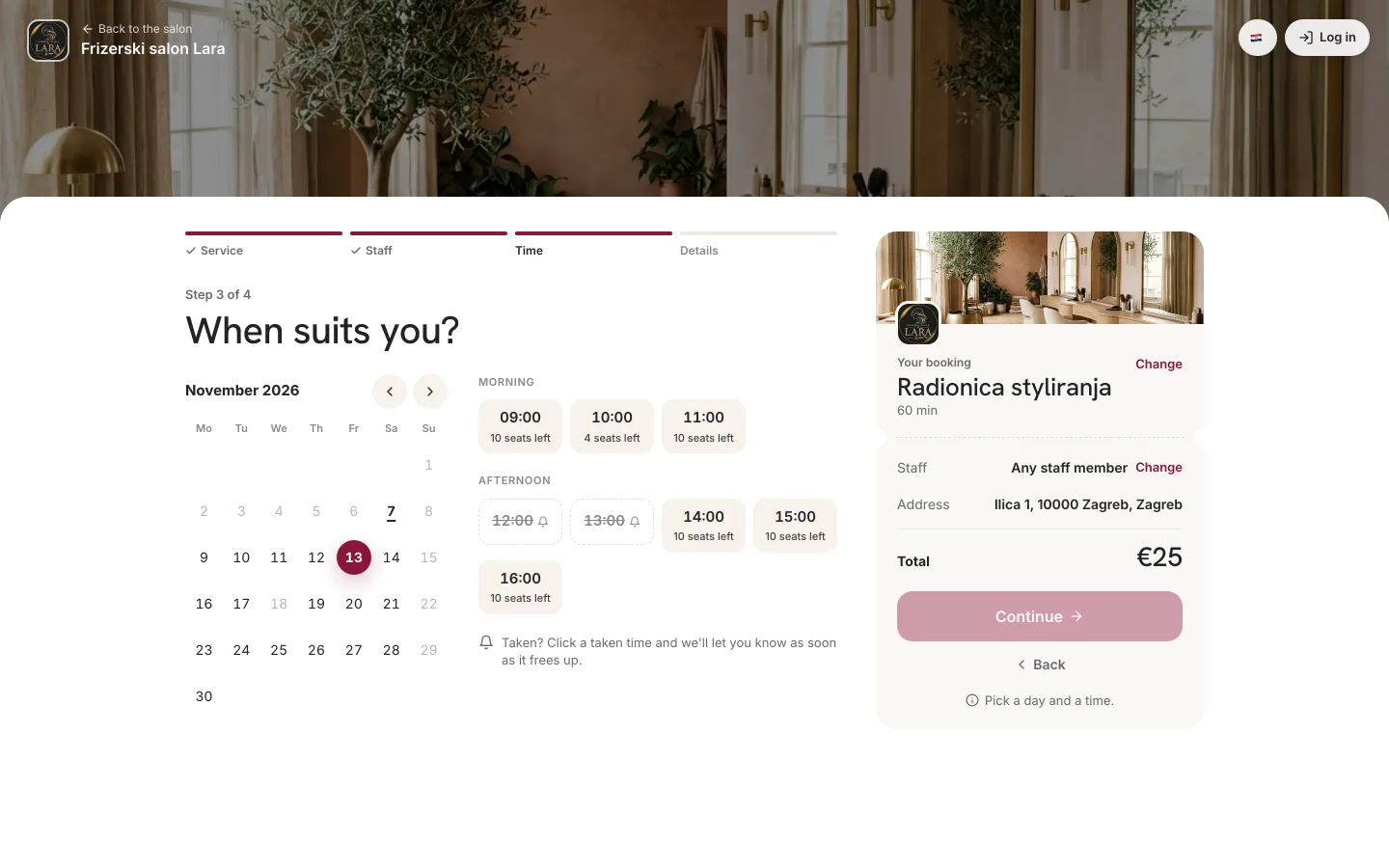
When you turn off Show slot occupancy:
- clients don't see the number, only the time;
- Appointa still counts the bookings, and as soon as all seats are filled, that time can no longer be booked;
- you still see the occupancy on the group block in the calendar (see Group classes and schedules).
Example settings
| Service | Show price to clients | Price note | Show slot occupancy |
|---|---|---|---|
| Women's haircut | On | — | (not visible, 1 seat) |
| Group yoga, paid by membership | Off | “Included in membership” | On |
| Pilates whose occupancy you don't want to reveal | On | — | Off |
| Consultation, price by arrangement | Off | “Price by arrangement” | (not visible, 1 seat) |
FAQ
Can I hide the price for only some services?
Yes. The display settings are set separately for each service.
Will reports be accurate if I hide the price?
Yes. The price is still recorded on every appointment and counts towards reports — only what the client sees changes.
Why can't a client enter a promo code for a service?
Most likely Show price to clients is turned off for that service. For services with a hidden price, the Have a code? field isn't shown, and promotions and loyalty points don't apply.
Can I hide the price for all services at once?
There's no single global setting — turn off the switch in each service whose price you want to hide.
Do my employees see a hidden price?
Yes. Hiding applies only to clients; staff see the real price, e.g. in the new appointment form in the calendar.