Loyalty program
Punch card or Euro stamps — how to set up a loyalty program, how clients collect stamps and how the reward is redeemed when booking.
The loyalty program rewards clients who keep coming back — a digital stamp card instead of a paper one that gets lost in a wallet. You choose one of two types: Punch card (every X-th appointment free or discounted) or Euro stamps (euro credit based on spending). On this page you'll learn how to set up the program, how clients collect and spend stamps, and how to pause, edit or delete the program.
Before you start
- Premium plan. The loyalty program is part of the Premium plan. On the Starter and Pro plans, Loyalty doesn't appear in the menu; if you open the page anyway, you see "Loyalty program is part of the Premium plan." and an Upgrade to Premium button. See Starter, Pro and Premium plans.
- Role. The program is set up and changed by the owner and managers. Staff members don't see Loyalty.
- Marking appointments as completed. Stamps are awarded only when you mark an appointment in the calendar as completed (the Complete button in the appointment details). If your team doesn't close appointments, clients won't collect stamps — see Appointment details.
- One program per business. A business has one loyalty program at any given time.
Two program types
| Punch card | Euro stamps | |
|---|---|---|
| How the client collects | 1 stamp for every completed appointment. | Stamps based on the final price of each completed appointment. |
| Reward | Once they collect the set number of stamps: next appointment free, 50% off, 30% off or a fixed discount in euros. | Euro credit (number of stamps × stamp value), deducted from the price of the next appointment. |
| Example | "10th appointment free" | "100 € → 10 € credit" |
| Best for | Businesses with frequent, similar appointments (hairdresser, barber, manicure). | Businesses with pricier services and varied prices (e.g. hair colouring). |
You choose the type when you activate the program. Later, when editing, you change the settings of the type you chose.
Punch card
| Field | What it means | Rules |
|---|---|---|
| Threshold (number of visits) | How many stamps a client needs for the reward. | From 2 to 50. 10 by default. |
| Reward | Next appointment free, 50% off, 30% off or Fixed discount (€). | Default: Next appointment free. |
| Discount amount (€) | Shown only with Fixed discount (€). | At least €0.01. You can enter decimals with a point or a comma (e.g. 7.50). |
The reward is calculated from the price of the service the client books. If the fixed discount is higher than the price, the appointment costs €0 — the price never goes negative. Exactly as many stamps as set in Threshold (number of visits) are used for the reward; any stamps above that stay with the client for the next card.
Euro stamps
| Field | What it means | Rules |
|---|---|---|
| € per stamp | How much the client has to pay for an appointment to earn one stamp. | At least €1. €100 by default. |
| Stamp value (€) | How much credit one stamp is worth. | At least €0.01. €10 by default. |
The number of stamps is calculated for each appointment separately: the appointment's final price is divided by the € per stamp amount and rounded down. With "€100 per stamp", an appointment costing €250 earns 2 stamps, and an appointment costing €0 earns none.
When redeeming, the client uses all the available credit up to the price of the appointment, and stamps aren't split. Example: a client has 3 stamps worth €10 each (€30 of credit) and books a €25 service. The appointment costs €0, and all 3 stamps are used.
Common settings
| Field | What it means | Rules |
|---|---|---|
| Stamps expire after (months) | After how many months an unused stamp expires. | From 1 to 120. 6 by default. |
| Auto-redeem rewards | A switch: when it's on, the reward is applied automatically on the booking website. | Off by default. See the section How the client redeems the reward for details. |
Each stamp has its own expiry date: it expires the set number of months after the day the client received it (a month counts as 30 days). Expired stamps are removed from the card automatically. A client who uses the Appointa app gets a notification about 7 days before their unused stamps expire. A change to the expiry period applies to stamps received after you save it.
Activating the program
- In the sidebar, open Loyalty. While the program isn't turned on, the top of the page reads "Loyalty isn't active in your business yet".
- Click the Punch card or Euro stamps card.
- Fill in the fields for the chosen type and Stamps expire after (months).
- Optionally, turn on Auto-redeem rewards.
- Click Activate punch card → or Activate euro stamps →.
The program is active immediately.
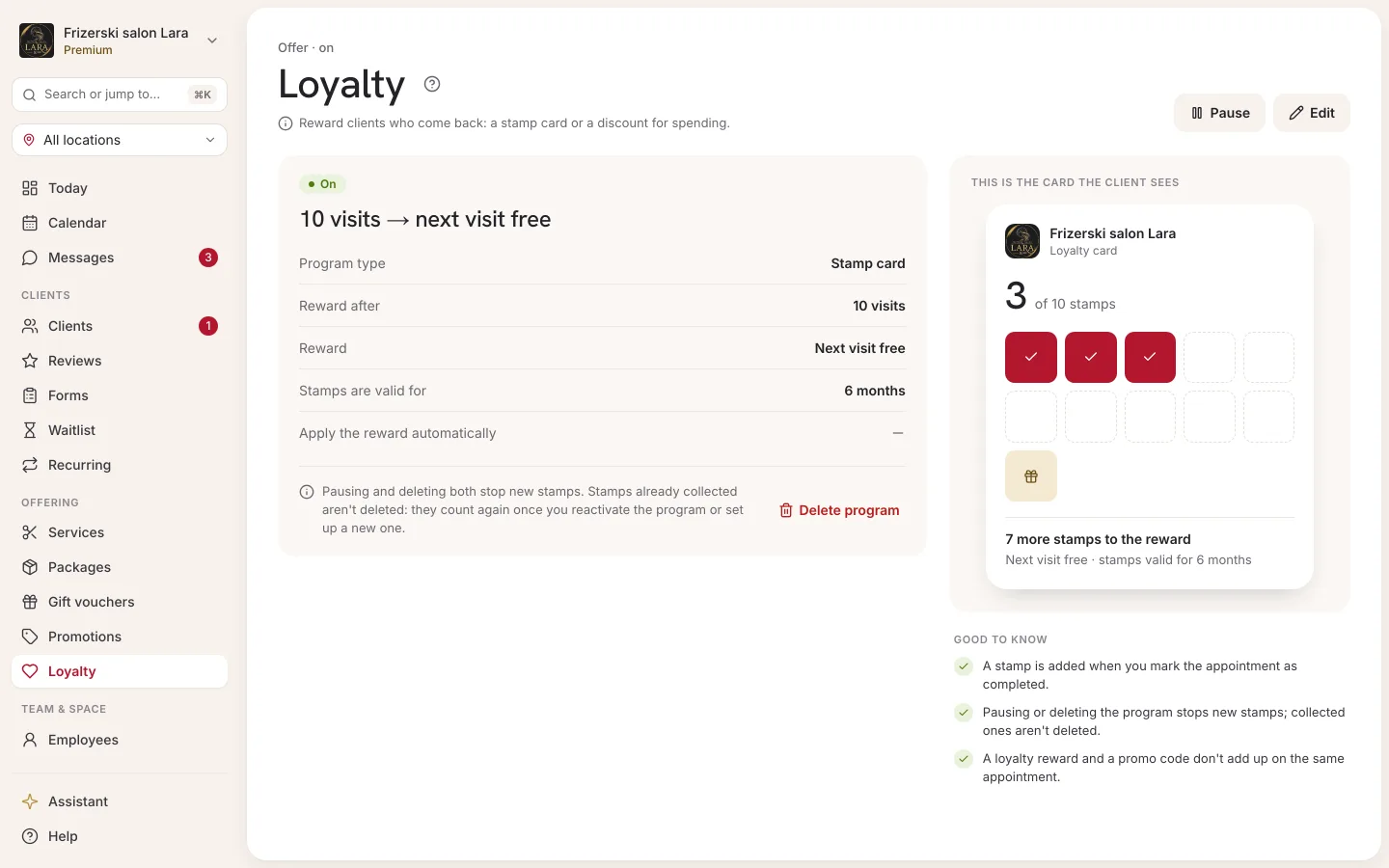
Active program overview
When the program is on, the top of the screen shows a summary card, e.g. "Program: Punch card · 10-th visit next appointment free" or "Program: Euro stamps · every €100 → €10 credit", along with the status Active or Paused. On the right are the Pause (or Activate), Edit and Delete buttons. Below it is the Program settings section with the program type, the reward rules, the stamp expiry period and whether auto-redeem is turned on.
How clients collect stamps
- A stamp (or stamps, with Euro stamps) is awarded at the moment you mark the appointment as completed with the Complete button. A confirmed appointment also becomes completed when you issue an invoice from it — see Issuing an invoice. An appointment that isn't marked as completed doesn't earn a stamp.
- The appointment must have a client. An appointment without a selected client doesn't earn a stamp.
- The program must be active at the moment you mark the appointment as completed. While the program is paused, no stamps are awarded.
- A client who uses the Appointa app gets a "Loyalty stamp" notification every time they receive a stamp.
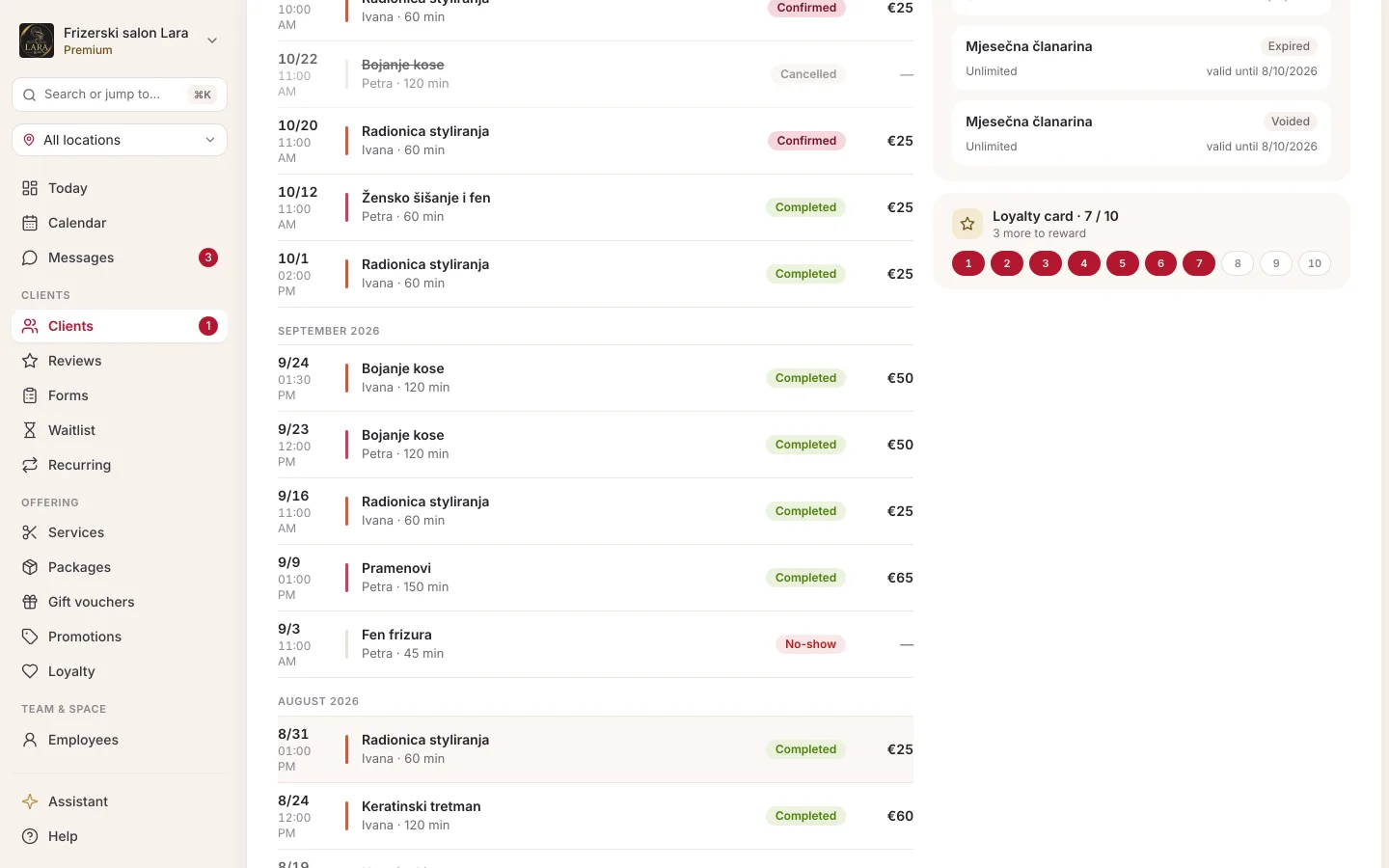
You can see a client's progress on a Punch card program on their profile in Clients: e.g. "Punch card · 7 / 10", with "3 more to reward" below it, and a row of numbered boxes in which the ones the client has earned a stamp for are filled in. This box is shown only while a Punch card program is active; for Euro stamps, the client profile doesn't show progress.
How the client redeems the reward
The reward is redeemed during online booking, and the client must be signed in to their Appointa account.
- In the Appointa app, the client sees a Use loyalty credit switch in the confirmation step, with the amount they can redeem. When they have enough stamps, the switch is already on; the client can turn it off and save the reward for later.
- On the booking website there's no switch. The reward is applied automatically if Auto-redeem rewards is turned on in the program, the client is signed in and hasn't entered a promo code. The client sees the final price on the booking confirmation screen. If auto-redeem is off, the reward isn't applied on the website.
Rules that always apply:
- Promotion or loyalty, not both. If the client enters a promo code, the reward isn't applied to that appointment and their stamps are kept. See Promotions and promo codes.
- Package. An appointment the client pays for with a visit from a package doesn't use stamps.
- Hidden price. The reward isn't applied to services whose price isn't shown publicly.
- Appointments from the calendar. When you enter an appointment yourself in the calendar, Appointa doesn't use stamps — the reward can only be redeemed through online booking.
- The price is locked. The redeemed credit is saved to the appointment as part of its price — see Price calculation.
- A cancelled appointment returns the stamps. If the appointment on which the reward was redeemed is cancelled, the redeemed stamps go back on the client's card.
What the client sees
Clients follow their loyalty cards in the Appointa app: in the Loyalty cards section on the home screen and on the Loyalty cards screen. For each business they see their progress (e.g. 7/10 and "3 more to your reward"), and when the reward is ready, the card gets a ready badge. Clients can turn off stamp notifications in the app's notification settings (Loyalty). Read more about the client app on the App for clients page.
Pausing, editing and deleting
The active program screen always shows a reminder: "Pausing and deleting both stop new stamps. Stamps already collected aren't deleted: they count again once you reactivate the program or set up a new one."
| Action | How | What happens |
|---|---|---|
| Pause | The Pause button on the program card. | No new stamps are awarded, and existing ones stay with clients. While the program is paused, clients can't redeem the reward and don't see the card in the app. Stamp expiry keeps running. |
| Activate | The Activate button on a paused program. | The program continues with the same settings and stamps. |
| Edit | The Edit button; change the fields and click Save settings. | The new threshold and reward apply from the next redemption; the new expiry period applies to stamps received after you save. With Euro stamps, a new Stamp value (€) applies immediately to the stamps clients already have, and a new € per stamp amount applies to appointments completed after you save. The program type can't be changed when editing. |
| Delete | The Delete button, then Yes, delete in the confirmation. | The program is turned off: no new stamps are awarded, the reward can't be redeemed and clients no longer see the card in the app. The screen goes back to choosing a program type. Collected stamps aren't deleted: after a page reload the program shows as Paused and you can activate it again, and if you set up a new program, the stamps carry over to it. |
Frequently asked questions
Why didn't a client get a stamp?
Most often, the appointment wasn't marked as completed. Also check whether the program was active (not paused) when the appointment was closed, whether a client was selected on the appointment and, with Euro stamps, whether the appointment's final price reached the € per stamp amount.
Do appointments from before the program was activated count?
No. Stamps are collected only for appointments marked as completed after you turn the program on.
A client is at the front desk with a full card. Can I give them the reward?
Appointa only uses stamps during online booking. Ask the client to book their next appointment themselves: in the app with the Use loyalty credit switch turned on, or on your website if Auto-redeem rewards is turned on in the program. The reward is then applied and the stamps are used automatically.
What if a client has more stamps than the reward needs?
With Punch card, exactly as many stamps as the threshold sets are used, and the rest stay for the next card. With Euro stamps, as many stamps are used as are needed to cover the price of the appointment.
How long are stamps valid?
For as many months as entered in Stamps expire after (months) — 6 by default — counting from the day each stamp was received.