Finding your way around the app
How the admin area is laid out: the sidebar, the business card and account menu, locations, theme, language, the phone layout, help, guides and the assistant.
 Video guideAppointa u 90 sekundi — rezervacije koje rade dok ti radišWatch on YouTube · The video is in Croatian.
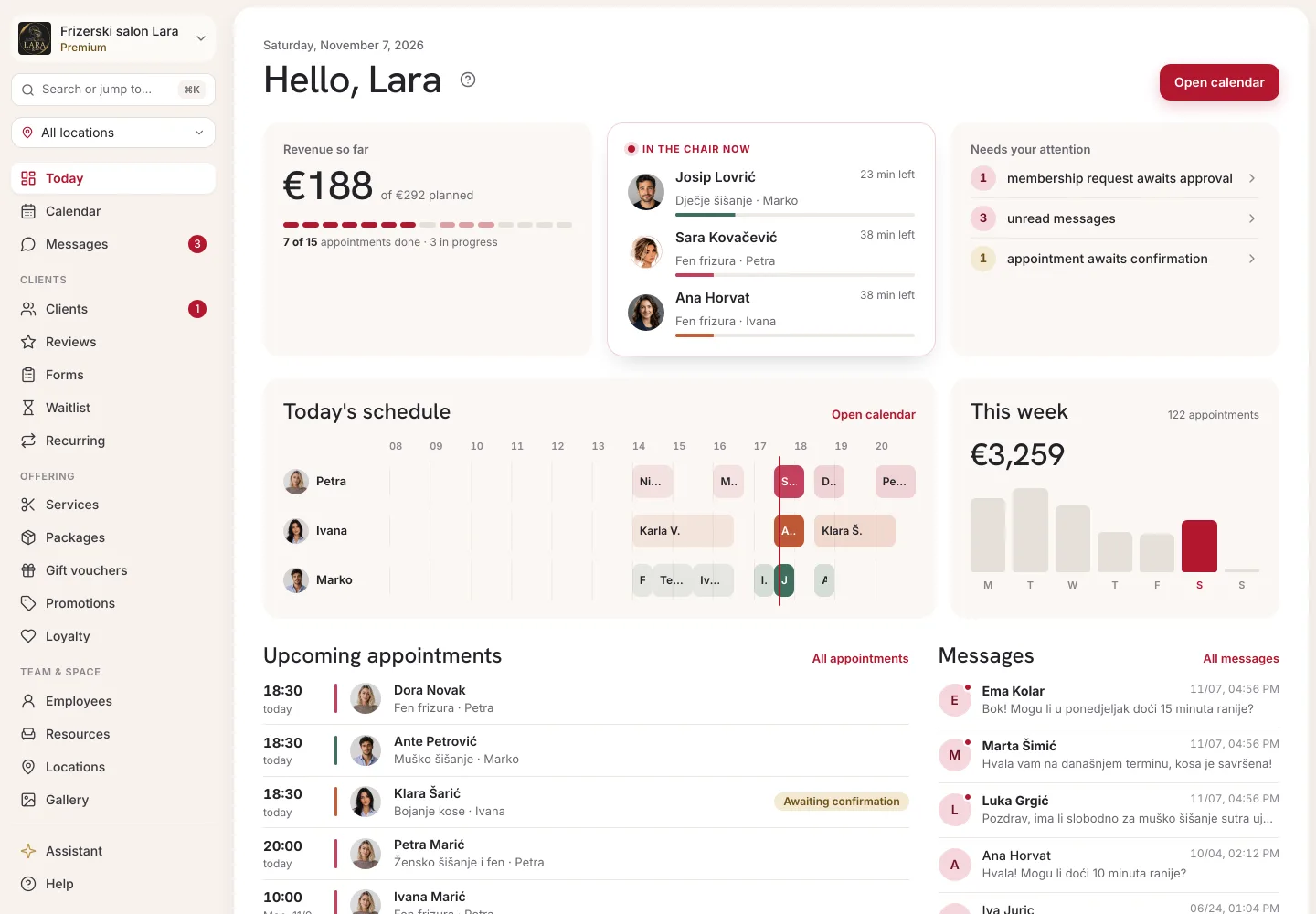
The Appointa admin area has the same layout on every page: the sidebar on the left, the page content on the right and the assistant bubble in the bottom right corner. On this page you'll learn where everything is, how to change the language and theme, what the admin area looks like on a phone, where to look for help and what each team role can see.
Screen layout
| Part | Where it is | What it contains |
|---|---|---|
| Business card | At the top of the sidebar | The logo (or first letter) and name of the business, and the current plan: Starter, Pro or Premium. Clicking it opens the account menu. |
| Demo business card | Below the business card, only in a demo | A countdown to expiry and the demo actions, see Demo business. |
| Location picker | Below the business card | Only when the business has two or more active locations. |
| Main menu | The rest of the sidebar | The items for everyday work. The page you have open is highlighted. |
| Page content | To the right of the menu | The page you opened. |
| Assistant | Round button in the bottom right | Questions about using Appointa, see Assistant. |
Sidebar
Which items you see depends on your role and on the business's plan. Items your plan doesn't include are hidden, so the menu has no dead ends.
| Item | What's there | Who sees it | Plan |
|---|---|---|---|
| Dashboard | The Dashboard: today and upcoming appointments | Everyone | All |
| Calendar | Appointments by day, week and month, see Calendar overview | Everyone | All |
| Messages | Conversations with clients; the number on the item = unread messages | Everyone | All |
| Services | Price list and service options | Owner, manager | All |
| Employees | Team, shifts, time off, invitations | Owner, manager | All |
| Resources | Rooms, equipment and vehicles | Owner, manager | All |
| Clients | Address book; the number on the item = clients waiting for approval | Everyone | All |
| Invoices | Fiscalised invoices | Everyone | Pro, Premium |
| Analytics | Revenue, appointments, staff performance | Owner, manager | All |
| Reviews | Client ratings and comments | Owner, manager | All |
| Gallery | Photos on your public page | Owner, manager | All |
| Locations | Branches and their working hours | Owner, manager | All |
| Loyalty | Loyalty program | Owner, manager | Premium |
| Promotions | Discounts and promo codes | Owner, manager | Premium |
| Gifts | Gift vouchers | Owner, manager | Premium |
| Packages | Packages and memberships | Owner, manager | Premium |
| Forms | Intake forms and consents for clients | Owner, manager | Pro, Premium |
| Waitlist | Waiting list | Owner, manager | Premium |
| Recurring | Standing (recurring) appointments | Owner, manager | Pro, Premium |
| Help | This manual, in a new browser tab | Everyone | All |
| Guides | Interactive guides through the app | Everyone | All |
What each plan includes is described in Starter, Pro and Premium plans.
Business card and account menu
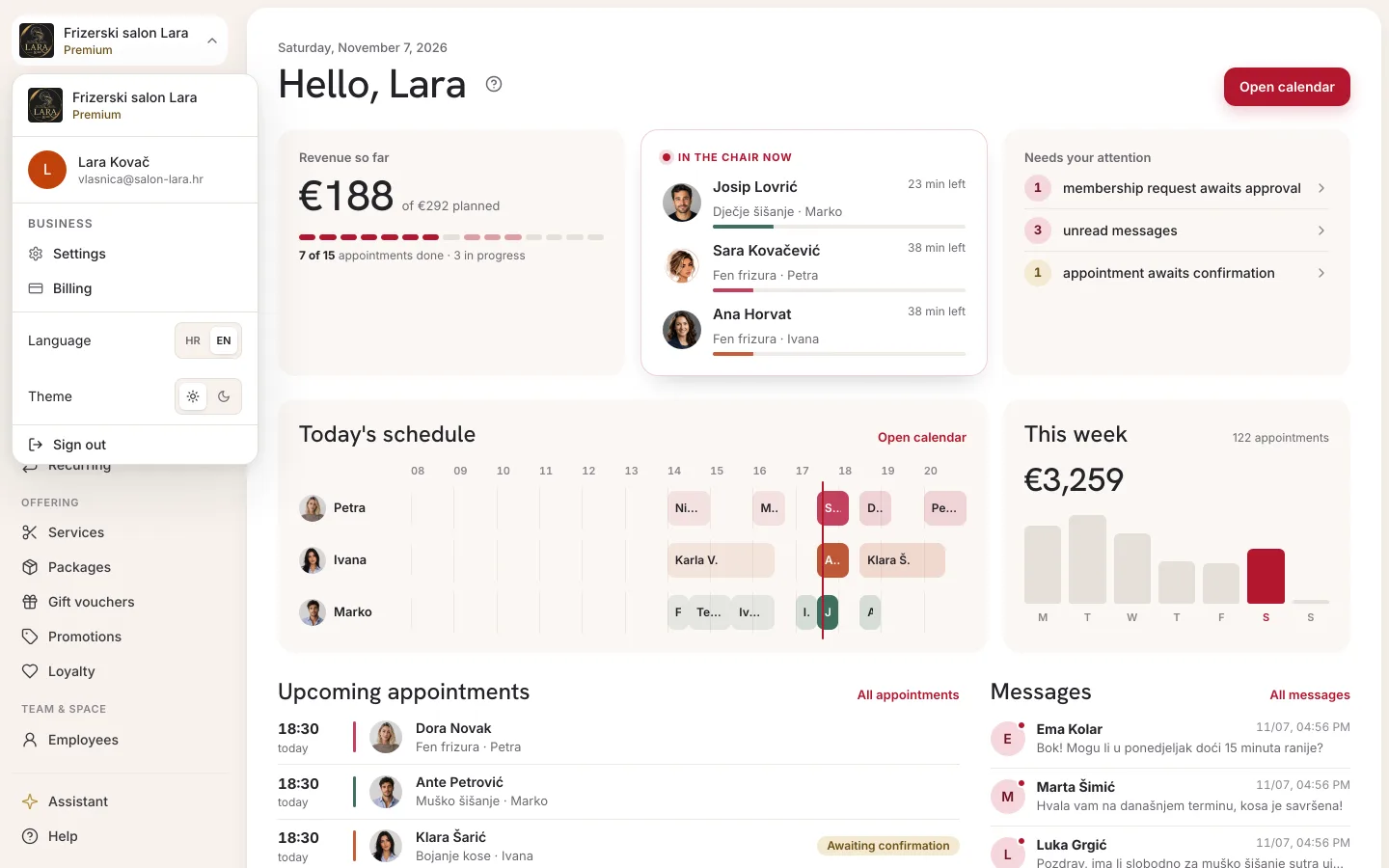
Click the business card at the top of the sidebar. A menu opens with these parts, from top to bottom:
| Part | What it does | Who sees it |
|---|---|---|
| Business name and plan | A reminder of which business you're in. | Everyone |
| Your name and email | The account you're signed in with. | Everyone |
| Business → Settings | Business details, booking rules, availability, sharing, security and, for the owner, fiscalisation, see Business settings | Owner, manager |
| Business → Billing | Plan, payment, employee seats, SMS credits, see Subscription and payment | Owner only (not in a demo) |
| Business → Support | Your questions to the Appointa team, see Support | Owner, manager |
| Language | The HR / EN switch | Everyone |
| Theme | The switch between the light (sun) and dark (moon) theme | Everyone |
| Sign out | Signs you out in this browser | Everyone |
Language
In the Language row, click HR or EN. The interface switches straight away and you stay on the same page. The interface language doesn't change the language of your public page: clients read it in the language they choose themselves.
Light and dark theme
In the Theme row, click the sun for the light theme or the moon for the dark theme. Your choice is remembered in that browser; on another computer or phone you choose it separately.
Location picker
If your business has two or more active locations (Premium plan), a drop-down with a location icon appears below the business card.
- Click it.
- Choose All locations or a single location. The primary location is marked with a star ★.
- Pages such as Calendar and Employees refresh and show only the selected location.
Your choice is remembered in that browser. A business with one location doesn't have this picker. More in Locations.
On a phone or tablet
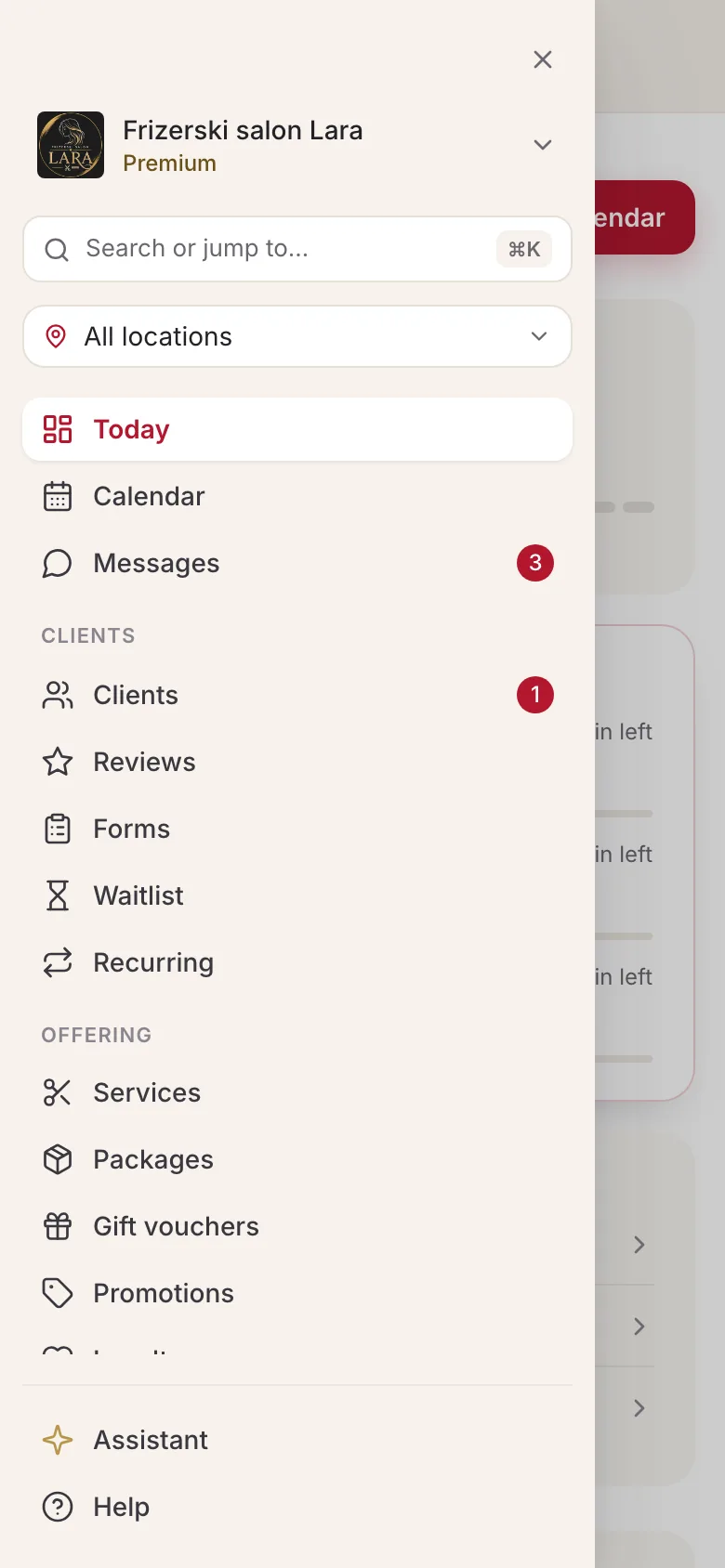
On a narrower screen the sidebar is hidden. At the top there's a bar with the ☰ button and the business card.
- Tap ☰ (Open navigation). A panel slides out from the left with the same content as the sidebar: the business card, the locations and all the items.
- Tap an item. The panel closes on its own and the page you chose opens.
- To close it without choosing anything, tap × or the space next to the panel.
You open the account menu (language, theme, sign out, settings) by tapping the business card inside the panel. The card in the top bar only shows which business you're in.
The assistant button stays in the bottom right. For everyday work on a phone (today's appointments, notifications about new bookings, messages), the Appointa Pro app is more practical, see Appointa Pro.
Help in the app
Help is always one click away, in four ways:
| Where | What you get |
|---|---|
| The Help item in the menu | This manual, in a new browser tab. |
| The ? icon in the page header | The manual page for exactly the screen you're on. |
| The Guides item in the menu | Interactive guides that walk you through a task in the app itself. |
| The assistant (button in the bottom right) | Answers to questions about using Appointa. |
The ? icon on every page
Every page of the admin area has a ? icon in its header, next to the title. Clicking it opens the page of this manual that describes that screen, in a new browser tab. The admin area stays open where you left off, and you don't have to search through the contents.
Interactive guides
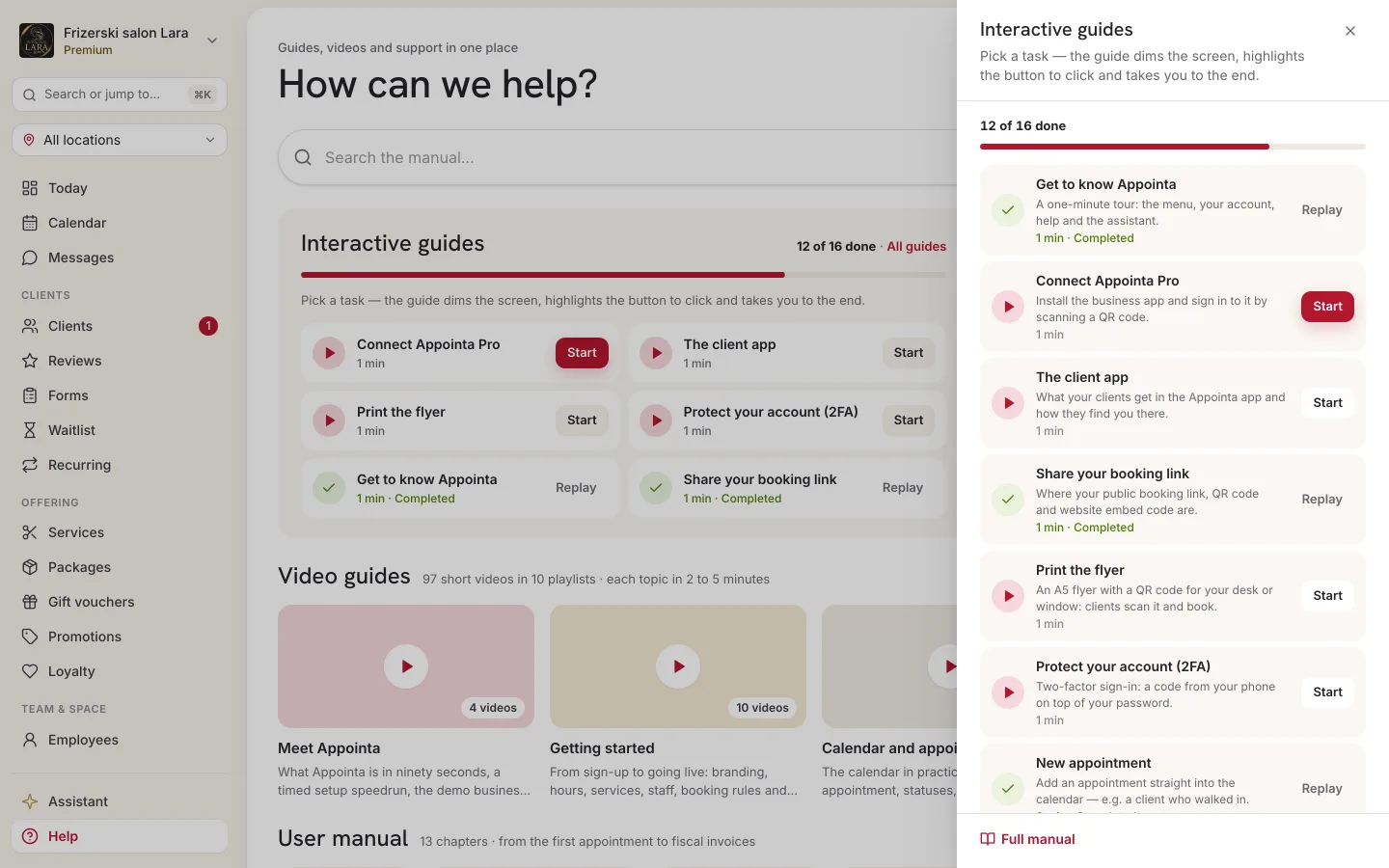
- In the menu, click Guides. A panel opens with a list of guides, for example a new appointment, a new service, a new employee, working hours, inviting an employee, a new client, importing clients, the booking link and QR code, booking rules, replying to a message and issuing an invoice.
- Click a guide. The screen dims and the guide highlights the button or field you need to click, with a short explanation.
- Follow the steps. The guide waits for you to do each step in the real app.
- You stop a guide with the Esc key or the × button. Completed guides get a tick in the list. Your progress is saved with your account, so you also see the ticks on another computer.
The first guide, a tour of the interface, goes through the menu, the calendar, the assistant, help and the guides. It's a good place to start if you're opening Appointa for the first time. The Show me in the app button on this manual page also starts it.
Assistant
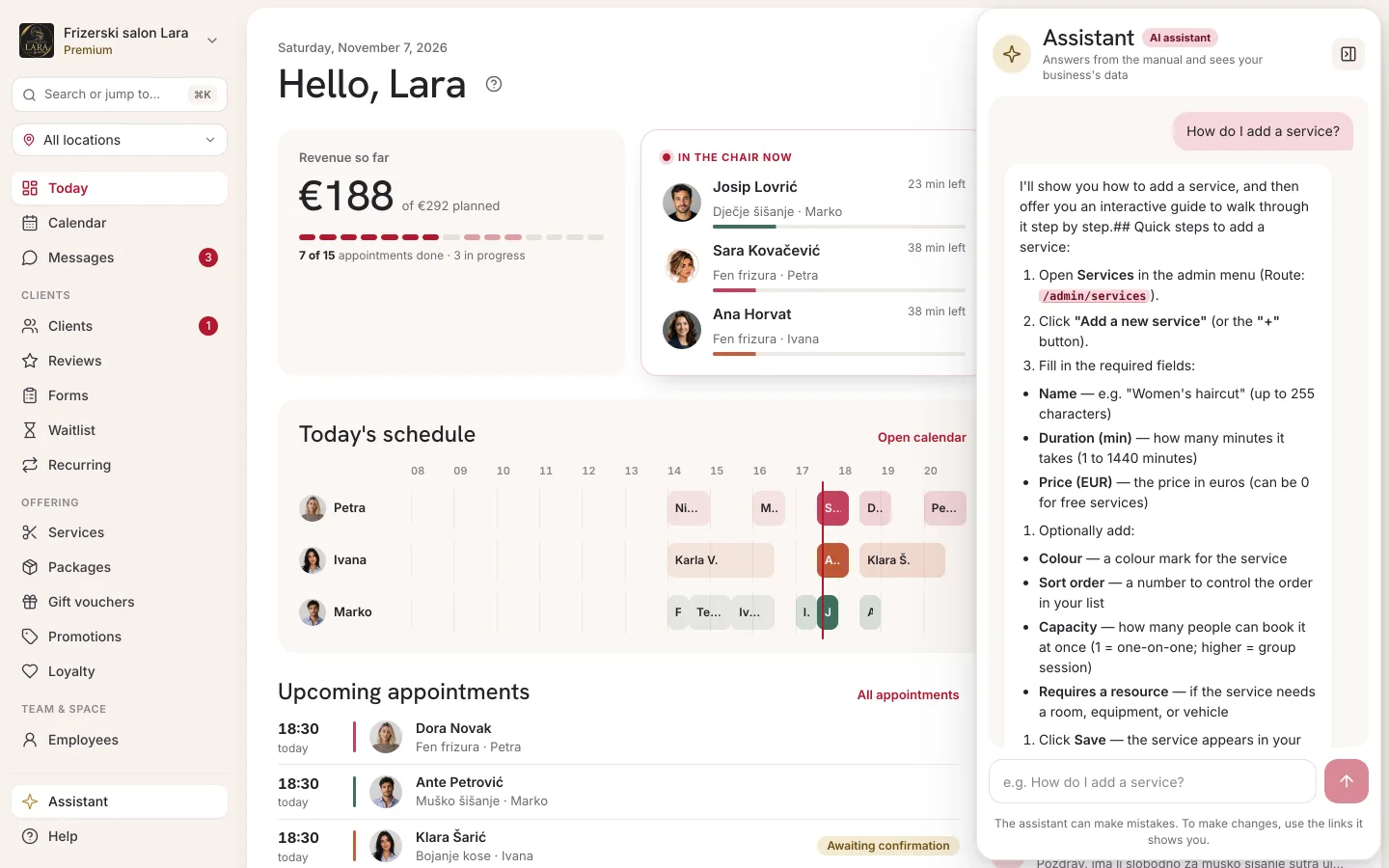
In the bottom right corner of every page there's a round button with a chat bubble icon: that's the assistant.
- Click it. The Appointa assistant window opens, labeled AI assistant.
- Type a question in the field, for example “How do I add a service?”, and click Send.
- The assistant answers from Appointa's documentation and often offers a link to the right screen. When there's an interactive guide for the task, it offers you a button in the chat to start it, but only for guides that fit your role and your business's plan.
- You make the window smaller with the arrow in its header (Minimize), by clicking the round button again or with the Esc key.
If an answer isn't enough, owners and managers can send a question to the Appointa team through Support in the account menu.
Roles: who sees what
Everyone on the team has one of three roles. The role determines the menu items and what that person may change.
| Role | Sidebar | Account menu | Dashboard |
|---|---|---|---|
| Owner | All the items the plan includes | Settings, Billing, Support, language, theme, sign out | Overview of the whole business |
| Manager | All the items the plan includes | Settings, Support, language, theme, sign out (no Billing) | Overview of the whole business |
| Staff | Dashboard, Calendar, Messages, Clients, Invoices (Pro and Premium), Help, Guides | Language, theme, sign out | The personal My dashboard view |
The Dashboard column applies in the usual case. Anyone whose account is linked to a staff profile, including an owner who takes appointments, sees the personal My dashboard view on the dashboard, and a staff member without a linked profile sees a message that the profile isn't linked yet.
How to assign or change a role is described in Invitations and roles. The difference between the owner's and the staff member's view of the dashboard is explained in Dashboard.
Notice at the top of the page
When the Terms of Service, the Privacy Policy or the Data Processing Agreement change, the owner sees a We have updated our legal documents bar at the top of the pages, with links to the documents. Read them and click I have read and accept. Other team members don't see this bar.
Frequently asked questions
An item I see in this manual is missing from my menu.
The item depends on a plan your business doesn't have, or on a role higher than yours. Compare with the table in Sidebar.
How do I change the language just for myself?
The language and theme in the account menu apply only in the browser where you choose them. Nothing changes for the rest of the team, and on another computer or phone you choose them again.
Where's the location picker?
It only appears once the business has two or more active locations.
Can I use the admin area on a phone?
Yes. In your phone's browser, you open the menu with the ☰ button. For quick work on the go, also install Appointa Pro.