Business settings
Your business name, public link, contact details, address, brand color and logo: what each field means and where clients see it.

On the Business tab you edit how your business presents itself to clients: its name, contact details, address, brand color and logo. You entered most of this when you set up your business, and you can change it here whenever you need to. This page explains what each field means, where it appears on your public page and what you'll find on the other settings tabs.
Before you start
- Settings appears in the menu for the Owner and Manager roles, and they can change it. Users with the Staff role don't have it in their menu.
- Only the owner sees the Fiscalisation tab.
- You first enter the details on this page in the business setup wizard. If you have completed it, the fields are already filled in.
Opening settings
- In the sidebar, click the card at the top that shows your business logo, name and plan.
- In the menu that opens, under Business, choose Settings.
- The Settings page opens on the Business tab.
On a phone the sidebar is hidden. Open it with the menu button (three lines) in the header.
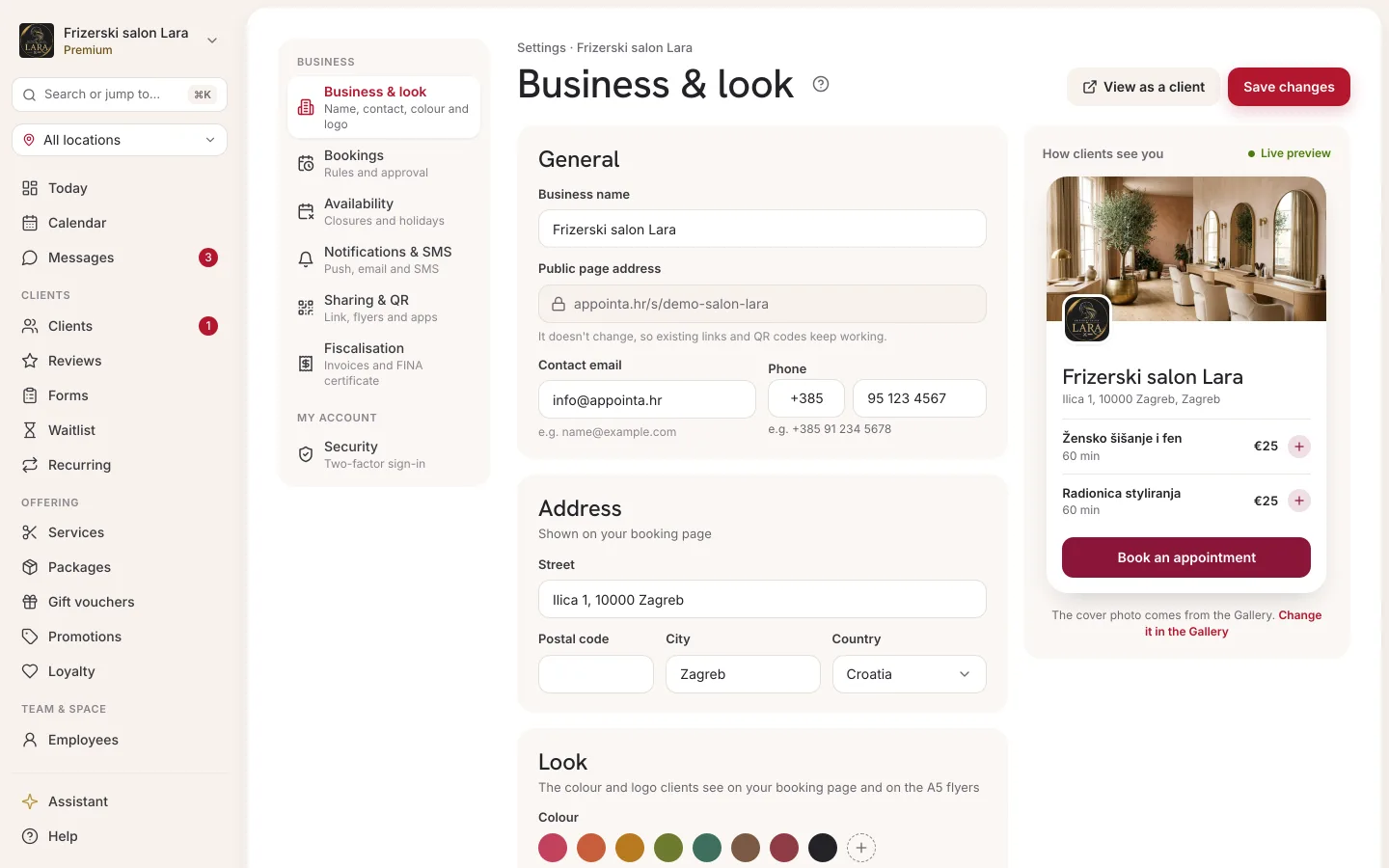
Settings tabs
Settings are split into tabs at the top of the page. This page describes the Business tab; the other tabs have their own pages in the manual.
| Tab | What's on it | More information |
|---|---|---|
| Business | General details, address, brand color and logo | This page |
| Bookings | The How far ahead clients can book, Calendar protection, Appointment cancellation, Direct booking, Anonymous bookings and Auto-approve on scan blocks, and below them the SMS notifications section with the Send SMS notifications switch | Booking rules, SMS notifications |
| Availability | Business closures (holidays, renovation) and Public holidays with the Open on switch | Closures and holidays |
| Sharing & app | Public booking link & QR, Client verification QR (only when anonymous bookings are turned off) and Mobile app activation for Appointa Pro | Sharing and the QR code, Activation with a QR code |
| Fiscalisation | Turning on and setting up fiscalised invoices. Only the owner sees this tab, and fiscalisation is part of the Pro and Premium plans. | Turning on fiscalisation |
| Security | Two-factor sign-in (2FA) for your user account | Security and two-factor sign-in |
Saving changes
The Business and Bookings tabs are saved together, with a single Save changes button at the bottom of the page. You can switch freely between these two tabs and what you've typed stays, but nothing is saved until you click the button.
- Change the fields on the Business tab (and, if you like, on the Bookings tab).
- Click Save changes. While saving, the button reads Saving....
- When everything is in order, a Saved notification appears. The changes take effect on your public page straight away.
If something is wrong, nothing is saved:
- An invalid email or phone number is flagged with a message below the field on the Business tab, for example “Enter a valid email address (e.g. [email protected]).”
- If the system rejects a field, a Save failed notification appears with the field's name, for example “Check the field: Brand color (hex)”. The same happens if you leave Business name empty.
The Availability, Sharing & app, Fiscalisation and Security tabs don't have this button. Changes on them are saved automatically or with their own buttons.
General
The General section contains the name, the public page address and contact details.
| Field | What it means | Note |
|---|---|---|
| Business name | The name clients see on your public page, when booking, in the Appointa app and in email and SMS notifications (for example “Reminder: appointment at … tomorrow at 14:00”) | Required |
| Slug (URL) | The last part of your public page address: appointa.hr/s/your-slug |
Read-only, see below |
| Contact email | Shown in the Contact section of your public page. This address also receives an email when a new client signs up with your business and is waiting for approval. | Optional |
| Phone | Shown in the Contact section of your public page. Clients can also call you from the Appointa app: when they swipe your business card to the right, Call appears. Without a phone number, this action isn't available. | Optional. The +385 country code is pre-filled; change it for a foreign number. |
Slug: your business's public link
The slug is part of the public link you have shared with clients, put in your social media bio or printed as a QR code. That's why it can't be changed after your business is set up, as the note below the field says: “Slug is immutable after onboarding (existing links and printed QR codes stay valid).” If you change the Business name, the slug stays the same and old links keep working.
The full link, with a Copy button and a QR code, is on the Sharing & app tab. Read more on the Sharing and the QR code page.
Address
The Address section describes where your business is located. All fields are optional.
| Field | What to enter |
|---|---|
| Street | Only the street and house number, for example “Ilica 1” |
| City | The name of the town or city, for example “Zagreb” |
| Postal code | For example “10000” |
| Country (ISO) | Choose from the list: Croatia, Slovenia, Bosnia & Herzegovina, Serbia, Montenegro, Austria, Hungary or Italy |
Where the address appears:
- On your public page, the address appears right below the name as “street, city, postal code”, and again in the Contact section. The country is not shown there.
- Clients can find your business by name and city in the search in the Appointa app.
The header and the Contact section of your public page always show the address and phone number entered here, in Settings. If you have several locations (Premium plan), each location also has its own address and phone number under Locations. See Locations.
Branding: color and logo
The Branding section sets the color and logo your clients see.
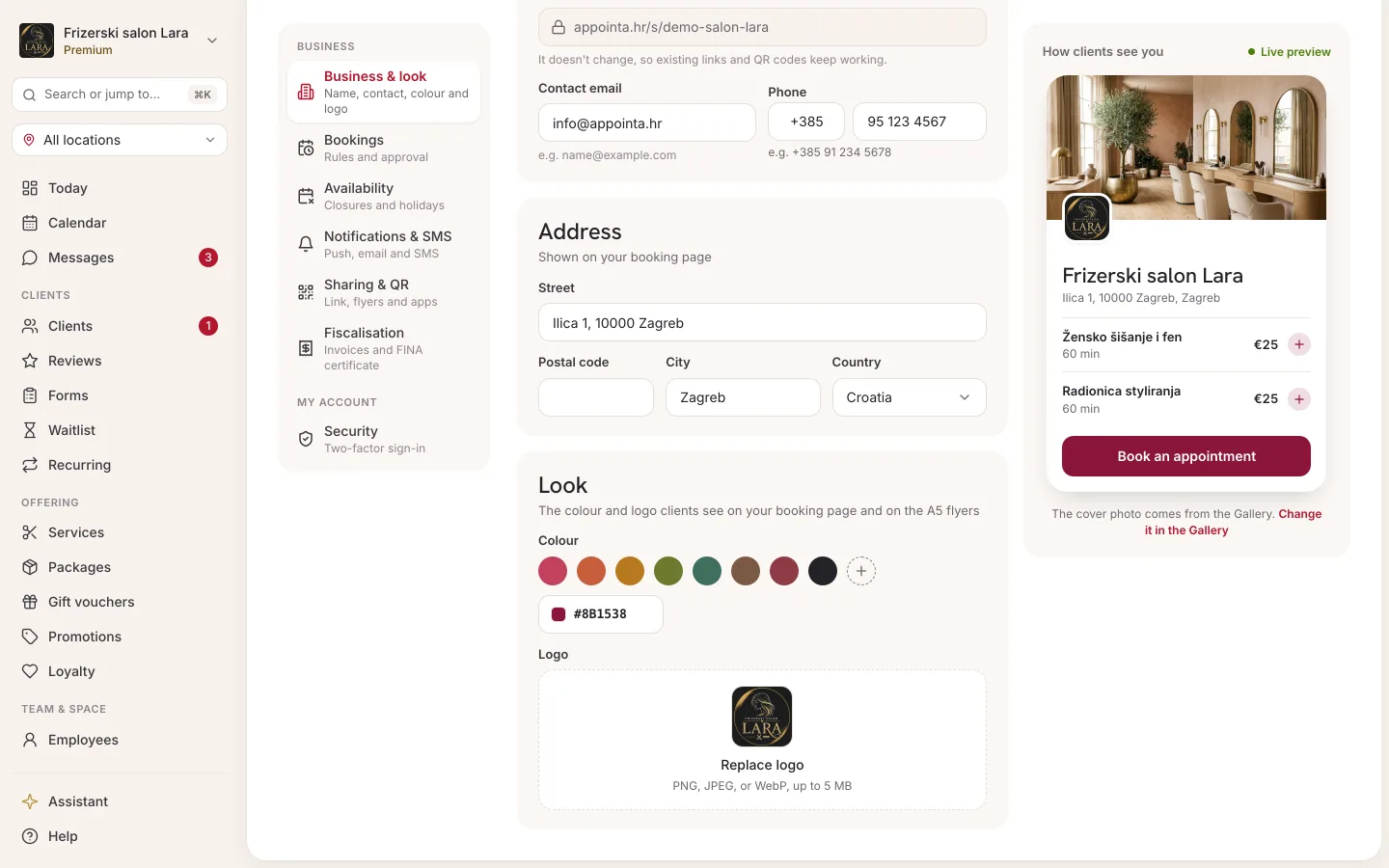
Brand color
The Brand color (hex) field gives you three ways to pick a color:
- Click one of the eight preset colors. The selected color gets a check mark.
- Click the square with the + and pick any color in the color picker.
- Type the color code in the text field, as
#followed by six characters, for example#C2410C. The square next to the field shows the color straight away.
The brand color is the accent color of your public page and booking: buttons, highlighted elements and the background of the header area when your business has no cover photo. Appointa chooses the text color on buttons itself, white or dark, depending on which is easier to read on your color.
Logo
- In the Logo field, click Upload logo or drag a file onto the field.
- Choose an image in PNG, JPEG, or WebP, up to 5 MB.
- Wait for the logo preview to appear.
- Click Save changes. Only then does the new logo appear on your public page.
If the file isn't suitable, you'll see “Logo must be PNG, JPEG, or WebP” or “Logo exceeds 5 MB”. If the upload fails for another reason (for example, a dropped connection), you'll see “Logo upload failed”; try again.
Your logo appears on your public page, on the business card at the top of the menu in the admin area and next to your business in the apps. Without a logo, the first letter of your business name is shown in its place, on a background in your brand color.
What changes on your public page
| Setting | Where clients see it |
|---|---|
| Business name | The large heading of your public page, booking, the Appointa app, email and SMS notifications |
| Logo | The header area of your public page, above the name |
| Brand color | Buttons and accents on your public page and in booking, the background of the header area when there is no cover photo |
| Address | Below the name and in the Contact section |
| Phone and Contact email | The Contact section |
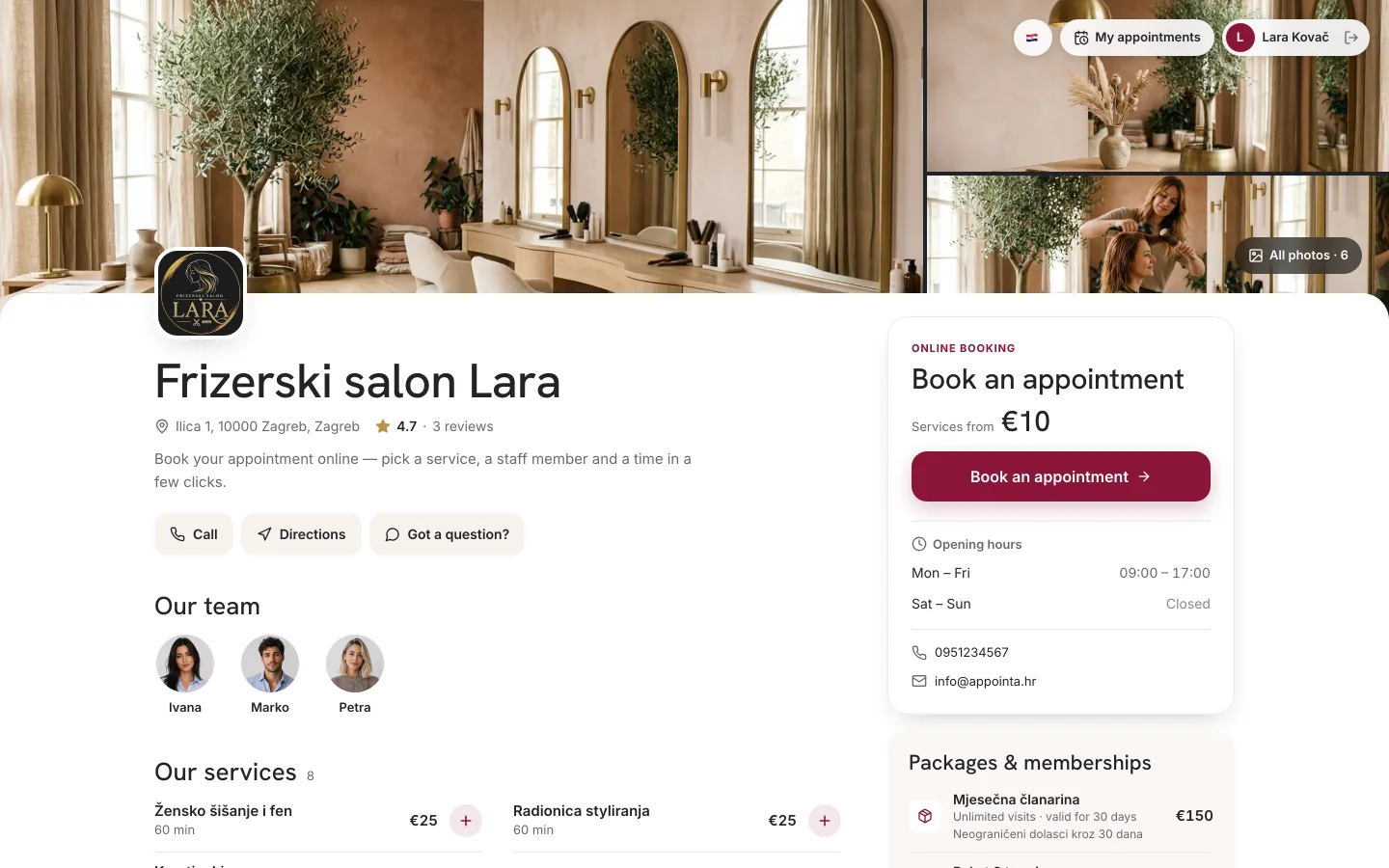
You don't edit the rest of your public page in Settings:
- the cover photo and gallery in Gallery
- services and prices in Services
- your team in Employees
- working hours on the Working hours and time off page
- ratings on the Reviews page
The whole page is described in the Public page chapter.
FAQ
Why can't I change the slug?
The slug is locked once your business is set up. That way, every link you've already shared and every QR code you've printed still leads to your page. You can change the business name freely, and the link stays the same.
I changed my details, but they don't show on my public page. Why?
Most often the changes weren't saved. On the Business and Bookings tabs, changes are saved only when you click Save changes and see the Saved confirmation. A new logo also appears only after saving. If your public page was already open, refresh it.
Where do I enter a business description or social media links?
Settings doesn't have those fields. Your public page is made up of the details on this page, the gallery, services, team, working hours and ratings (see the list above).
How do I remove my logo?
Here you can only replace your logo with a new one. Upload a different image and click Save changes.
Who can change the settings?
The owner and managers. Only the owner sees and edits the Fiscalisation tab. The Security tab applies to your user account, not to the business.