Demo business
Try Appointa on a ready-made business for your industry, with services, a team and appointments, on the web and in both mobile apps, for 14 days.

The demo business is a fully populated example for the industry you choose: services, staff with shifts, appointments, clients, reviews and messages. In it you can try out the calendar, messages and both mobile apps without entering any data of your own and without worrying about breaking anything. On this page you'll learn how to open the demo, what it contains, how to connect a phone, how to reset it and how to move from it to a real business.
What the demo business is
- A real working environment with made-up data. The demo works just like a real business: you add, move and cancel appointments, reply to messages, and change services and settings.
- The Pro plan. The demo shows what a business on the Pro plan gets. Premium-only features (Loyalty, Promotions, Gifts, Packages, Waitlist) aren't shown in the demo.
- It lasts 14 days. After that it's deleted automatically.
- Made-up clients. The clients' email addresses and phone numbers in the demo aren't real, and no emails are sent to them.
- Separate from your real business. Exploring the demo doesn't create a draft of your business, and nothing from it carries over to your real business.
Opening the demo
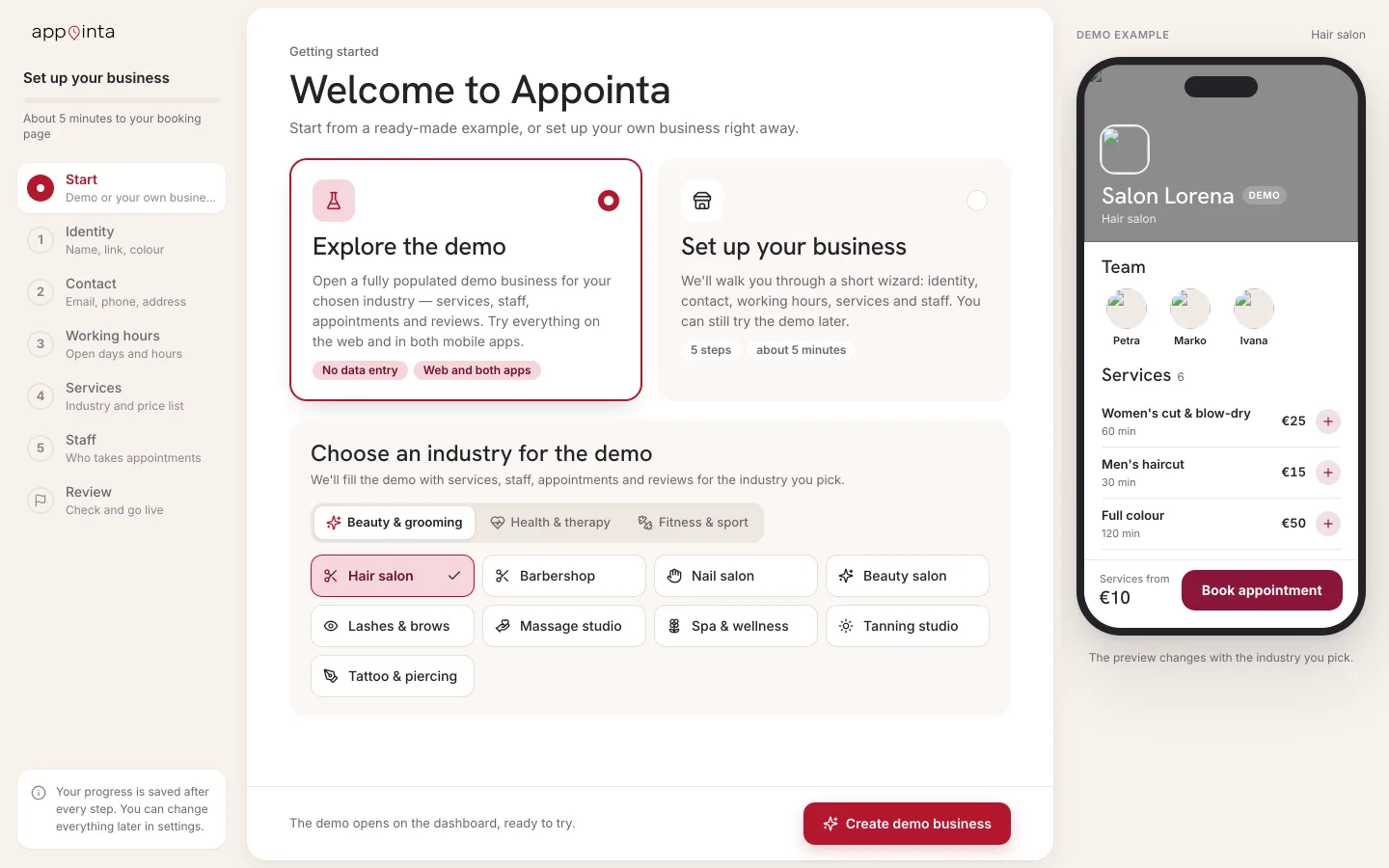
- After you sign in for the first time, on the Welcome to Appointa screen, click Open demo business in the Explore the demo card.
- On the Choose your industry screen, click a group (for example Beauty & grooming) and then your industry.
- Click Create demo business. While the demo is being filled, the button shows Creating demo…
- The demo business's Dashboard opens, with the First steps window on top of it (see below).
The Back button on the industry screen takes you back to the first choice. If creating the demo fails, it says Something went wrong. Try again. Click Create demo business once more.
What the demo contains
| Part | What's in it |
|---|---|
| Services | A price list typical for the industry you chose, with durations and prices. |
| Staff | A team with shifts; each staff member performs their own services. |
| Calendar | Past and future appointments, including ones with the demo client. |
| Clients | An address book with appointment history. |
| Reviews | Client ratings and comments. |
| Messages | Conversations with clients. |
| Gallery and public page | Photos, a logo and contact details, so the demo also has its own public booking page. |
The demo has no Billing item: the demo is deleted after 14 days, so a subscription in it makes no sense. If you open the billing page directly, you see Billing isn't available in a demo business and a Create a real business button.
Demo business card
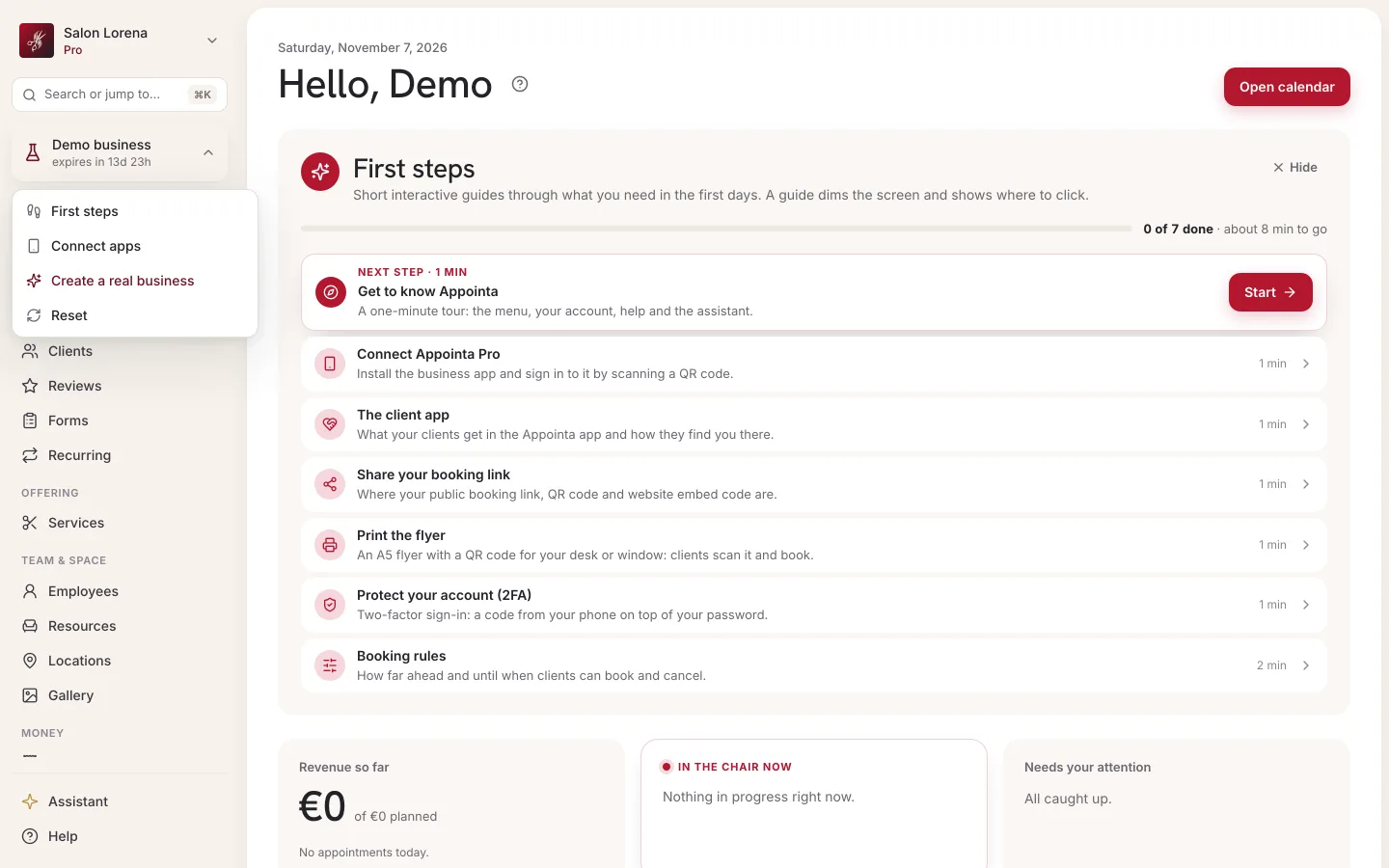
In the sidebar, below the business card, there's a Demo business card with a countdown to expiry (for example “expires in 13d 22h”). Clicking it opens the demo actions menu:
| Item | What it does |
|---|---|
| First steps | Reopens the “Experience Appointa in 2 minutes” guide. |
| Connect apps | Opens a panel with QR codes for the mobile apps. |
| Create a real business | Starts the wizard for your real business. |
| Reset | Deletes the demo and creates a new one. |
First steps in the demo
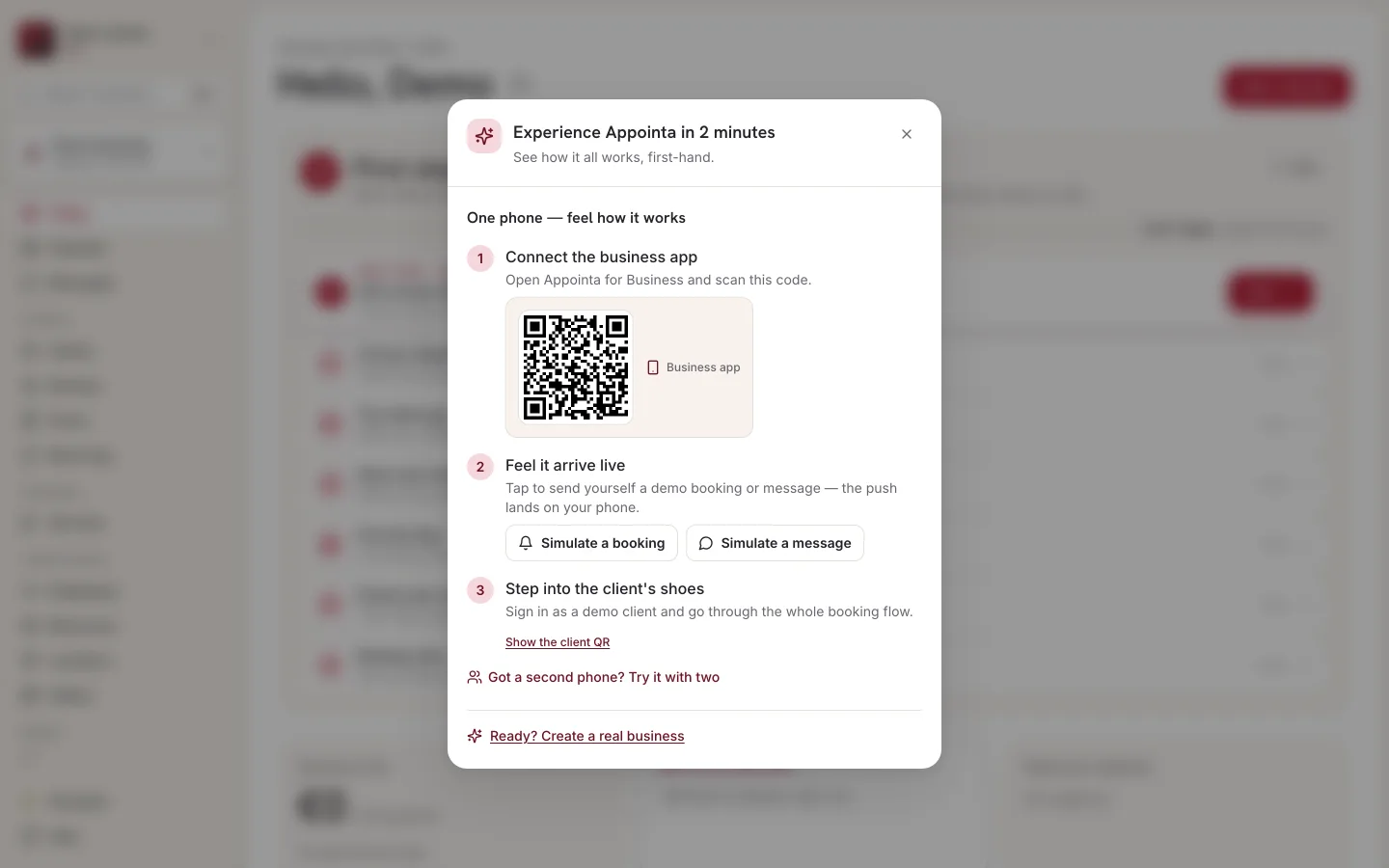
The Experience Appointa in 2 minutes window opens by itself the first time you enter the demo (in that browser) and starts straight on the one-phone path. If you have a second phone, a link below the steps switches to the two-phone path. You close the window with ×; you reopen it from the demo business card with the First steps item.
One phone
The window starts on this path.
- Connect the business app: open the business app and scan the code.
- Feel it arrive live: click Simulate a booking or Simulate a message. The demo then creates a confirmed booking in the near future, or a message from the demo client, and a notification arrives on your phone just like for a real booking or message. The messages on screen: “Demo booking created — check the calendar and your phone.” and “A new message arrived — check Messages.”
- Step into the client's shoes: click Show the client QR and scan the code with your phone's camera. In the client app you're signed in as the demo client and go through the whole booking process.
Two phones
Click Got a second phone? Try it with two: the business on one, the client on the other, and you see everything live. I only have one phone takes you back to the one-phone path.
- Connect the business app: on the first phone, open the business app (Appointa Pro) and scan the code shown.
- Open your business in the client app: on the second phone, install the Appointa app (for clients) and scan the second code. Your demo business's page opens.
- Book it and watch live: book as a client. The appointment appears straight away in the calendar on the first phone.
At the bottom of both paths there's a Ready? Create a real business link.
Connecting the mobile apps
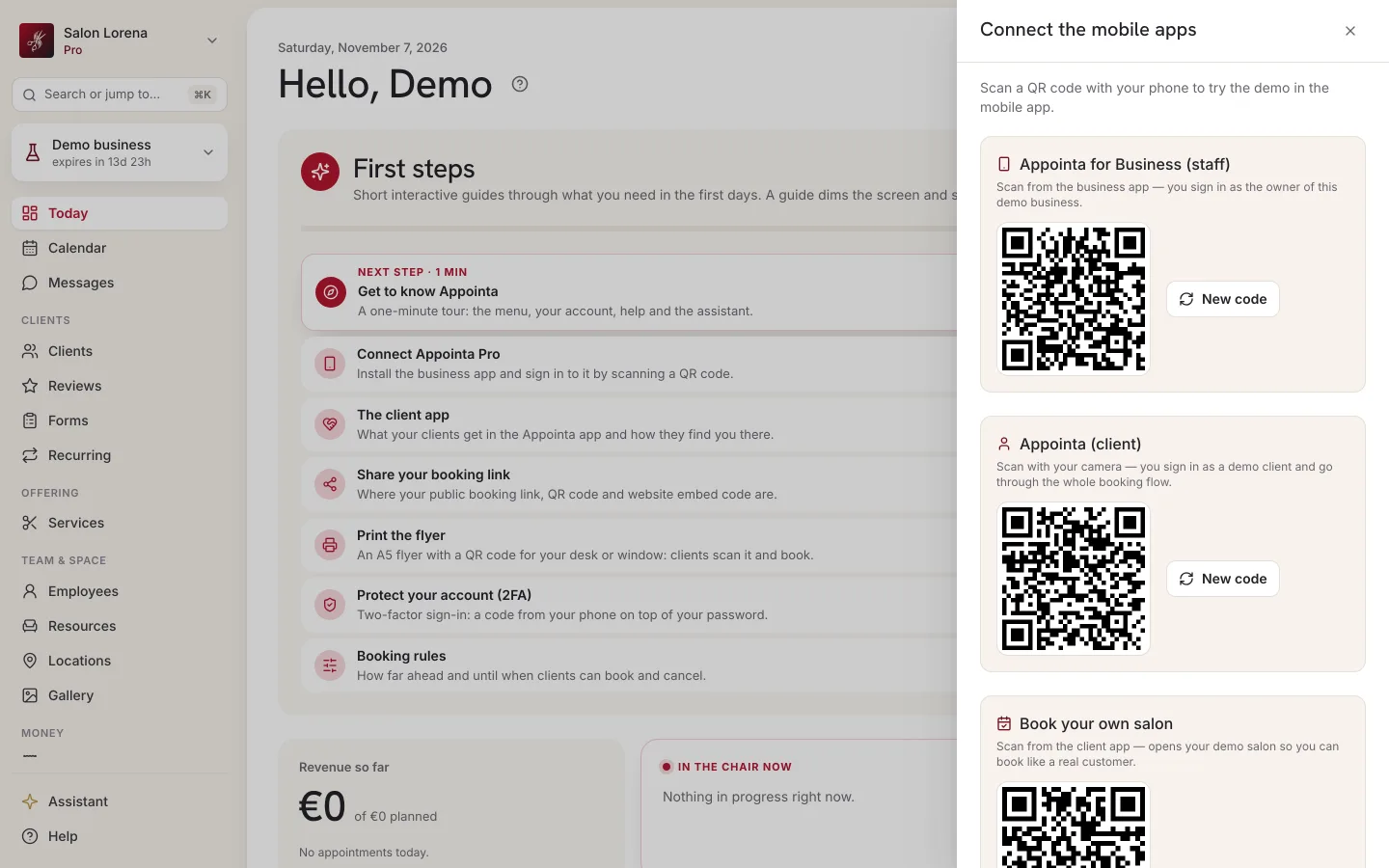
From the demo business card, choose Connect apps. The Connect the mobile apps panel opens on the right, with QR codes:
| QR code | What you scan it with | What you get |
|---|---|---|
| Appointa for Business (staff) | The business app (Appointa Pro) | You're signed in as the owner of the demo business and see its calendar, clients and messages. |
| Appointa (client) | Your phone's camera (the Appointa app for clients must be installed) | The client app opens, signed in as the demo client. |
| Book your own salon | The client app | Opens your demo business's page so you can book like a real client. |
The first two codes are time-limited. If a code has expired or scanning doesn't work, click New code next to it.
More about the apps: Appointa Pro and App for clients.
Resetting the demo
When you want to start over (for example after a lot of experimenting):
- Click the Demo business card and choose Reset.
- In the Reset the demo? window, confirm with Yes, reset.
- When “Demo business has been reset.” appears, the demo has been filled again.
When the demo expires
The demo lasts 14 days from when it was created (or last reset). The demo business card always shows how much time is left. When it expires, the demo is deleted automatically together with all its data. If you don't have a real business yet, you then return to the Welcome to Appointa screen when you sign in, where you can open a new demo or set up a real business.
From the demo to a real business
When you're ready, click Create a real business: in the demo business card's menu, or as Ready? Create a real business in the First steps window. The setup wizard opens, see Business setup.
- You set up your real business from scratch: services, staff, appointments and clients from the demo aren't carried over.
- While you set up your real business, the demo still exists.
- The moment you click Launch business, the demo is deleted automatically.
Frequently asked questions
Does the demo cost anything?
No. The demo is free and doesn't require a card.
Do real clients see my demo?
The demo has its own public page for test bookings, but with made-up data. Don't share its link with clients: set up a real business for them.
Why doesn't the demo have a loyalty program or promotions?
The demo shows the Pro plan, and those features are part of the Premium plan. You'll find a comparison of the plans in Starter, Pro and Premium plans.
Can I change the demo's industry?
Not directly. Resetting keeps the same industry, and while an existing demo is running, a new one can't be opened. You can only choose a demo for another industry once the existing one expires. For your real business you choose the industry in the Services step of business setup, independently of the demo.
Can I extend the demo?
No, the demo lasts 14 days. Resetting gives you a new demo with a new 14 days, but without the changes you made.