Group classes and schedules
How to set up a service with multiple seats and a fixed weekly schedule, how clients sign up for a session, and how you see and fill a session in the calendar.

In Appointa, a group class, course or workshop is an ordinary service with three extra settings: Seats (how many people can book the same appointment), Schedule (on which days and at which times the service runs) and, if needed, Requires a resource (the hall or space the session takes up). On this page you'll learn how to set up, for example, pilates on Mondays, Wednesdays and Fridays at 10:00 for 20 people, how clients sign up, how you see the session in the calendar and how to add a client to it yourself.
Before you start
- Group services are set up by the owner and managers.
- Group services and schedules are available on every subscription plan.
- The instructor who leads the session must exist as an employee, have the service assigned in the Services performed field and be working at the time of the session (see Working hours and time off).
How Appointa sees a group session
A group session is made up of all bookings for the same service, with the same employee, at the same start time. Each booking takes up one seat. While seats are free, the time is still offered to clients; once all seats are filled, that time can no longer be booked.
- A booking that's still waiting for your confirmation also takes up a seat.
- A cancelled appointment and an appointment marked as a no-show free up the seat.
- If two instructors lead the same service at the same time, those are two separate sessions, each with its own number of seats.
- The price from the price list is per person: every client who books gets their own appointment with their own price.
Setting up a group service
- Open Services and click Add service (or open an existing service).
- Enter the Name, Duration and Price (EUR) — the price per person.
- In Seats, enter the session capacity, e.g.
20. Allowed values are 1 to 500; 1 means a one-on-one appointment. - Decide whether clients will see the occupancy — the Show slot occupancy switch (see Price and occupancy display).
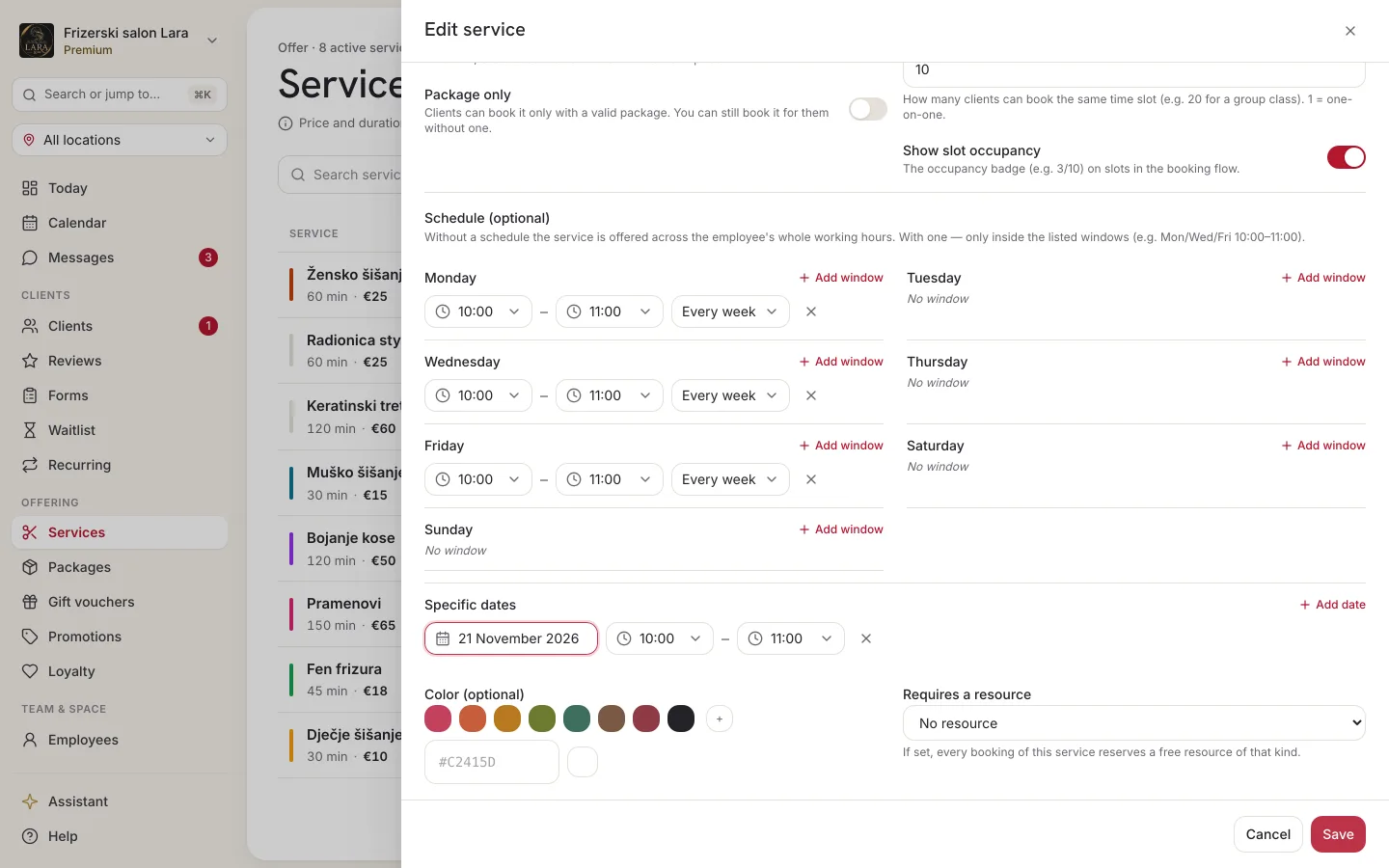
- In the Schedule (optional) section, add the days and times when the session runs (see Service schedule).
- If the session needs a hall or space, choose the kind in Requires a resource (see Group and space).
- Click Save.
- Open Employees and assign the service to the instructor.
In the service list, a service with a schedule gets a badge with its days next to the name, e.g. “Mon · Wed · Fri”, and, if there are upcoming specific dates, their number too (e.g. “+2 dates”).
Service schedule
Without a schedule, a service is offered throughout the working hours of the employee who performs it. With a schedule, it's offered only within the windows you set.
Weekly windows
- In the service form, find the Schedule (optional) section. Each day of the week shows No window until you add one.
- Next to the day you want, click Add window. The first window suggests 10:00–11:00, and each additional window for the same day suggests 17:00–18:00.
- Set the start and end of the window (times are chosen in 15-minute steps).
- In the rotation menu, choose Every week, Even week or Odd week.
- Repeat for the other days. You can add several windows to one day (e.g. a morning and an evening session).
- You remove a window with the Remove window icon.
- Click Save.
Even week and Odd week refer to the week number in the year — this is how you set up a session that runs every other week.
Specific dates
For one-off appointments (e.g. a workshop on 8 and 15 October from 14:00 to 16:00), click Add date in the Specific dates part. The new row suggests today's date and 10:00–11:00; change the date and the from–to times. You remove a row with the Remove window icon.
- If the service has only specific dates, it isn't offered on any other days.
- If it has both weekly windows and dates, it's offered in both.
How the schedule determines times
The first appointment in a window starts exactly at the start of the window (or later, if the instructor starts work only after the window begins), and the following ones are lined up according to the service duration, as long as the whole appointment fits in the window:
| Window | Service duration | Times offered |
|---|---|---|
| 10:00–11:00 | 60 min | 10:00 |
| 10:00–12:00 | 60 min | 10:00 and 11:00 |
| 10:00–11:00 | 55 min | 10:00 |
| 18:00–19:30 | 45 min | 18:00 and 18:45 |
The schedule is always intersected with the working hours of the employee and the business: a window at a time when the instructor isn't working or the business is closed doesn't produce any appointments.
If you see the message “The window end must be after its start.” or “Pick a date for every specific-date window.” when saving, correct the highlighted window and save again.
How a client signs up for a session
A client books a session like any other service — on your public page or in the client app:
- At the What service are you looking for? step, they choose the group service.
- At the Choose a staff member step, they choose the instructor or Any staff member.
- At the Choose date and time step, they see only the times from the schedule. If the occupancy display is on, the time is followed by e.g. “4/20”.
- They confirm the booking and so take up one seat.
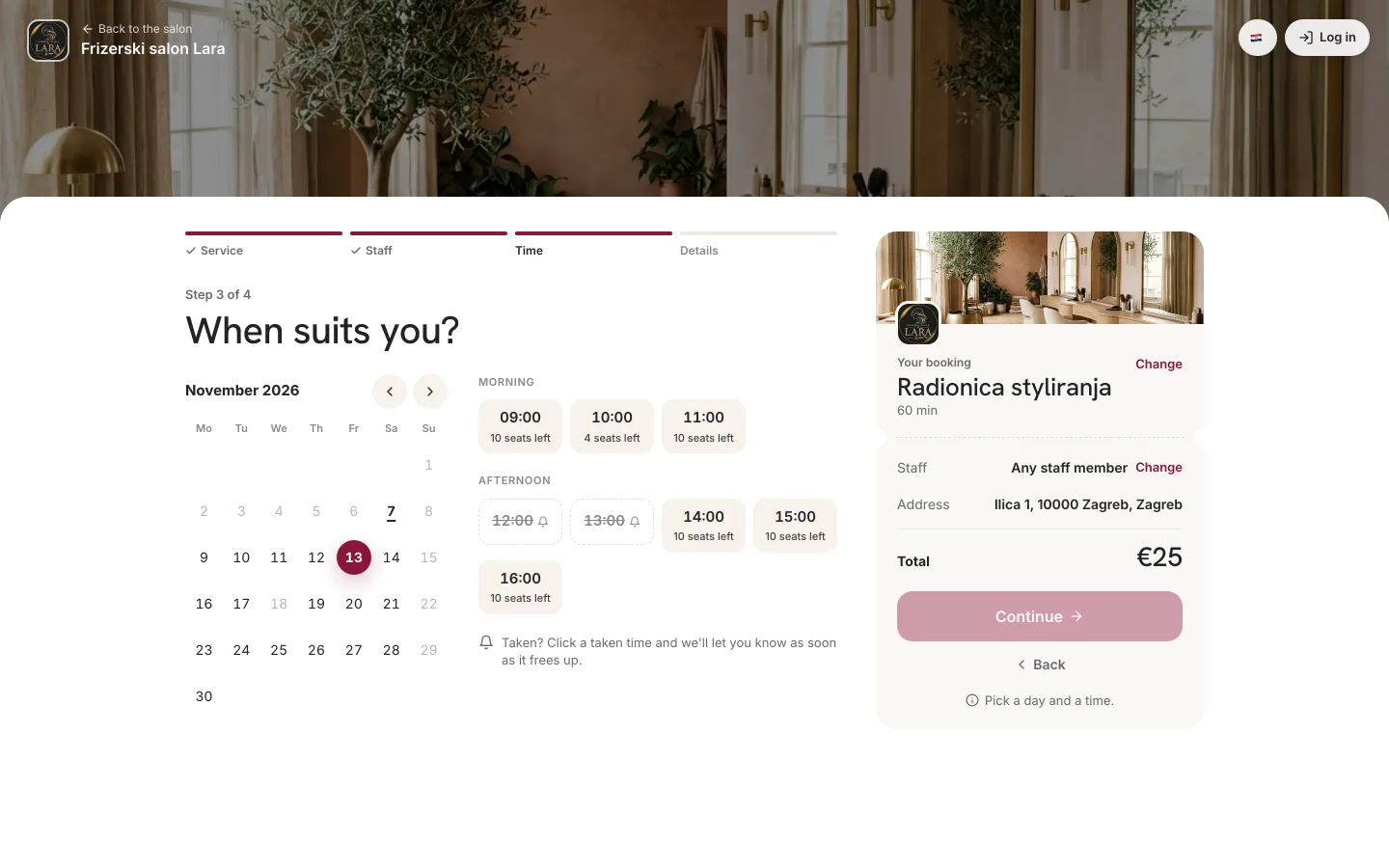
Once the session is full, that time can no longer be selected — on the web, it's shown as taken.
The session in the calendar
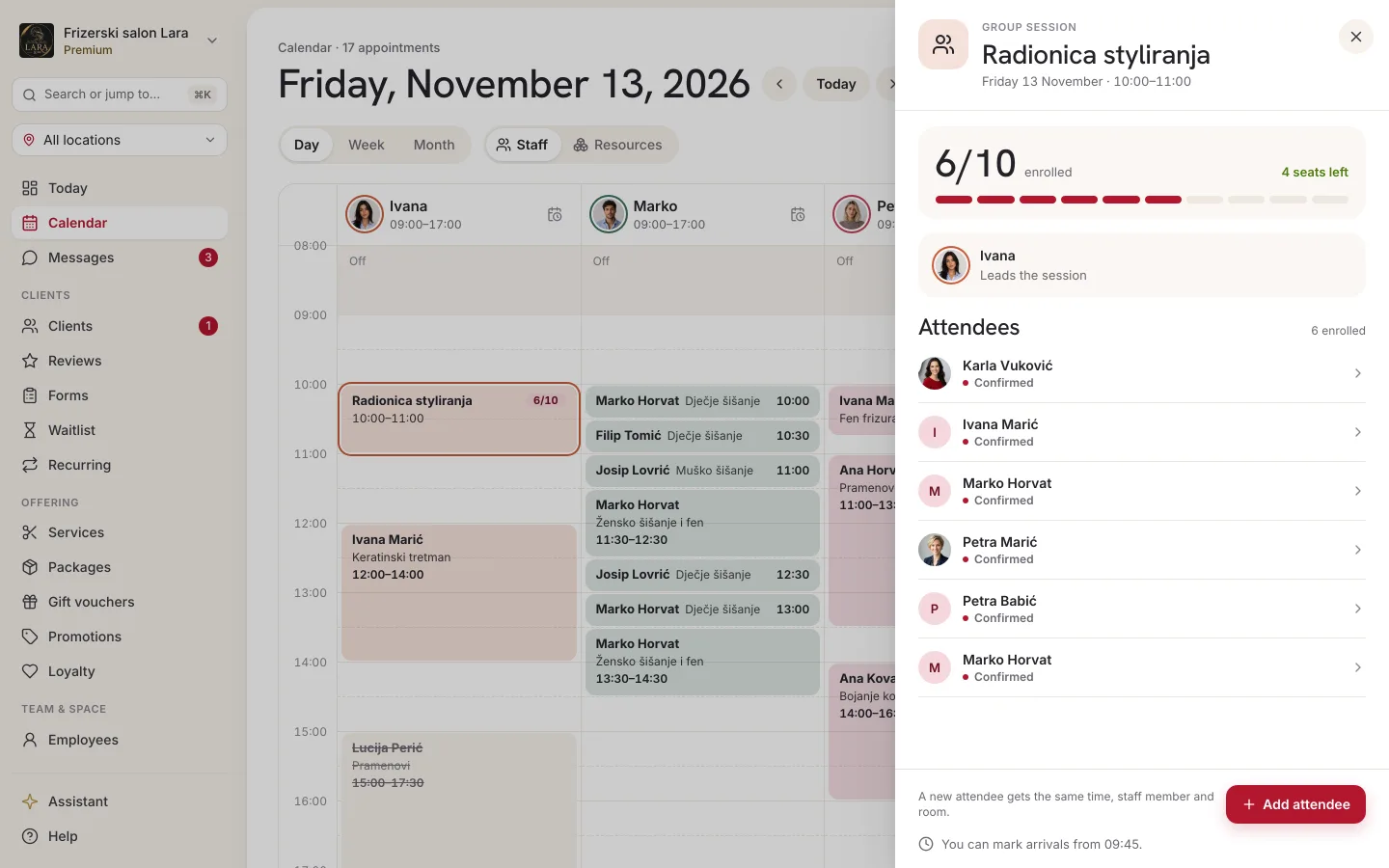
In the calendar's day view, a session is a single block in the instructor's column: the time, the service name and the occupancy badge, e.g. “10:00 Pilates 4/20”. You always see the occupancy, regardless of the display setting for clients.
Clicking the block opens the list of people booked with the count, e.g. “4/20 enrolled”, and the status of each client. Cancelled bookings and no-shows stay on the list but don't count towards taken seats. A session block can't be moved by dragging.
In the calendar's week view, bookings aren't merged into one block — each one is shown as a separate appointment.
Adding a client to a session manually
You add a client who signs up by phone or at the front desk yourself:
- In the calendar's day view, click the session block.
- Click Add client. The button is visible while the session has free seats and hasn't taken place yet.
- The New appointment form opens with the service, employee and time already set and locked. In the Client field, search for and select the client; if you leave the field empty, a walk-in is recorded.
- If needed, adjust the Price (EUR) and add Notes.
- Click Save.
If the session has filled up in the meantime, you'll see the message “The session is full — no seats left.”
Group and space
If a group service has Requires a resource set (e.g. Room / space), the whole session takes up one resource, and everyone booked shares it. The first booking takes a free space, and the following ones join the same space.
While the session is running, another appointment that needs the same kind of resource can't get that space. Example: the gym is one resource; during a group workout, a private appointment in the gym isn't offered. If no space of that kind is free at the time of the session, the session isn't offered to clients. Read more about resources in the Resources chapter.
No placeholder employees needed
Without service schedules, a business would have to invent an “employee” for each session (e.g. “Pilates – Ana”) just to limit when the session is offered. With a schedule, there's no need: the real instructor leads the session in the set windows and can take one-on-one appointments during the rest of their working hours. That way you don't use up extra employee seats in your subscription.
Cancelling a single session
If a session can't take place on one occasion, close that day for the instructor: in the calendar's day view, click the calendar-with-clock icon in the header of their column (Special shift for this day) and choose Off this day, or for a longer period record Time off for them in the Employees menu (see Working hours and time off). The session is then no longer offered that day.
Clients who have already signed up keep their appointments — Appointa warns you that the employee has booked appointments in that period. Cancel those appointments separately, e.g. with Cancel a day.
A regular client on several days a week
For a client who comes to every session (e.g. Mon, Wed and Fri), you can set up a recurring appointment: in the detail view of their appointment, choose Make recurring and tick the days under Weekdays. If you pick a day on which the service doesn't run according to its schedule, Appointa reports “The service's schedule does not run on the selected days” and lists those days. Recurring appointments are available on the Pro and Premium subscription plans — see Recurring appointments.
FAQ
Do I have to enter the session in the calendar every week?
No. The schedule repeats on its own: clients see the times from the schedule and sign up until the session is full. The session appears in the calendar as soon as the first client signs up.
Why isn't the session offered at the scheduled time?
Check: whether the instructor works at that time, whether the service is assigned to them, whether the business is open that day, whether the session is already full, whether the instructor has another appointment at that time and — if the service requires a resource — whether the space is free.
Can I set up a session every other week?
Yes. In the schedule window, choose Even week or Odd week.
Can several people sign up for the same session with one booking?
No. Each booking takes up one seat, so each participant signs up separately (or you add them with Add client).
What if I reduce the number of seats below the number of people already booked?
Clients who are already booked stay booked. The session is no longer offered until the number of bookings falls below the new number of seats.