The Appointa app for clients
What clients do in the Appointa app: sign-in, connecting to your business, booking, cancelling, waitlist, loyalty, vouchers, packages and messages.
 Video guideRezerviraj termin u par dodira — bez poziva, bez čekanjaWatch on YouTube · The video is in Croatian.
Appointa is the app your clients install on their phones. In it they connect with your business, book and cancel appointments, send you messages and get reminders, and they also have their loyalty cards, gift vouchers, packages and receipts at hand. This page is written so you can explain every step to a client. In the app, clients see your business as a place (e.g. “My places”, “Add a place”).
Before you start
- Your business must be launched (the last step of the setup wizard, Launch business). Who can book, and how, is set by your Booking rules.
- Clients see some features only if your plan includes them: recurring appointments on the Pro and Premium plans, and the waitlist, promotions, loyalty, gift vouchers and visit packages on the Premium plan. They see receipts if you issue invoices through Appointa.
- The app shares its data with the web. An appointment booked on your public page also shows up in the app, and the same is true the other way round.
Download
Clients search for the app by the name Appointa:
- iPhone: Appointa on the App Store
- Android: Appointa on Google Play
Don't confuse it with Appointa Pro, which is for you and your team (see Appointa Pro).
Signing in without a password
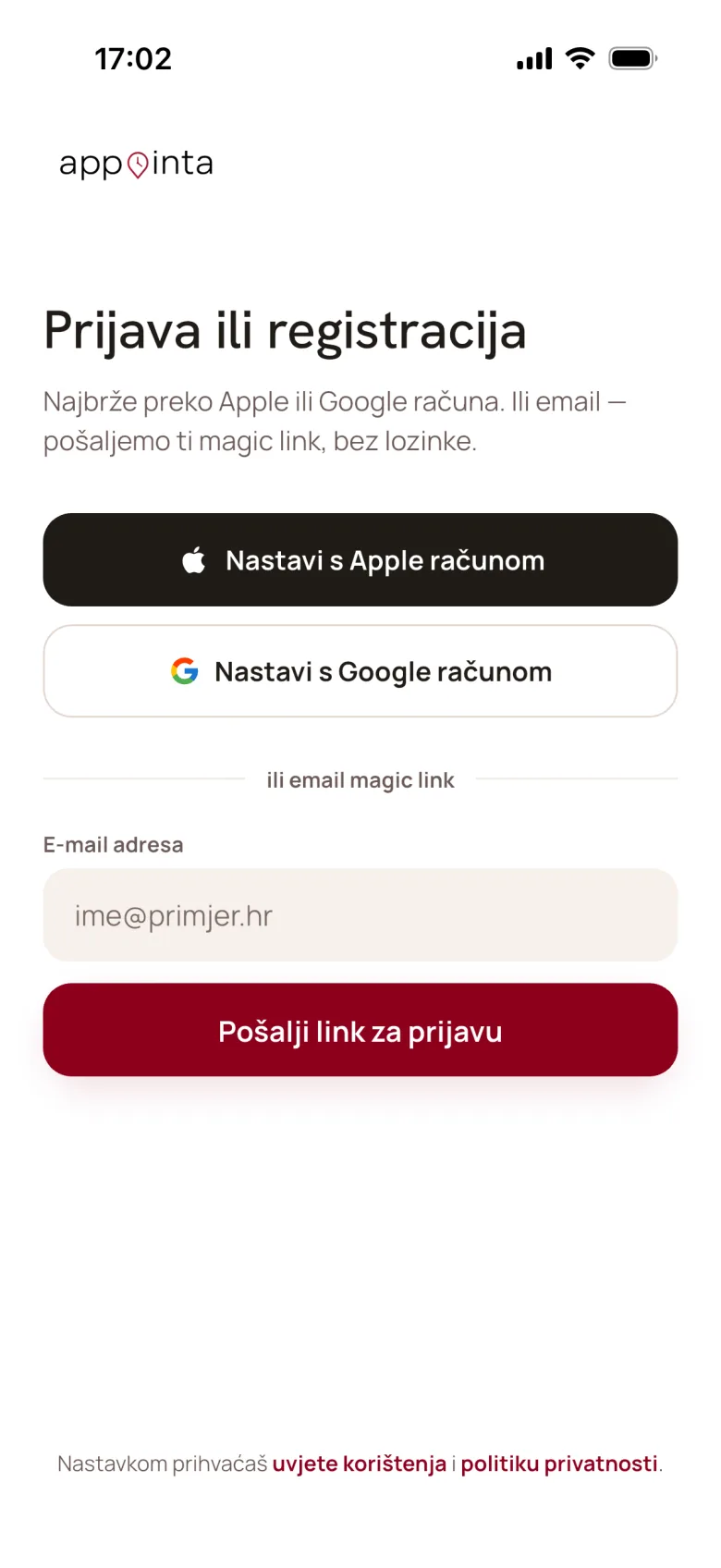
On the Sign in or sign up screen, the client picks one of these options:
| Button | How it works |
|---|---|
| Continue with Apple | iPhone only. Signs in with an Apple ID. |
| Continue with Google | Signs in with a Google account. |
| Send sign-in link | The client enters an email address and receives a sign-in link (magic link). |
There's no separate registration: the first sign-in also creates the account. Signing in with a phone number and password doesn't exist in the app.
Signing in by email works like this:
- The client enters their email address and taps Send sign-in link.
- The app shows Check your email with three steps, and the Open email app button opens their mail app.
- In the email (“Your Appointa sign-in link”), the client taps the Sign me in button. The app opens and signs them in automatically.
The link is valid for 5 minutes and works only once. If it doesn't arrive, Resend → appears after 30 seconds. While the client uses the app, their sign-in extends itself.
Connecting to your business
While the client has no places yet, the start screen offers two ways:
- Scan QR code: the quickest way. The app asks for camera access, and the client scans your booking QR code or the client verification QR at your reception desk.
- Find a place: search by name or city.
Later, the client adds a new place with the + button in the header of the start screen, which offers the same two options. Both ways open your business page with its name, address, a label showing how long you're open today, photos and services.
What happens next depends on your settings:
| Your setting | What the client sees | What you do |
|---|---|---|
| Anonymous bookings on | Services can be booked right away | Nothing |
| Anonymous bookings off | Members only and an Add place button, and after tapping it Request sent — awaiting approval | Approve the request in Appointa Pro (Clients → Join requests) or on the web |
| The client scans the client verification QR, with Auto-approve on scan on | Linking you to the place…, after which they're connected immediately | Nothing. When the setting is off, this scan also waits for your approval. |
Home screen
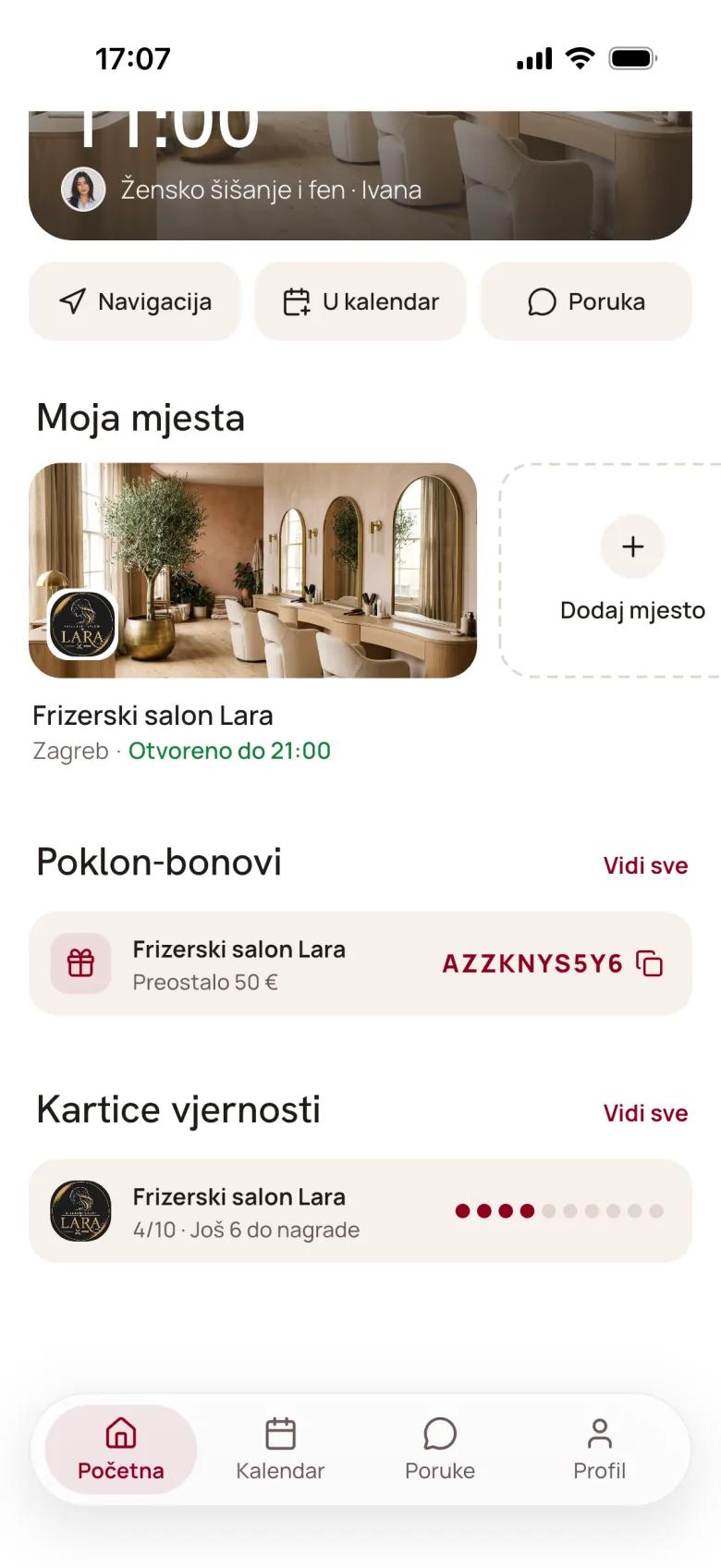
The bottom bar has four tabs: Home, Calendar (the client's appointments), Messages and Profile.
Home shows:
- Next appointment: the nearest confirmed appointment. A request still waiting for your confirmation isn't shown here, only in the Calendar tab.
- My places: cards for the connected businesses, with a cover photo. While a request is waiting for your approval, the card carries an Awaiting approval badge.
- Offers for you, Gift vouchers, Loyalty cards, Packages & memberships and Receipts. Each section has a See all link and appears only if the client has something in it.
The cards can be swiped for quick actions. On Next appointment, swiping right offers Message and Call, and swiping left offers Cancel. On a place card, swiping right offers Message and Call, and swiping left offers Leave. A place the client leaves disappears from the start screen, but their appointment history stays, and a new booking brings the place back.
Booking an appointment
- The client opens your place and taps a service.
- Who would you like to see? They choose an employee or Anyone available. In that case the system assigns a free employee, giving priority to the client's preferred employee.
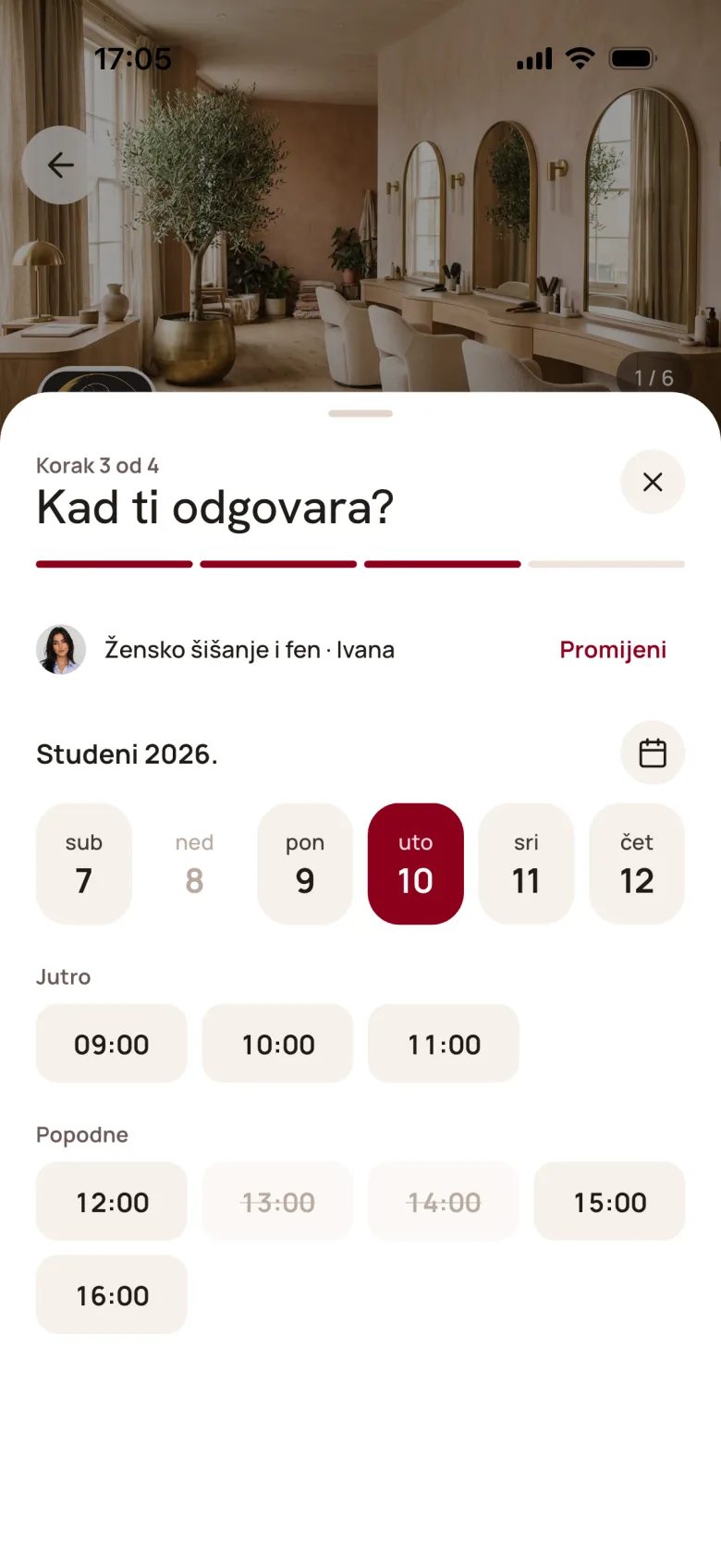
- When suits you? They choose a date, then a free slot (morning or afternoon).
- Just confirm: they check the summary (place, service, employee, address and price) and can add a Note.
- They tap Confirm booking. The app shows a confirmation screen with the booking code.
If Direct booking is turned off in your settings, the confirmation screen says Request sent! and that the appointment still needs to be confirmed. The appointment stays Pending until you confirm it, and the client gets a notification about your decision. If you don't respond within 24 hours, or by the start of the appointment if that comes first, the request expires automatically and the client is notified.
At the confirmation step, the client can lower the price:
- Have a code?: they enter a promo code or a gift voucher code and tap Apply. The app recognises which kind of code it is on its own.
- Use loyalty credit: appears when the client has a loyalty reward ready for that appointment.
- From package: when the client has a package that covers the service on the day of the appointment, the app uses it on its own — there's no switch. It shows a From package row with the visit balance (e.g. “From package (5/8)”), the package replaces the price, and after booking the app tells them how many visits are left (see Packages and memberships).
A package-only service is labelled Package only on the business page and in the service list. If the client has no package valid on the day of the appointment, the app shows the message “You can book this service only with a valid package. Contact the salon.” and a Call button (if the business has a phone number), and Confirm booking can't be tapped.
If a booking fails, the app shows the reason:
| Message | Cause |
|---|---|
| That time is too soon. | The appointment is closer than the Earliest online booking (hours) setting. |
| You've reached the maximum number of active bookings at this place. | The client has reached the Max active bookings per client setting. |
| Online booking is temporarily disabled due to too many no-shows. | In the last 6 months, the client has reached the limit from the Block after no-shows setting. They need to call you, and you can enter the appointment for them yourself. |
My appointments
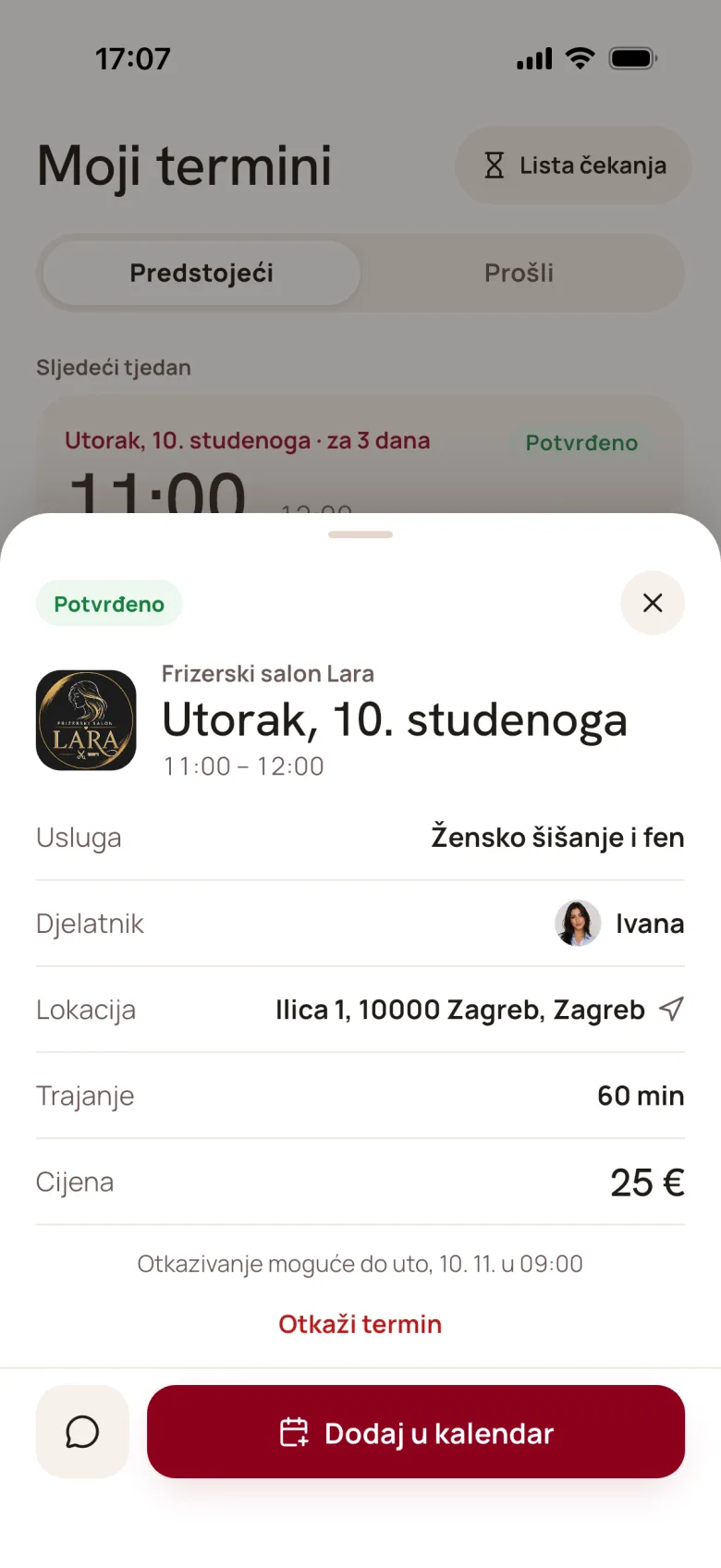
The Calendar tab opens My appointments with the Upcoming and Past tabs, grouped by week. Swiping an appointment right offers Message and Call, and swiping left offers Cancel.
The appointment details show the service, employee, duration and price. Where they exist, they also show a Space row (tap to open photos) and a Receipt row. The buttons in the details:
| Button | When it appears |
|---|---|
| Rate this appointment | A completed appointment the client hasn't rated yet: 1–5 stars and an optional comment |
| Calendar | An active appointment. Saves it to the phone's calendar. |
| Message | Always. Opens the conversation with your business. |
| Cancel | An active appointment, with the Cancel this appointment? confirmation and an optional reason your staff will see |
Cancelling respects your Latest cancellation (hours) setting. Later than that, the app shows Appointments can't be cancelled less than X h before they start. and the client has to contact you. If you cancel the appointment, the client sees Appointment cancelled in the details, along with your message if you wrote one.
Recurring appointment
On the Pro and Premium plans, the details of a completed appointment offer the card Book an appointment like this every X weeks? The client chooses the Frequency (every 2, 3, 4, 6 or 8 weeks) and, optionally, an End date, then taps Activate recurring. They see their series under Profile → My recurring appointments, where they can Pause, Resume or End them. See Recurring appointments.
Waitlist
On the Premium plan, a client can join the waitlist when no slot is free:
- Tapping a taken slot opens This slot is taken, with a choice of This exact slot, ± 30 min around this time or Any time that day.
- When a day has no free slots, the Join the list button opens a form with a date and time range.
A waitlist entry is valid for 30 days. When a slot frees up, the client gets a notification. They see their entries via the hourglass icon in My appointments:
| Status | Meaning |
|---|---|
| Waiting | No matching slot yet |
| Slot opened — book now | A slot has freed up, and the client needs to book it |
| Booked | The entry has been resolved |
| Cancelled / Expired | The entry is no longer valid |
How you manage the list is described in Waitlist.
Loyalty, offers, vouchers and packages
| Screen | What the client sees |
|---|---|
| Loyalty cards | Progress per place: for a stamp-card program, e.g. 6/10 and N more to your reward; for a Euro stamps program, the amount spent and how much is still missing to the credit. When the reward is ready, the card carries a ready badge. |
| My promotions | Active promotions with their discount and end date. Book → opens booking, and the code is entered in Have a code? |
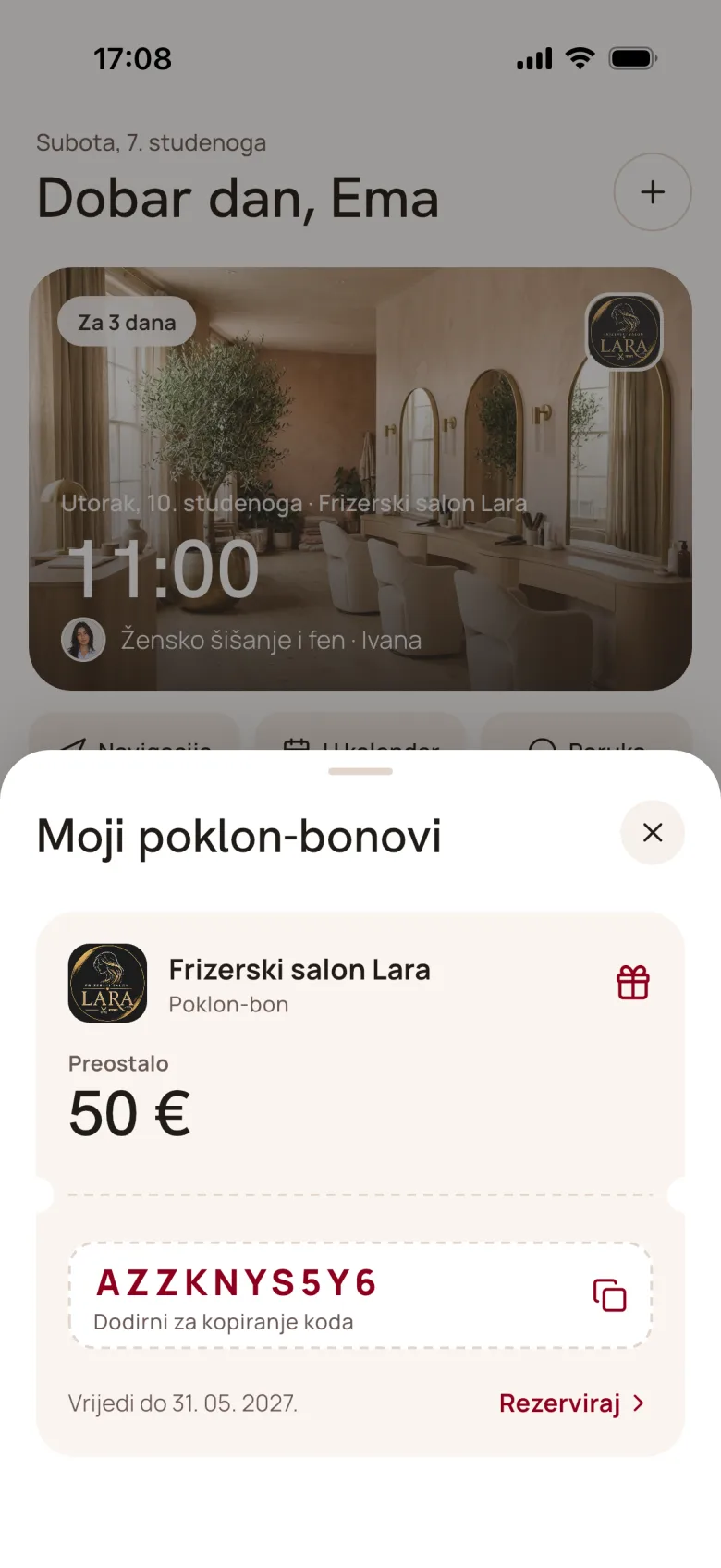
| My gift vouchers | The voucher code (tap to copy it), the remaining amount or service, the expiry date and Book → |
| My packages | Visits used (e.g. 3/8), the validity date and the status |
See Loyalty program, Promotions, Gift vouchers and Packages and memberships.
Messages
The Messages tab has one conversation per place. The client starts it with the Message button on an appointment or by swiping a place card. Swiping a conversation right offers Mark read and Call, and swiping left offers Hide and Mute. How you reply is described in Messages.
Notifications and reminders
A client with the app gets push notifications, for example: confirmation of a booking or request, a reminder about 24 hours before the appointment (Appointment tomorrow at …), a cancelled or moved appointment, new messages, an approved join request, a new gift voucher, a freed-up slot from the waitlist and Your receipt is ready. Push is free. Clients with the app don't use up your SMS credits (see SMS notifications).
Under Profile → Notification settings, the client turns Reminders and Messages on and off. Turning off Reminders also silences push notifications about appointment changes, such as a cancellation or a moved appointment. See Reminders and notifications.
Profile and account
In Profile, the client changes their photo (Change photo: camera or gallery), Full name and Phone number, and saves them with the Save button. The email address is only displayed. This is also where they find Language (Croatian or English), Appearance, My recurring appointments, My receipts, Notification settings, Delete account and Sign out.
Delete account sends an email with a confirmation link. Once the client confirms, their personal data is removed, and their appointment history is anonymized and stays with you as an anonymous record. See Client privacy.
FAQ
Does a client need the app to book?
No. They can book on your public page in a browser. They then get reminders by email or SMS.
A client sees “Members only” instead of services. Why?
You have Anonymous bookings turned off, so only your clients can book. Ask them to tap Add place, then approve their request. They can also scan the client verification QR at your reception desk.
The sign-in link doesn't work.
It's valid for 5 minutes and only once. Ask the client to request a new one on the Check your email screen (Resend →) and open the most recent email.
The app asks for an update.
When a version is no longer supported, the app shows Time for an update with a button for the App Store or Play Store. After updating, everything works as before.
Does a client see the appointments I enter for them?
Yes, if the client record in your address book is linked to their Appointa account. Such an appointment appears in their Calendar tab.
The video series on the client app (sign-in, connecting, booking, discounts, waitlist, loyalty, messages, packages and vouchers) is on the Video guides page.