Subscription and payment
How to pay for or change your plan, enter billing details, buy seats, change your card, download invoices and cancel your subscription.
You manage your subscription on the Billing page. There you see which plan you're on and when the next charge is due, change your plan and card, buy extra employee seats, enter your billing details, download invoices and cancel your subscription. What each plan includes and what it costs is explained on the Starter, Pro and Premium plans page.
Before you start
- Only the owner of the business can see and change billing. Managers and staff don't have the Billing item.
- Subscriptions are bought by private persons and by companies or sole traders, from Croatia and abroad. Before your first payment you enter your billing details and choose whether you are buying as a private person or as a company or sole trader.
- You pay by card. Card details are processed by Stripe; Appointa never sees or stores your card number.
- The subscription can only be managed on the web, not in the Appointa Pro app.
- Billing isn't available in a demo business: the Billing item isn't in the menu, and if you open the page anyway, it says “Billing isn't available in a demo business” with a Create a real business button.
The Billing page
- Click the business card at the top of the sidebar (logo, name and plan). On a phone, open the menu first.
- In the menu, under Business, choose Billing.
At the top is the Current plan card: the plan name, a short description, a status badge and three fields — Price (including extra seats, if you have any, broken down into “Plan” and “Extra seats”), Billing cycle (Monthly or Annual) and Next charge (the date and e.g. “in 12 days”). Below them are the Change plan button and, on a paid plan, Cancel subscription.
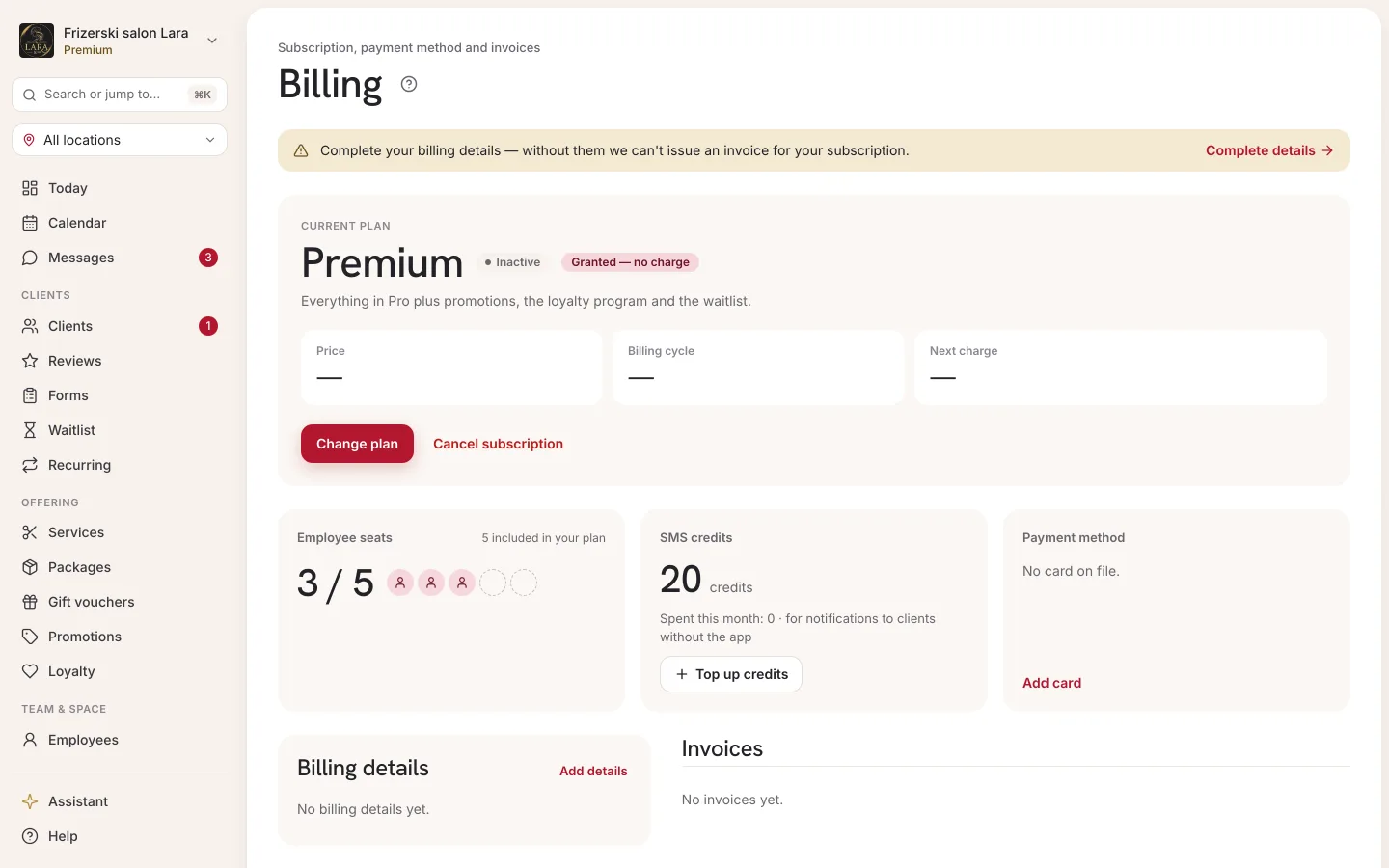
Further down are the Employee seats, Prepaid SMS, Payment method, Billing details and Invoices cards. The Prepaid SMS card is for buying SMS credits — it's described on the SMS notifications page.
Subscription statuses
| Status | Meaning |
|---|---|
| Active | The subscription is paid and working normally. |
| Pending | The payment is still being processed, e.g. waiting for confirmation from the bank. |
| Past due | The last charge failed — see Failed payment. |
| Canceled | The subscription has ended; the business is on Starter. |
| Inactive | There's no paid subscription — the free Starter or a plan granted without charge. |
Billing details
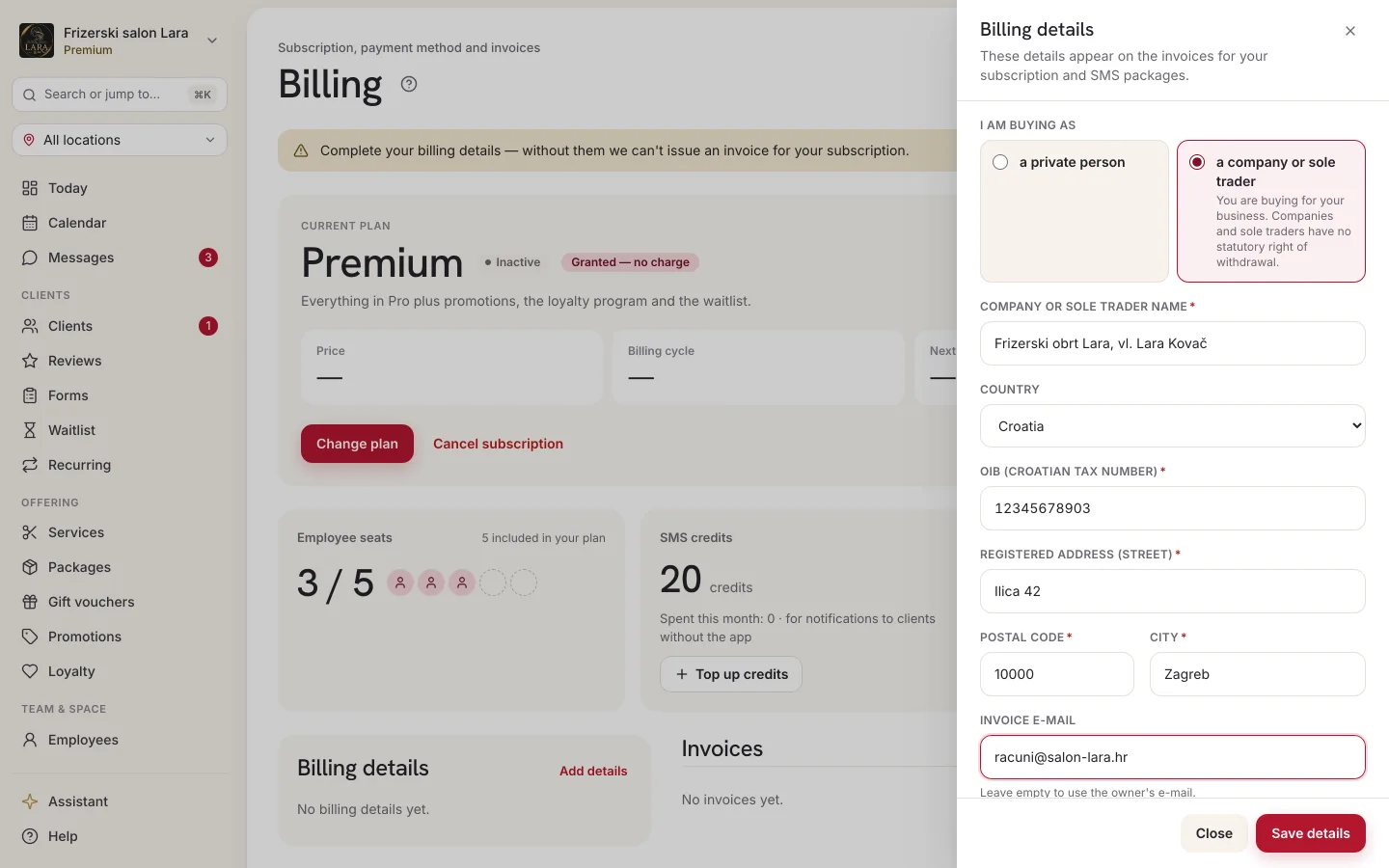
Your billing details are printed on the invoices for your subscription and SMS packages. Without complete details you can't pay for a subscription, buy extra seats or buy SMS credits.
- On the Billing page, in the Billing details card, click Add details (or Edit if they're already saved).
- A panel opens on the right. Under I am buying as, choose a private person or a company or sole trader. The fields depend on your choice; some are pre-filled with your business details and your email — check them.
- Fill in the fields.
- Click Save details. The message “Billing details saved.” appears.
By choosing a company or sole trader you state that you are buying for your business. Companies and sole traders have no statutory right of withdrawal, while a private person may withdraw from a purchase within 14 days. You can change the buyer type later; it applies to the next charges.
| Field | Required | Note |
|---|---|---|
| I am buying as | yes | a private person or a company or sole trader. |
| Full name | yes, for a private person | As it should appear on the invoice. |
| Company or sole trader name | yes, for a company or sole trader | The full name as it should appear on the invoice. |
| Country | yes | Croatia by default. For a company or sole trader, the tax number field below depends on the country. |
| OIB (Croatian tax number) | yes, for a company or sole trader from Croatia | 11 digits. A private person doesn't enter an OIB. |
| VAT ID | no | For a company from another EU country. If you enter it, start with the country code, e.g. SI… (for Greece EL…). |
| Tax number | no | For a company from a country outside the EU. |
| Street address (for a company or sole trader Registered address), Postal code, City | yes | The address printed on the invoice. |
| Invoice e-mail | no | If you leave it empty, invoices go to the owner's email. |
Upgrading and changing your plan
- On the Billing page, click Change plan. The Choose plan screen opens.
- Use the toggle to choose Monthly or Annual.
- On the card of the plan you want, click the button:
| Button | When it's shown |
|---|---|
| Current plan (inactive) | The plan and cycle you're already on. |
| Upgrade to Pro → / Upgrade to Premium → | For a higher paid plan. |
| Switch to Pro → | On Premium, to move to Pro. |
| Switch to annual / Switch to monthly | For the same plan with a different billing cycle. |
- The Checkout screen opens — continue with the next section.
On your first subscription you pay the amount of the chosen plan for the first month or year. A change to an existing subscription — to a higher or lower plan, or to a different cycle — takes effect as soon as you confirm the payment: the difference for the rest of the current period is charged right away, and you can see the amount in the summary before you confirm. When you move to a cheaper plan, the unused time on the more expensive plan is credited proportionally and deducted from your next charges. The button then reads Switch to Pro (or another lower plan), and nothing is due today. Extra employee seats move to the new billing cycle together with the plan.
Checkout
The Checkout screen shows the steps Choose plan → Billing details → Payment → Confirmation.
- Billing details — if they aren't saved yet, the form is open on the screen itself. Fill it in and click Save details. Until your details are saved, the pay button is inactive.
- Payment method — if you already have a saved card, choose it or choose New card. For a new card, enter its details in the Card details field (if you have no saved card, the field is open straight away).
- On your first subscription, tick the checkbox “I have read and accept the Terms of Service and the Data Processing Agreement…”. If you are buying as a private person, also tick “I request that the subscription starts immediately. I know I may withdraw from the contract within 14 days, and if I do so, I pay a proportionate amount for the time until withdrawal.”
- Check the Order summary on the right: the plan, the cycle, the line items and the Due today amount. Below it is a note about the following regular charges and “VAT is not charged. Cancel anytime.”
- Click Pay … and activate … — the button shows the amount due today and the plan name.
- If your bank asks for extra confirmation (3D Secure), confirm the payment in your bank's window or app.
There's no trial period: the first amount is charged immediately after you confirm.
| Message | What to do |
|---|---|
| “Payment failed. Try again or use a different card.” | Check your card details or choose New card. |
| “Enter and save your billing details before paying.” | Complete the Billing details form. |
| “The legal documents changed in the meantime…” | Reload the page, review the documents and tick the checkbox again. |
| “Could not fetch the amount. Reload the page.” | Reload the page. |
| “Billing is currently unavailable. Try again later.” | Payments are temporarily not working; try again later or contact support. |
After payment
A confirmation opens, e.g. “Pro plan is active 🎉”, with a list of the features you've just unlocked and the date of the next charge. If processing is still under way, it says “Processing payment…” — the status refreshes by itself within a few seconds. Below the heading it says what arrives by email: a payment confirmation or an invoice. You can use the new features right away; the Back to billing button takes you back to the overview.
Extra employee seats
The Employee seats card shows how many seats are taken (e.g. “3/5 seats used”) and how many are included in your plan. On Starter, instead of the counter for buying seats, it says “Extra seats are available on the Pro and Premium plans.” with a See plans link.
- Next to Extra seats, use the − and + buttons to set the total number of extra seats you're buying. The price per seat is shown next to the counter.
- Due today appears, with the amount for the rest of the current period.
- Click Confirm change.
You can't reduce the number of seats below the number of active employees — in that case it says “You can't go below your current active staff count — archive employees first, then reduce seats.” You archive employees on the Employees page.
Payment card
The Payment method card shows your saved card (the last four digits, the expiry date and the Default badge) or the message “No card on file.”
- Click Change card (or Add card).
- The Checkout screen opens, this time without the Billing details step. If you already have a saved card, choose New card; then enter its details in the Card details field.
- Click Save card for future charges below the summary. The card is only saved: nothing is charged and your plan doesn't change.
- The “Card saved” confirmation opens. Click Back to billing and check that the new card is marked Default. If it isn't showing yet, reload the page after a few seconds.
The new card also becomes your subscription's default: every later charge, including the automatic retries after a failed payment, goes to it.
Subscription invoices
The Invoices card shows your most recent charges (up to 50), with the columns Date, Description, Amount and Status. Until there's been a charge, it says “No invoices yet.” If Appointa issues invoices for your charges, the header says which address they're sent to (“Invoices are sent to …”).
| Row type | Statuses | Action |
|---|---|---|
| Invoice — the description says “Subscription” or “SMS package” plus the invoice number; a cancellation invoice is marked “Cancellation” | Issued, Invoice being prepared (e.g. until you complete your billing details), Cancelled | Open invoice (not shown while the invoice is being prepared) |
| Subscription payment confirmation — the description shows the billing period and the label “Payment confirmation — not an invoice” | Paid, Open, Uncollectible, Void, Draft | Download PDF, when available |
Cancelling your subscription
- On the Billing page, click Cancel subscription.
- In the “Cancel subscription?” window, read what changes and the date until which your subscription remains valid.
- If you like, pick a reason in the “Why are you cancelling? (optional)” field.
- Click Cancel subscription. To back out, click Keep subscription.
Your subscription stays fully active until the end of the current period. On the plan card, the Next charge field changes to Valid until, and below it says “Subscription ends …”. There's no refund for a period that has already started.
On the end date, the business automatically moves to the free Starter:
- the limit of 30 appointments a month applies again,
- extra seats end; the plan includes 1 employee (existing employees stay, but you can't add a new one),
- Pro and Premium features are locked, including issuing fiscalised invoices,
- appointments, clients and reports stay intact.
Changed your mind?
Until the cancellation takes effect, the page shows a “Subscription cancelled” panel with a Reactivate button. Clicking it continues your subscription without a new charge. Changing your plan during this time also undoes the cancellation. After the end date, you restart your subscription through Change plan.
Withdrawal from the contract (private persons)
If you bought a subscription or an SMS package as a private person, you may withdraw from the purchase within 14 days, without giving a reason.
- On the Billing page, the Withdrawal from the contract card shows the purchases you can still withdraw from and the deadline for each.
- Click Withdraw from the contract, choose the purchase and, if you like, write a message.
- Click Send the withdrawal statement. You get a confirmation of receipt by e-mail right away, and the request stays listed under Requests received.
For a subscription you pay a proportionate amount for the time until withdrawal, for an SMS package the credits used (the free credits count as used first). We refund the rest to your card within 14 days at the latest. If you can't sign in, send your statement on the Withdrawal page. Companies and sole traders have no statutory right of withdrawal — cancelling the subscription applies to them.
Failed payment
If a charge doesn't go through (e.g. the card was declined or has expired), the status changes to Past due, and the top of the page says “Update your card as soon as possible — Latest payment failed. Update your card to avoid interruption.” with an Update card button. Below the plan card is a “Payment failed” panel with an outline of the automatic retries: a second and a third attempt with the same card, after which the business moves to the free Starter.
While the retries are under way, your access stays active and all the plan's features keep working. Click Update card, enter a valid card as described in the Payment card section and check that it's marked Default. The next automatic retry charges the new card.
Stripe Customer Portal
At the bottom of the page, on a paid plan, you may see “Need something you don't see here? You can also manage your subscription through the Stripe Customer Portal.” with an Open Stripe Customer Portal → link. It opens Stripe's subscription management page, from which you return to Billing. When Appointa issues its own invoices, this link isn't there — you do everything on the Billing page.
Frequently asked questions
Can I pay by bank transfer or with a payment slip?
No. The subscription and SMS credits are paid by card.
Is there a trial period?
No. Starter is free with no time limit, and you can try the Pro features in a demo business.
Can a manager pay for or change the plan?
No, only the owner of the business manages billing.
Why is the pay button inactive?
Most often your Billing details aren't saved or, on your first subscription, the Terms of Service checkbox isn't ticked (for a private person, also the “I request that the subscription starts immediately…” checkbox).