New appointment and walk-ins
How to add an appointment from the calendar or a client's profile, what each form field means, how to record a walk-in and add someone to a group session.
 Video guideNovi termin u 30 sekundi — dok je klijent još na telefonu (Appointa)Watch on YouTube · The video is in Croatian.
You enter the appointments that clients arrange by phone, by message or at the front desk yourself. On this page you'll learn the two ways to add an appointment — from an empty slot in the calendar and from a client's profile — what each field in the New appointment form means, how to record a client who walked in without booking, how to add someone to a group session, and what the client receives.
Before you start
- Every role can add appointments: the owner, managers and employees.
- You need at least one service and an employee who has that service assigned (see Services and price list and Employees).
- On the Starter plan, a business can have at most 30 appointments a month. This counts appointments dated in the current calendar month — both the ones you enter and online bookings — except cancelled ones and those marked as no-show. Once there are 30, Appointa won't save any new appointment until the start of next month, no matter which date you enter it for. The form then stays open and the appointment doesn't appear in the calendar (see Starter, Pro and Premium plans).
Two ways to add an appointment
| From an empty slot in the calendar | From a client's profile | |
|---|---|---|
| Where | Calendar → click an empty slot | Clients → client → New appointment |
| Client | The appointment isn't linked to a client and is labeled Walk-in | The appointment is linked to the client |
| Date, time and employee | Filled in from the slot you clicked | You choose them in the form |
| Reminder to the client | Not sent | Sent about 24 hours before |
| History on the client's profile, loyalty, recurring appointment | No | Yes |
The form is the same in both cases. The only difference is whether the appointment is linked to a client. If you know the client and want them to get reminders, add the appointment from their profile.
Adding an appointment from an empty slot in the calendar
- Open Calendar in the day view and find the day you want.
- In the employee's column, click an empty slot at the time you want. Each slot is 30 minutes (e.g. 10:00 or 10:30).
- The New appointment form opens on the right, with the date, start time and employee already filled in.
- Choose a Service. Appointa fills in End from the service's duration and Price (EUR) from your price list.
- Check the Employee field. If the employee from the column doesn't perform the selected service, the form suggests the first employee who does instead.
- If needed, change the time or price and add Notes.
- Click Save. The message “Appointment created” appears, and the appointment shows up in the calendar straight away with the Confirmed status.
Clicking an empty slot only works in the Staff view. In the Resources view, the columns have no clickable slots.
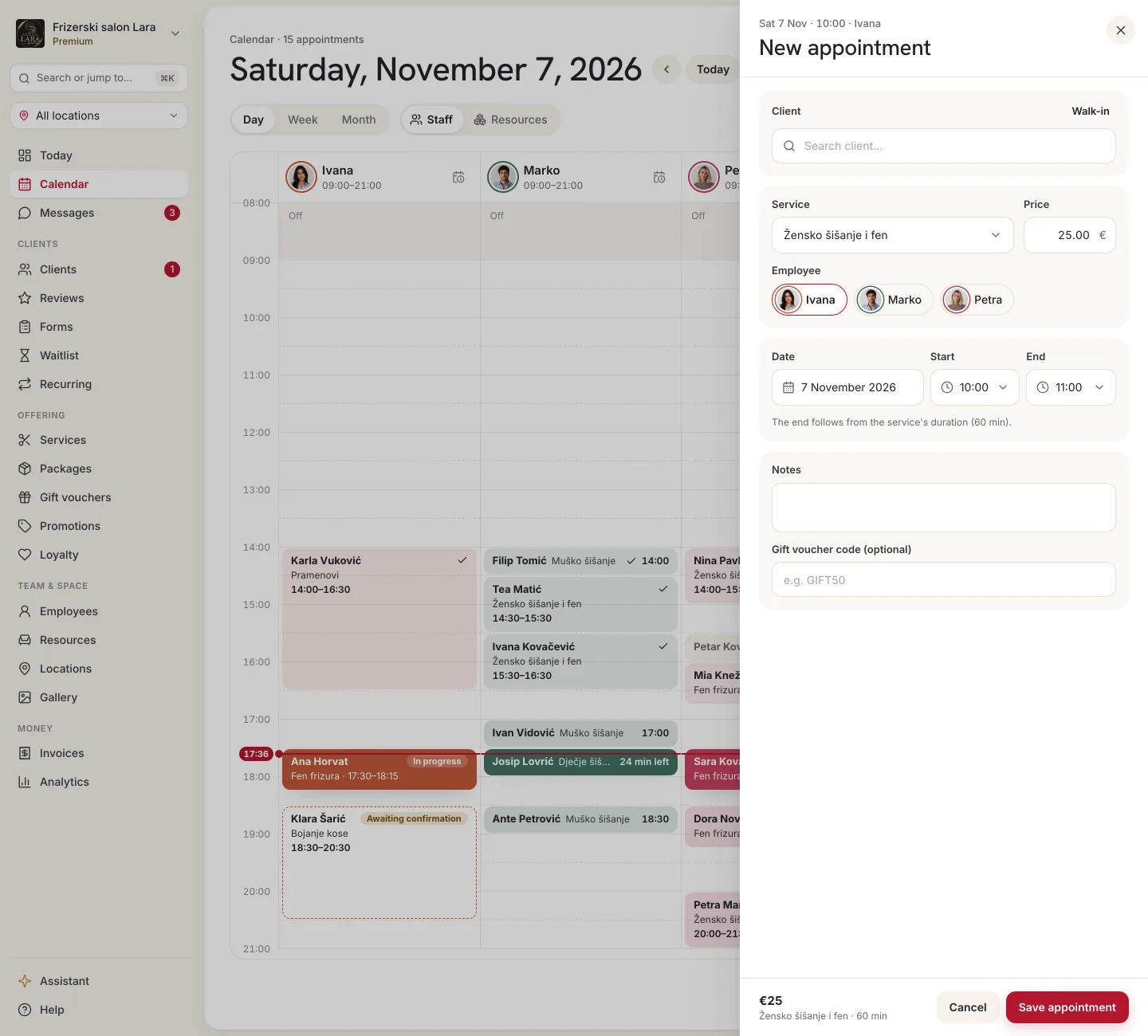
New appointment form fields
| Field | What it means | Note |
|---|---|---|
| Service | A service from your price list. | The form suggests the first service in the list. Changing the service fills in End and Price (EUR) again. Archived services aren't offered. |
| Employee | Who carries out the appointment. | Only employees who have the selected service assigned are offered. If no one performs it, you'll see “No employee performs this service”. |
| Resource | The room, equipment or vehicle for the appointment. | Shown only when the service requires a resource. The default is Any available — Appointa assigns a free resource itself. Busy resources are marked (busy) and can't be selected. |
| Date | The day of the appointment. | Choosing a date keeps the time you've entered. |
| Start | The start time. | Chosen in 15-minute steps. Changing the start also moves End, so the duration stays as set in the service. |
| End | The end time. | Also in 15-minute steps. Change it if this time you need more or less time. |
| Price (EUR) | The amount recorded on the appointment. | Suggested from your price list. Separate decimals with a comma or a point, e.g. 25.50. If you're giving a discount, enter the final amount — there's no separate discount field. The amount is used in reports and on the invoice. |
| Notes | A note on the appointment. | Shown in the appointment details under Client note. The client doesn't see it in their own view of the appointment. |
| Gift voucher code (optional) | The appointment is paid with a gift voucher. | Shown only if your plan includes gift vouchers (see Gift vouchers), and not shown when the client's package covers the appointment. |
When you enter an appointment for a client who has a visit package or membership for that service, the form shows a line such as “From package … · visits left: …”. The appointment is then saved at €0 and a visit is deducted from the package, whatever price you entered. For a package-only service without the client's package, the form warns that the visit will be at full price — you can still save it.
Adding an appointment for an existing client
- In the menu, open Clients and find the client (search by name, phone or email).
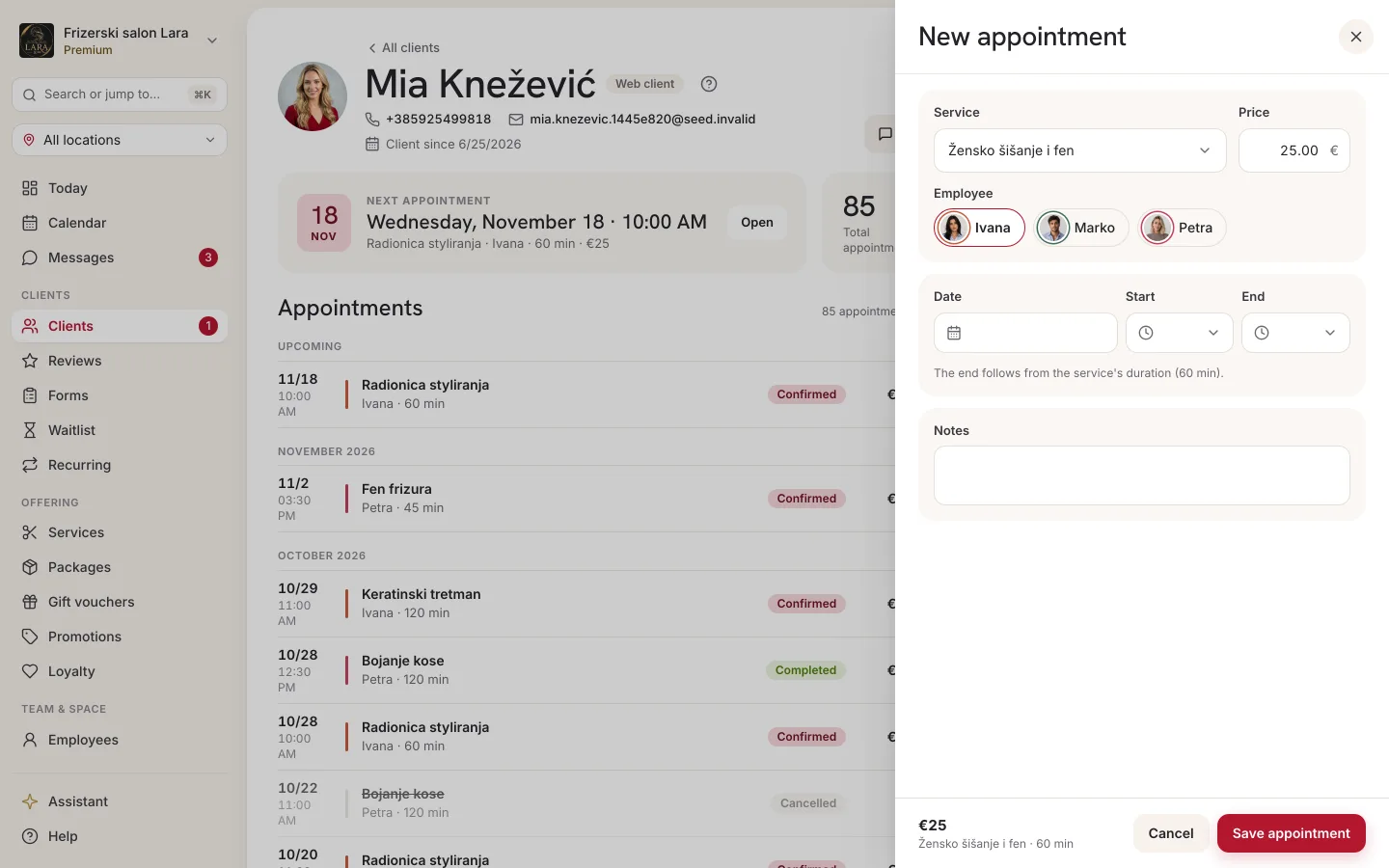
- Open their profile and click New appointment in the header.
- In the form, choose the Service and Employee.
- Choose the Date, Start and, if needed, End.
- Check the Price (EUR), add Notes if needed, and click Save.
The appointment appears in the calendar and in the Appointments section of the client's profile. Here too, as in the form opened from the calendar, Start offers any time of day. An appointment before 08:00 or after 20:00 is saved normally, but the calendar grid doesn't display it correctly, so keep track of it in the Appointments section of the client's profile. More about the client profile on the Client profile page.
Walk-ins
A client has walked in off the street and is sitting down in the chair right away? You have two options.
Quick entry without a client
- In the calendar, click an empty slot for the employee who is taking the client.
- Choose the service and click Save.
The appointment is shown with the Walk-in label. It takes up the employee's time and is included in reports, but it isn't linked to a person: there's no reminder, it doesn't appear in anyone's history, and it can't become a recurring appointment.
Entry with a new client
If you want the client to stay in your client list for next time:
- Open Clients and click Add client. The New client (walk-in) form opens.
- Enter the Full name and at least an Email or a Phone — without one of them you'll see “Provide at least an email or a phone.”
- Click Save, open the new client's profile and click New appointment (see Adding an appointment for an existing client).
With an email address or a mobile number, the client will get reminders from now on: by email, or by SMS if SMS notifications are turned on (see SMS notifications).
Group appointments
The calendar shows services with several seats (e.g. pilates for 12 people) as one block with the number of seats taken, e.g. “Pilates 4/12”. How to set up such a service is described on the Group classes and schedules page.
Adding someone to an existing group appointment
- In the calendar, click the group appointment's block. A list opens with the number signed up (e.g. “4/12 enrolled”), the time and all participants with their status.
- Click Add client. The button is shown while there are free seats and as long as at least one participant still has the Pending or Confirmed status.
- The New appointment form opens, with the service, employee, date and time locked to that group appointment.
- In the Client field, type at least two letters of a name, phone number or email (“Search client…”) and choose the client. Use Change to pick someone else. If you leave the field empty, the seat is recorded as Walk-in.
- Click Save.
When all seats are taken, the form shows “The session is full — no seats left.”
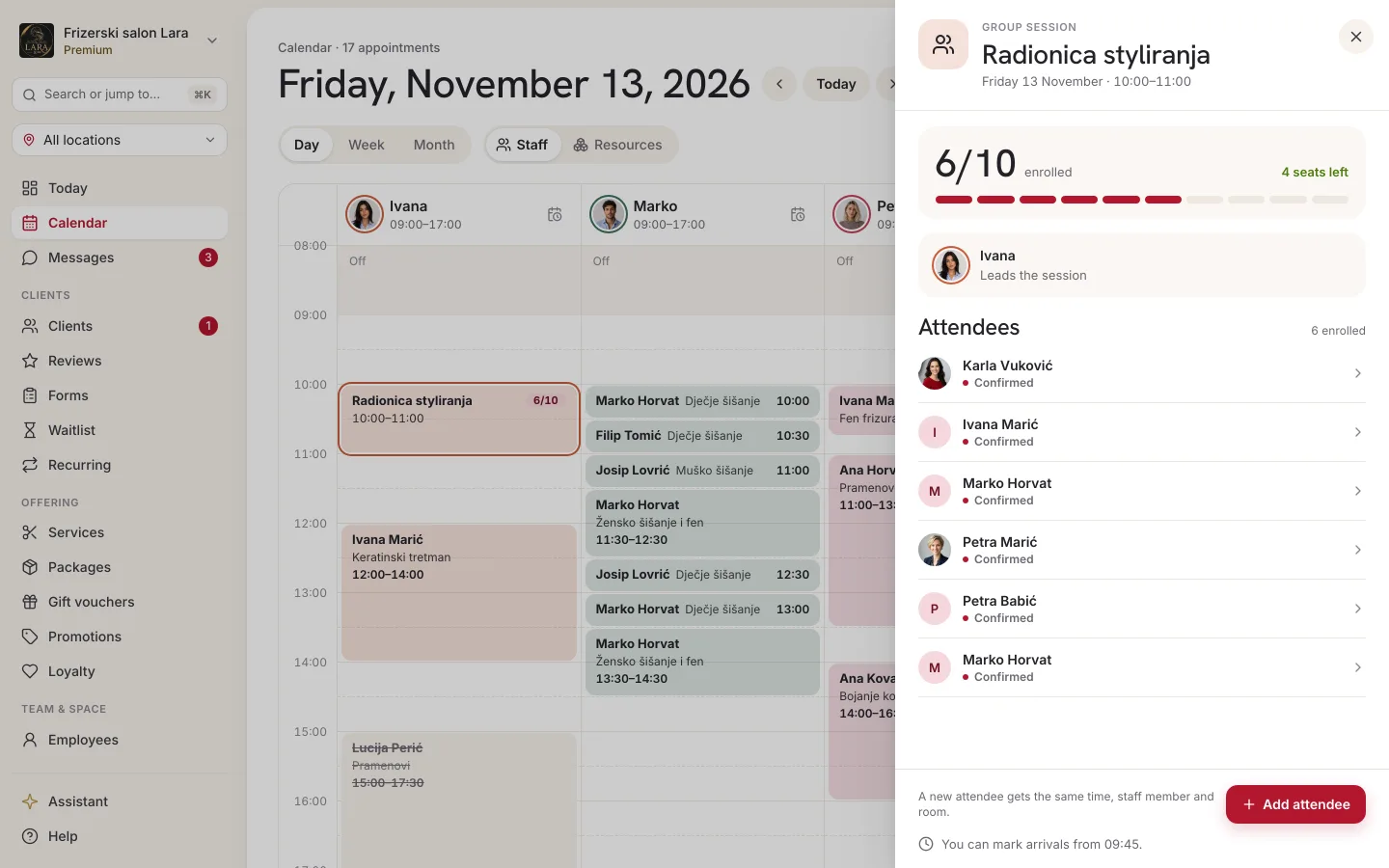
A new group appointment and individual participants
- If there's no group appointment at that time yet, enter the first seat from a client's profile (New appointment, the group service, the time you want). If you enter it from an empty slot in the calendar, the first seat is recorded as Walk-in.
- You cancel an individual participant or change their status from their client profile: in the Appointments section, click the appointment and its details open.
- A group appointment can't be dragged with the mouse.
Overlaps and warnings
Appointa doesn't allow one employee to have two appointments at the same time. Appointments that only touch (one ends at 10:00, the next starts at 10:00) don't count as an overlap. Cancelled appointments and appointments marked as no-show don't take up time.
| Message | Cause | What to do |
|---|---|---|
| “Employee already has an appointment in that range.” | The new appointment overlaps an appointment of the same employee that is pending, confirmed or completed. | Change the time or the employee. |
| “The required resource (e.g. a room or device) is already taken at that time.” | The selected resource is busy. | Choose Any available or a different time. |
| “That resource isn't offered for this service.” | The resource has changed in the meantime and is no longer an option for that service. | Close the form and try again. |
| “All resources of this kind are busy at the selected time.” | A warning below the Resource field. | Choose a different time. |
| “The session is full — no seats left.” | The group appointment is full. | Choose a different appointment or increase the number of seats for the service. |
| “The voucher code is invalid or doesn't apply to this service.” | The gift voucher code doesn't exist, is no longer valid or doesn't apply to that service. | Check the code. The form stays open. |
The appointment also isn't saved when the employee doesn't work that day: their weekly schedule leaves out that day of the week, or a special shift marked Off this day is set for that date. A special shift with times counts as a working day even when the weekly schedule leaves the day out. In this case the form doesn't show a specific message: it stays open and the appointment doesn't appear in the calendar. Check the employee's schedule or choose another employee. Appointa does accept an appointment at another time of day when the employee works, but outside their hours.
What the client receives
- An appointment you enter is Confirmed straight away — it doesn't wait for approval, and no confirmation is sent to the client at that moment.
- The exception is intake forms: if there's an active intake form for the selected service, a client with an email address immediately gets an email with a link to fill it in (see Intake forms and consents).
- A client linked to the appointment gets a reminder about 24 hours before the appointment: a push notification if they have the Appointa app, otherwise an SMS (if SMS notifications are turned on) or an email. For an appointment entered less than about 23 hours ahead, no reminder is sent.
- A Walk-in appointment has no client, so no one receives anything.
All notifications are described in detail on the Reminders and notifications page.
Frequently asked questions
Why is there no client field in the form opened from the calendar?
Adding an appointment from an empty slot is meant for quickly blocking out time. For an appointment linked to a client, open their profile and click New appointment. The Client field only appears when you add someone to a group appointment.
Can I enter an appointment in the past?
Yes. Your business can enter an appointment for any date, e.g. when you record an appointment that has already taken place after the fact. Then mark it with Complete in the appointment details.
Why is the employee list empty?
The selected service isn't assigned to any employee. Open Employees, edit the employee and tick the service.
Does the appointment price change if I change my price list later?
No. The price is saved on the appointment at the moment it's entered (see How prices are calculated).