Support
How to get help: the manual, interactive guides, the assistant, a ticket to the Appointa team from the app, the contact form and free setup help.
When you get stuck, there are several ways to an answer — from the manual and the assistant, which answer straight away, to a ticket to the Appointa team, who reply in person. On this page you'll learn which route to choose when, how to send a ticket from the app, what to write in it so you get a solution faster, and how to ask for free help setting up your business.
Where to get help
| Route | When to use it | Who |
|---|---|---|
| This manual | How to do something, step by step | everyone, no sign-in needed |
| Interactive guides | You want the app itself to walk you through a task | everyone in the admin area |
| The assistant (chat bubble in the bottom right) | A quick question, an answer straight away | everyone |
| Video guides | You'd rather watch than read | everyone, no sign-in needed |
| Support in the app | A bug, a billing problem, a suggestion or a question for the Appointa team | owners and managers |
| Contact form and email | You can't sign in, you don't have an account, or you're neither an owner nor a manager | everyone |
| Free setup help | You don't have time to set up your business yourself | owners |
The manual and search
The manual is public and doesn't require you to sign in. In the admin area you can get to it in two ways:
- Help in the sidebar opens the manual in a new browser tab, so the admin area stays open.
- The ? icon next to the title of every admin page opens exactly the manual page that describes that screen.
In the manual, use the Search the manual… field at the top. The / key takes you to the field from anywhere on the page, you choose a result with the arrow keys, and the Enter key opens it. At the bottom of every page there's a Need more help? box with links to the video guides and contact options.
If you're just getting to know Appointa, also take a look at the FAQ and the Glossary.
Interactive guides
An interactive guide walks you through a task in the app itself: it dims the screen, highlights the button or field you need to click and waits for you to do the step. You start guides from the Guides item at the bottom of the sidebar, from the First steps card on the dashboard, with the Start the guide button in the Show me in the app box on the manual pages that have a guide, or with the Start guide button the assistant offers you. You stop a guide with the Esc key or the × button. You only see the guides your role and plan allow: for example, the guides for a new service or a new employee are shown only to the owner and managers, and the guide for issuing an invoice only on the Pro and Premium plans.
The list of guides and how they work are described in Interactive guides.
Assistant
The assistant is the round button with a chat bubble in the bottom right corner — in the admin area, on the appointa.hr pages (the home page, blog, video guides) and in this manual. There's no assistant on individual businesses' public booking pages.
- Click the button. The Appointa assistant window opens, labeled AI assistant.
- Type a question, for example “How do I add a service?”, and click Send.
- The assistant answers from Appointa's documentation and often offers a link to the right screen or manual page.
- You close the window with the Minimize arrow, by clicking the round button again or with the Esc key.
| Where you open it | What it knows |
|---|---|
| In the admin area | How to use Appointa and the basic details of your business: which services you have (with duration and price), which employees, and which plan you're on. When there's an interactive guide for the task, it offers you a Start guide button in the chat; the guide only starts when you click it. |
| On the public pages and in the manual | General instructions and answers about Appointa. It can't see any of your business's data. |
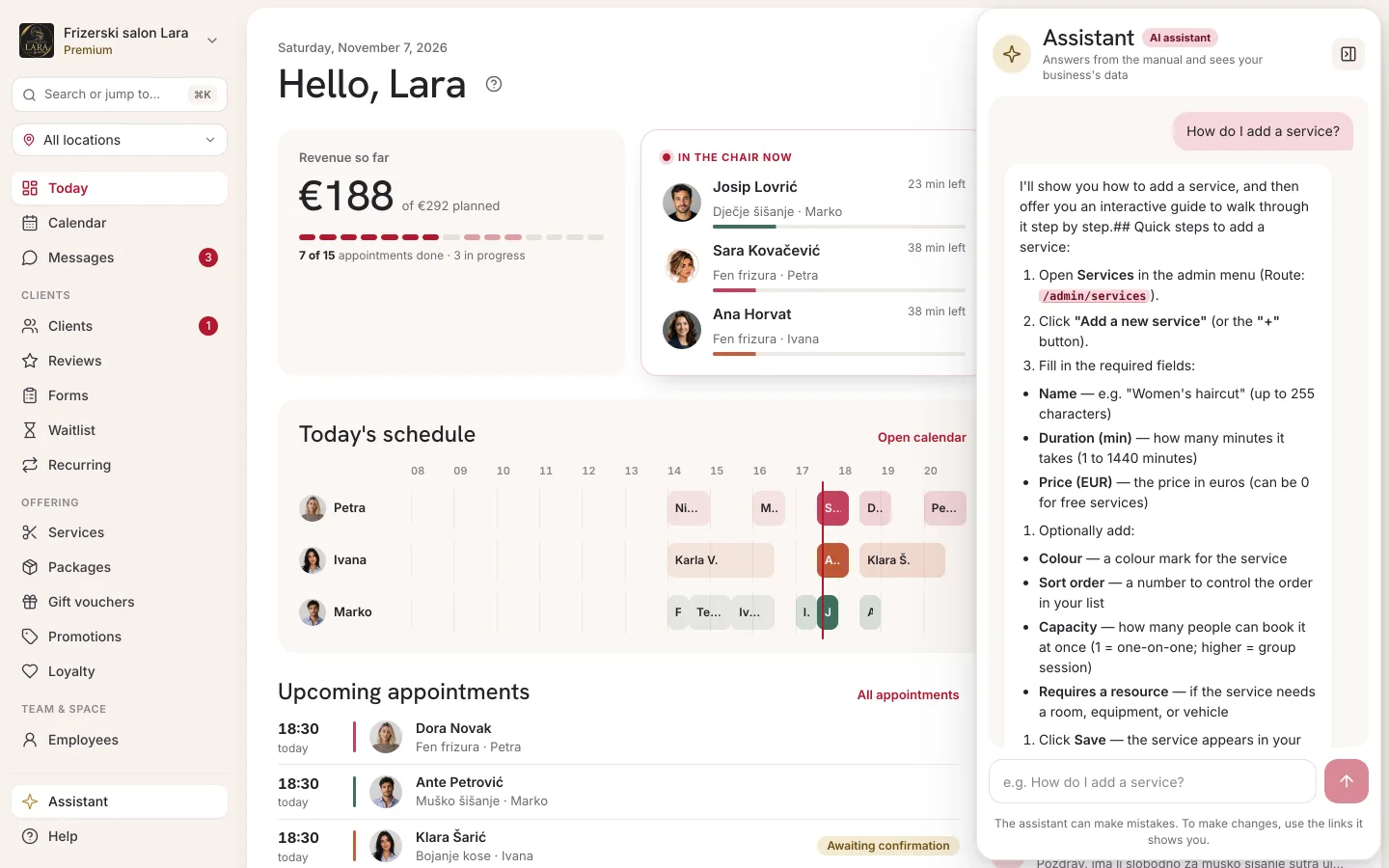
If the assistant can't help you, or its answer doesn't match what you see in the app, send a ticket to the Appointa team.
Sending a ticket to the Appointa team
The Support page in the admin area is your channel to the Appointa team: for reporting a bug, a billing question, suggesting a new feature or any other question about your account.
Who can send a ticket
- The Support page is visible to the Owner and Manager. It's in the account menu: click the business card at the top of the sidebar and choose Business → Support.
- The Staff role doesn't have this item and can't open the Support page or send a ticket from the app. Staff members should ask the owner or a manager, or write to us through the contact form.
- Tickets belong to the business: the owner and managers see all of their business's tickets in the list, not just their own.
Sending a ticket
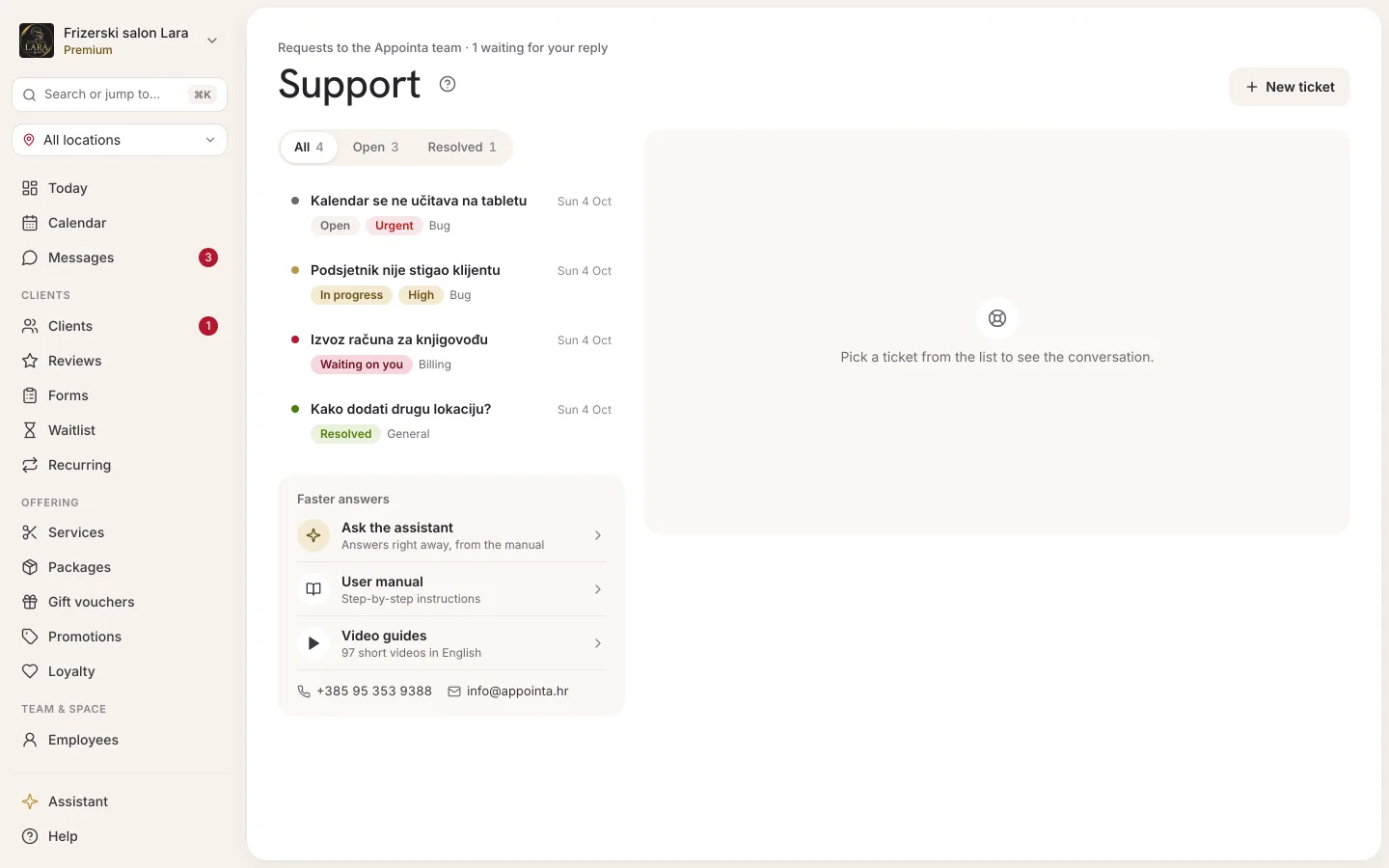
- Click the business card at the top of the sidebar and choose Support.
- Click New ticket. The New ticket panel opens on the right.
- Enter a Subject — short and specific, for example “Reminder didn't reach a client”.
- Choose a Category and Priority (described in the table below).
- In Description, write what happened — see What to include in a ticket.
- Click Send ticket. The ticket appears at the top of the list with the Open status.
The Send ticket button becomes active once the subject has at least 3 characters and the description at least 10. If sending fails, the panel shows “Failed to send. Please try again.” — your text stays in place, so just click again. Cancel closes the panel without sending.
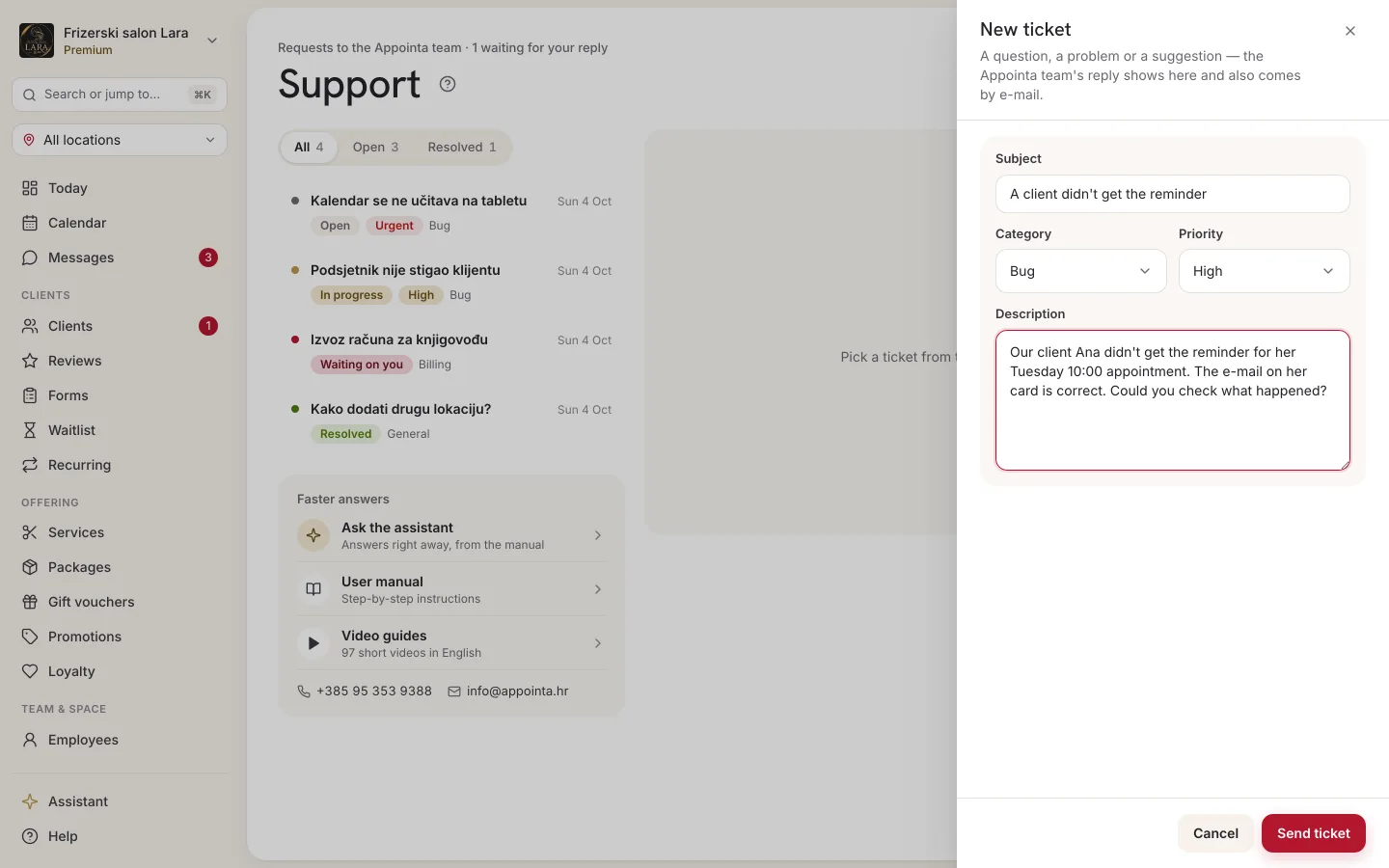
| Field | What you enter | Note |
|---|---|---|
| Subject | A short description of the problem or question | At least 3 characters. You recognize the ticket in the list by its subject. |
| Category | Bug, Feature, Billing or General | The default is General. Bug is for something that doesn't work as it should, Feature for an idea or a capability you're missing, Billing for your subscription, payments and subscription invoices. |
| Priority | Low, Normal, High or Urgent | The default is Normal. Choose Urgent when the problem stops you from working, for example clients can't book. |
| Description | Everything we need to know about the problem | At least 10 and at most 4,000 characters. You can't add attachments. |
The reply and continuing the conversation
When the Appointa team replies, the ticket gets the In progress status, and the person who sent the ticket usually also gets an email with the subject “Support reply — [ticket subject]”, the text of the reply and an Open conversation button. If that person doesn't have an email address, the email goes to the business's contact email. That email isn't guaranteed: Appointa can switch it off, and if sending fails, it isn't retried. That's why the reply is always on the Support page:
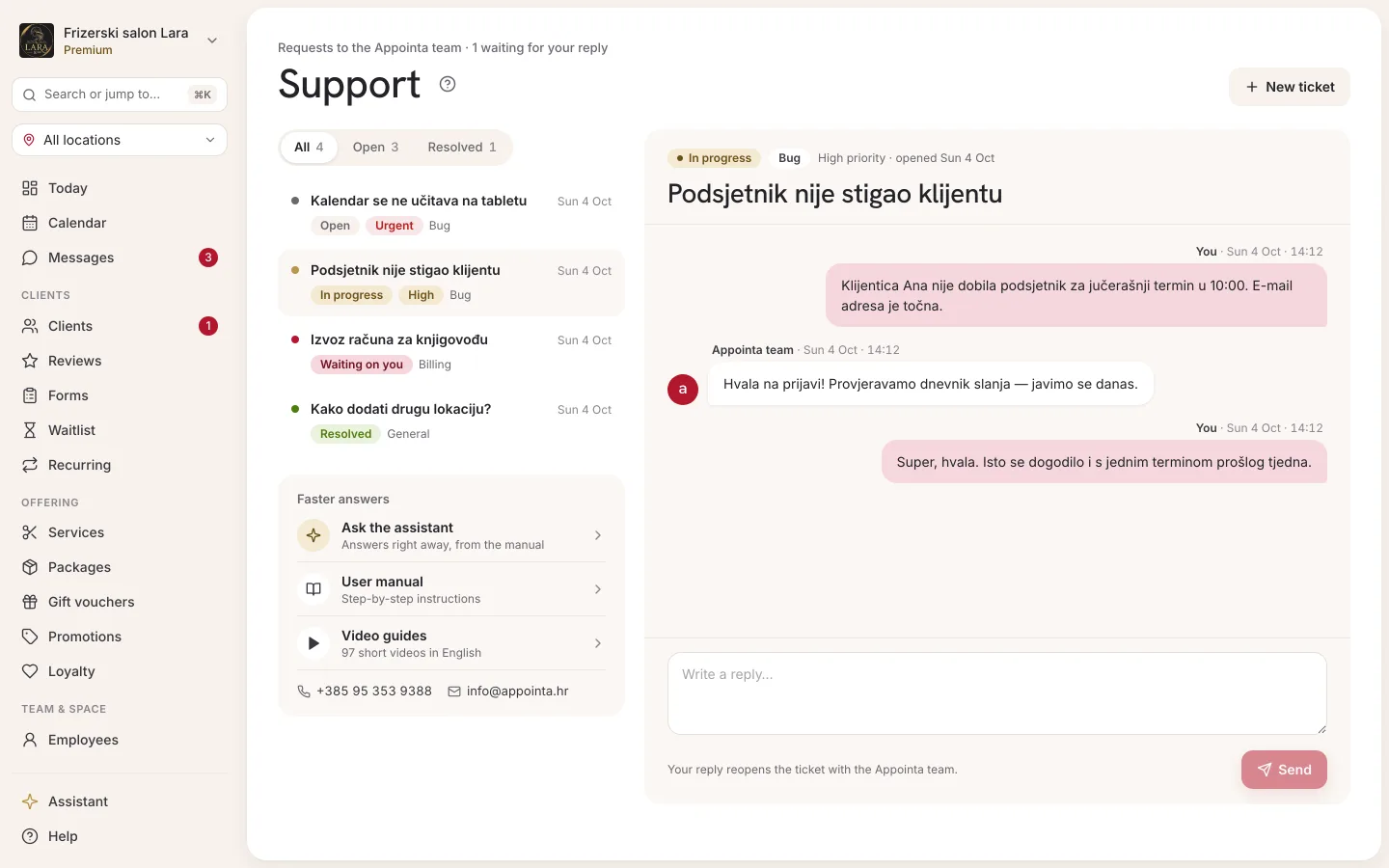
- Click the ticket in the list. A panel opens with the ticket's subject, and below the subject are its status, category and priority.
- In the conversation, your business's messages are labeled You (including those written by someone else on your team), and the replies are labeled Appointa team, with the date and time.
- To continue, type a message in the Reply... field and click Send.
The ticket list is sorted by the latest message, so the ticket with the most recent activity is at the top. Next to each ticket's subject are its status, category and the time of the last message, and the priority is highlighted only when it's High or Urgent.
Ticket statuses
| Status | What it means |
|---|---|
| Open | The ticket is waiting for a reply from the Appointa team. A ticket also gets this status when you add a new message to it. |
| In progress | The Appointa team has replied and is working on the ticket. |
| Waiting on you | The Appointa team is waiting for your reply or for some information. Reply in the ticket's conversation. |
| Resolved | The problem has been solved. |
| Closed | The ticket is closed. |
What to include in a ticket
The more specific the description, the fewer questions it takes to solve the problem. A good description answers these points:
- What you were trying to do — for example, “Move an appointment to another day”.
- Where — the page and the path through the menu, for example Calendar → week view, or the Appointa Pro app on your phone.
- What you did, step by step.
- What happened, and what you expected. If a message appeared, copy its text word for word.
- When — the date and approximate time, especially if the problem happened only once.
- Which appointment or client it's about — the date and time of the appointment and the service are usually enough. Include the client's personal details only if they're essential.
- Device and browser — for example, a computer with Chrome or an iPhone with the Appointa Pro app.
Example of a good ticket:
- Subject: Client can't see any free slots with Ana
- Category: Bug · Priority: High
- Description: “Since this morning, clients on the public page can't see a single free slot with our employee Ana for the Women's haircut service, though they can with the other employees. Ana has shifts Mon–Fri 9–17 and isn't on leave. I can enter an appointment for her in the calendar. I tried in Chrome on a computer and on a phone.”
Before sending a ticket about free slots, also check the most common causes in Frequently asked questions about the public page — the fix may be two clicks away.
Contact form and email
The contact form and email are for everyone, even without an Appointa account. Use them when you can't send a ticket from the app: when you can't sign in, when you don't have the owner or manager role, or when you're still deciding.
- Form: on the appointa.hr home page, in the contact section, fill in Name, Email and Message, then click Send enquiry. When “Thanks for reaching out!” appears, your message has arrived. The Contact button at the bottom of every manual page also takes you to the form.
- Email: [email protected]
If you send the form several times in a short time, you'll see “Too many attempts. Please wait a moment and try again.” Wait a little or write to the email address.
Also use this route to get in touch when:
- even after Send again no link to confirm your email address arrives, so you can't finish signing up (see Signing up and signing in),
- you want to delete your account and don't use either mobile app (see Deleting your account),
- you want to close your business and remove its data — cancel your subscription first, then get in touch with us (see Leaving a business).
If you're an owner or a manager, you can also send these requests as a ticket from the app (the Support page). Use that route to get in touch too when:
- you need to change the role of, or remove access for, another owner — owners can't be changed in the app (see Changing a role and removing access),
- you need to change the email address you sign in with (see My account).
Free setup help
If you don't have time to set up your business yourself, we'll set it up with you, free of charge. In a half-hour call we go through your services, employees and booking rules together. Consultations are also available for larger teams.
- Get in touch through the contact form on the home page or at [email protected].
- In your message, include the name of your business, your industry and how many employees you have.
- We'll arrange a time for the call.
When we reply
Support works on weekdays, Monday to Friday, and aims to reply within 24 hours. When the Appointa team replies to a ticket sent from the app, the person who sent it usually also gets an email. The email isn't guaranteed, so if you're waiting for a reply, check the Support page now and then too.
While you wait for a reply, check the manual and the assistant — many questions have an answer straight away.
If you're a client of a business
If you book with a business through Appointa, contact that business directly about appointments, prices, cancellations and any arrangements — the business manages its appointments, not the Appointa team:
- send it a message in the Appointa app (see Messages),
- or contact it by phone or email using the details on its public page.
You delete your Appointa account yourself in the Appointa app, as described in Deleting your account. Deletion also removes the account's email address.
Frequently asked questions
Is support available on the free plan too?
Yes. The Support page is available on every plan, including Starter, and anyone can use the contact form. Help with setting up your business is free.
Can I send a screenshot with a ticket?
No — tickets don't have attachments. Describe what you see and copy the exact text of the error message. If the Appointa team needs more information, the question arrives in the ticket's conversation and the ticket gets the Waiting on you status.
An employee has a problem with the app. Who sends the ticket?
The owner or a manager, from the Support page. In the description, include the employee's name and whether it's about the web or the Appointa Pro app. The employee can also write to us themselves, through the contact form.
Where can I see tickets sent by someone else on my team?
On the same Support page. The owner and managers see all of their business's tickets; the email about a reply, when it's sent, goes to the person who sent the ticket.
Which is better: the assistant or a ticket to the team?
For “how do I…” questions, the assistant and the manual answer straight away. Send a ticket to the team when something doesn't work as described, when the question is about your subscription or account, or when you want to suggest a new feature.