Recurring appointments
How to turn an appointment into a recurring series (every week, every 2 or 4 weeks, one or more days), how far ahead it books and how to end it.

Clients who come at a steady rhythm — a haircut every four weeks, therapy every Monday, training on Tuesdays and Thursdays — don't have to book again every time. You set up a recurring appointment once, and Appointa books the appointments ahead, always on the same day, at the same time and with the same employee. On this page you'll learn how to set up a series, how far ahead appointments are added, what happens when a slot is taken, and how to end a series.
Before you start
- Recurring appointments are available on the Pro and Premium plans. On the Starter plan, the button and the menu item aren't shown.
- Every role can set up a series from the appointment details. The Recurring menu item is visible to the owner and managers, and only they can end a series.
- The starting appointment must be linked to a client (not Walk-in), must have a service and an employee, must have the Pending or Confirmed status, and mustn't already be part of a series.
How recurring appointments work
A recurring appointment is a rule: the client, service, employee, day of the week, time and rhythm (every week, every 2 or every 4 weeks), plus an optional end date. The day of the week and the time are taken from the starting appointment.
- Appointments are added straight away. As soon as you set up a series, Appointa enters real appointments with the Confirmed status for all dates up to your booking limit. The limit is the How far ahead clients can book setting in Settings → Bookings. If that field is empty (no limit), appointments are added 90 days ahead. That way a regular client has their slot before someone else books it online.
- The series tops itself up. Once a day, in the early morning hours, Appointa adds new dates as they come into that period.
- Appointments in a series behave like ordinary appointments. The client gets a reminder about 24 hours before, and in the calendar they carry the two-arrows-in-a-circle icon and the Recurring label in the details.
- The price of each appointment entered is the service's price from your price list at the time it's entered — not the price of the starting appointment. If you gave the starting appointment a manual discount, future appointments don't have it.
- For a service that requires a resource (a room, a piece of equipment), Appointa reserves a free resource for each date, preferably the same one as in the starting appointment.
- Times are always in the salon's time zone: an appointment at 14:00 stays at 14:00 even when the client travels to another time zone.
Setting up a recurring appointment
- In Calendar, open the client's appointment that should become recurring (e.g. today's appointment, where they've just arranged the next visit).
- In the appointment details, click Make recurring.
- Under How often?, choose Every week, Every 2 weeks or Every 4 weeks.
- Under Weekdays, tick extra days if needed (see below). The day of the starting appointment is always included and can't be unticked.
- If the series should only run until a certain date, choose it in the Ends on (optional) field. Without a date, the series runs until you end it.
- Click Set up. The panel closes, and the series' future appointments appear in the calendar.
If setting it up fails, you'll see “Setting up the recurring rule failed. Try again.” and the panel stays open.
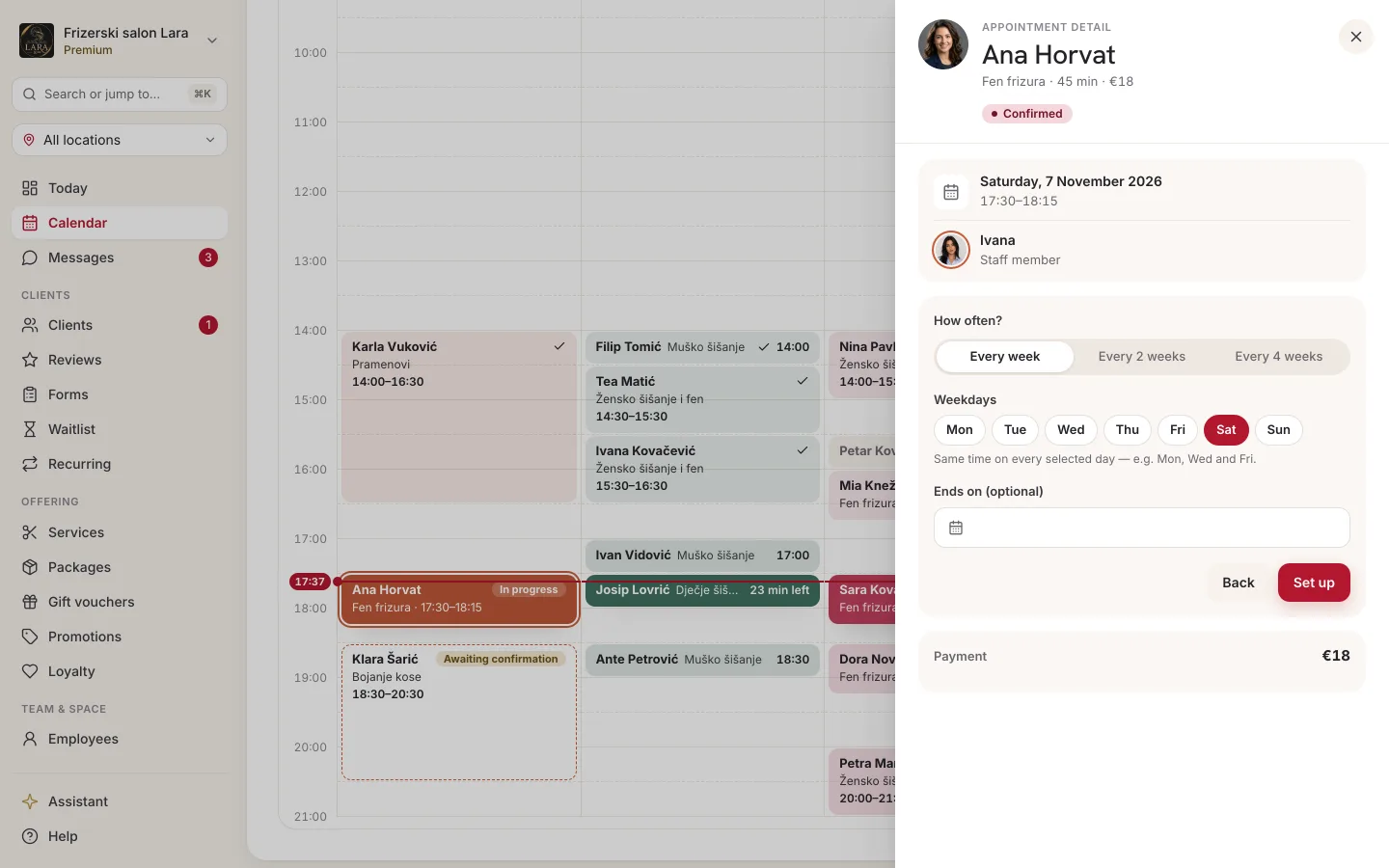
Several days a week
For a client who comes several times a week (e.g. Mondays, Wednesdays and Fridays at 10:00), tick all of those days under Weekdays. Below the buttons it says “Same time on every selected day — e.g. Mon, Wed and Fri.”
- A separate rule is created for each selected day, with the same time, rhythm and end date. In the list of recurring appointments, these rules carry the series label.
- The first appointment on an extra day is the first such day after the starting appointment — a series never starts backward.
- If the service has a set schedule (e.g. a group class that only runs on Tuesdays and Thursdays), the extra day must be in that schedule. Otherwise you'll see “The service's schedule does not run on the selected days:” with a list of the days. Service schedules are described on the Group classes and schedules page.
Dates that are taken
Appointa never double-books. If on a date in the series the employee already has an appointment at that time (or there's no free resource for the service), that date is skipped and the series continues with the next date.
- When you set up the series, skipped dates aren't listed. So after setting it up, look through the calendar for the next few weeks and arrange a replacement appointment with the client for any skipped dates.
- During the daily top-up, Appointa notifies both sides about a skipped date: a client with the Appointa app gets a push notification that the appointment needs to be moved, and your staff get a push notification in the Appointa Pro app.
Viewing all recurring appointments
In the sidebar, select Recurring. A list of all series in your business opens, ten per page.
| Column | What it shows |
|---|---|
| Client | The client's name and their phone number or email. |
| Service | The service in the series. |
| Employee | Who carries out the appointments. |
| Frequency | The rhythm, day and time, e.g. “Every 2 weeks · WED 10:00”. The series label means the rule belongs to a group covering several days of the week. |
| Next | The date of the next appointment Appointa has yet to add to the calendar. Appointments up to that date are already entered. |
| Status | Active, Paused or Ended. |
| Actions | A bin icon (End) for active and paused series. |
If there are no series yet, you'll see “No active recurring appointments” with instructions on how to set one up.
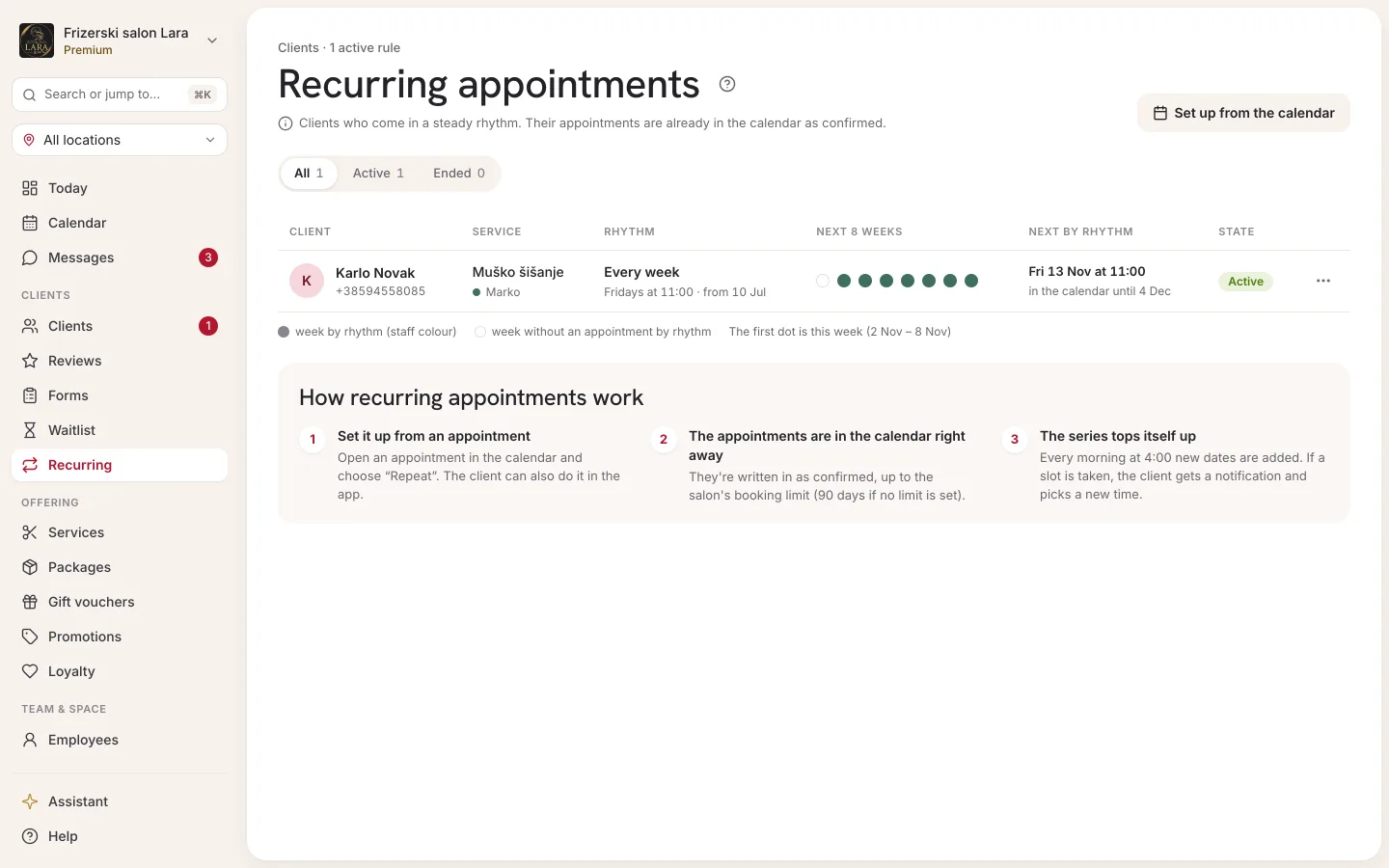
A series on the client's profile
On the profile of a client with at least one series, a Recurring appointments section appears. For each series you can see the service and employee, the rhythm, day and time, and the status, and you can end the series with the bin icon. Handy when a client calls and asks “When am I coming in again?”. The rest of the profile is described on the Client profile page.
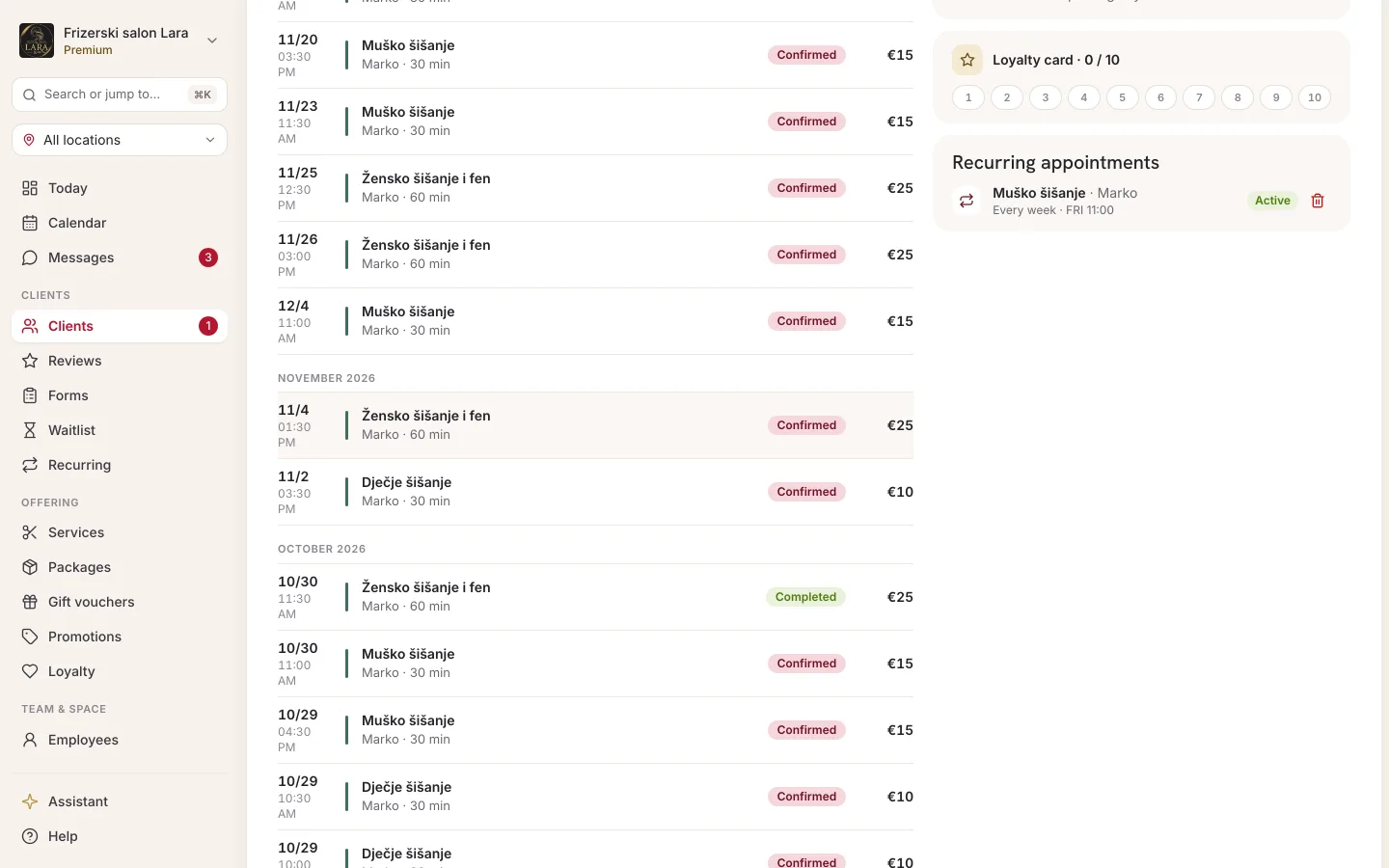
Changing or cancelling a single appointment
Every appointment entered by a series is an ordinary appointment. You can move it, cancel it, mark it as a no-show or complete it like any other (see Appointment details and statuses). The rest of the series stays untouched, and the series doesn't re-enter a cancelled date.
You can't change the rhythm, day, time or employee of an existing series. For a different rhythm, end the old series and set up a new one from one of the client's appointments.
Ending a series
- Open Recurring (or the client's profile).
- In the series' row, click the bin icon (End).
- You're asked “End the recurring rule?” with the explanation “Future appointments won't be auto-generated. Existing scheduled appointments stay as they are.”
- Click Yes, end. The series' status changes to Ended.
What the client can do
A client with the Appointa app can also turn their own appointment into a recurring one. They see their series in the app and can pause, restart or end them. While a series is Paused, Appointa doesn't enter new appointments, and the ones already entered stay. You'll find more about the client app in The Appointa app for clients.
Frequently asked questions
Can a client who doesn't have the app have a recurring appointment?
Yes. You set up the series from the appointment details, and the client gets reminders by email or SMS, just like for other appointments.
How far ahead are appointments entered?
Up to the limit in the How far ahead clients can book setting, or 90 days if no limit is set. If you increase the limit later, the series is topped up during the next daily top-up.
Why is there no Make recurring button?
Check: is the plan Pro or Premium, is the appointment linked to a client, is it pending or confirmed, and is it not already part of a series?
Does a series create double bookings?
No. A date that's taken is skipped (see Dates that are taken).